Portal_Manual_1.2.1_Rev_H-1.pdf - 第60页
Portal PVA Revisio n H ( 2018 ) 60 of 93 11.1 To Add a User A cco unt 1. Select “ Add User ”. Fig ure 55 : Select "Add User" 2. Under Us er Login , t ype the U sername, Pas sword, and Re E nter P as swo rd . 3.…
Portal
PVA
Revision H (2018)
59 of 93
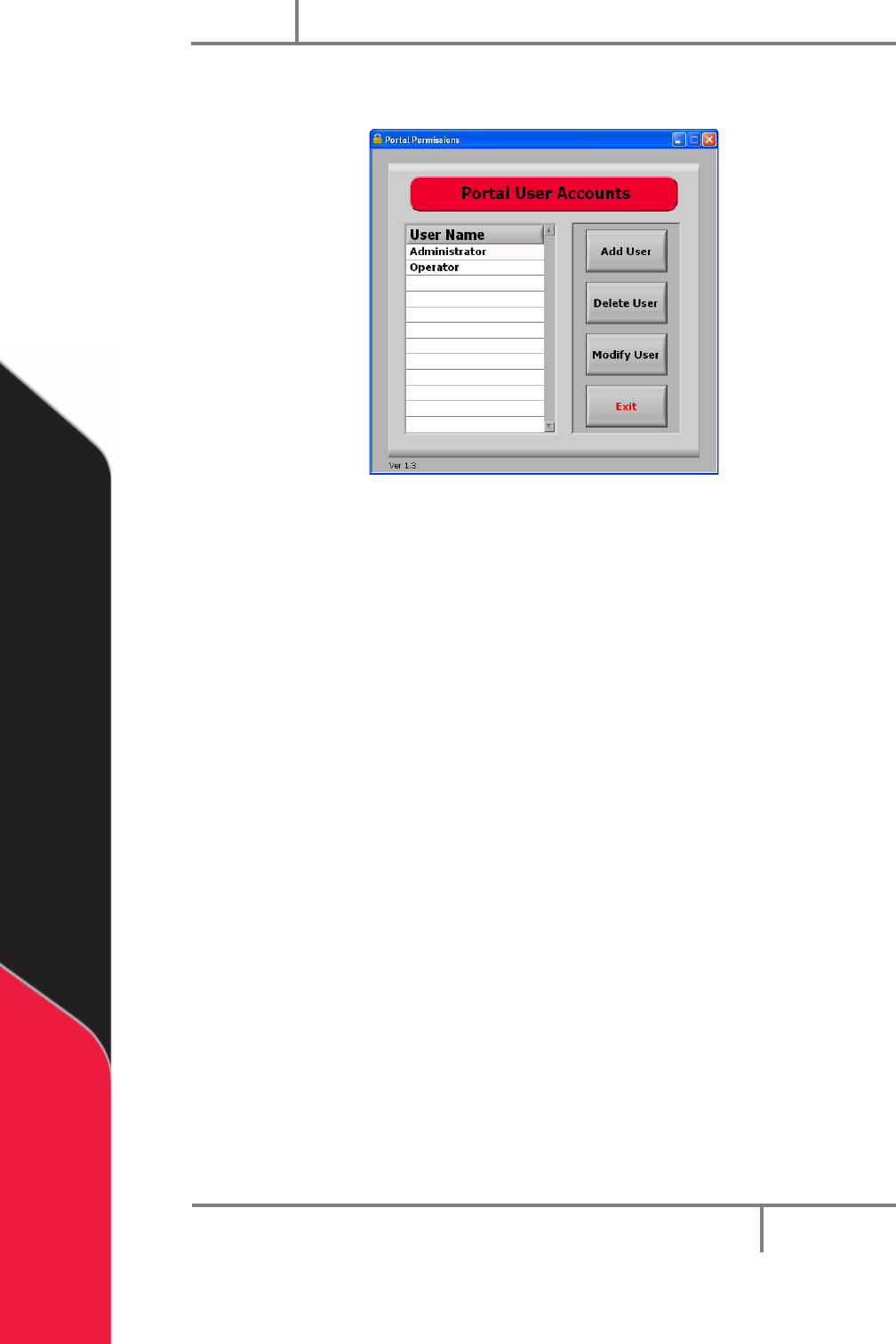
3. When the administrator is logged in, you have access to portal user accounts
and can select the permissions for each user.
Figure 54: User Accounts
Portal
PVA
Revision H (2018)
60 of 93
11.1 To Add a User Account
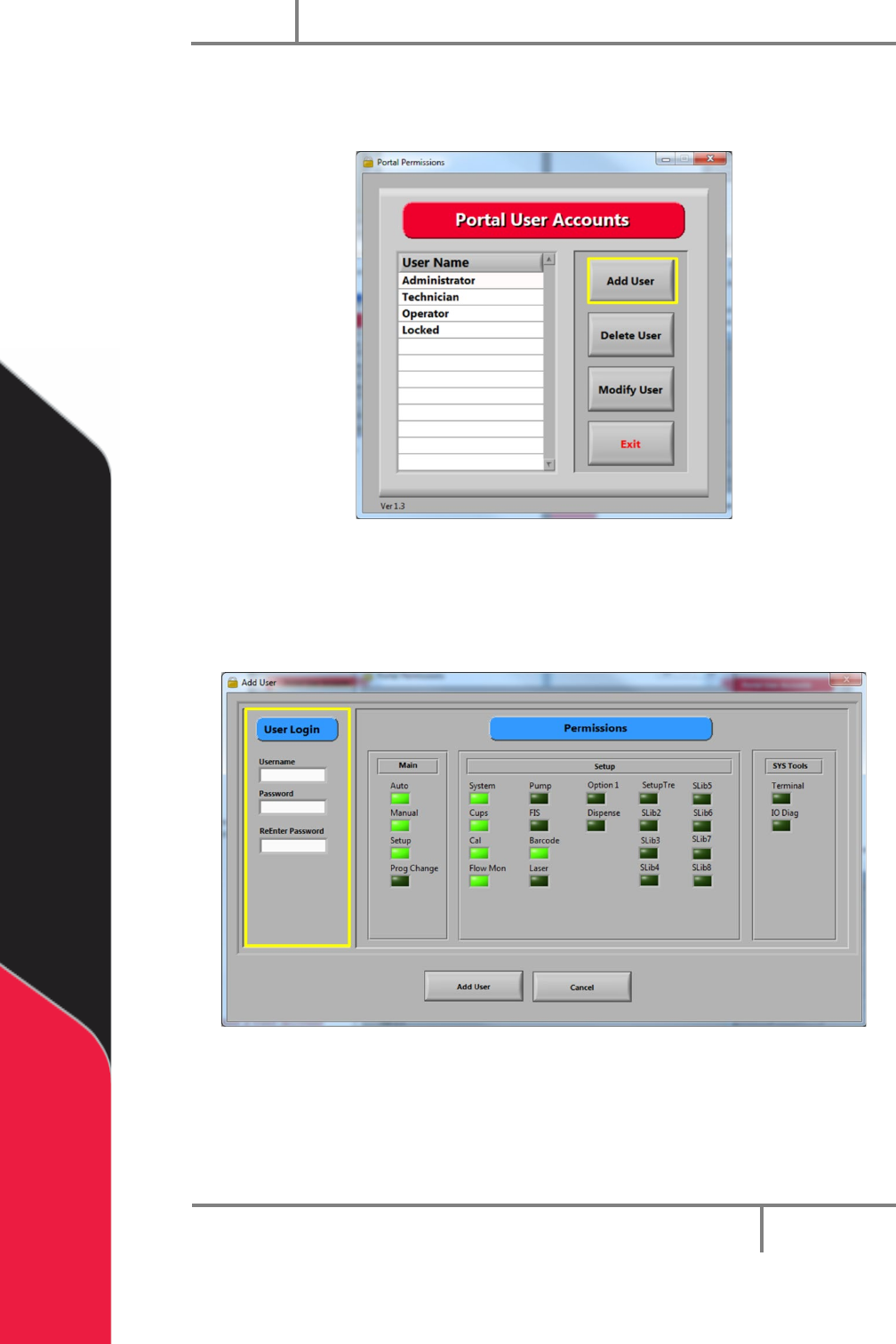
1. Select “Add User”.
Figure 55: Select "Add User"
2. Under User Login, type the Username, Password, and ReEnter Password.
3. Select the correct Permissions for the user, click on the related permissions
boxes. When selected, the boxes will be bright green.
Figure 56: Add User and Permissions
4. Select “Add User”.
5. Do steps 1-4 as many times as necessary to set up all users.
6. Select “Exit” to save and close portal user accounts.
Portal
PVA
Revision H (2018)
61 of 93
11.2 To Modify User Accounts
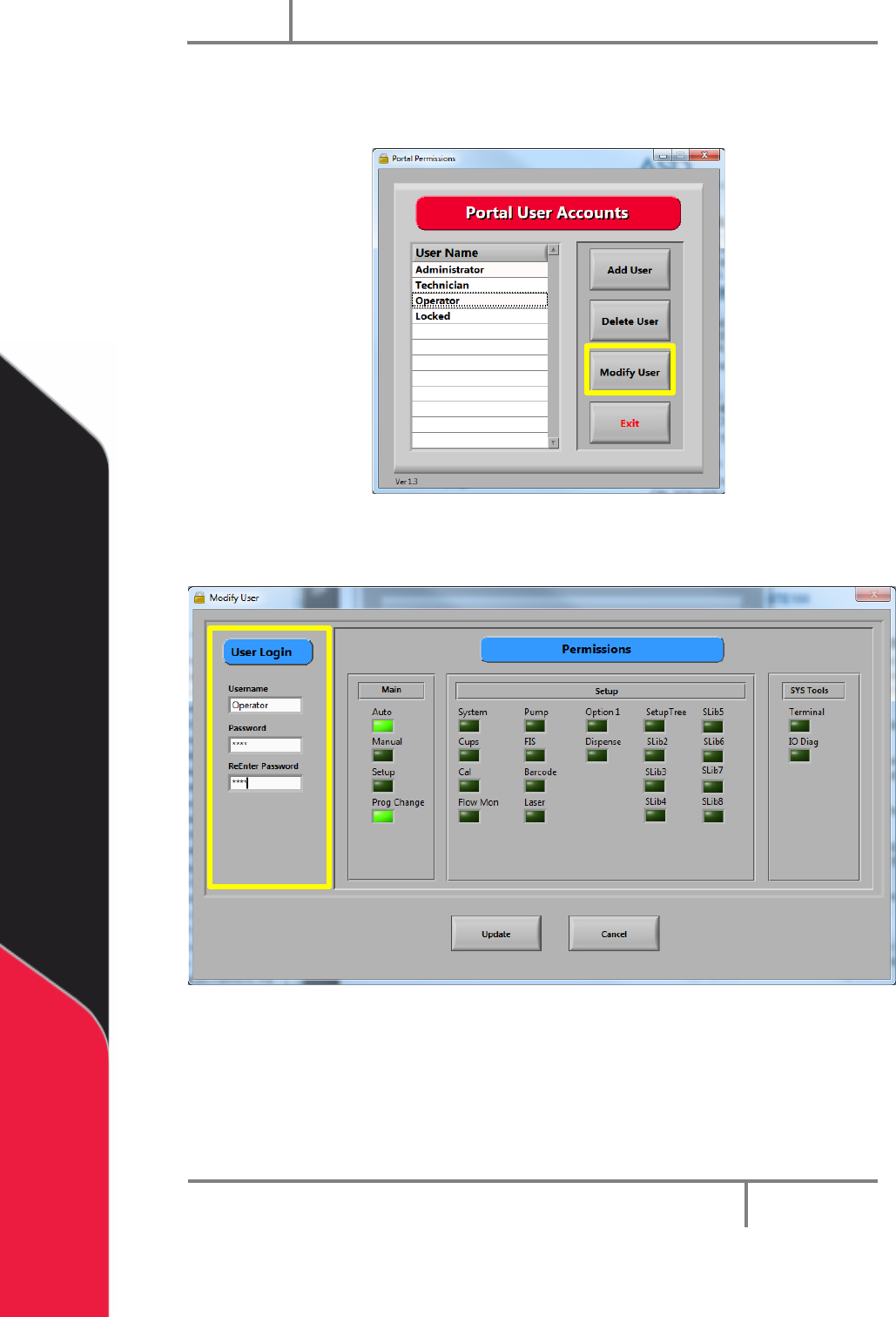
1. Select the User Name you want to change.
Figure 57: Select a User
2. Select “Modify User”.
Figure 58: Modify User
3. Change the user settings. Select new permissions, or change the user password.
4. Select “Update” to save.