00195988-03_IM_SWS-Software-3.0_DE_EN.pdf - 第138页
Installation Manual SIPLACE SWS Software 3.0 Edition 12/2014 138 4 Fig. 91 Entry of capwd Press and hold the CTRL + SHIFT keys and enter the following: capwd 4 Fig. 92 Entry of password Enter your p assword. Confir…
Installation Manual SIPLACE SWS Software 3.0
Edition 12/2014
137
4 Update Installation and Backup
4.1 Update
4
4
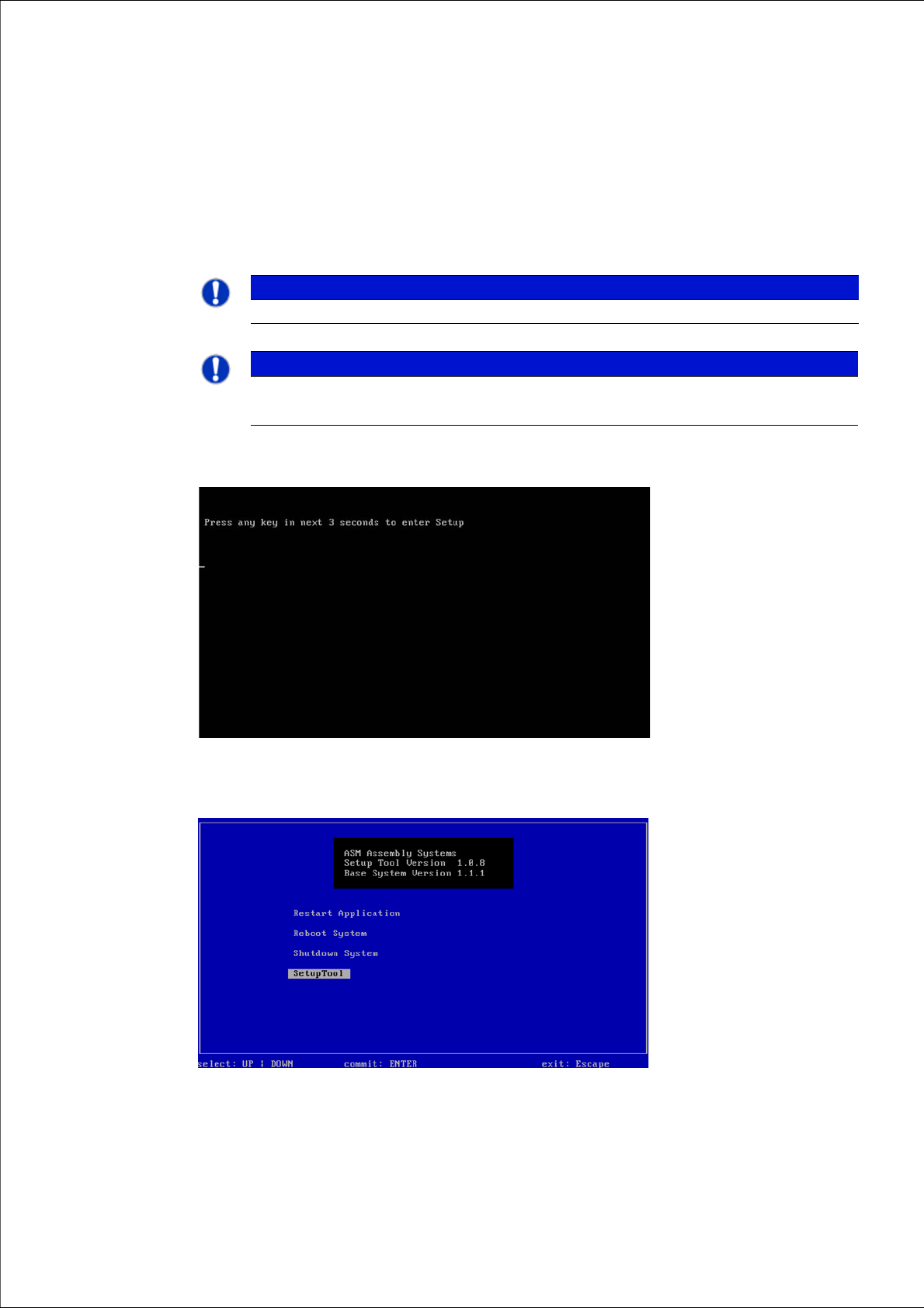
Press any button to access the start window.
4
Fig. 89 Pressing any button to access the start window.
Use the arrow keys to navigate to the Setup Tool.
4
Fig. 90 Start window
Confirm the SetupTool with Enter.
PLEASE NOTE
A software update is only available if the software has already been installed.
PLEASE NOTE
You can choose between two options for the installation.
Use the arrow keys on your keyboard to select the required option.
Installation Manual SIPLACE SWS Software 3.0
Edition 12/2014
138
4
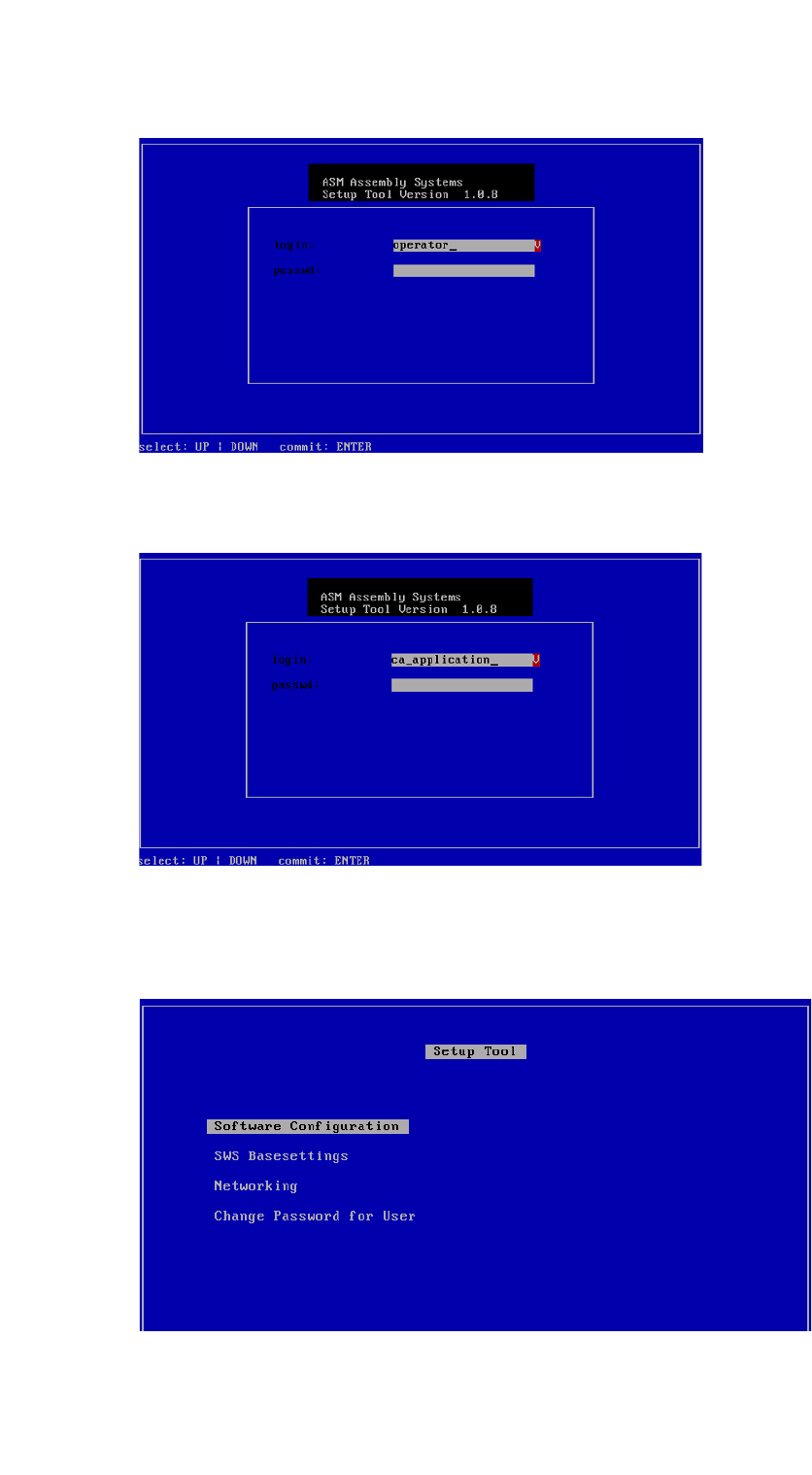
Fig. 91 Entry of capwd
Press and hold the CTRL + SHIFT keys and enter the following: capwd
4
Fig. 92 Entry of password
Enter your password.
Confirm with Enter.
4
Fig. 93 Setup tool menu
Installation Manual SIPLACE SWS Software 3.0
Edition 12/2014
139
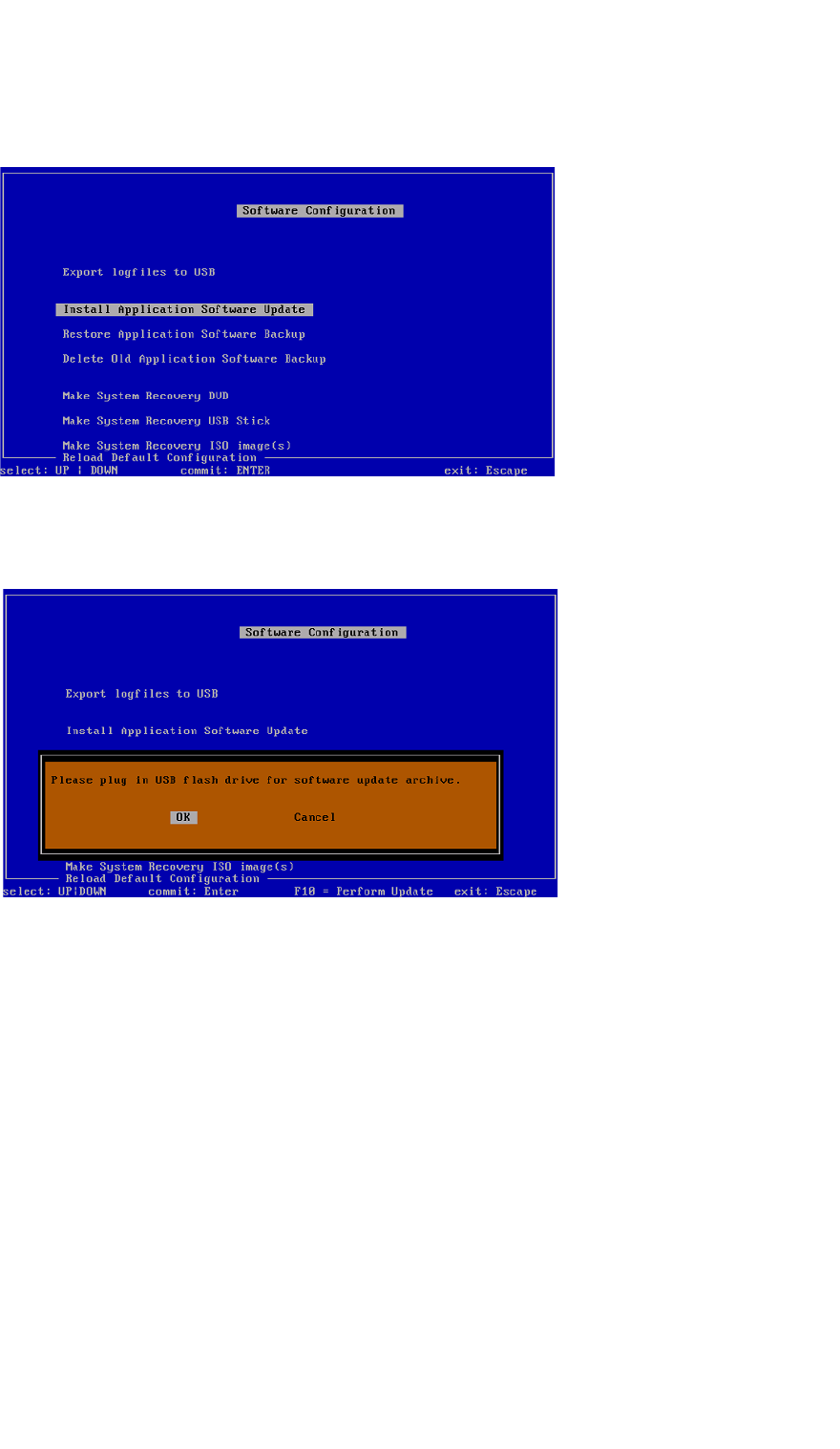
Confirm the Software Configuration with Enter.
4
Fig. 94 Software configuration menu
Confirm the Install Application Software Update with Enter.
4
Fig. 95 Notification: Connecting the USB stick
Confirm OK with Enter.
Connect a USB stick to the USB slot on the keyboard of your computer.