00195988-03_IM_SWS-Software-3.0_DE_EN.pdf - 第36页
Installationsanleitung / Installation Manual SIPLACE SWS Software 3.0 Ausgabe 12/2014 Edition 36 3 Abb. 48 Menü des Setup Tools - SWS Basesettings Bestätigen Sie SWS Basesettings mit Enter . 3 Abb. 49 Nummer des Stellp…
Installationsanleitung / Installation Manual SIPLACE SWS Software 3.0
Ausgabe 12/2014 Edition
35
3
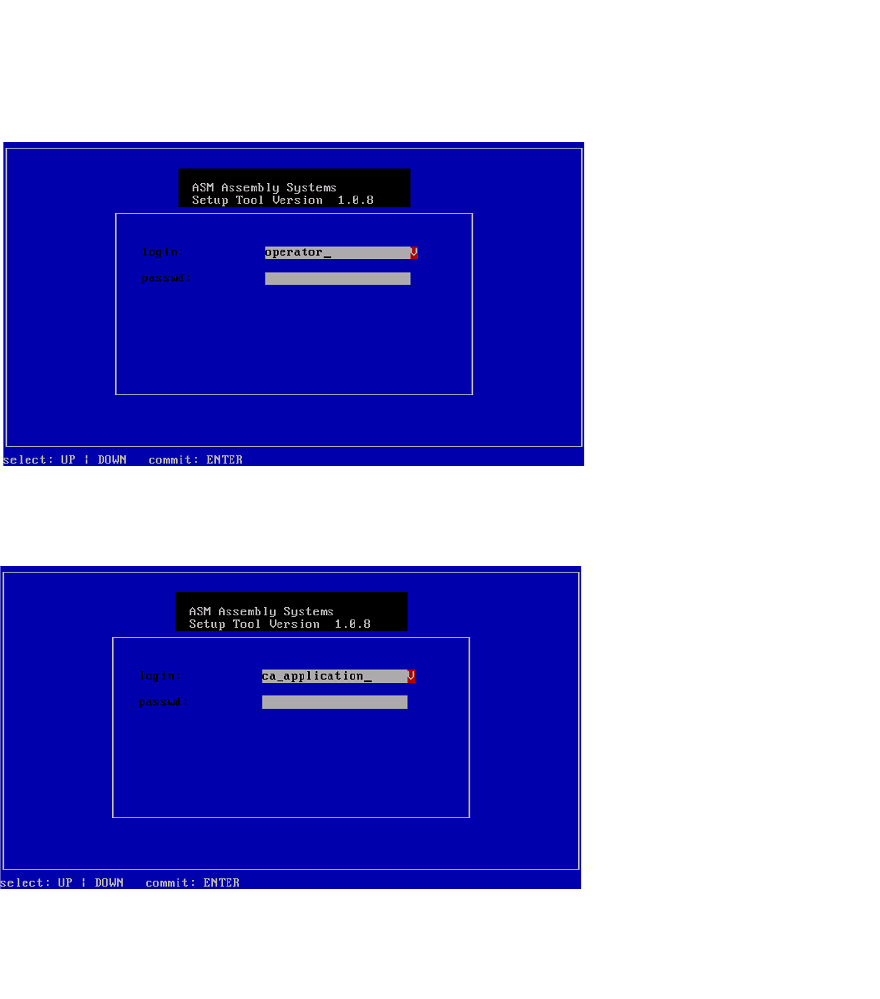
Abb. 46 Eingabe capwd
Halten Sie die Tasten CTRL + SHIFT gedrückt und geben Sie Folgendes ein: capwd
3
Abb. 47 Eingabe Passwort
Geben Sie Ihr Passwort ein.
Bestätigen Sie mit Enter.
Installationsanleitung / Installation Manual SIPLACE SWS Software 3.0
Ausgabe 12/2014 Edition
36
3
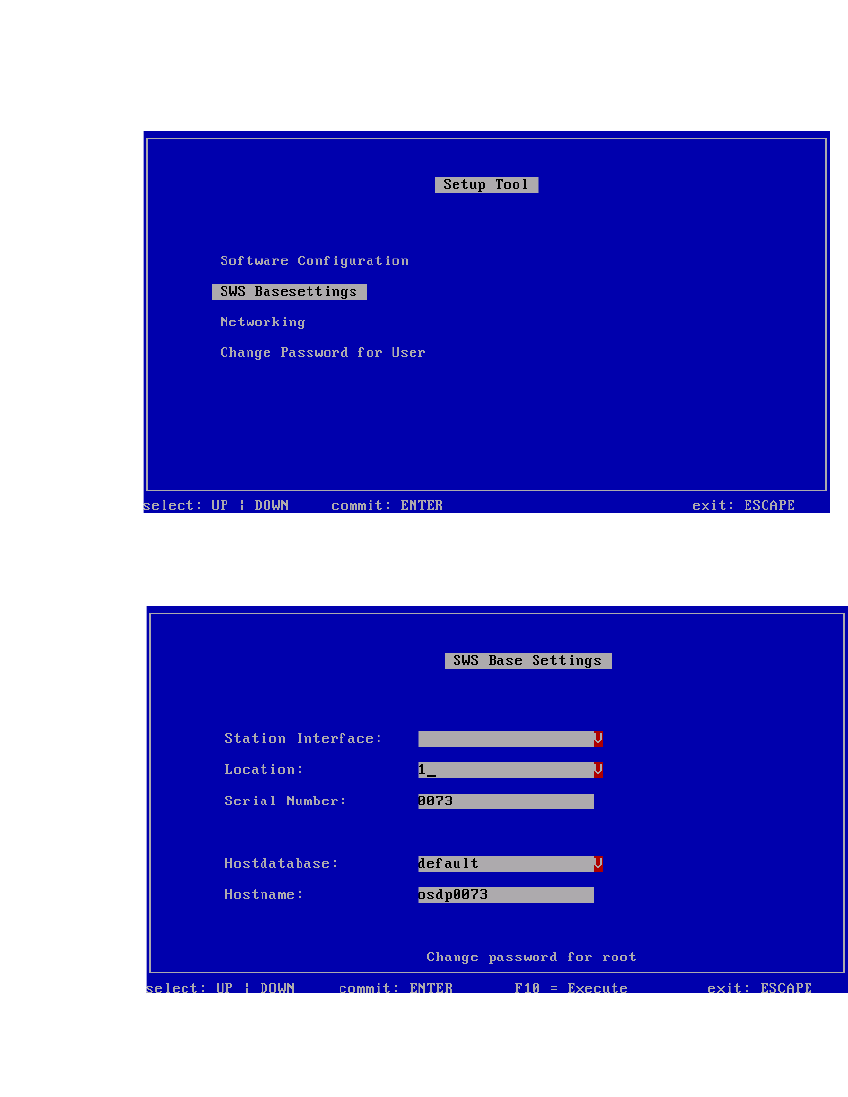
Abb. 48 Menü des Setup Tools - SWS Basesettings
Bestätigen Sie SWS Basesettings mit Enter.
3
Abb. 49 Nummer des Stellplatzes
Wählen Sie Location.
Bestätigen Sie mit Enter.
Installationsanleitung / Installation Manual SIPLACE SWS Software 3.0
Ausgabe 12/2014 Edition
37
3
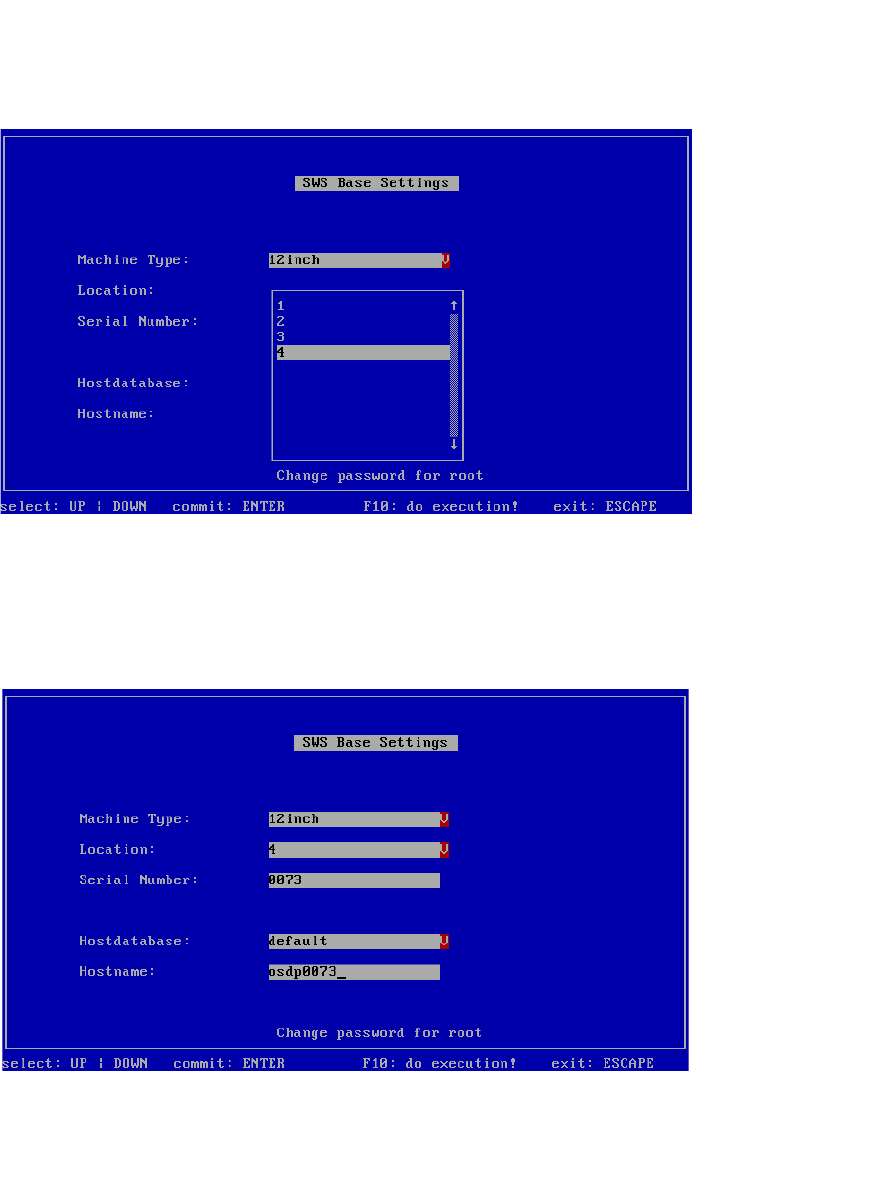
Abb. 50 Nummer des Stellplatzes einstellen
Wählen unter Location die Nummer des jeweiligen Stellplatzes (1-4).
– Hier im Beispiel SWS auf Stellplatz 4.
Bestätigen Sie mit Enter.
3
Abb. 51 Nummer des Stellplatzes eingestellt
– Die Nummer des Stellplatzes ist eingestellt.
Drücken Sie ESC.