SOM-1613-002.pdf - 第14页
13 Tg0780-PM-SO *2 Zero All It is indicated whether or not all devices are zeroed. "-----" : All devices are not zeroed. "Origin" : All devices are zeroed. *3 [Select AII] Button When this button is p…
12 Tg0780-PM-SO
6. Zeroing Operation
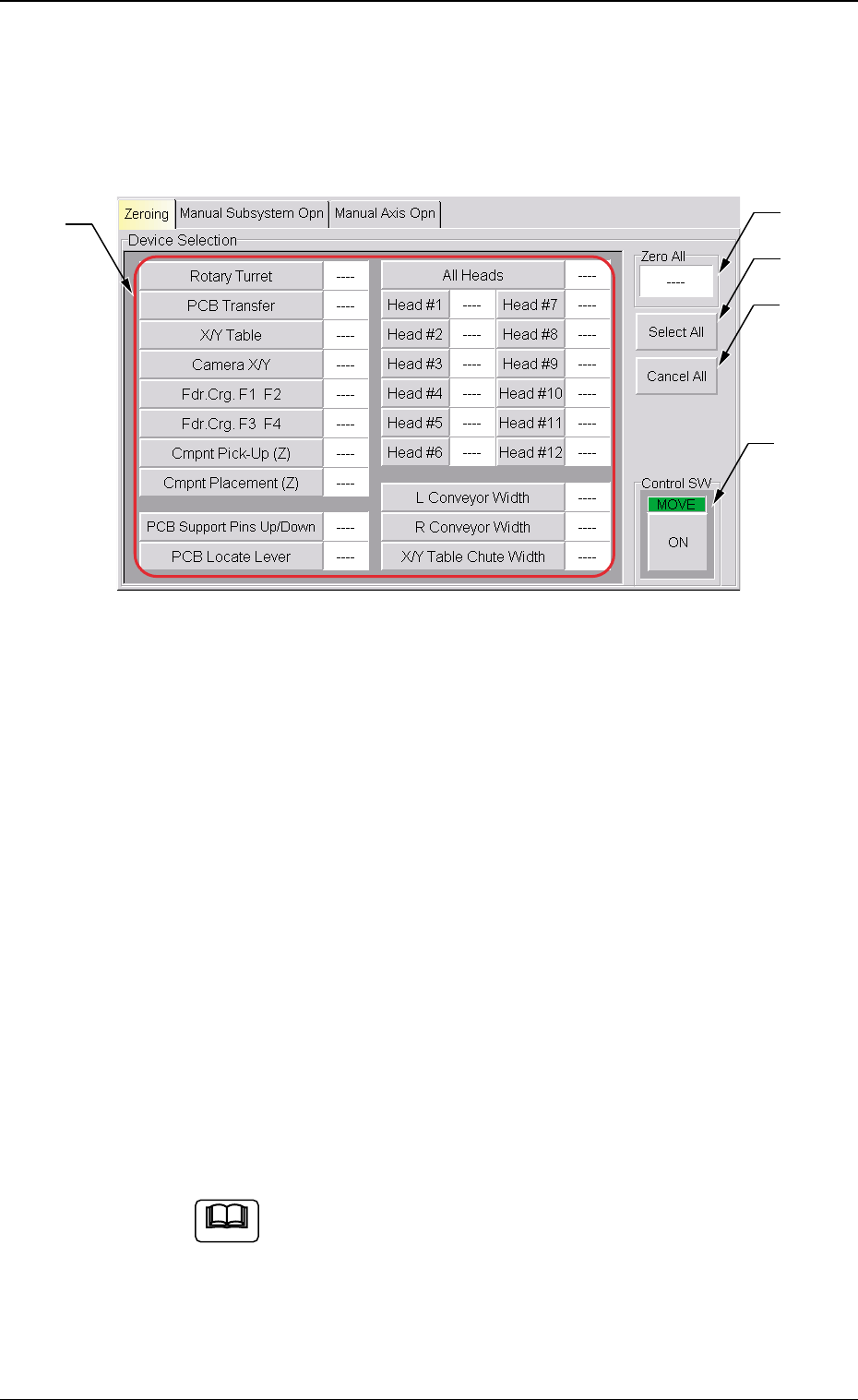
When the [Zeroing] tab is pressed at the "MNL. OPN." window
(submenu), the following tab sheet appears.
• When the current position is indefinite during the setup operation which
interlocks with the overall setup and program change operations se-
lected at the "Product Change" tab sheet, the zeroing operation is
automatically performed and the automatic setup operation is imple-
mented continuously.
• Sheet Composition
*1 Device Selection Buttons
When a button is pressed, the background color turns yellow,
indicating that the device is selected. Pressing the button again
changes the background color to the original one, indicating that
the selection is canceled.
Each button has a box on the right side and the status of the
corresponding device is indicated in the box.
Refer to "Note" in ''*5".
Two or more devices can be selected.
Fig. 5
0209-001
6. Zeroing Operation
*2
*3
*4
*5
*1
Note
13 Tg0780-PM-SO
*2 Zero All
It is indicated whether or not all devices are zeroed.
"-----" : All devices are not zeroed.
"Origin" : All devices are zeroed.
*3 [Select AII] Button
When this button is pressed, all devices (possible to be returned
to their origins) are selected and the corresponding buttons turn
yellow.
The [Select All] button cannot be used to select "L Con-
veyor Width", "R Conveyor Width", "X/Y Table Chute
Width", "P.C.B. Support Pins Up/Down" and “P.C.B. lo-
cate lever”.
*4 [Cancel All] Button
When this button is pressed, the selection of all devices is can-
celed.
*5 Control SW
When the [ENABLE] button on the front operation panel is pressed
in 2 seconds after a device (s) to be zeroed is selected and the
[ON] button (entitled "MOVE") is pressed, the device is zeroed.
(a) After the zeroing operation is completed, "Origin"
appears in the box on the right side of the corre-
sponding button.
(b) When the current position is being managed or
indefinite, "---" appears in the box.
(c) When a head is bypassed, "Bypass" appears in the
corresponding box.
0209-001
6. Zeroing Operation
Note
Note
14 Tg0780-PM-SO0209-001
7. "Origin/Signal Info." Tab
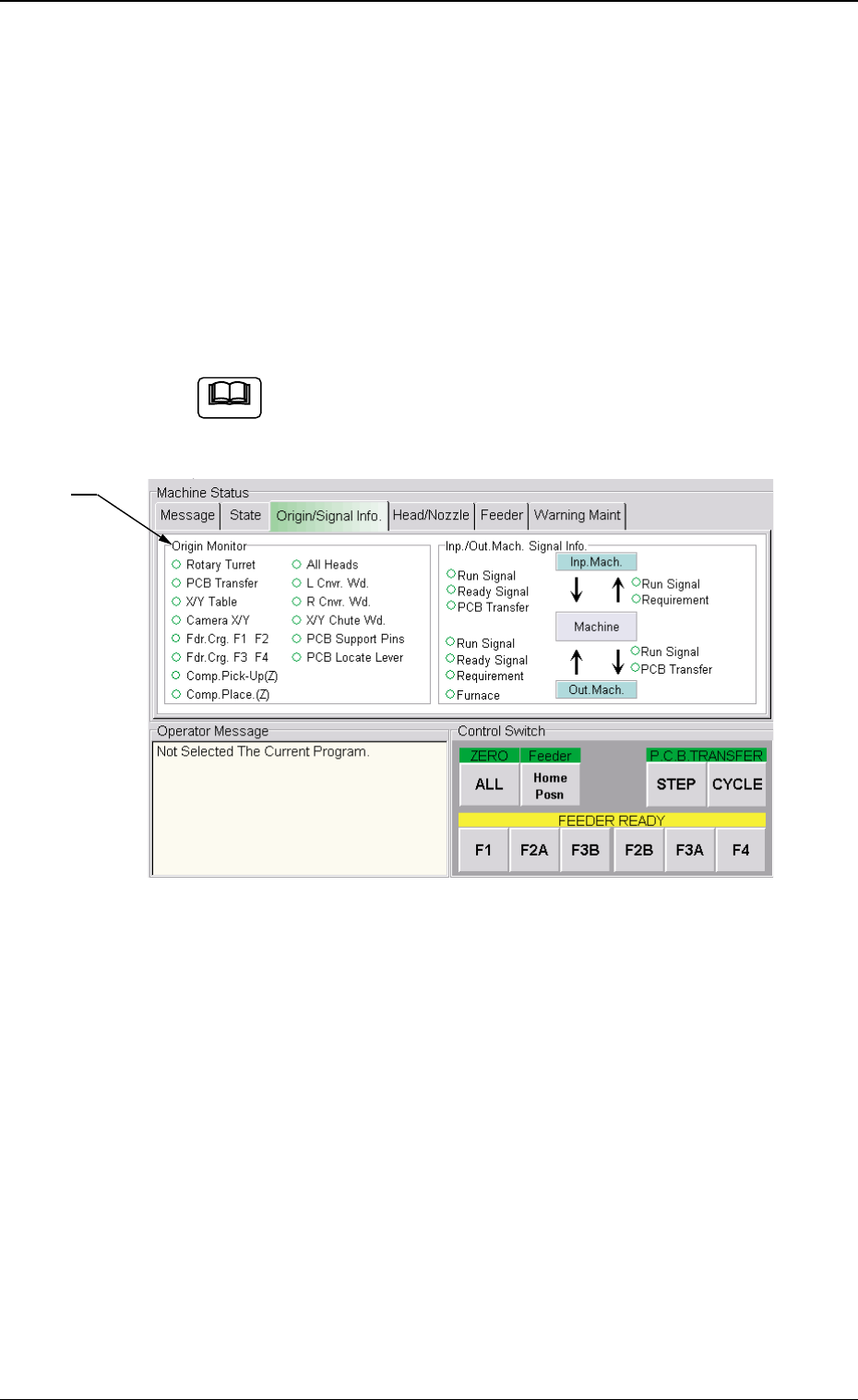
When the ''Origin/Signal Info.'' tab is pressed in the ''AUTO OPN.'' win-
dow (submenu), the following tab sheet appears inside the window.
*1 Origin Monitor
It is indicated whether or not each device is zeroed.
The devices located at their origins are marked with ''z''
The origin information is not displayed while the machine is
running.
When zeroing operation is started, this tab sheet
appears automatically.
Fig. 6
7. "Origin/Signal Info." Tab
Note