SOM-1619-001.pdf - 第18页
18 Tg0590-PM-SO 0301-002 5. Placement Position T each When *6 Step is pressed, a key icon is displayed and the step (consistent with the description displayed by the key icon) is scanned. T wo or more key icons can be se…

17 Tg0590-PM-SO0301-002
5. Placement Position Teach
*9 [Cancel] Button
The temporarily saved teach data is cancelled.
*10 [End] Button
The new placement position teach result is saved and the
teaching operation is ended.
*11 Control Switch
When the [ENABLE] button is pressed on the operation panel
within two seconds after the "Move" [ON] button is pressed, the
device is activated.
5.2 Placement Position Teach Operation Procedure
(1) In order to obtain the deviation tendency of PCB pattern, Select
the [Auto Move] button *7 and then "Move" [ON] button *11.
Then press the [ENABLE] button on the operation panel within
two seconds. Otherwise, press the [Step Move] button *7 and
then "Move" [ON] button *11. Then press the [ENABLE] button
on the operation panel within two seconds. The X/Y table is
moved.
(2) During the X/Y table movement, check the component outer
shape indicated within the window size and pattern condition.
If there is any deviation particular to a certain step, perform the
P-data teaching operation. If the pattern on the unit PCB is
entirely deviated, perform the O-data teaching operation.
(3) Move to the Teach Position
The two ways to move to the Teach Position are as follows:
• Move the X/Y table to the step to be taught using the Auto
Move operation and stop it by using the [STOP] button on the
operation panel.
When step moving, the step is normally scanned for the com-
ponents in order of the placement. The scanning can be fixed
by using U-No., P-No., O-No., and Fdr-No.
18 Tg0590-PM-SO0301-002
5. Placement Position Teach
When *6 Step is pressed, a key icon is displayed and the step
(consistent with the description displayed by the key icon) is
scanned. Two or more key icons can be selected.
Example
When the step is set to 101 for Fdr-No. and Fdr-No. is fixed,
only the steps with the Fdr. No. of 101 are scanned, regardless
of the U-No., P-No., and O-No. Moreover, if the U-No.1 is fixed
additionally, only the steps with U-No. 1 and Fdr. No. 101 are
scanned.
To designate the speed of the Auto Move, each
pressing of the [Auto Move] button changes the speed
to high, middle and low in that order.
• Indicate the step to be taught by using the vertical scroll bar in
the pattern program indication and select the step. Select the
[Step Move] button *7 and "Move" [ON] button *11. Then,
within two seconds, press the [ENABLE] button on the opera-
tion panel.
(a) When the [Desig Step] button *6 is selected on the
lower left of the pattern program indication, the step
can be entered using the ten-key.
(b) The order of step indication on the pattern program
indication is not the same as the order of compo-
nent placement, but U1, P1, 01 → U1, P2, 01 → ...
→ U1, P1, 02 → ... → U2, P1, 01 → ... → Un, Pn,
On, in this order.
(4) Check the component outer shape indicated within the window
size and the view of the land pattern or component, and select
1-Pt or 2-Pt in the "Teach Point" *1.
Teaching at the Center of the Component
Select [Center 1pt (MFOV)] for the teach point setting.
If the component size is too large to include its outline
in the camera view, the shooting is automatically
divided and the image taken is synthesized. Image
taken is divided into max. 25 pieces.
Teaching at 1 point in the center without dividing the
image.
Select Center 1pt (SFOV).
19 Tg0590-PM-SO0301-002
5. Placement Position Teach
Teaching at diagonal 2 point of component
Select "Diagonal 2pt" (Opposite Angles of Component) in the
"Teach Point" box.
In 2-point teaching, when teaching of the first point is com-
pleted, the cursor shifts to the second point automatically.
(5) Check that there is a cursor on the step to be taught.
(6) Check the Teach Point setting and press the [TEACH] button *8.
Then, within 2 seconds, press the [ENABLE] button on the
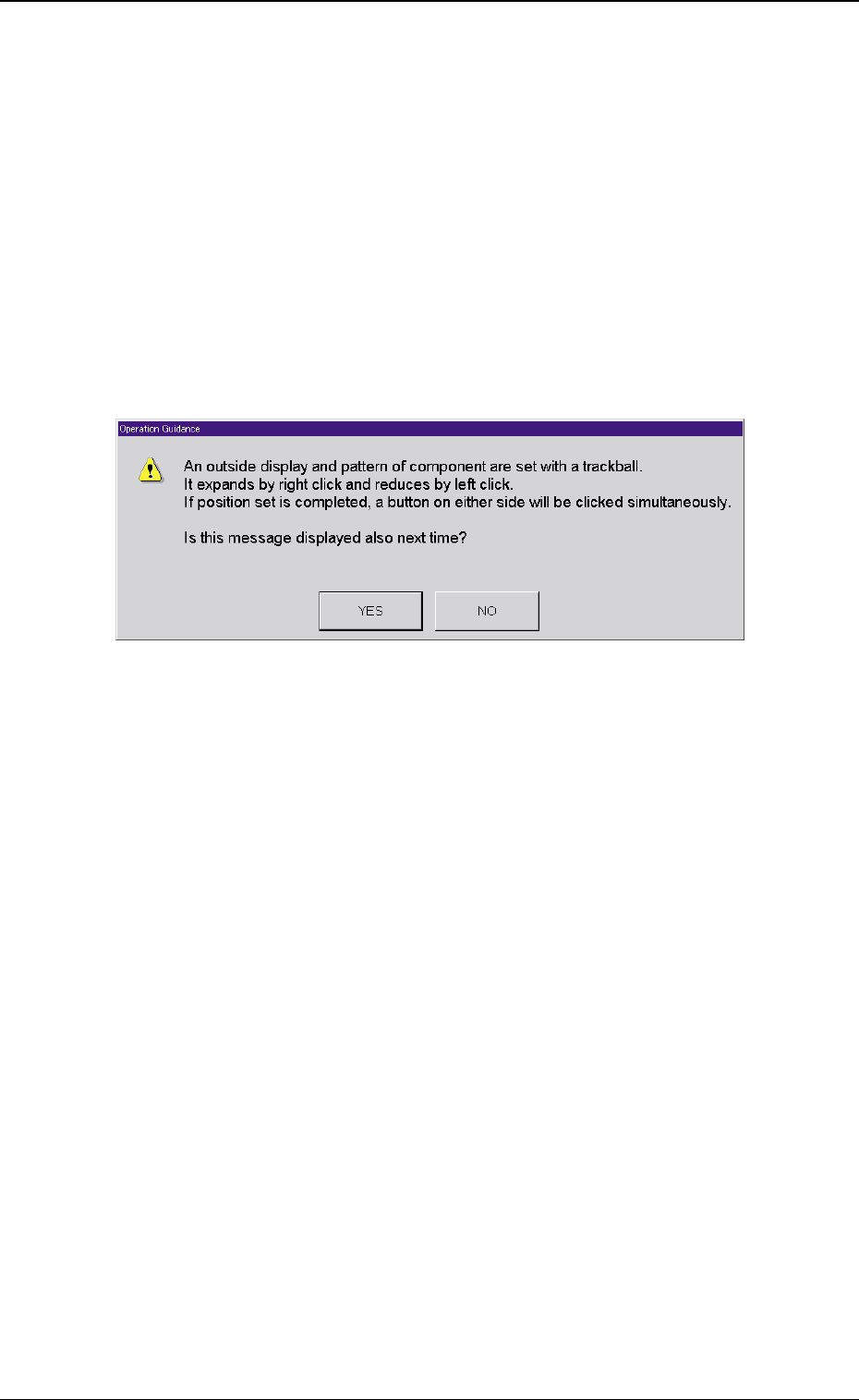
operation panel. The "Operation Guidance" window is indicated.
Fig. 6 "Operation Guidance" Window
(7) Press the [YES] button in the "Operation Guidance" window.
If the "Operation Guide" is not to be displayed a second time,
press [NO].
(8) Match the component outer shape image within the recognition
area and the PCB pattern entered in the recognition memory
image using the pointing device.
When the position is set, press the left and right buttons at the
same time on the pointing device to define the position.
Operation of the Pointing Device
Joy Stick : Movement of the X/Y table (PCB
Pattern)
Right Click : Enlargement of Image
Left Click : Reduction of Image
Click on the Right and Left at the Same Time
: Positioning Completion