00194477_Install_Win2003_manual.pdf - 第14页
Installation Manual for Windows 2003 Server (manual setup) Edition 04/2006 Fig. 2-11 : Windows 2003 Server: Workgroup or Computer Dom ain → Accept the settings. → Click the button Ne xt> . A dialog to complete the fir…
Installation Manual for Windows 2003 Server (manual setup) Edition 04/2006
→ Click the button Next>.
→ Wait until installation has copied necessary files and the following dialog appears.
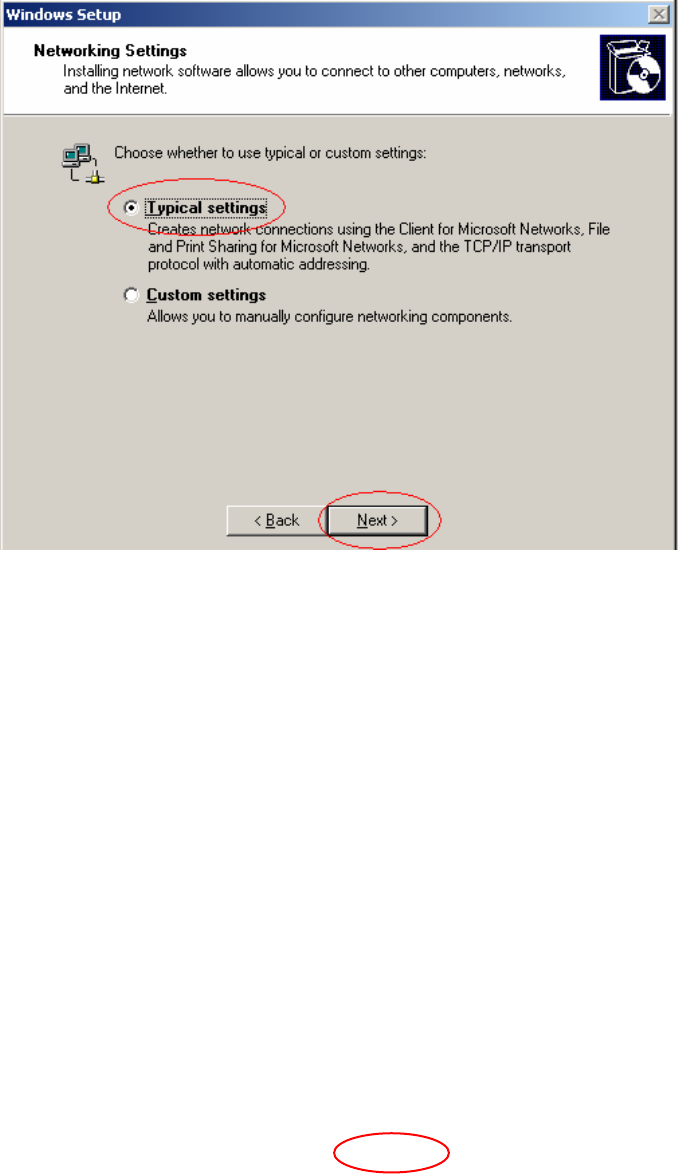
Fig. 2-10: Windows 2003 Server: Networking Settings
→ Choose "Typical Settings"
→ Click the button Next>.
The following dialog appears:
13 / 34
Installation Manual for Windows 2003 Server (manual setup) Edition 04/2006
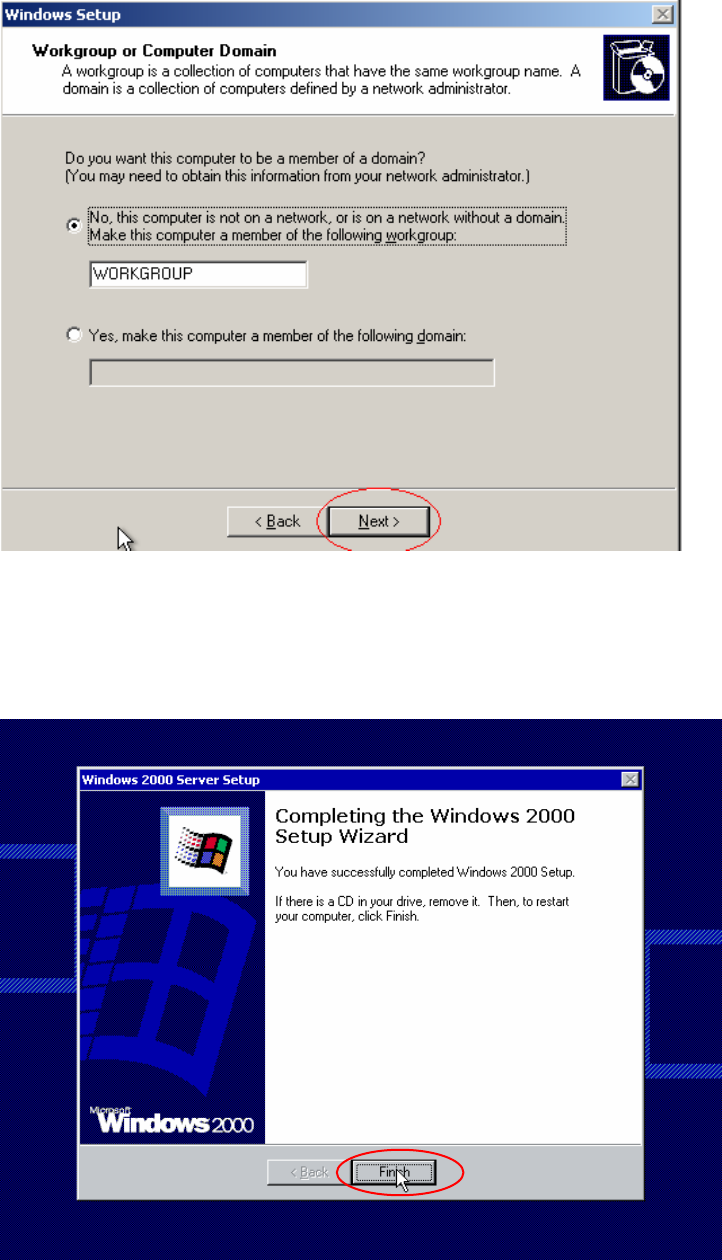
Fig. 2-11: Windows 2003 Server: Workgroup or Computer Domain
→ Accept the settings.
→ Click the button Next>.
A dialog to complete the first part of the installation will appear.
Fig. 2-12: Ready for Reboot
14 / 34
Installation Manual for Windows 2003 Server (manual setup) Edition 04/2006
Windows 2003 is searching for feasible driver software during the first reboot. You have to wait.
Windows 2003 will switch screen resolution several times to find best support for your hardware.
Note:
Windows can only find the driver software, which is bundled on the Windows installation.
You can adjust the driver configuration after Windows installation completes.
The computer will reboot and installation will be completed.
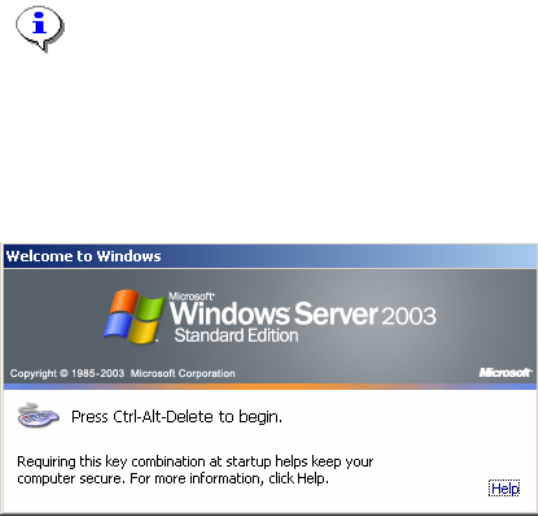
The logon screen will appear.
Fig. 2-13: Logon
→ Please logon to complete this part of installation.
2.2 Configure Network parameters
Windows will always configure the network configuration parameters automatically, if it can do that.
When no network infrastructure, like a DHCP Server, is available it will use some default values.
Normally it is necessary to adjust these parameters.
→ Start Configuration by selecting Start->Settings->Network Connections ->Local Area
Connection
You will see a Connection for every network card in your computer
15 / 34