00194477_Install_Win2003_manual.pdf - 第28页
Installation Manual for Windows 2003 Server (manual setup) Edition 04/2006 Fig. 2-27 Computer Management → Select Disk M anagement. Fig. 2-28 Console Root Disk Manager To change the disk 0 from a "Basic" disk t…
Installation Manual for Windows 2003 Server (manual setup) Edition 04/2006
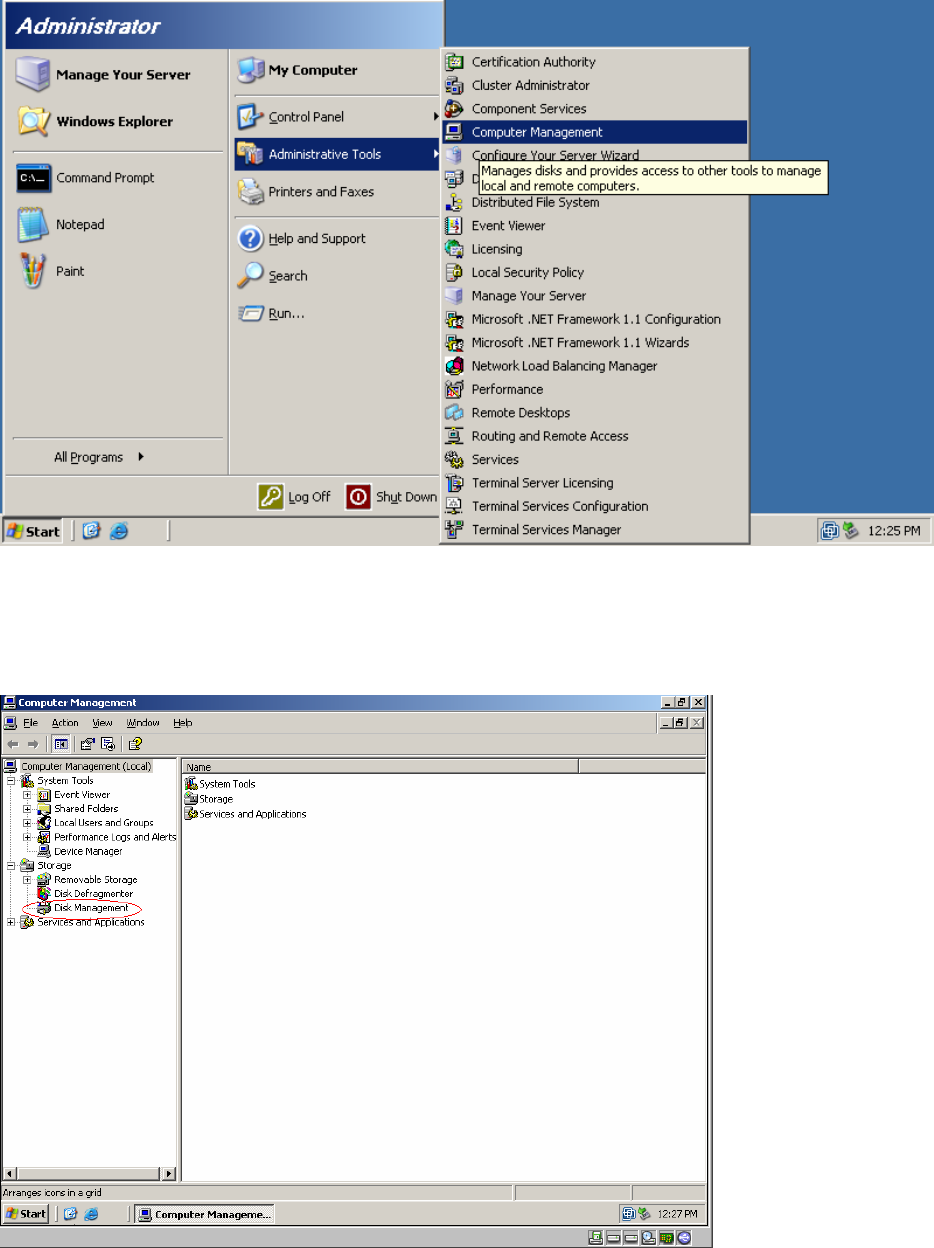
2.4.2 Starting the Disk Management
Start the Disk Administrator via Start -> Administrative Tools -> Computer
Management.
Fig. 2-26 Console Root Disk Manager
→ Select Computer Management.
27 / 34
Installation Manual for Windows 2003 Server (manual setup) Edition 04/2006
Fig. 2-27 Computer Management
→ Select Disk Management.
Fig. 2-28 Console Root Disk Manager
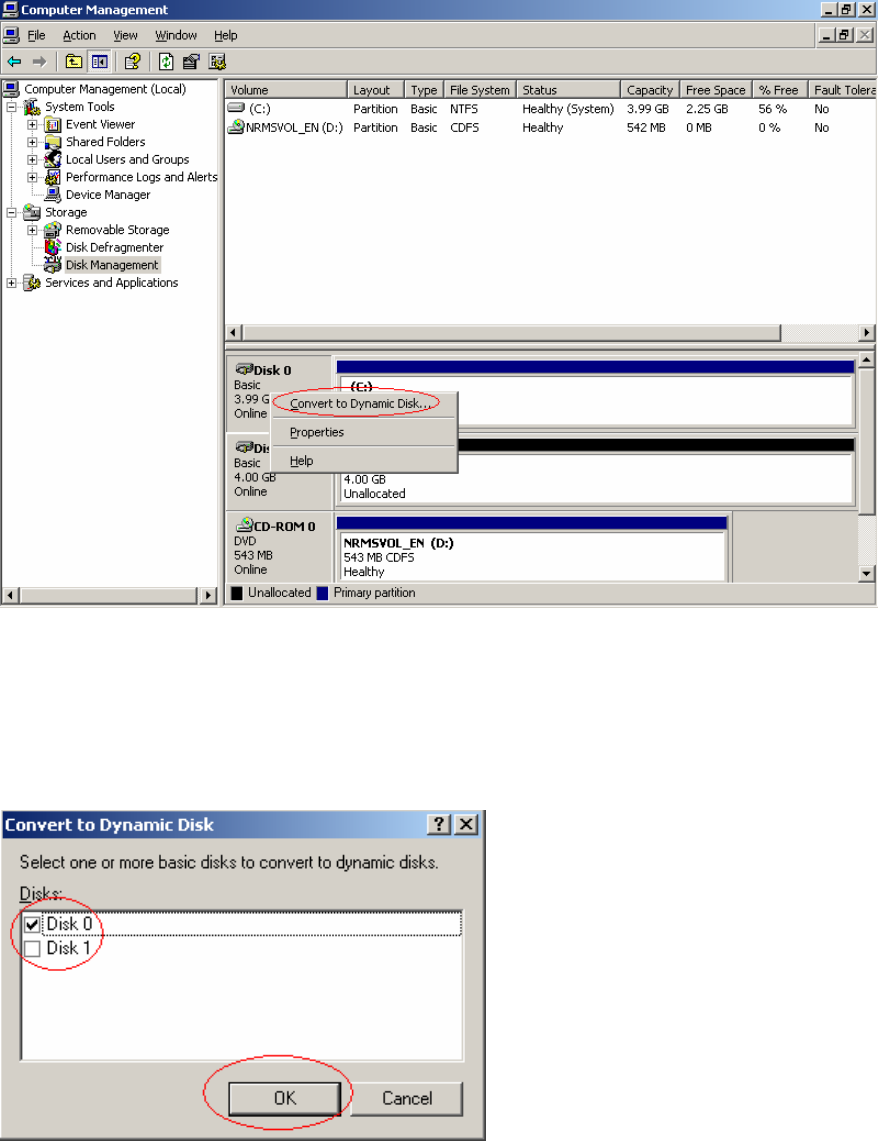
To change the disk 0 from a "Basic" disk to a "Dynamic" disk proceed as follows:
→ Navigate the cursor to the grey "Disk 0" field and then press the right mouse button.
→ Now select "Convert to Dynamic Disk.." and press the left mouse button.
Fig. 2-29 Convert to Dynamic Disk
→ Select the Disks and confirm with OK.
28 / 34
Installation Manual for Windows 2003 Server (manual setup) Edition 04/2006
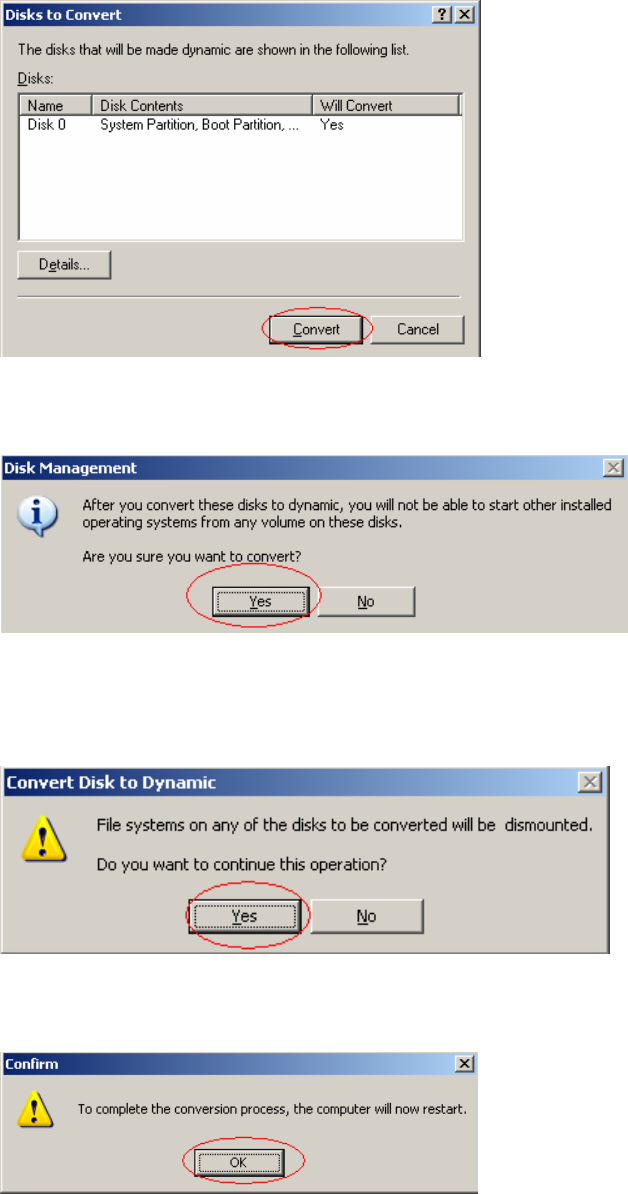
Fig. 2-30 Disks to Convert
→ Confirm with Convert.
Fig. 2-31 Disk Management
→ Confirm with Yes.
Fig. 2-32 Convert Disks
→ Confirm this warning with Yes.
Fig. 2 - 41 Reboot Warning
→ Confirm this warning with OK.
The computer reboots and login as Administrator. Finally the following information dialog appears:
29 / 34