00194477_Install_Win2003_manual.pdf - 第29页
Installation Manual for Windows 2003 Server (manual setup) Edition 04/2006 Fig. 2-30 Disks to Convert → Confirm with Convert . Fig. 2-31 Disk Management → Confirm with Yes . Fig. 2-32 Convert Disks → Confirm this warning…
Installation Manual for Windows 2003 Server (manual setup) Edition 04/2006
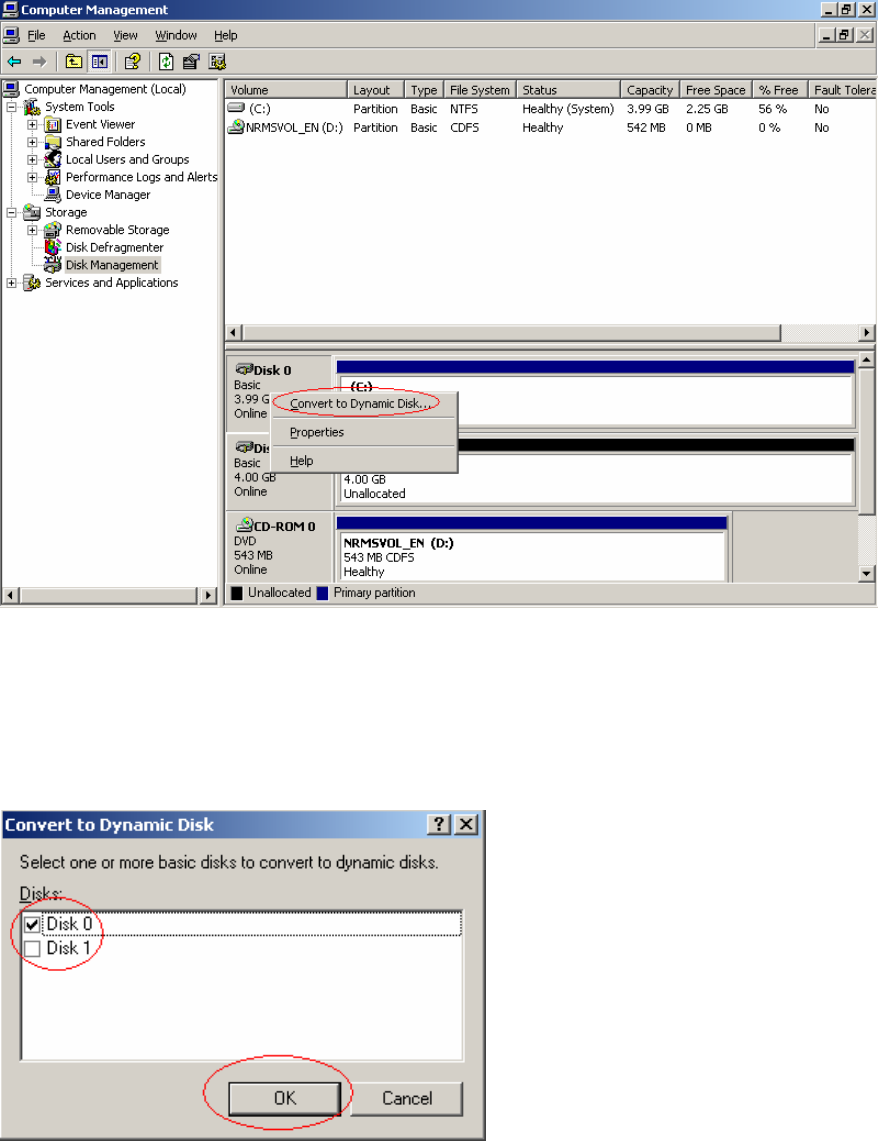
Fig. 2-27 Computer Management
→ Select Disk Management.
Fig. 2-28 Console Root Disk Manager
To change the disk 0 from a "Basic" disk to a "Dynamic" disk proceed as follows:
→ Navigate the cursor to the grey "Disk 0" field and then press the right mouse button.
→ Now select "Convert to Dynamic Disk.." and press the left mouse button.
Fig. 2-29 Convert to Dynamic Disk
→ Select the Disks and confirm with OK.
28 / 34
Installation Manual for Windows 2003 Server (manual setup) Edition 04/2006
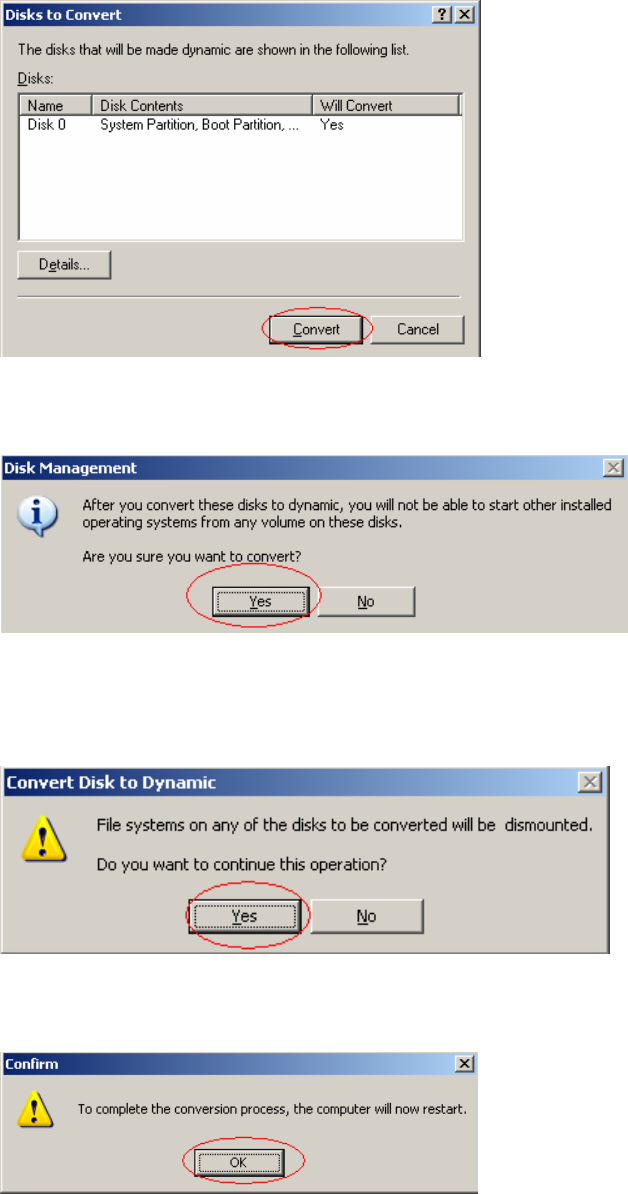
Fig. 2-30 Disks to Convert
→ Confirm with Convert.
Fig. 2-31 Disk Management
→ Confirm with Yes.
Fig. 2-32 Convert Disks
→ Confirm this warning with Yes.
Fig. 2 - 41 Reboot Warning
→ Confirm this warning with OK.
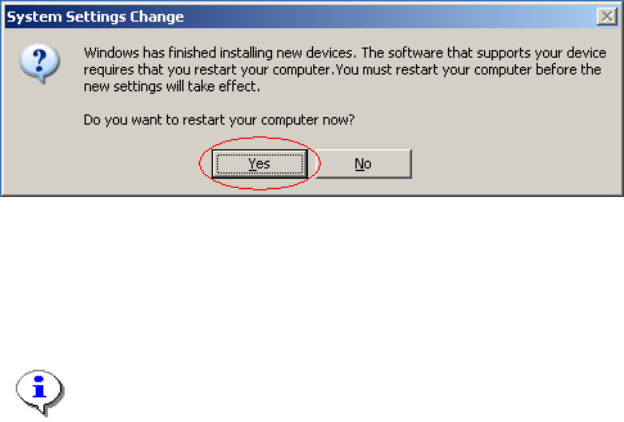
The computer reboots and login as Administrator. Finally the following information dialog appears:
29 / 34
Installation Manual for Windows 2003 Server (manual setup) Edition 04/2006
Fig. 2-33 System Settings Change
→ Confirm this information with Yes.
The computer reboots again!
Note:
Depending on the hardware of your computer a dialog may now appear on the screen
- asking you if there are further hardware components to configure.
You can postpone a further hardware configuration activating the appropriate checkbox to
show this dialog again at the next start of Windows 2003.
2.4.3 Procedure
After the second reboot you have to start the Disk Management again. Now proceed as follows:
→ Start the Disk Administrator via Start ->Administrative Tools -> Computer Management -> Disk
Management.
30 / 34