00194477_Install_Win2003_manual.pdf - 第26页
Installation Manual for Windows 2003 Server (manual setup) Edition 04/2006 Note: You will be informed if Windows could find new driver software or if it will use the previous software versions. 2.4 Disk mirroring Note: S…
Installation Manual for Windows 2003 Server (manual setup) Edition 04/2006
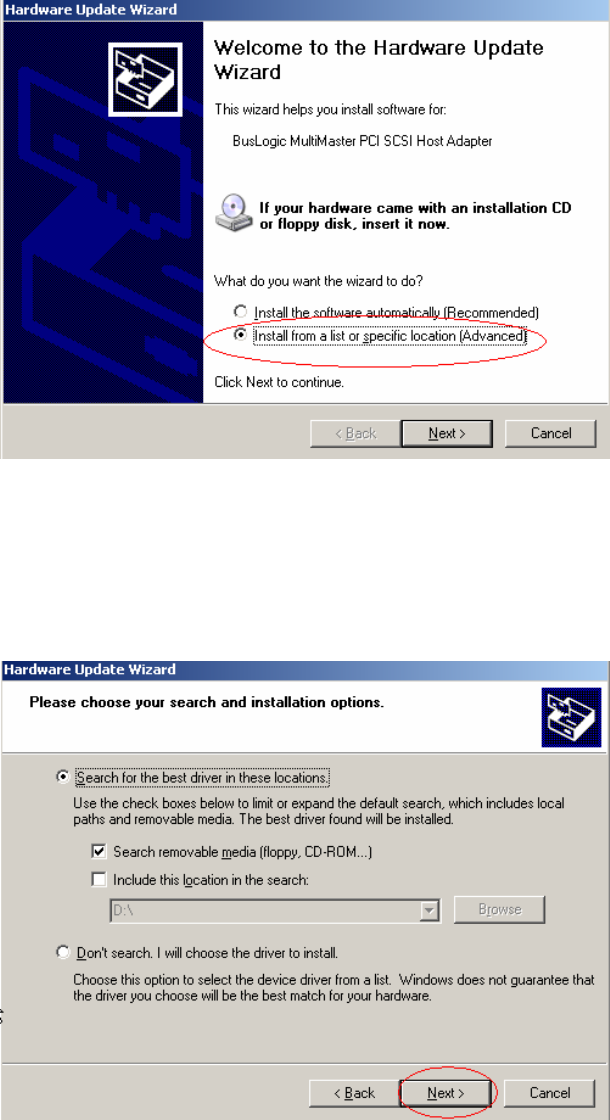
A wizard is started to help you through the process of installing new driver software.
Fig. 2-24: Welcome screen of wizard
→ Select the option “Install from a list or specific location (Advanced)”.
→ Select the button Next>.
In the next dialog, you can define where new software should be searched. Now you should use a
floppy or CD from you hardware vendor.
Fig. 2-25: Specify location for driver software
→ Insert floppy or CD with driver software.
→ Select the button Next>.
→ Accept changes in the last dialog and finish procedure.
25 / 34

Installation Manual for Windows 2003 Server (manual setup) Edition 04/2006
Note:
You will be informed if Windows could find new driver software or if it will use the previous
software versions.
2.4 Disk mirroring
Note:
Since the SIPLACE Pro Server is a central component for supplying data, high availability is
very important.
For this reason there are also 2 hard disks installed in the "small server solution". These are
then RAID 1 enabled with the help of a software solution.
This procedure requires 2 disks, which are equal in size. No other requirements are to be fulfilled to
improve the reliability concerning the hard disk failure.
Using disk mirroring or RAID 1 is an optional configuration step.
2.4.1 Pre-requirements before Starting the Disk Management
Note:
Before you can start the Disk Management you have to login as Administrator!
26 / 34
Installation Manual for Windows 2003 Server (manual setup) Edition 04/2006
2.4.2 Starting the Disk Management
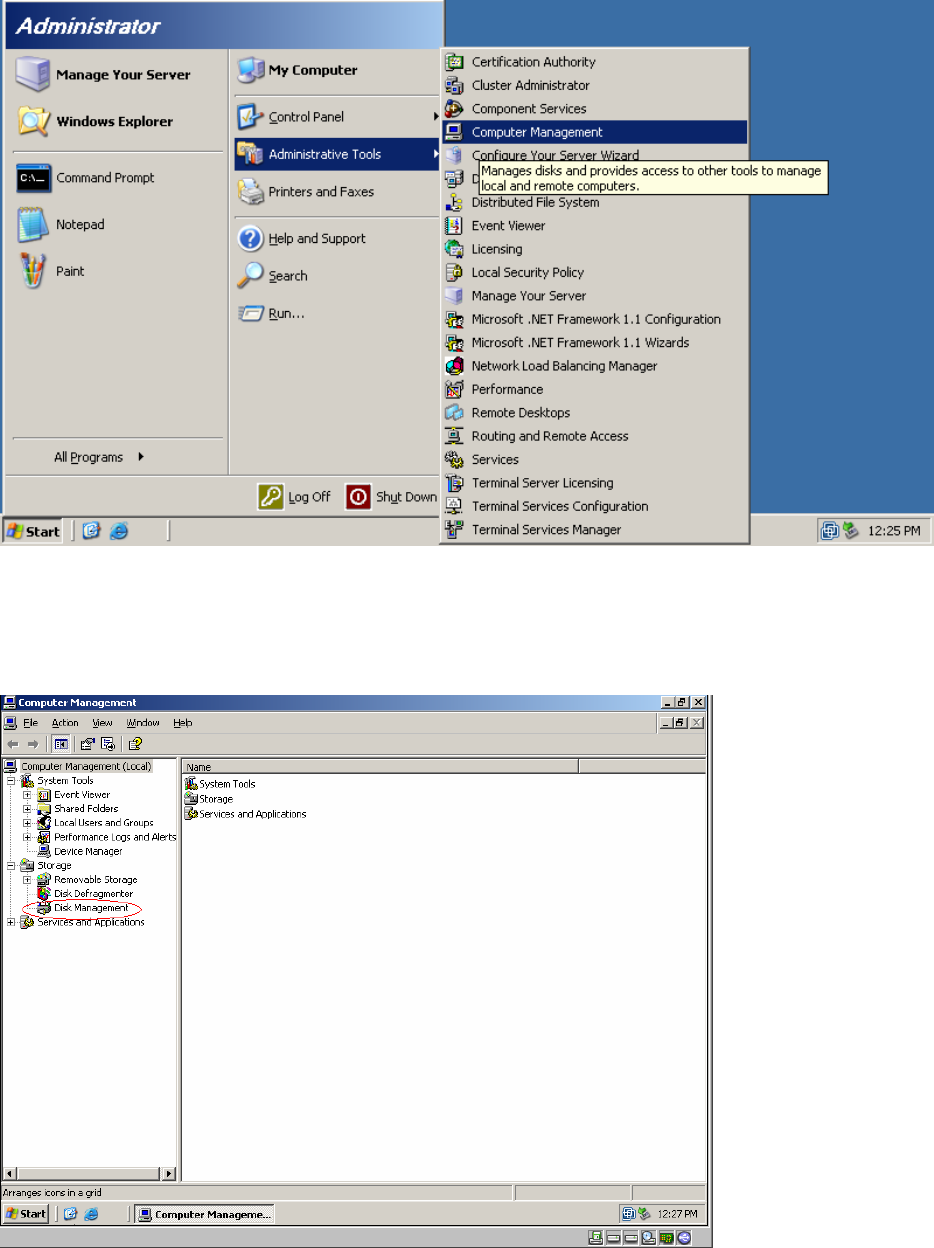
Start the Disk Administrator via Start -> Administrative Tools -> Computer
Management.
Fig. 2-26 Console Root Disk Manager
→ Select Computer Management.
27 / 34