Infinity DI.pdf - 第31页
1.26 Infinity Dual Imag e Manual Chapter Issue 4 Aug 01 INFINITY TECHNIC AL RE FERENCE ADJUS TMENT S AND SET TINGS Bar Code Read er The Bar Code Reader (BCR) option reads the code of a product to be pr inted. This allows…
INFINITY
TECHNICAL REFERENCE
ADJUSTMENTS AND SETTINGS
Chapter Issue 4 Aug 01 Infinity Dual Image Manual 1.25
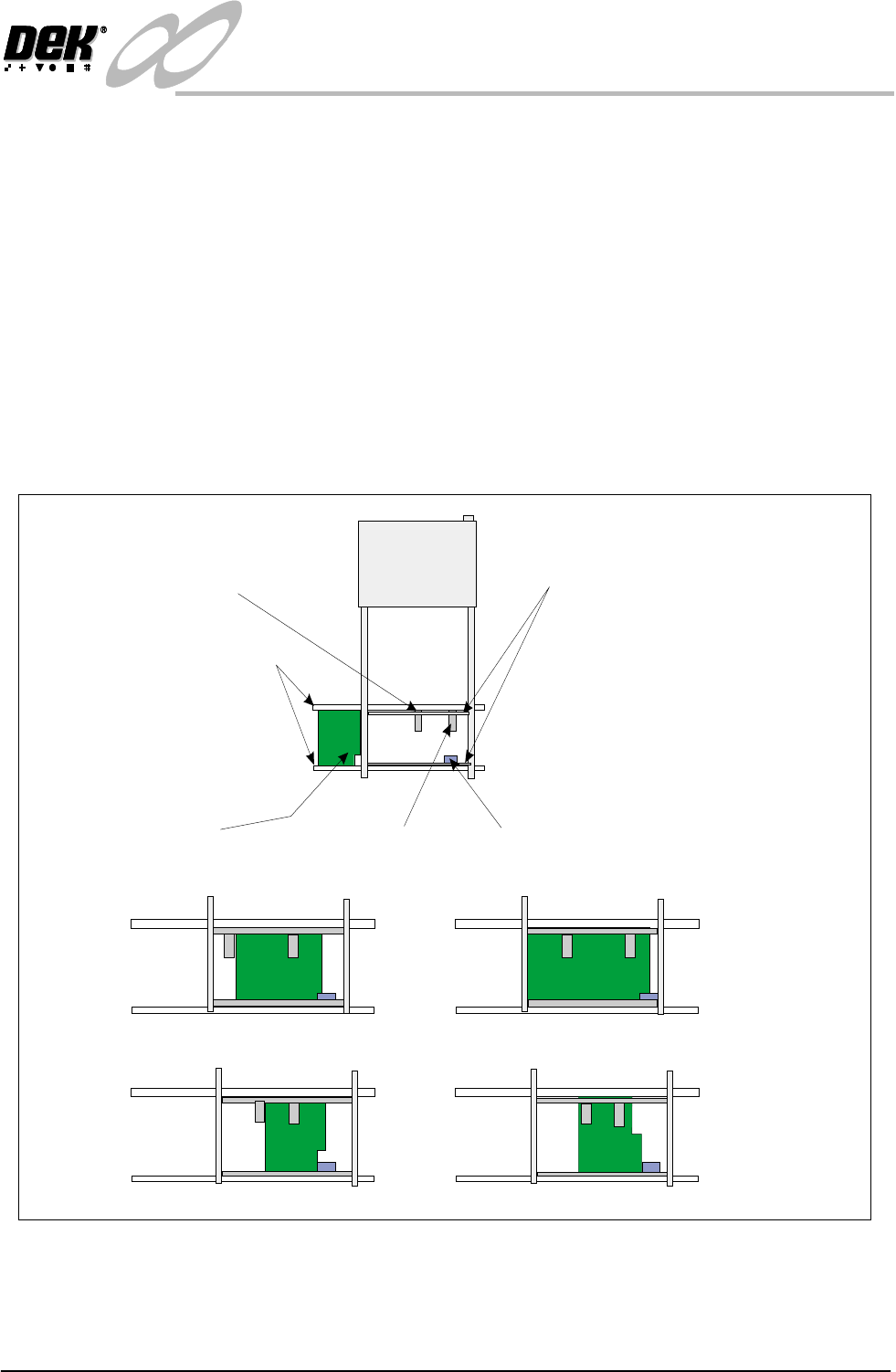
Product Sensor The product sensor option enables product size or a feature to be used as a means
of detecting which program is to be used by the print process.
To set up the sensors, a board is loaded onto the input conveyor. The board stops
at the conveyor sensor. The product sensor should be placed such that at the point
where the board stops on the conveyor, the sensor is ON for one type and OFF
for other products. On is indicated by the green LED switching on. Where the
board has a recess or protrusion, the different leading edge perimeter (as shown
in the diagram below) is used to distinguish between board sizes and hence
which process program is to be used.
To adjust this position, load along board (or board with a feature such as a recess
or protrusion), the sensor is spring loaded. Push the sensor against the rail and
slide it along until the sensor switches from on to off and then move it back to
the on position. Load a short board (or flip the board over and load it) so that the
short board or recess area now clears the sensor to switch it off.
Figure 1-18 Adjustment of the Product Sensor
Board
Input Conveyor Sensor
Sensor Mounting Rails
Input Conveyor
Product Sensor - Sensor Off
Product Sensor - Sensor On
Examples:
Different Products
Same Product - Product Feature Detected
Short Board In - Product Sensor Off
Long Board In - Product Sensor On
Board Present
Sensor
Product Sensor
1.26 Infinity Dual Image Manual Chapter Issue 4 Aug 01
INFINITY
TECHNICAL REFERENCE
ADJUSTMENTS AND SETTINGS
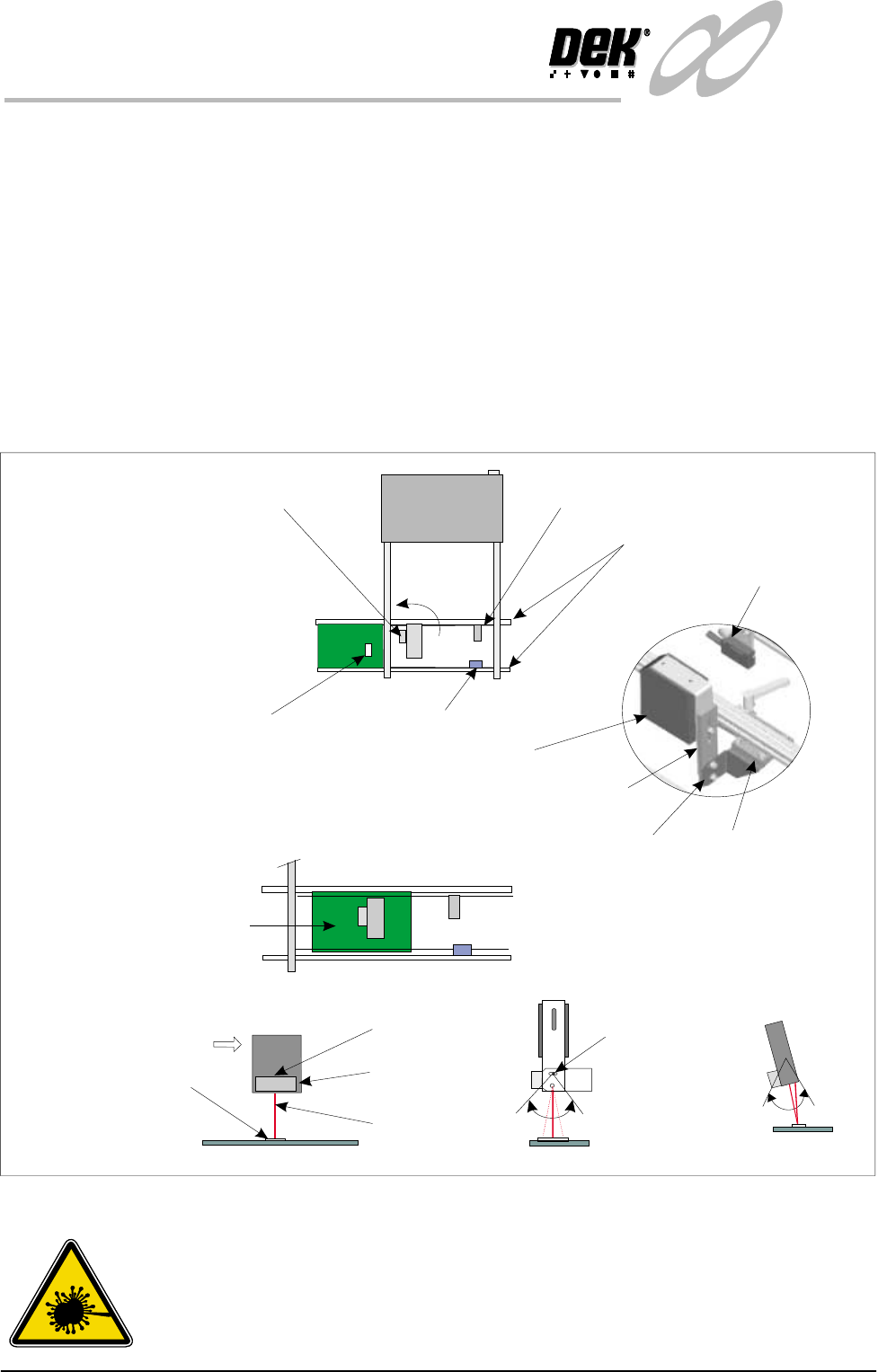
Bar Code Reader The Bar Code Reader (BCR) option reads the code of a product to be printed.
This allows the machine to be automatically set up in software to the product
being used. a sensor mounted before the reader triggers the readrer on. The BCR
must be adjusted to the correct angle for reading the label. Bright or shinylabels
act as a mirror flooding the sensor and giving incorrect readings. Conversely,
dark or dull labels make it hard for the reader to differentiate the bars on the label
giving incorrect readings.
To set up the BCR, a board is loaded onto the input conveyor. The board passes
beneath the trigger sensor that switches the reader momentarily on. The label is
read and confirmation of the correct product occurs. The board continues to the
conveyor sensor where it stops and is detected by the board present sensor. This
is the correct operation of the reader and no adjustment is necessary. If the sensor
mis-reads then the angle, height and orientation of the reader may be adjusted.
Figure 1-19 Adjusting the Bar Code Reader
WARNING
LASER LIGHT SOURCE. THE BAR CODE READER UTILIZES A
LASER TO SCAN THE BAR CODE, DO NOT LOOK DIRECTLY IN
TO THE READER OR AT THE LIGHT DIRECTLY REFLECTED
FROM A SURFACE, AS SERIOUS DAMAGE CAN OCCUR TO THE
Board and Bar Code Label
Input Conveyor Sensor
Trigger Sensor
Tilt Adjust Screw
(15 of tilt)
0
Bar Code Reader
Scan
Bar Code Label
Input Conveyor
Board Present
Sensor
Board Present
Sensor
Bar Code Reader and Trigger Sensor
(can be turned through 90 )
0
The Bar Code label is read
before the board reaches
the Conveyor Sensor.
Movement
View on Arrow A
Side View
A
BCR
Height Adjustment
Bracket
Rotate Adjustment
Tilt Adjustment
INFINITY
TECHNICAL REFERENCE
ADJUSTMENTS AND SETTINGS
Chapter Issue 4 Aug 01 Infinity Dual Image Manual 1.27
Creating a Product
File
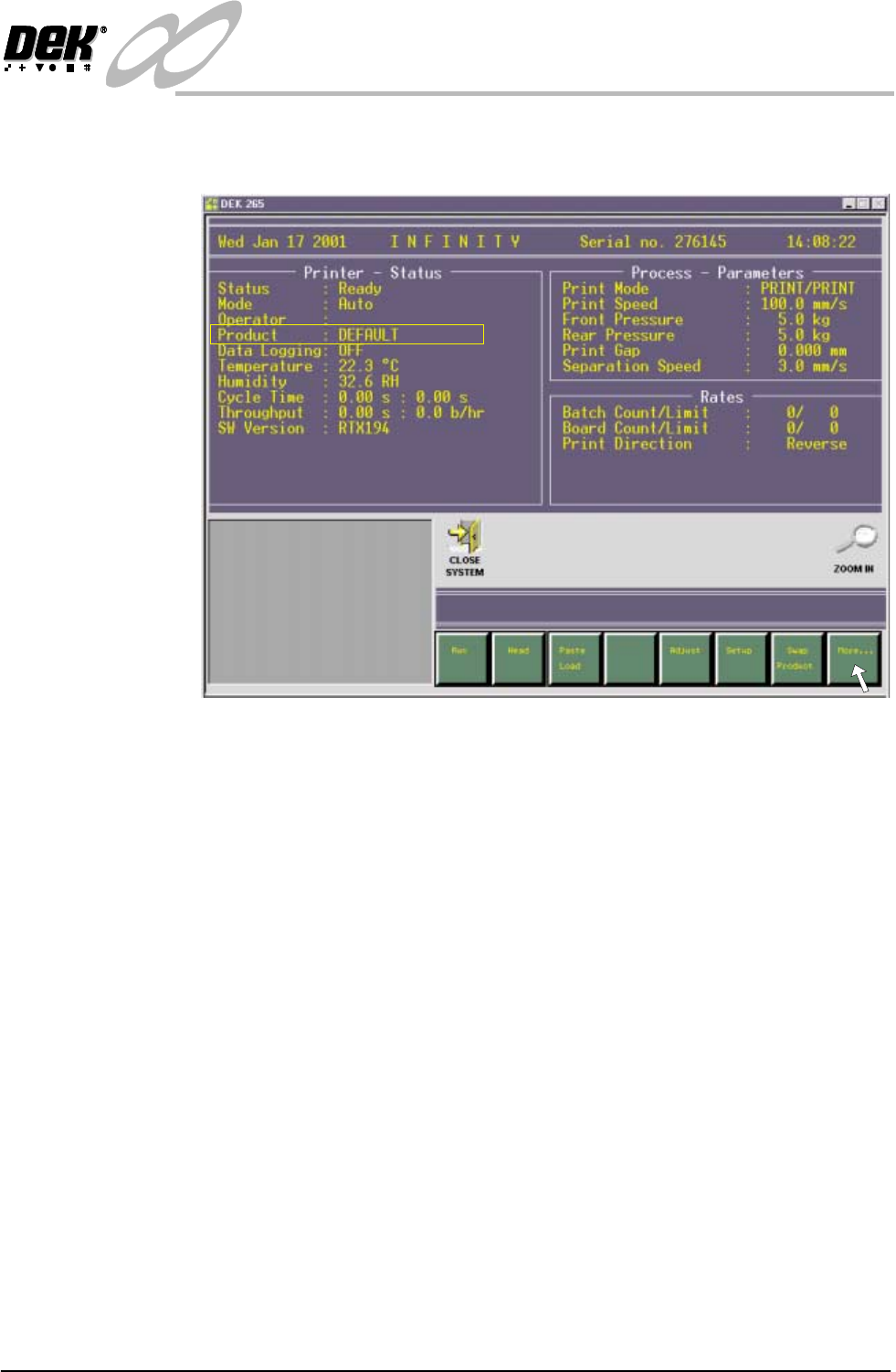
On the ready page the current product is displayed in the status menu (shown as
Default in the figure). To access the maintenance page to set up dual image select
the More button on the soft key bar.
Figure 1-20 Selecting the More Button on the Ready Page
1. Select Maint.
2. Select Set Prefs.
NOTE
When first setting up dual image, the soft key F7 in the above figure is blank,
this changes to Swap Product when dual image is enabled.