Infinity DI.pdf - 第36页
INFINITY TECHNI CAL REFEREN CE ADJUS TMEN TS AND SETTI NGS Chapter Issu e 4 Aug 01 Infinity Dual Imag e Manual 1.31 Remote Bar Code T o set up the rem ote bar code (f itted to the external fra me). 3. Select Set up Bar C…
1.30 Infinity Dual Image Manual Chapter Issue 4 Aug 01
INFINITY
TECHNICAL REFERENCE
ADJUSTMENTS AND SETTINGS
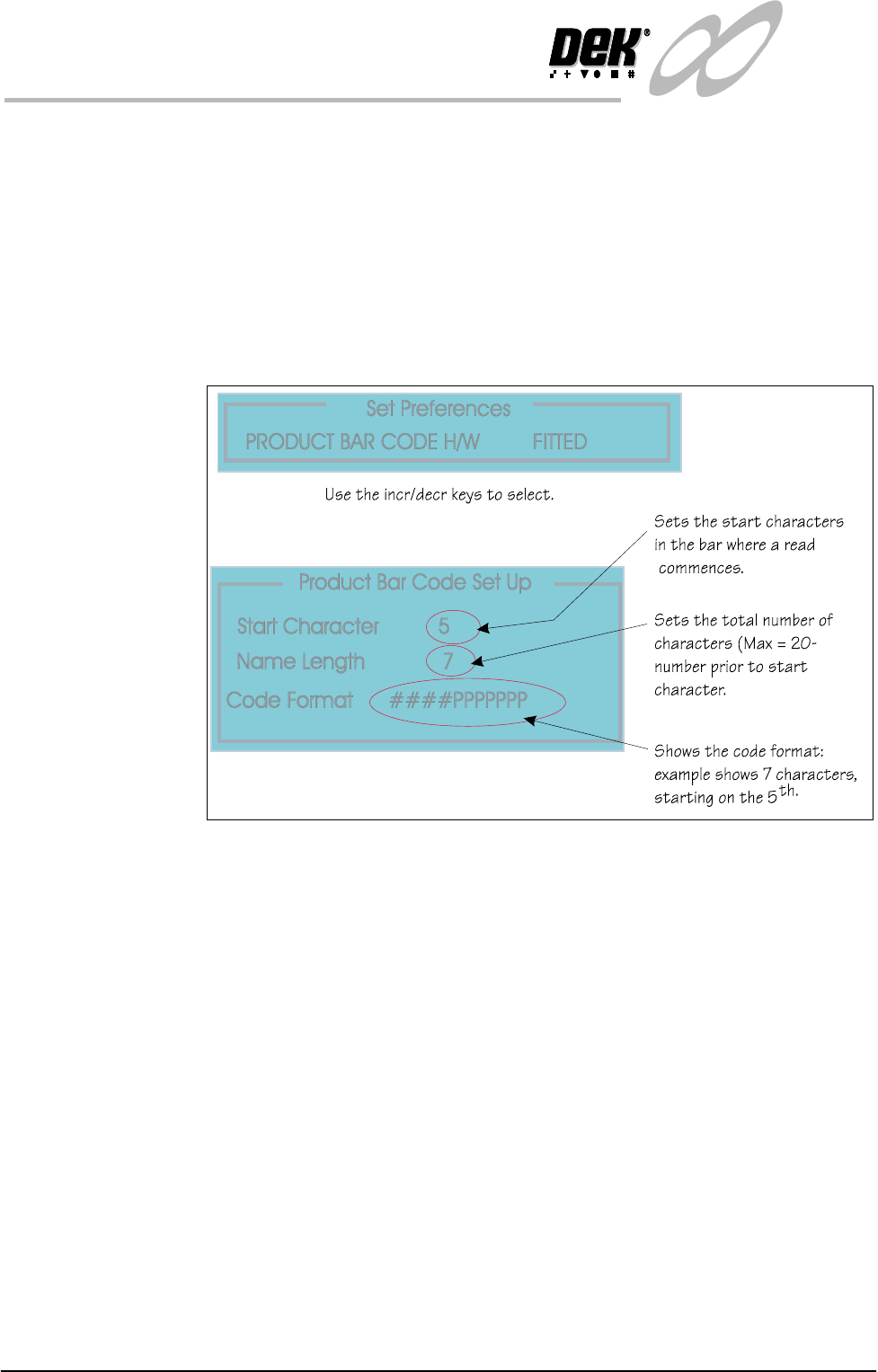
Bar Code Set Up The information below applies to the Bar Code Reader option if fitted. To set the
bar code parameters the following pages may be edited.
Product Bar Code Set the product bar code first followed by the remote bar code.
Set Preferences To edit the bar code follow the procedure below:
1. Select Maint. (F8 function key).
2. Select Set Prefs (F5).
The Set Prefs page is displayed.
Figure 1-24 Setting the Bar Code Read Characters
INFINITY
TECHNICAL REFERENCE
ADJUSTMENTS AND SETTINGS
Chapter Issue 4 Aug 01 Infinity Dual Image Manual 1.31
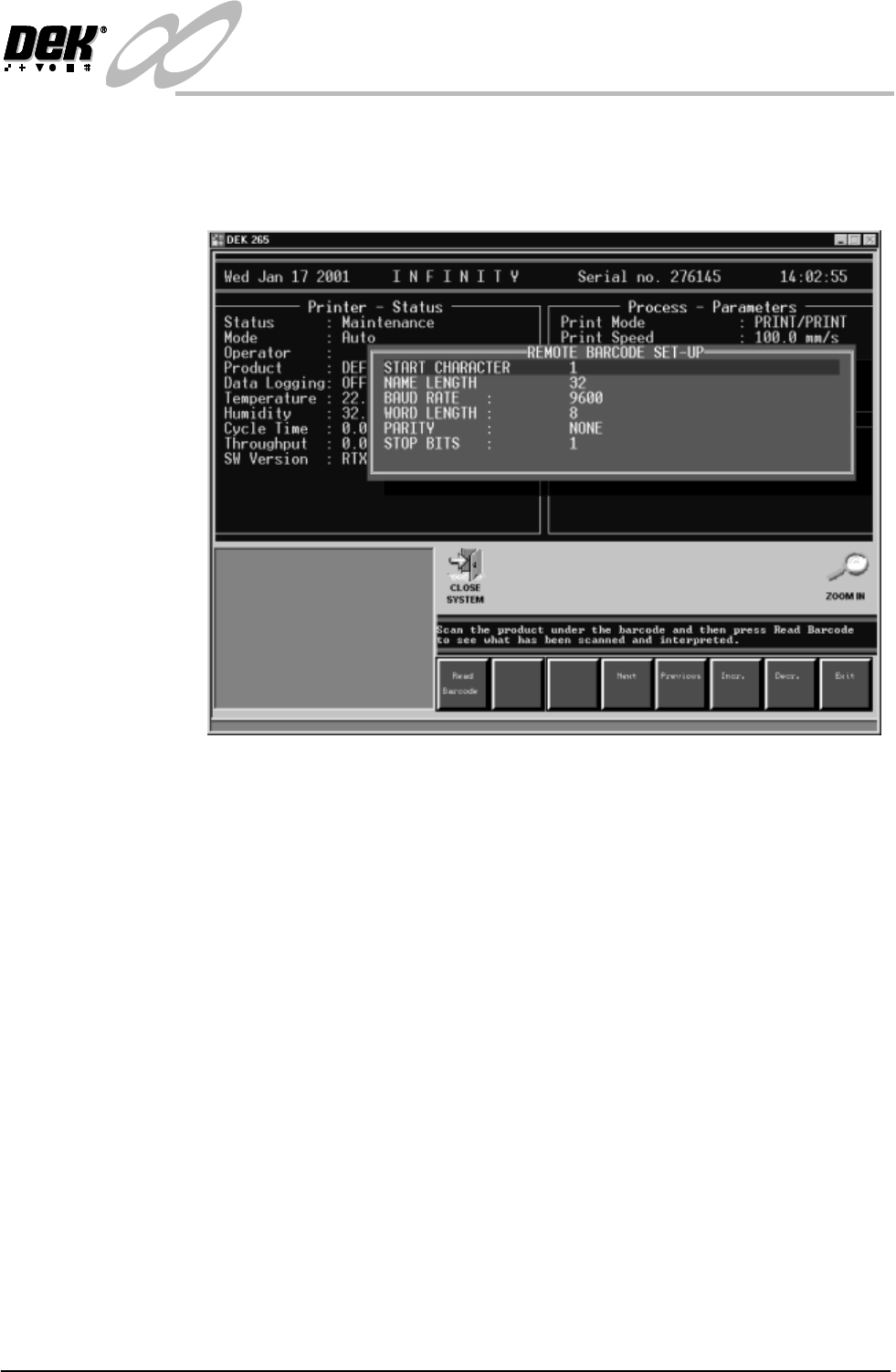
Remote Bar Code To set up the remote bar code (fitted to the external frame).
3. Select Set up Bar Code (F1). Place the product under the remote bar code
and then press Read Barcode to see what has been scanned and interpreted.
Figure 1-25 Set Up Remote Bar Code
4. Select Exit when complete.
5. Select Maint. (F8).
6. Select Set Prefs. (F5).
1.32 Infinity Dual Image Manual Chapter Issue 4 Aug 01
INFINITY
TECHNICAL REFERENCE
ADJUSTMENTS AND SETTINGS
Bar Code Read
Errors
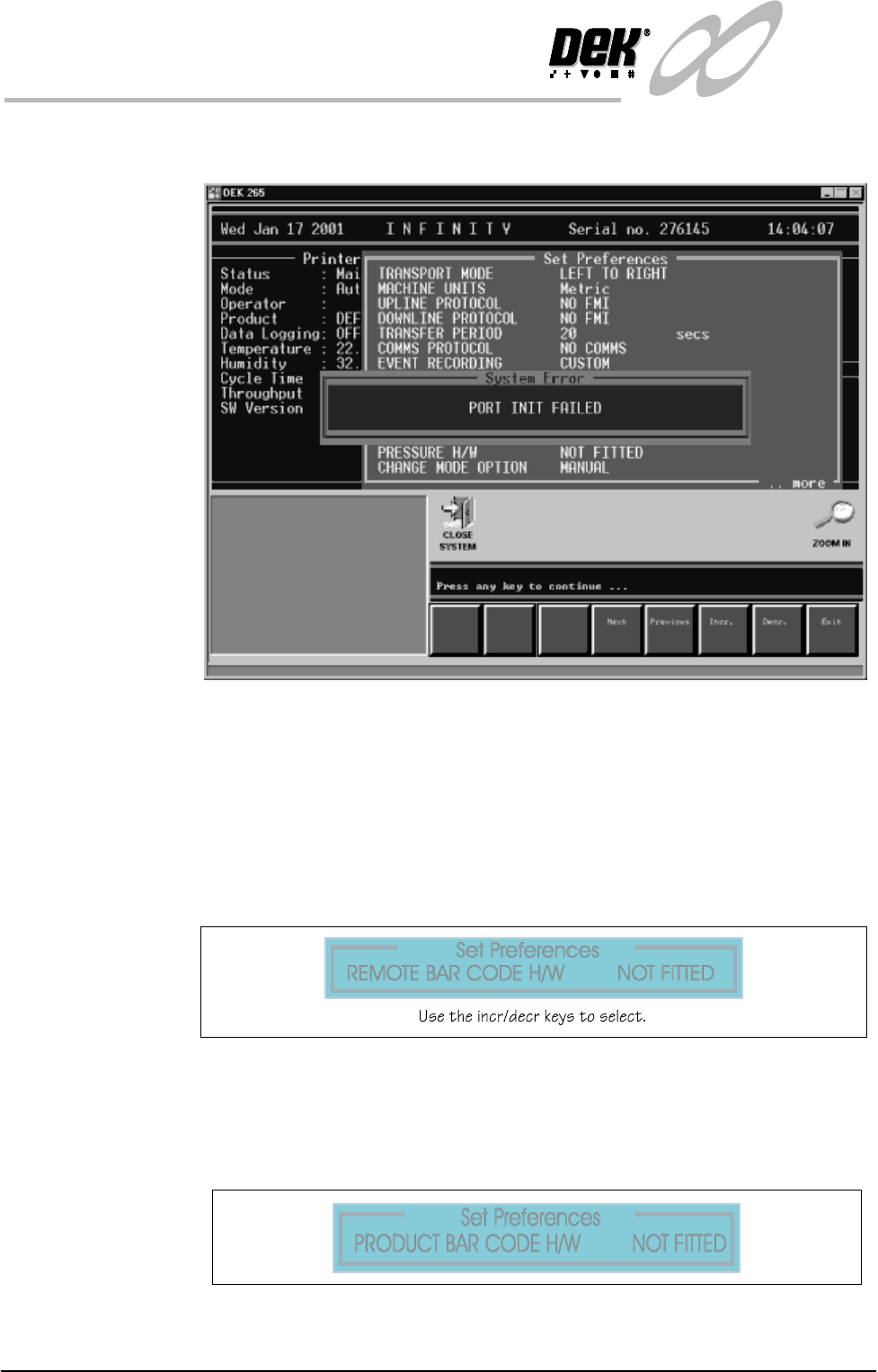
If there is a poor connection or a break in the lead from the reader the error
message panel below is displayed:
Figure 1-26 Bar Code Read Failure
Sensors Set Up To set the product sensors option the following pages are edited.
Set Preferences In Set Preferences, disable the remote bar code and the product bar code
functions.
To edit the product sensor follow the procedure below:
1. Select Maint. (F8 Function Key).
2. Select Set Prefs (F5).
Figure 1-27 Set Preferences - Deselect the Remote Bar Code Reader
3. Select Exit when complete.
4. Select Maint. (F8).
5. Select Set Prefs. (F5).
Figure 1-28 Set Preferences -Deselect the Product Bar Code Reader
6. Select the Product e.g., the front product.