Infinity DI.pdf - 第37页
1.32 Infinity Dual Imag e Manual Chapter Issue 4 Aug 01 INFINITY TECHNIC AL RE FERENCE ADJUS TMENT S AND SET TINGS Bar Code Read Errors If there is a poor connection or a bre ak in the lead from the re ader the error mes…
INFINITY
TECHNICAL REFERENCE
ADJUSTMENTS AND SETTINGS
Chapter Issue 4 Aug 01 Infinity Dual Image Manual 1.31
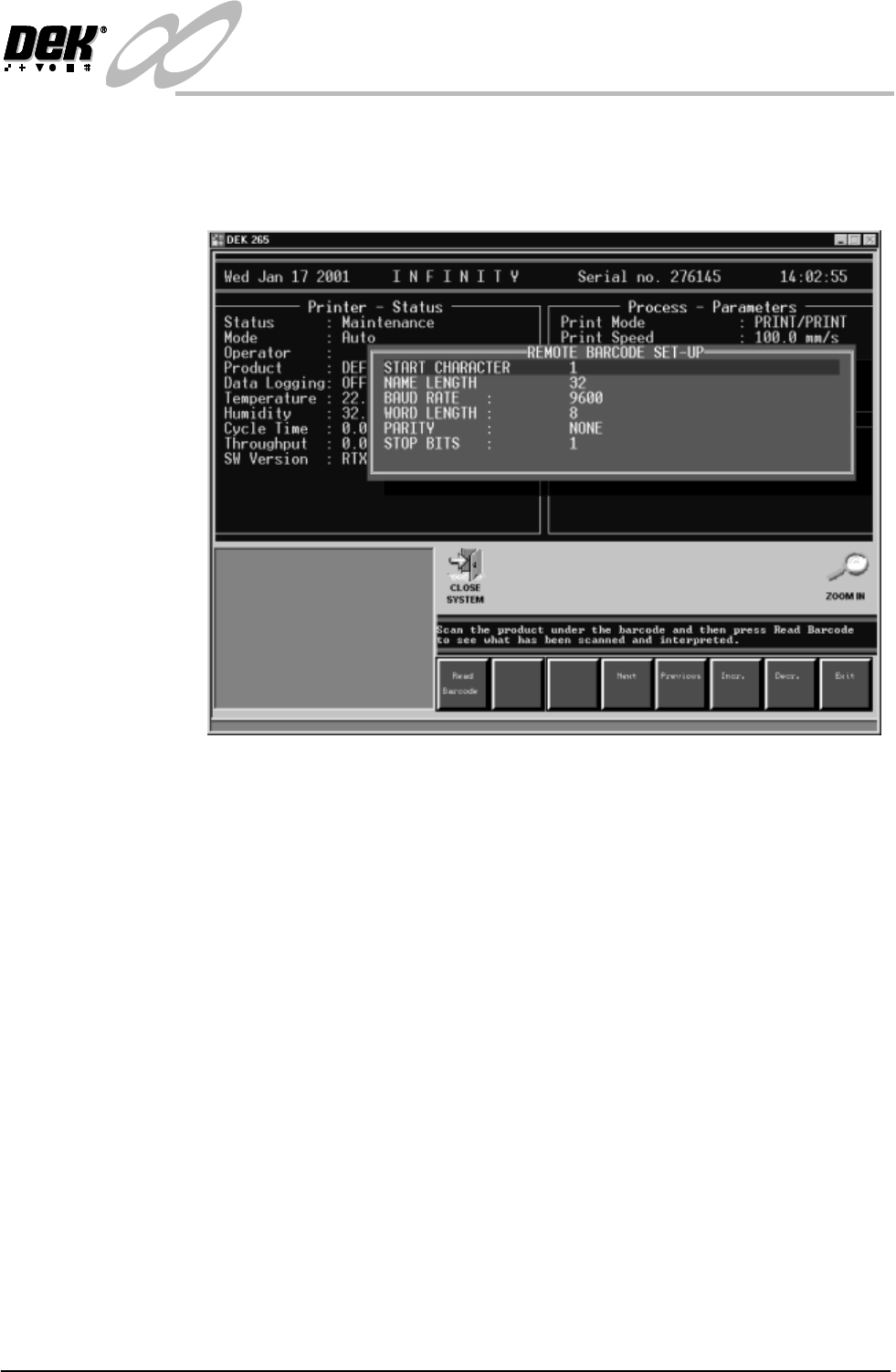
Remote Bar Code To set up the remote bar code (fitted to the external frame).
3. Select Set up Bar Code (F1). Place the product under the remote bar code
and then press Read Barcode to see what has been scanned and interpreted.
Figure 1-25 Set Up Remote Bar Code
4. Select Exit when complete.
5. Select Maint. (F8).
6. Select Set Prefs. (F5).
1.32 Infinity Dual Image Manual Chapter Issue 4 Aug 01
INFINITY
TECHNICAL REFERENCE
ADJUSTMENTS AND SETTINGS
Bar Code Read
Errors
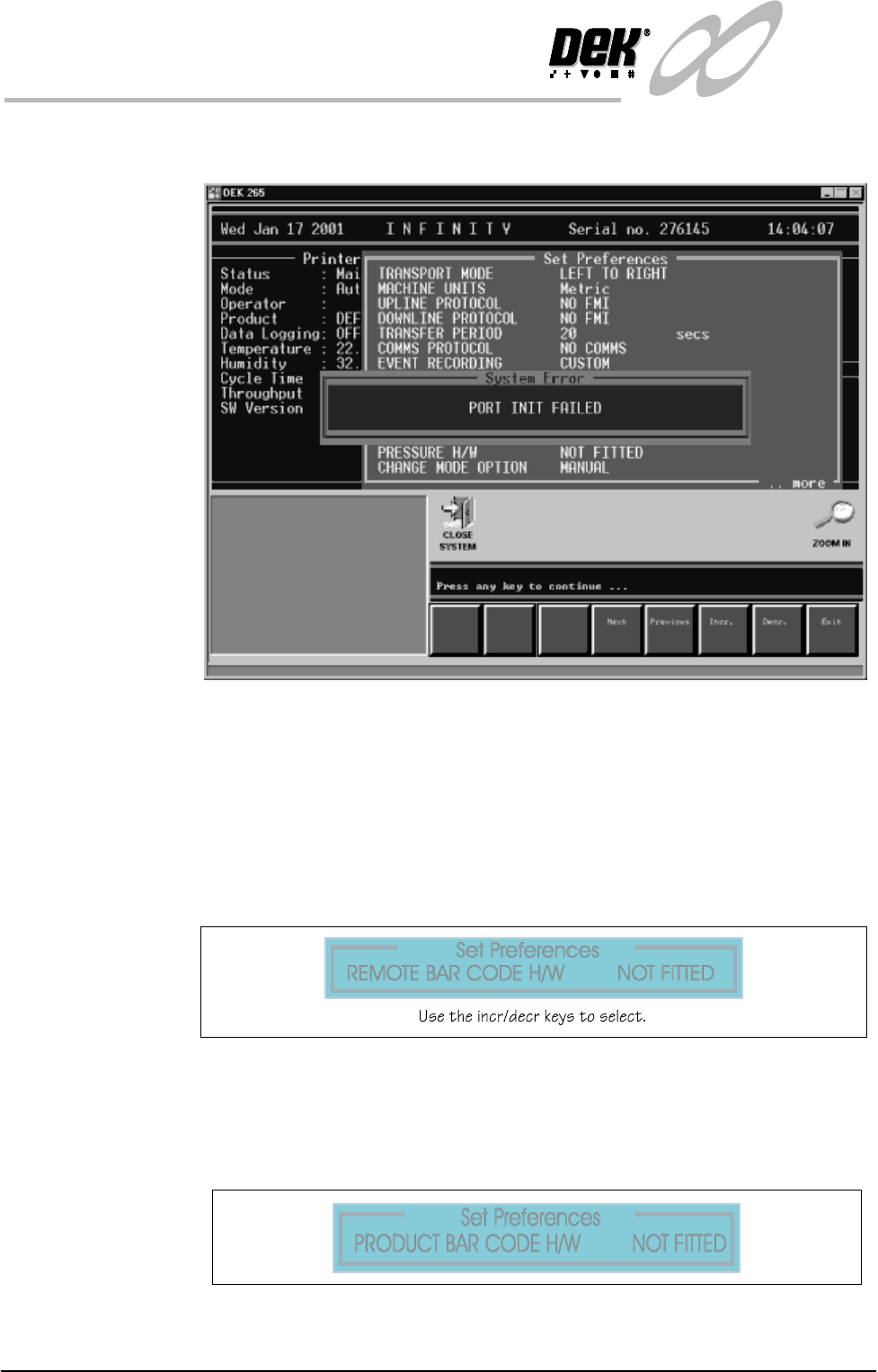
If there is a poor connection or a break in the lead from the reader the error
message panel below is displayed:
Figure 1-26 Bar Code Read Failure
Sensors Set Up To set the product sensors option the following pages are edited.
Set Preferences In Set Preferences, disable the remote bar code and the product bar code
functions.
To edit the product sensor follow the procedure below:
1. Select Maint. (F8 Function Key).
2. Select Set Prefs (F5).
Figure 1-27 Set Preferences - Deselect the Remote Bar Code Reader
3. Select Exit when complete.
4. Select Maint. (F8).
5. Select Set Prefs. (F5).
Figure 1-28 Set Preferences -Deselect the Product Bar Code Reader
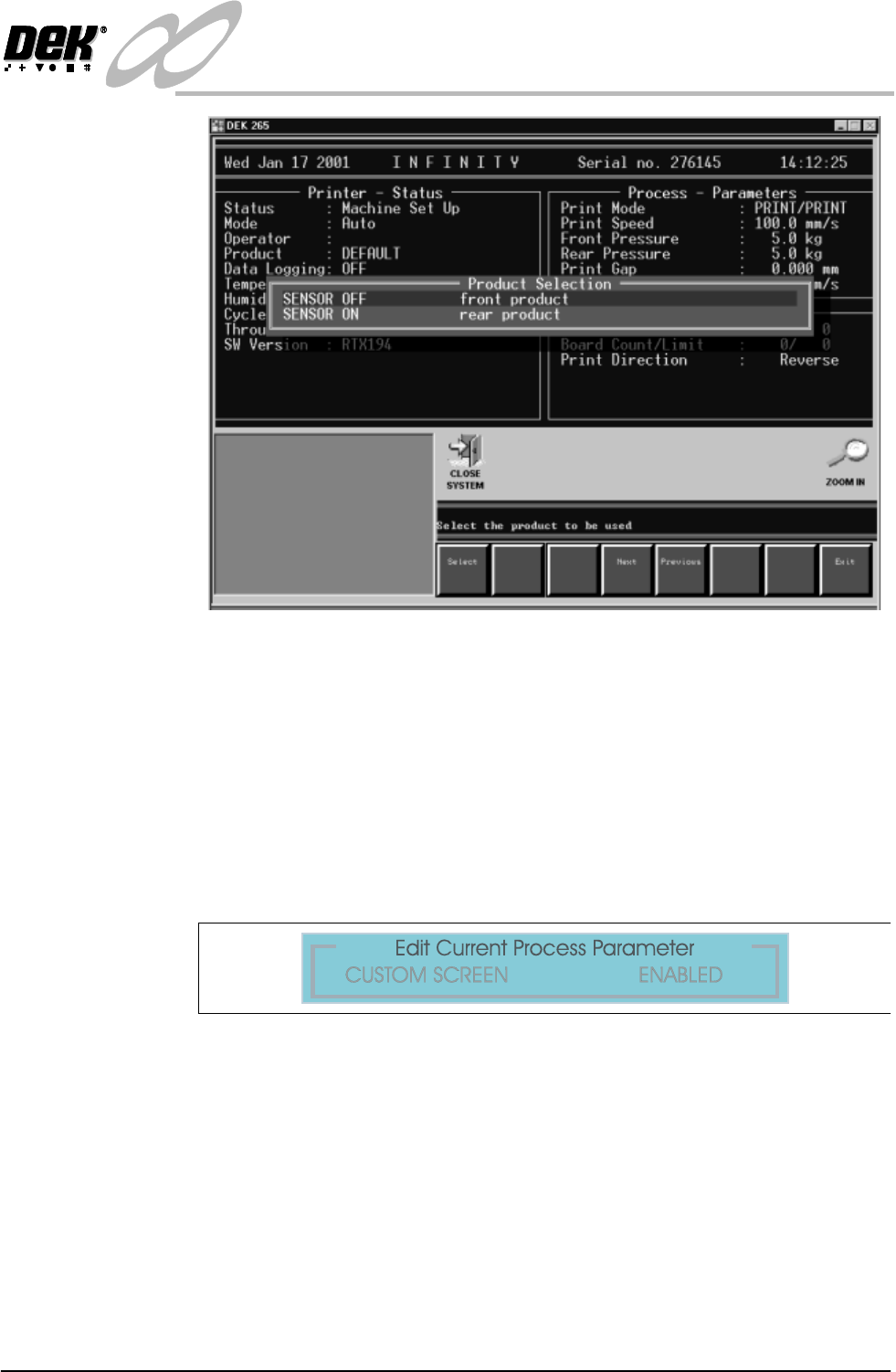
6. Select the Product e.g., the front product.
INFINITY
TECHNICAL REFERENCE
ADJUSTMENTS AND SETTINGS
Chapter Issue 4 Aug 01 Infinity Dual Image Manual 1.33
Figure 1-29 Select Product Sensor
NOTE
Sensor Off and Sensor On are names given to the product sensor, this
distinguishes it when selecting for example:- The Front Product.
After selection the Load Data page (if in load data mode) or Edit Data (if in
edit data mode) is displayed. The product can be loaded or parameters edited
in the standard way.
7. Before dual image can be operated, in Edit Process Parameters scroll down
the page until Custom Screen is displayed. Select Enabled.
Figure 1-30 Set Custom Screen to Enabled