Infinity DI.pdf - 第50页
Chapter Issu e 3 Jan 01 Infinity Dual Imag e Manual 2.3 INFINITY OPERATOR SET U P SET UP Load Prod ucts If a bar code reader is used to determine the product identity , product and re mote bar codes need to be set up in …

2.2 Infinity Dual Image Manual Chapter Issue 3 Jan 01
INFINITY
OPERATOR
INTRODUCTION
Squeegees The Squeegees function in the Y direction. For dual image the squeegees must
be over the rear rail for front image print or over the front rail for rear image
printing. However, if the upline product is compared to the product being printed
and is the same, then the squeegee can carry out one pass over the image. This
is determined by the upline board recognition functionality. Two modes of
printing are available: single deposit print or two deposit print. These modes are
selectable in the product file.
If a single deposit print is selected and the upline product is the same as the
product being printed then the squeegees carry out a single pass print. The
squeegees follow two different paste rolls, one for each product.
A two deposit print always starts and finishes in the centre of the images.
Runner Adaptor Two runner adaptors are fitted to the screen frame. The adaptors have skis fitted,
skis are required to reduce wear on the screen supports when the screen is
shuttled between images. The proflow or squeegees move with the screen during
product change over.
Sensor Options The external sensors fitted are dependent upon the option ordered. The bar code
reader option is fitted with a board present sensor to the external conveyor of the
upline loader. There is also a short - long board sensor option that should be set
up to the length of the board as a means of detecting the product to be printed.
Chapter Issue 3 Jan 01 Infinity Dual Image Manual 2.3
INFINITY
OPERATOR
SET UP
SET UP
Load Products If a bar code reader is used to determine the product identity, product and remote
bar codes need to be set up in Set Prefs before proceeding, see - Adjustments
and Settings.
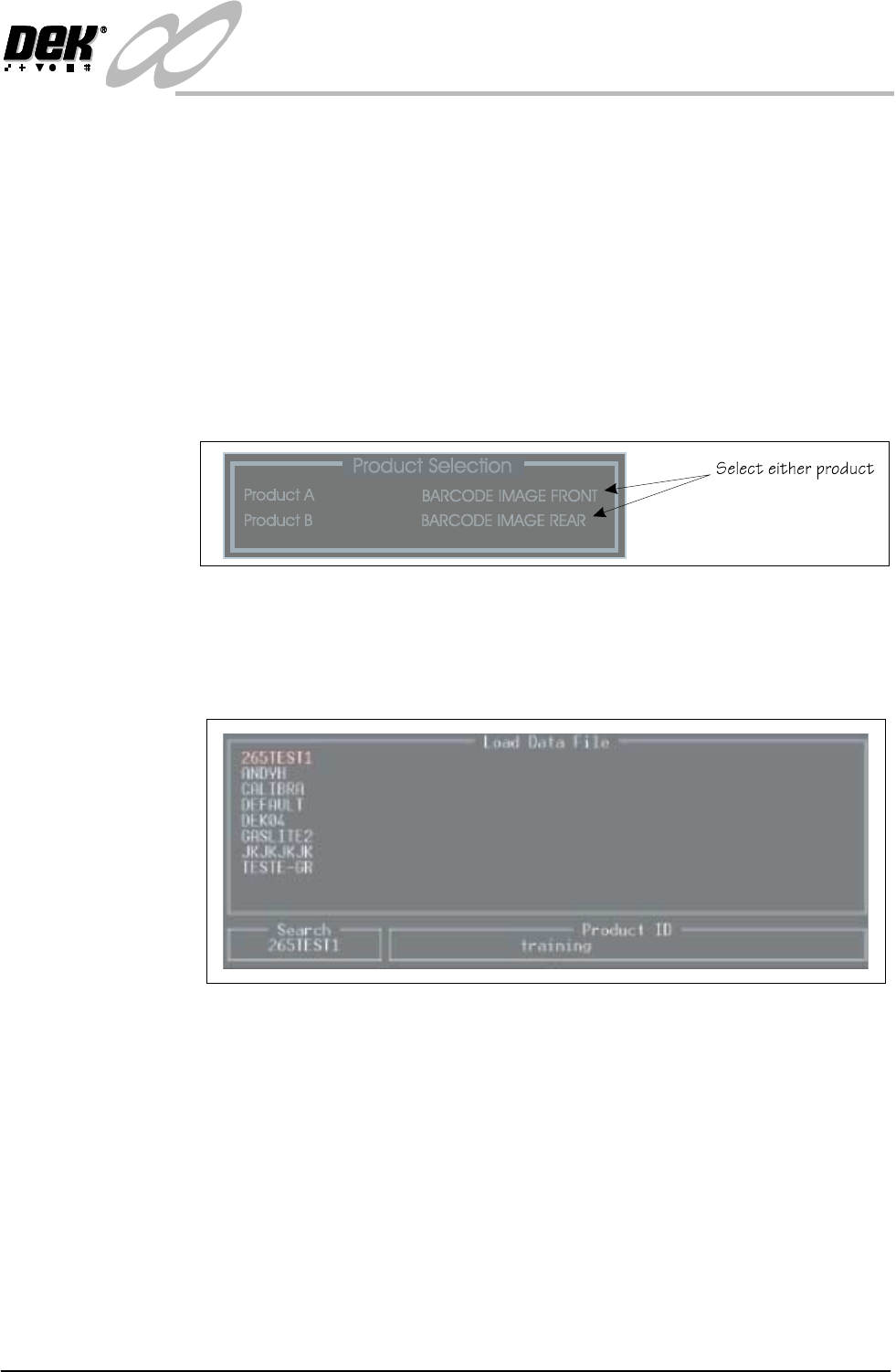
To assign a product file to ‘Product A’ and ‘Product B’, from the menu bar,
follow the steps below:
1. Select Setup (F6)
2. Select Load Data (F2)
The screen below is displayed:
3. Using the Next and Previous (F4, and F5) keys, highlight Product A.
4. Select Load.
A list of all product files stored on the machine is displayed.
5. Using the Left, Right, Up and Down (F4, F5, F6, and F7) keys, highlight
the required file.
6. Select Load.
The product file has been selected. Repeat the steps above to select a product file
to correspond to Product B.
2.4 Infinity Dual Image Manual Chapter Issue 3 Jan 01
INFINITY
OPERATOR
SET UP
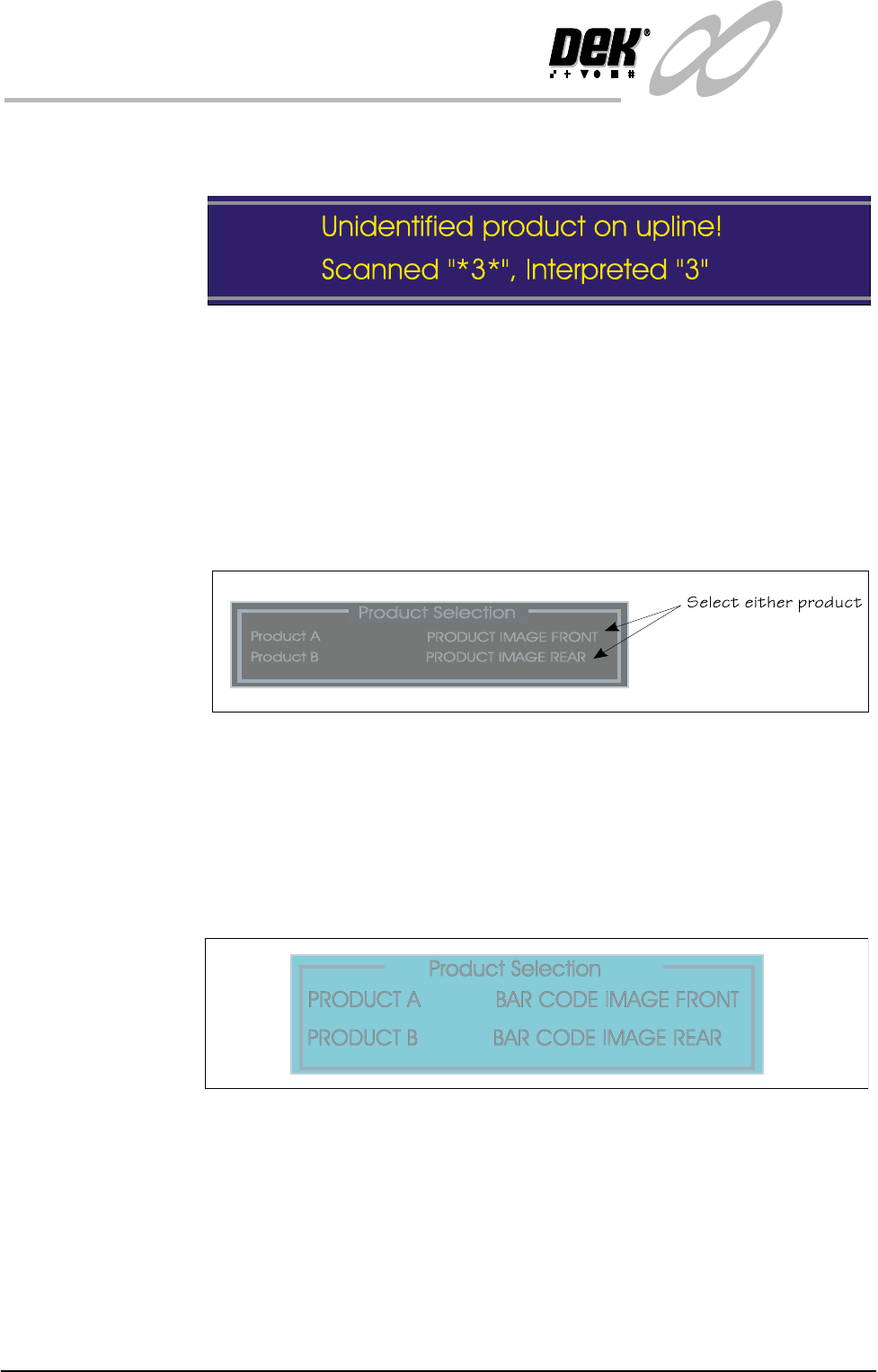
Duing a Print If during a print run the bar code is not recognised, the print run is suspended.
Softkeys F1 Continue, F7 Swap Product and F8 Abort are displayed (all others
are blank). The folowing message is displayed in the message prompt area:
Figure 2-1 Bar Code Read Error Prompt
The *3* (example) represents what the scanner has read, the interpreted "3"
represents what the software interprets the bar code as. Selecting abort termi-
nates the print run and the product is ejected to the output conveyor for removal.
If swap product is selected the machine swaps the current product for the other
product and printing continues with the new product. If continue is selected the
machine continues printing with the current product.
Where the Product Sensor is fitted, the product selection screen is displayed as:
Adjust Product File Product A or Product B process parameters can be adjusted as follows:
NOTE
Product ‘A’ is assigned as the front image and Product ‘B’ the rear image as
described throughout this manual.
1. Select Adjust (F5 function key).
2. The Product Selection page is displayed.
3. Select the product to edit from the list.
4. Select the process parameter(s) to edit.