Infinity DI.pdf - 第32页
INFINITY TECHNI CAL REFEREN CE ADJUS TMEN TS AND SETTI NGS Chapter Issu e 4 Aug 01 Infinity Dual Imag e Manual 1.27 Creating a Pr oduct File On the ready page the current product is displayed in the status menu (sho wn a…
1.26 Infinity Dual Image Manual Chapter Issue 4 Aug 01
INFINITY
TECHNICAL REFERENCE
ADJUSTMENTS AND SETTINGS
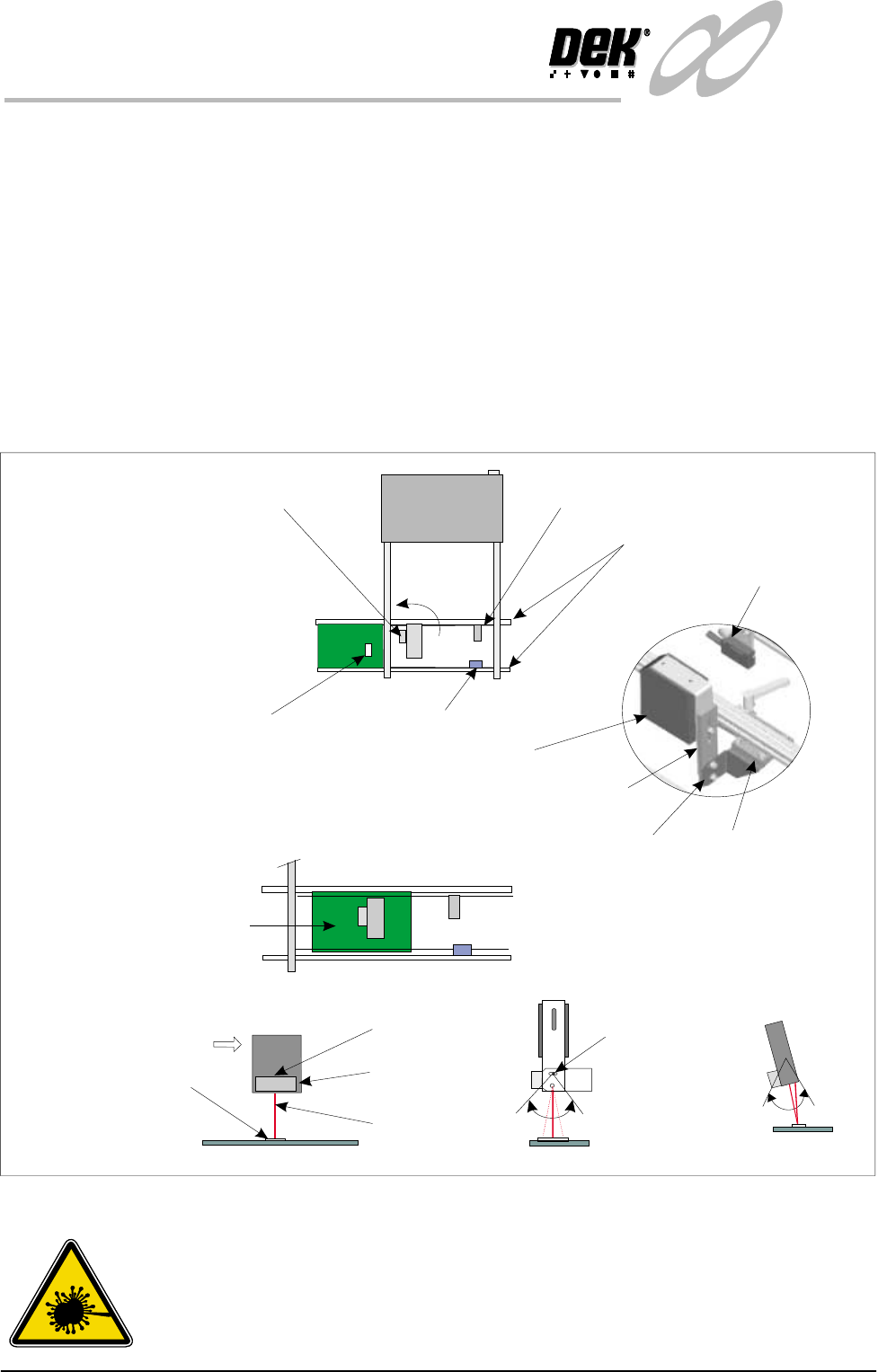
Bar Code Reader The Bar Code Reader (BCR) option reads the code of a product to be printed.
This allows the machine to be automatically set up in software to the product
being used. a sensor mounted before the reader triggers the readrer on. The BCR
must be adjusted to the correct angle for reading the label. Bright or shinylabels
act as a mirror flooding the sensor and giving incorrect readings. Conversely,
dark or dull labels make it hard for the reader to differentiate the bars on the label
giving incorrect readings.
To set up the BCR, a board is loaded onto the input conveyor. The board passes
beneath the trigger sensor that switches the reader momentarily on. The label is
read and confirmation of the correct product occurs. The board continues to the
conveyor sensor where it stops and is detected by the board present sensor. This
is the correct operation of the reader and no adjustment is necessary. If the sensor
mis-reads then the angle, height and orientation of the reader may be adjusted.
Figure 1-19 Adjusting the Bar Code Reader
WARNING
LASER LIGHT SOURCE. THE BAR CODE READER UTILIZES A
LASER TO SCAN THE BAR CODE, DO NOT LOOK DIRECTLY IN
TO THE READER OR AT THE LIGHT DIRECTLY REFLECTED
FROM A SURFACE, AS SERIOUS DAMAGE CAN OCCUR TO THE
Board and Bar Code Label
Input Conveyor Sensor
Trigger Sensor
Tilt Adjust Screw
(15 of tilt)
0
Bar Code Reader
Scan
Bar Code Label
Input Conveyor
Board Present
Sensor
Board Present
Sensor
Bar Code Reader and Trigger Sensor
(can be turned through 90 )
0
The Bar Code label is read
before the board reaches
the Conveyor Sensor.
Movement
View on Arrow A
Side View
A
BCR
Height Adjustment
Bracket
Rotate Adjustment
Tilt Adjustment
INFINITY
TECHNICAL REFERENCE
ADJUSTMENTS AND SETTINGS
Chapter Issue 4 Aug 01 Infinity Dual Image Manual 1.27
Creating a Product
File
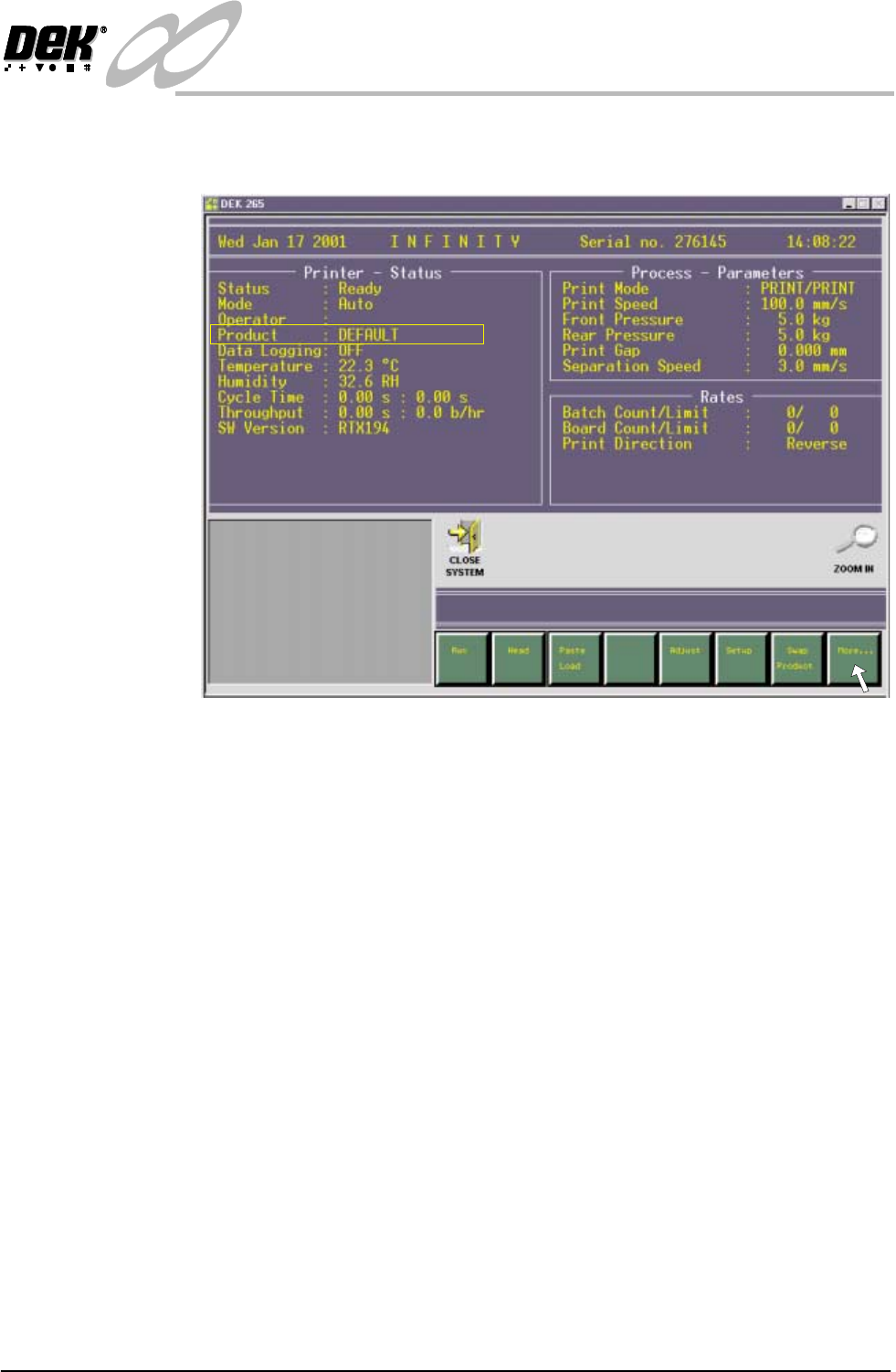
On the ready page the current product is displayed in the status menu (shown as
Default in the figure). To access the maintenance page to set up dual image select
the More button on the soft key bar.
Figure 1-20 Selecting the More Button on the Ready Page
1. Select Maint.
2. Select Set Prefs.
NOTE
When first setting up dual image, the soft key F7 in the above figure is blank,
this changes to Swap Product when dual image is enabled.
1.28 Infinity Dual Image Manual Chapter Issue 4 Aug 01
INFINITY
TECHNICAL REFERENCE
ADJUSTMENTS AND SETTINGS
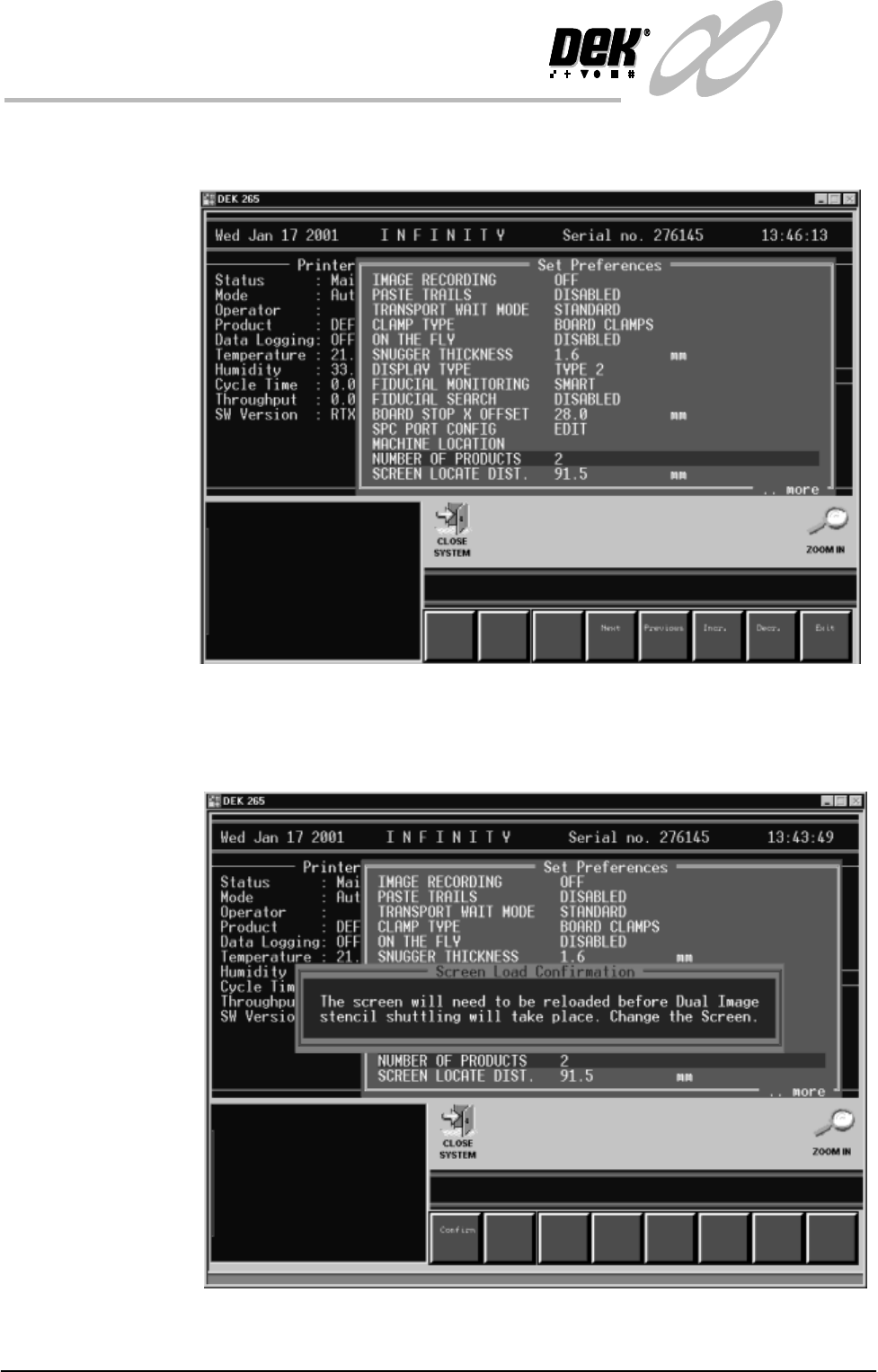
3. Scroll down the menu for the parameter - Number of Products. Using the
incr. or decr. softkeys, set this parameter to 2.
Figure 1-21 Selecting the Number of Products Option
As the machine is going to be run in Dual image mode a configuration error
prompt message is displayed to warn the user that the screen needs to be of the
correct type.
Figure 1-22 Screen Load Configuration Prompt