00198235-02_VD_710.1_R17-1_DE_EN.pdf - 第8页
Station Software 71 0.1 (R17 - 1) / Versio n Description 06/2017 Edition 8 3 Compatible M ode Some station soft ware versions may be used as lower versi ons in compatible m ode. This means that the new functio ns of the …
Station Software 710.1 (R17-1) / Version Description 06/2017 Edition
7
2.3 Languages
User Interface SIPLACE Station and SIPLACE Vision
The standard package contains German, English and Simplified Chinese versions. As for
Simplified Chinese a preliminary version is provided.
The final version of Simplified Chinese and other languages contained in the languages package
are optional and available under the item no. [00140071-xx].
The following table indicates which languages are available for the station software and SIPLACE
Vision:
Available languages for station software and SIPLACE Vision:
– Bulgarian
*)
– Chinese (simplified)
– Czech
*)
– French
– Hungarian
– Italian
– Japanese
– Korean
– Polish
*)
– Portuguese (Brazil)
– Romanian
*)
– Russian
*)
– Spanish (Mexico)
– Vietnamese
*)
*)
GUI only (online help English)

Station Software 710.1 (R17-1) / Version Description 06/2017 Edition
8
3 Compatible Mode
Some station software versions may be used as lower versions in compatible mode. This means
that the new functions of the current version can be used in the compatible version as far as
possible.
The compatible mode is provided to operate stations with lower line software versions in order to
keep the line software version in case of a station upgrade.
The 710.1 station software version can be operated as Version 709.3© in compatible mode.
The visibility and functionality of the new functions in compatible mode are explained in the
following table.
Compatible Mode Meaning
Complete
Complete function support.
Compatible The function is visible and executable at the station. However, new add-
ons in the station software or in the line products are not supported.
Hidden The function is invisible/inactive, e.g. due to licensing or unsupported
SIPLACE Pro download/upload.
Not supported
The function is not supported, e.g. because of failing hardware.
Table 3-1: Visibility and functionality in compatible mode
The respective visibility/functionality in compatible mode is specified for the new features in
chapter 4.
The compatible mode can be activated under Settings – SIPLACE station interface clients on
the GUI.
Please also refer to chapter 6.
Station Software 710.1 (R17-1) / Version Description 06/2017 Edition
9
4 Features of the 710.1 Station Software Version
All features of the 701.x - 710.x station software versions are also supported in the 710.1 station
software version. The main features of the 710.1 station software version are listed below.
NOTICE
Detailed information on the individual functions can be found in the Online help for the
station software.
4.1 SIPLACE CPP M – New Placement Head
Compatible mode: Not supported
The new SIPLACE CPP M placement head offers improved placement accuracy. SIPLACE CPP M
is supported on the TX micron placement machines.
4.2 SIPLACE JTF-ML2 – New Feeder
Compatible mode: Not supported
The new SIPLACE JTF-ML2 tray feeder is supported on the TX-series placement machines and
mounted at location 1 like the SIPLACE JTF-ML feeder. The feeder is equipped with one fixed
magazine and two exchangeable cassettes. There are two cassettes variants: 14 levels (supporting
7/7 cassettes) or 18 levels (supporting 9/9 cassettes). The cassette variants cannot be combined
with each other!
The SIPLACE JTF-ML2 can be combined with the CPP_H, CPP M_H and TH placement heads.
If the SIPLACE JTF-ML2 is used, the operator has to set the X-Table, multi tray feeder support
option for location 1 in the auto configuration. After changing the auto configuration a restart is
required.
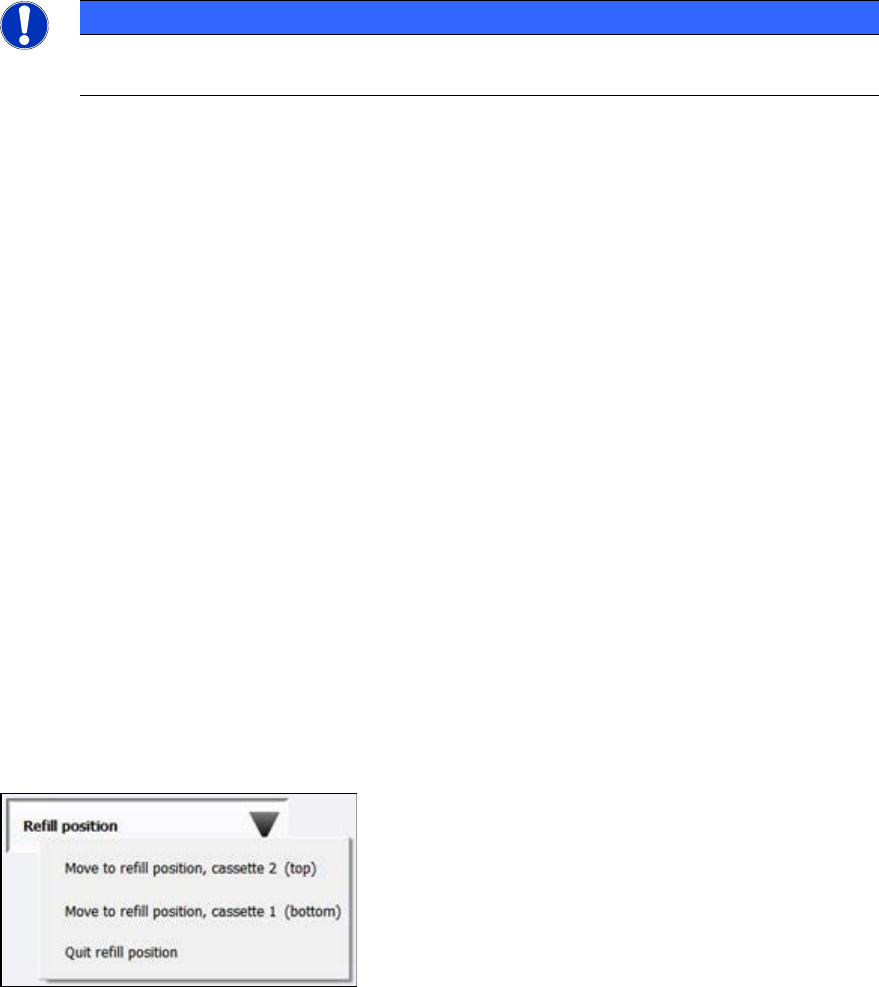
The cassettes can be changed during production. When a new setup was downloaded from
SIPLACE Pro, the operator moves the cassettes one after the other in refill position and changes
the cassettes via the station software GUI under Setup – Single feeder - Settings.
Figure 4-1: Refill position
After having changed the cassettes, the operator must click the Quit refill position button. This
triggers the SIPLACE JTF-ML2 to read the required cassette data from the inserted cassettes. The
station software receives this information and transmits the data to ASM Setup Center. If the wrong
cassette type is inserted, a corresponding error message is displayed.
The station software GUI has been enhanced to display the SIPLACE JTF-ML2 data under Manual
operations – Setup location – Selected feeder – Details…