00198228-02_IM-MaterialSetupAssistant_DE_EN.pdf - 第19页
Installation Order Manager Komplette Installation SIPLACE Material Setup Assistant 2.2 SIPLACE Material Set up Ass istant 2.2 19 2.3.1 2 . 3 . 1 S I P L A C E O r d e r M a n a g e r C lie n t e r f o lg r e ic h in s t …
Installation Order Manager
Order Manager Client Installation
18 SIPLACE Material Setup Assistant 2.2 SIPLACE Material Setup Assistant 2.2
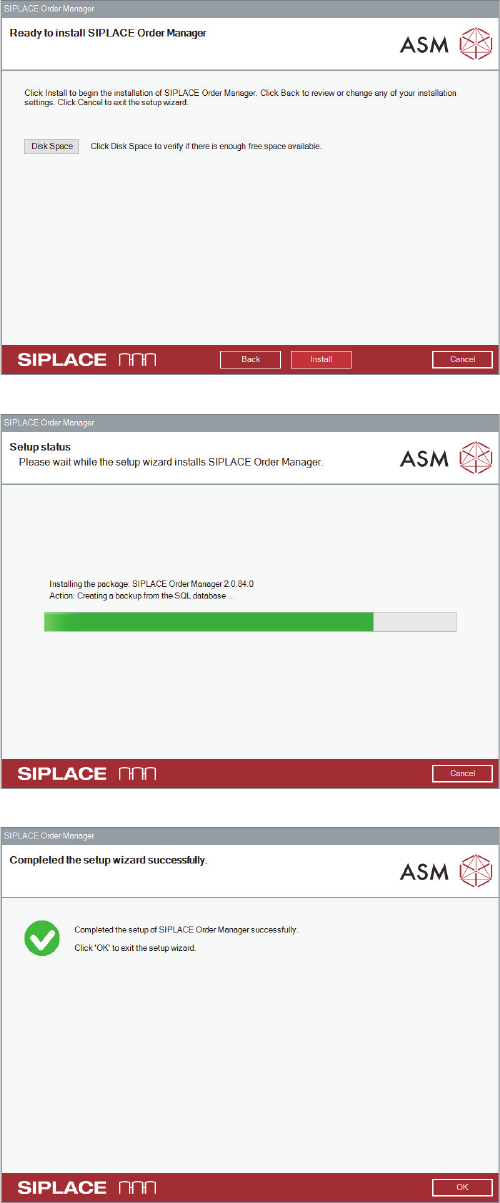
► Klicken Sie Install.
⇨ Das Dialogfeld Setup Status wird angezeigt.
Die Client-Installation wird entsprechend Ihren Angaben
installiert.
Während der Installation zeigt ein Fortschrittsbalken den
aktuellen Status der Installation an.
Nach erfolgreicher Installation des SIPLACE Order Ma
-
nager Client wird das Dialogfeld zum Beenden des Instal
-
lationsprogramms angezeigt.
► Klicken Sie Finish, um das Installationsprogramm zu
beenden.
Installation Order Manager
Komplette Installation
SIPLACE Material Setup Assistant 2.2 SIPLACE Material Setup Assistant 2.2 19
2.3.1
2.3.1 SIPLACE Order Manager Client erfolgreich installiert
SIPLACE Order Manager Client erfolgreich installiert
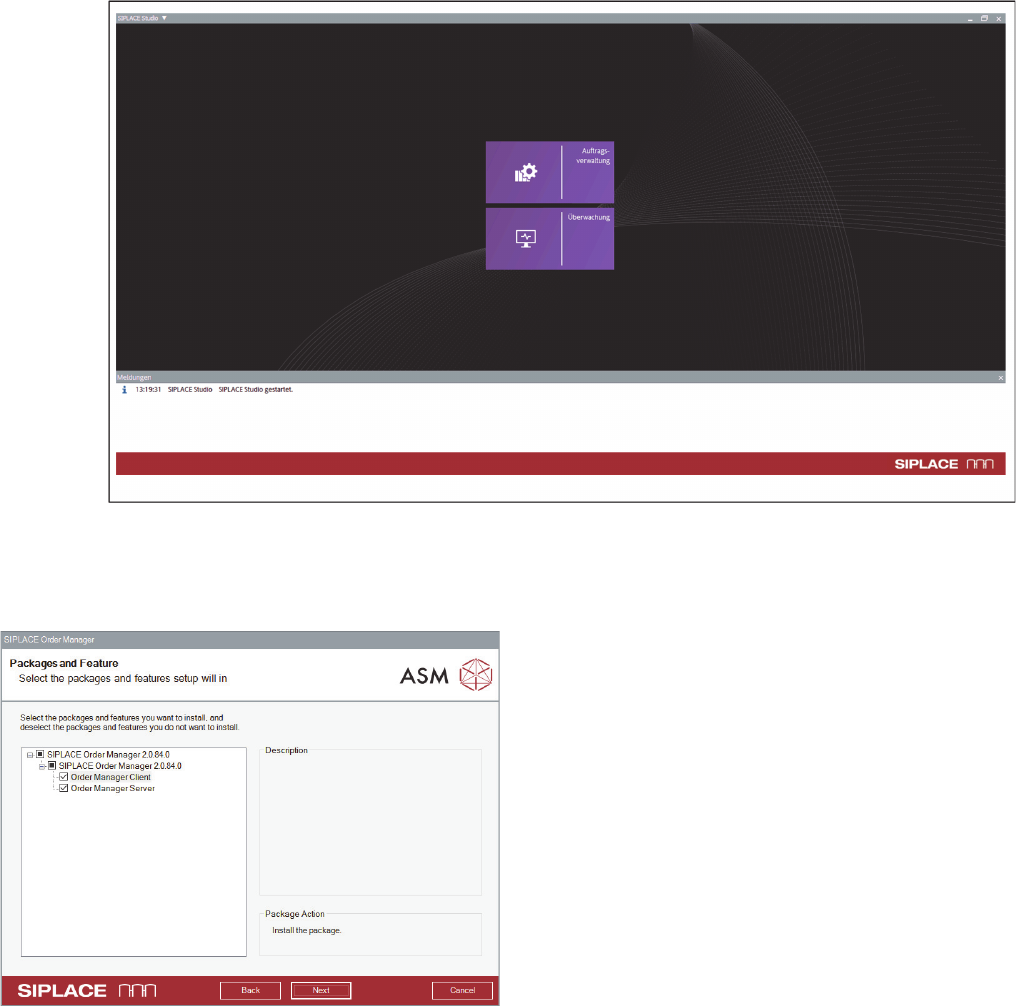
Nach erfolgreicher Installation stehen Ihnen im SIPLACE Studio die Module Auftragsverwaltung und
Überwachung zur Verfügung.
Order Manager im SIPLACE Studio
2.4
2.4 Komplette Installation
Komplette Installation
Erlaubt die Installation der Client- und Server-Kompo
-
nenten des SIPLACE Order Managers auf einem Rech
-
ner.
► Führen Sie die Schritte unter "2.1 Installation starten
- Erste Schritte" [ ➙ 11] aus.
► Wählen Sie Order Manager Client und Order Mana
-
ger Server.
► Klicken Sie Next.
► Folgen Sie den Installationsschritten in den Abschnit
-
ten:
► "2.1 Installation starten - Erste Schritte" [ ➙ 11]
► "2.2 Order Manager Server Installation" [ ➙ 12]
► "2.3 Order Manager Client Installation" [ ➙ 17]
Installation Order Manager
Komplette Installation
20 SIPLACE Material Setup Assistant 2.2 SIPLACE Material Setup Assistant 2.2