00198228-02_IM-MaterialSetupAssistant_DE_EN.pdf - 第65页
Installing the SIPLACE Order Manager Order Manager Client Installation SIPLACE Material Setup Assistant 2.2 SIPLACE Material Set up Ass istant 2.2 65 2.3 2 . 3 O r d e r M a n a g e r C lie n t I n s t a lla t io n Order…
Installing the SIPLACE Order Manager
Order Manager Server Installation
64 SIPLACE Material Setup Assistant 2.2 SIPLACE Material Setup Assistant 2.2
2.2.1
2.2.1 Successfully Installed SIPLACE Order Manager Service
Successfully Installed SIPLACE Order Manager Service
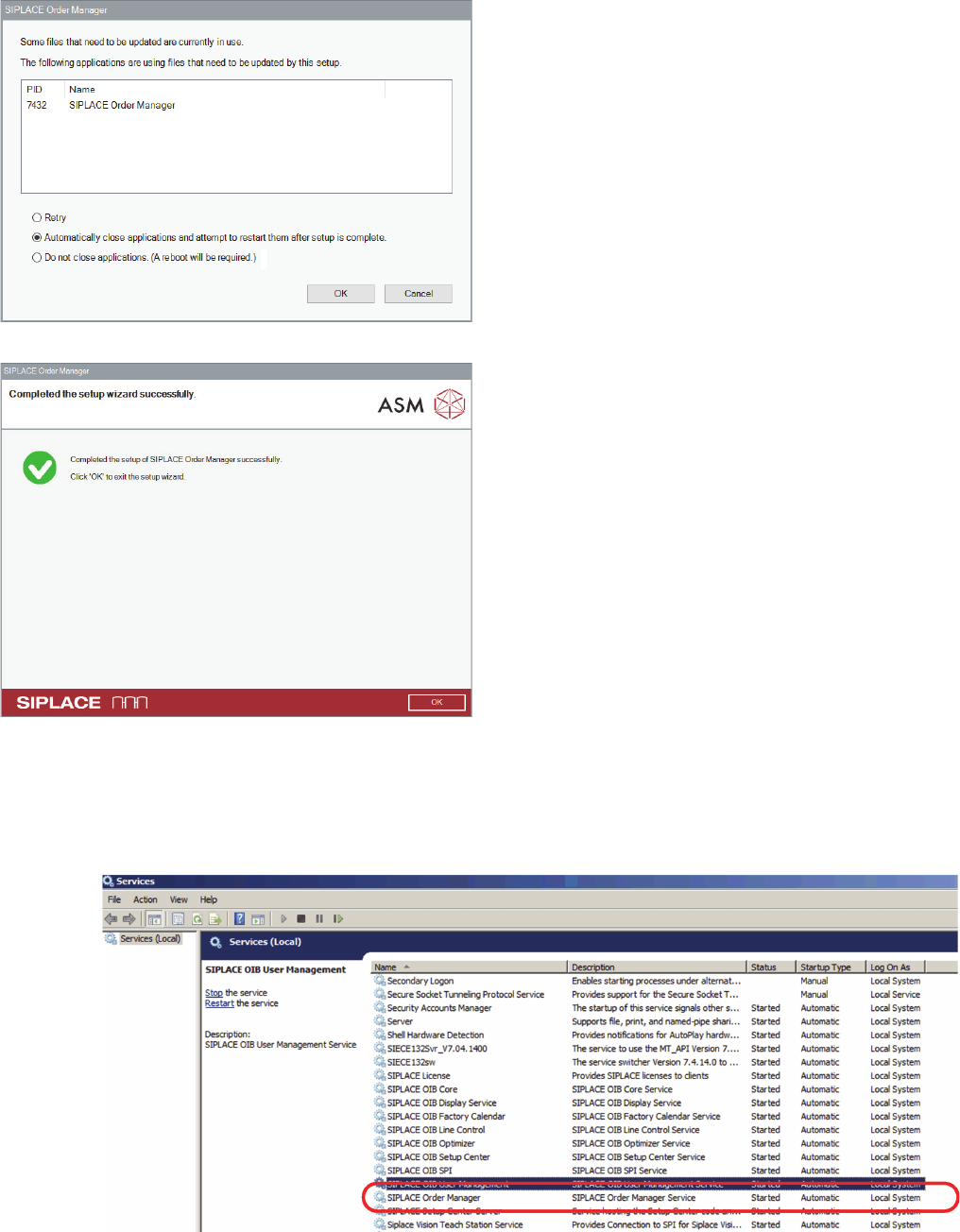
After successful installation, the Windows service SIPLACE Order Manager will be present.
► Open the Windows services and check whether the service SIPLACE Order Manager has been in
-
stalled and started.
Windows service - SIPLACE Order Manager
If the SIPLACE Order Manager Service has already been
installed and started on the specified computer, the Files
in use dialog box will be shown.
► Select the option Automatically close applications
and attempt to restart them after setup is complete.
Or
► Open the Windows services and stop the SIPLACE
Order Manager service. See also "2.2.1 Successfully
Installed SIPLACE Order Manager Service" [ ➙ 64]
and select the Retry option.
► Click on OK.
⇨ The server installation will be installed according to
your specifications.
After the SIPLACE Order Manager server has been suc
-
cessfully installed, the dialog box for finishing the installa
-
tion program will be shown.
► Click on OK to terminate the installation program.
Installing the SIPLACE Order Manager
Order Manager Client Installation
SIPLACE Material Setup Assistant 2.2 SIPLACE Material Setup Assistant 2.2 65
2.3
2.3 Order Manager Client Installation
Order Manager Client Installation
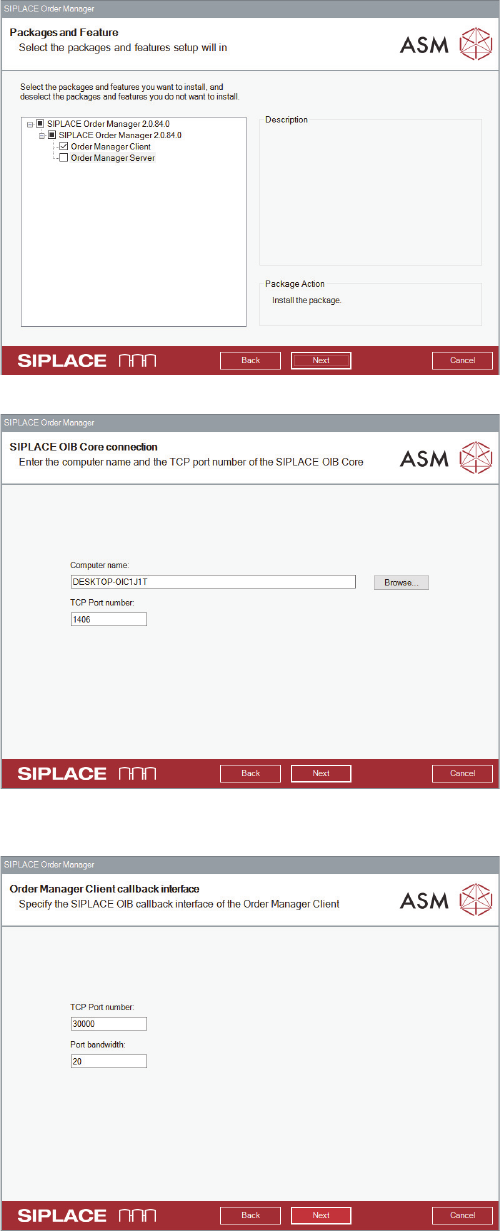
This package installs the client components for the
SIPLACE Order Manager on one computer.
► Perform the steps at "2.1 Starting the Installation -
First Steps" [ ➙ 59].
► Select Order Manager Client.
► Click on Next.
⇨ The OIB Core connection dialog box will be shown.
► Define the settings for the connection to the OIB core.
Default values or names have already been entered.
Computer name:
Name of the computer on which the OIB core is installed.
TCP Port number:
Number of the port that is to be used for the communica
-
tion with the OIB server.
► Click on Next.
⇨ The accessibility of the OIB core on the specified
computer is checked. If the OIB core cannot be
reached, the installation stops at this dialog and you
can correct the computer name.
⇨ If the connection is successfully established, the Or
-
der Manager Client OIB callback interface dialog box
will be shown.
► Define the settings for the SIPLACE OIB callback in
-
terface of the Order Manager client.
TCP Port number:
Number of the callback port that shall be used for the
communication with the OIB server.
Port bandwidth:
The bandwidth of the callback port. A default value of 20
has been entered.
► Click on Next.
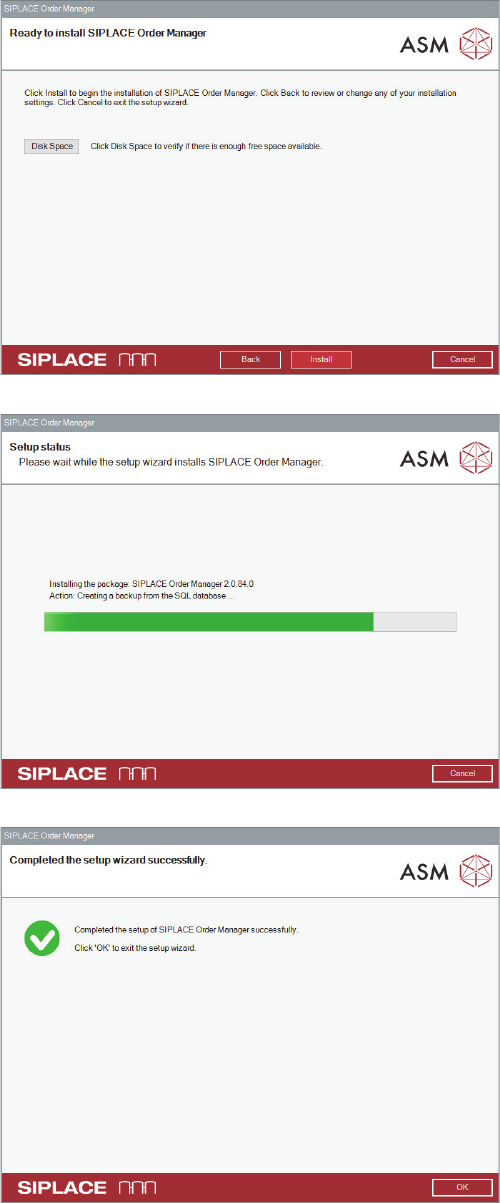
⇨ The Ready to install…. dialog box will be shown.
Installing the SIPLACE Order Manager
Order Manager Client Installation
66 SIPLACE Material Setup Assistant 2.2 SIPLACE Material Setup Assistant 2.2
► Click on Install.
⇨ The Setup Status dialog box is displayed.
The client installation will be installed according to your
specifications.
During the installation, a progress bar displays the cur
-
rent installation status.
After the SIPLACE Order Manager client has been suc
-
cessfully installed, the dialog box for finishing the installa
-
tion program will be shown.
► Click on Finish to terminate the installation program.