00198228-02_IM-MaterialSetupAssistant_DE_EN.pdf - 第90页
Configuration Configuration Settings in ASM Setup Center 90 SIPLACE Material Setup Assistant 2.2 SIPLACE Material Setup Assistant 2 .2 ASM OIB Core connection Parameters Description Computer name Name of the computer on …
Configuration
Configuration Settings in ASM Setup Center
SIPLACE Material Setup Assistant 2.2 SIPLACE Material Setup Assistant 2.2 89
3.2.1
3.2.1 Configuring Communication with ASM Setup Center
Configuring Communication with ASM Setup Center
In order for ASM Setup Center to communicate with the systems involved in the SIPLACE Material Setup
Assistant workflows, you need to configure the connection to ASM OIB.
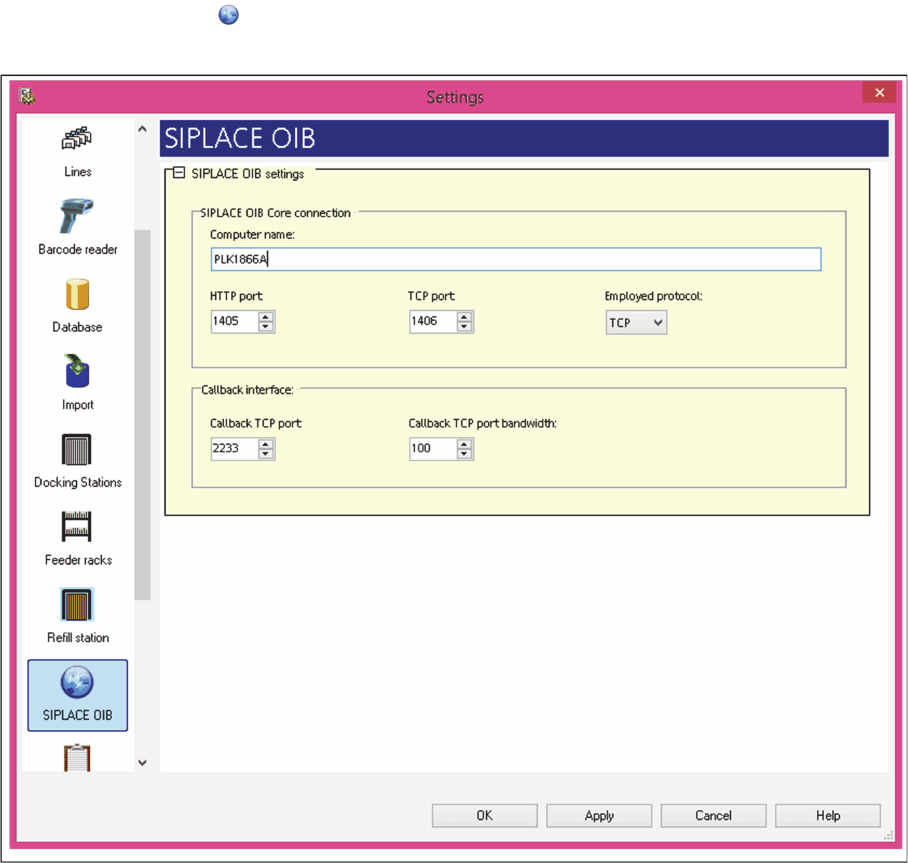
► In the main menu open Extras > Settings and the Settings window will open.
► Select the category ASM OIB.
⇨ The ASM OIB Settings dialog box will be shown.
Settings – ASM OIB
► Perform the relevant settings at ASM OIB Core Connections.

Configuration
Configuration Settings in ASM Setup Center
90 SIPLACE Material Setup Assistant 2.2 SIPLACE Material Setup Assistant 2.2
ASM OIB Core connection
Parameters Description
Computer name Name of the computer on which the ASM OIB core is installed.
HTTP Port: The HTTP port through which the ASM OIB core can be reached.
The HTTP port was configured during ASM OIB installation.
TCP Port: The TCP port through which the ASM OIB core can be reached. The
TCP port was configured during ASM OIB installation.
Employed protocol: Select the communication protocol HTTP or TCP) to be used for
communicating with the ASM OIB Core. The TCP protocol is select
-
ed. You can use HTTP as an alternative.
Callback interface: Callback TCP Port:
The TCP port through which Setup Center is supposed to receive
data and notifications from the ASM OIB Core services.
Callback TCP Port band width:
Alternative ports that can be used if the previously configured Call
-
back TCP Port is busy.
Example: Configured Callback TCP Port = 2000
Band width = 10
If 2000 is already occupied by another program, the first port availa
-
ble between 2001 and 2010 will be used.
Configuration
Configuration Settings in ASM Setup Center
SIPLACE Material Setup Assistant 2.2 SIPLACE Material Setup Assistant 2.2 91
3.2.2
3.2.2 Configuring the ASM Setup Center Application
Configuring the ASM Setup Center Application
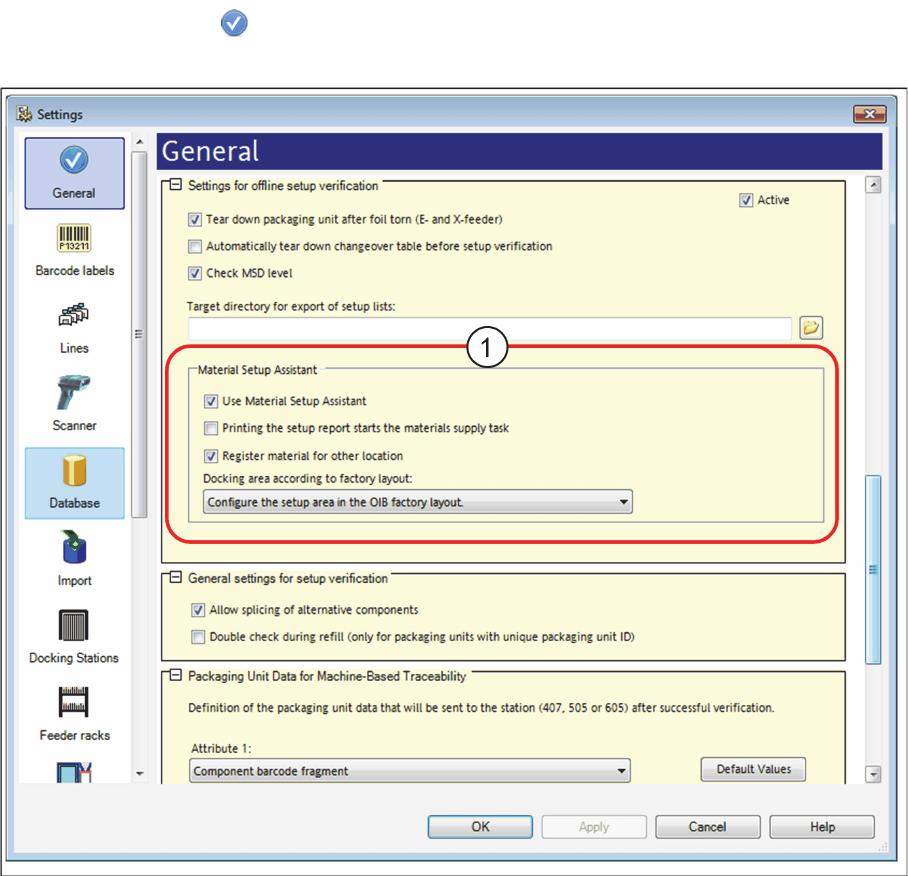
► In the main menu open Extras > Settings and the Settings window will open.
► Select the category General.
⇨ The dialog box General will be shown.
Settings – General
Activating the "setup preparation" view.
► Navigate to Settings for online setup verification.
► Go to Material Setup Assistant (1) and enable the option Use Material Setup Assistant.
⇨ The Setup verification view is now active in ASM Setup Center. This view is used for the Material
Setup Wizard workflow. The tasks waiting and their status are shown. Setup lists can also be printed.
Printing the setup report starts material supply task
Deactivated: Default setting
Activated: The material supply task is automatically set to the status "started" once the setup report is
printed. Thus, SIPLACE Material Setup Assistant is notified that the material supply task has been start
-
ed.