00196864-01_IM_OIS_SIS 9.3_DE EN.pdf - 第10页
OIS 9.3 / Installation Manual Ausgabe 07/2011 Edition When the setup program is started, the following dialog appears on the screen. Figure 3-4: Selecting setup language ► Select the language you wish to use for the inst…
OIS 9.3 / Installation Manual Ausgabe 07/2011 Edition
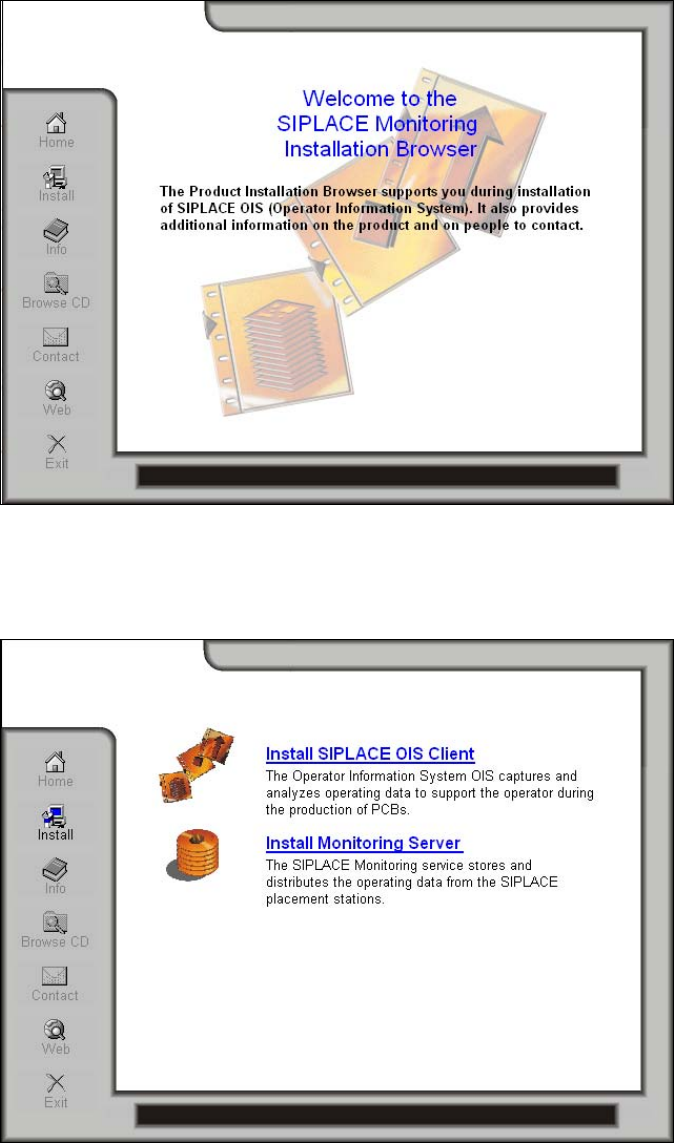
The following dialog is opened. Here you find additional menus that help you to complete the
installation.
Figure 3-2: Welcome screen
► Select e.g. Web to establish a connection to our Internet presence.
► Select Install to display the range of different setup programs.
Figure 3-3: Selecting program
► Select the program you want to install.
9
OIS 9.3 / Installation Manual Ausgabe 07/2011 Edition
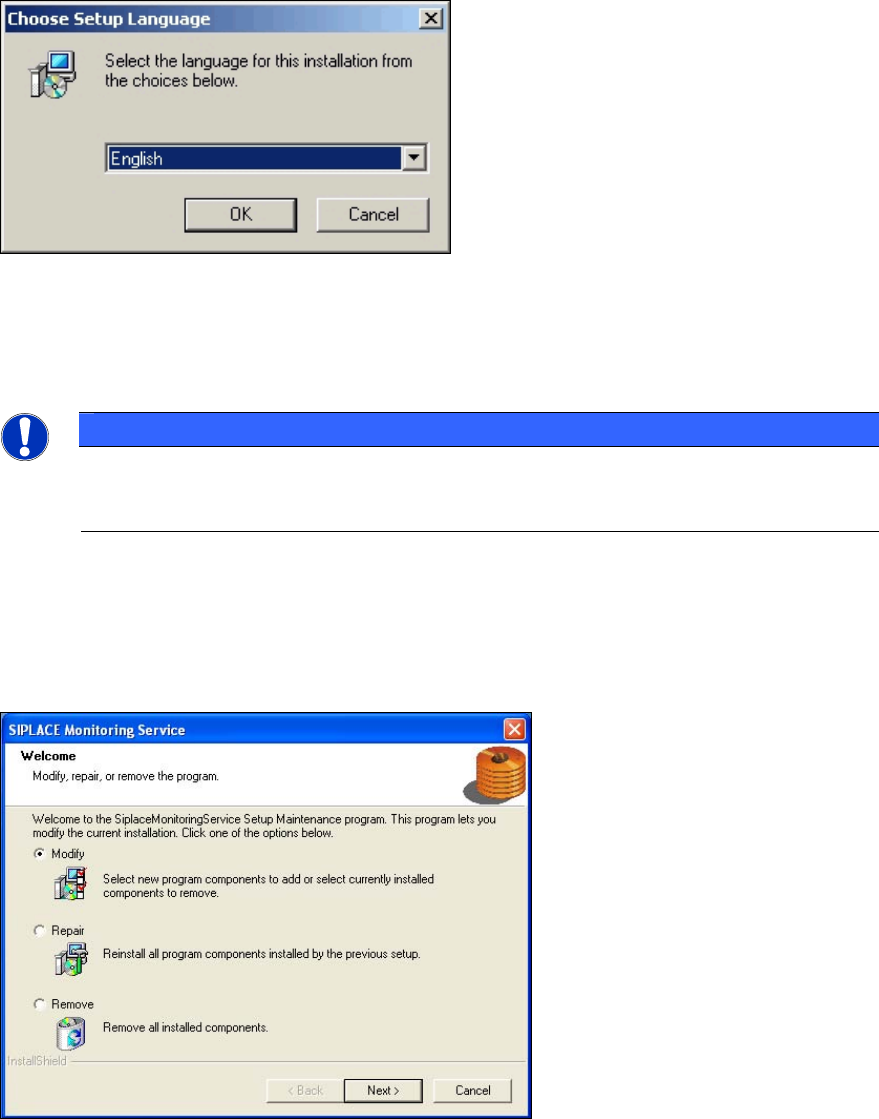
When the setup program is started, the following dialog appears on the screen.
Figure 3-4: Selecting setup language
► Select the language you wish to use for the installation and click OK.
This setting will only affect the language used in the setup dialogs.
NOTICE
You can use the buttons < Back and Next > to move backward and forward within the
setup program. You can exit the program at any time using the Cancel button. This exits
the program without making any changes to the system.
The installation program differentiates between New installation, see section 3.2 on page 11, or
Update installation. For an upgrade to a higher version, the old version has to be removed before
the higher version can be new installed. The setup program recognizes which type of installation is
required, new or update.
If the setup program detects that an Update installation is required, the following dialog will
appear first.
Figure 3-5: Update installation dialog
► Select one of the following options, to determine what you want to do with the existing
installation.
Further information about these options can be found in the appropriate sections of this
document.
● Modify (see section 3.3 on page 22)
● Repair (see section 3.4 on page 22)
● Remove (see section 3.5 on page 23)
10
OIS 9.3 / Installation Manual Ausgabe 07/2011 Edition
3.2 New installation
3.2.1 Starting the installation
The following installation steps are similar for Monitoring Service and OIS Client. The figures
apply to the installation of Monitoring Service, but can be applied to the OIS Client, too.
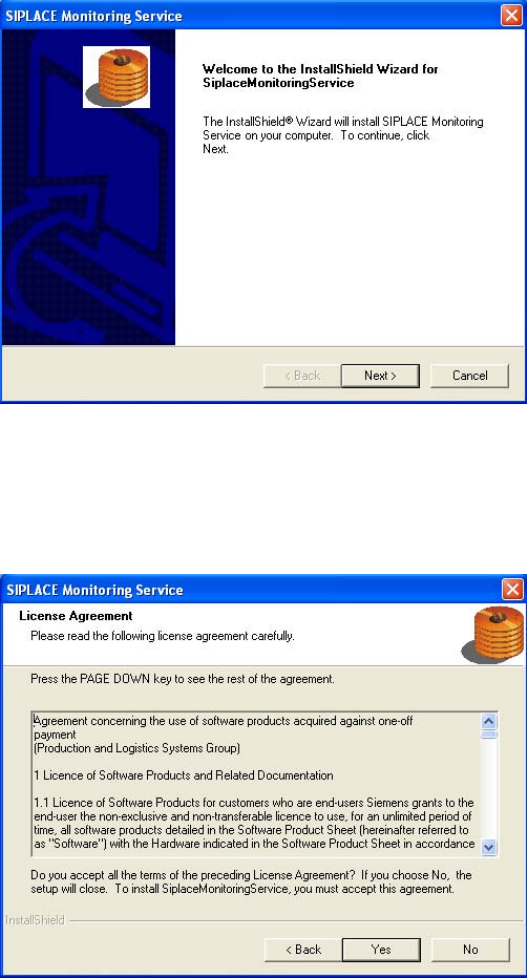
The following dialog is opened.
Figure 3-6: Welcome SIPLACE Monitoring Service
► Close all open applications.
► Continue by clicking the Next> button.
The software licensing contract is opened.
Figure 3-7: License Agreement
If you do not accept the licensing contract, the setup process is terminated.
► Accept the licensing conditions by clicking the Yes button.
11