00196864-01_IM_OIS_SIS 9.3_DE EN.pdf - 第12页
OIS 9.3 / Installation Manual Ausgabe 07/2011 Edition The following dialog is ope ned. Figure 3-8: Selecting destination location ► Click Browse... if you want to choose a different installation directory. ► Continue by …
OIS 9.3 / Installation Manual Ausgabe 07/2011 Edition
3.2 New installation
3.2.1 Starting the installation
The following installation steps are similar for Monitoring Service and OIS Client. The figures
apply to the installation of Monitoring Service, but can be applied to the OIS Client, too.
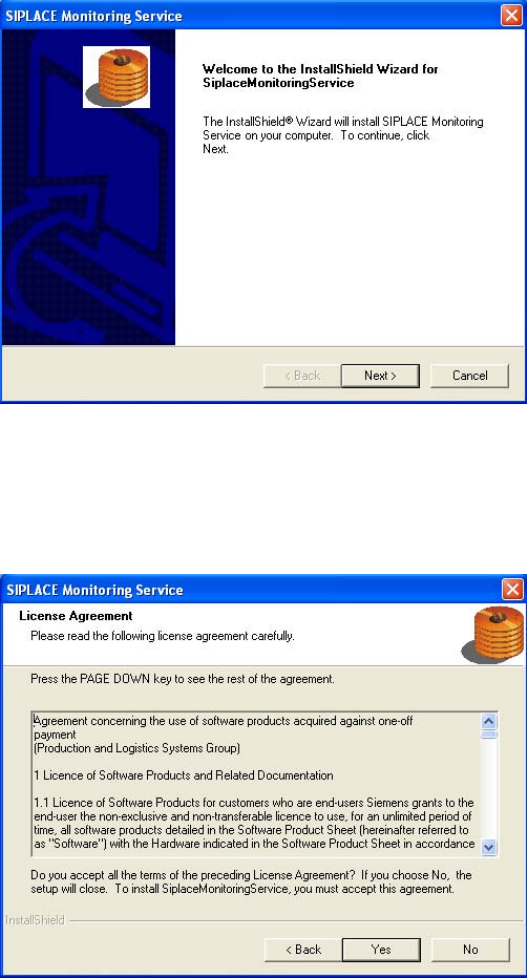
The following dialog is opened.
Figure 3-6: Welcome SIPLACE Monitoring Service
► Close all open applications.
► Continue by clicking the Next> button.
The software licensing contract is opened.
Figure 3-7: License Agreement
If you do not accept the licensing contract, the setup process is terminated.
► Accept the licensing conditions by clicking the Yes button.
11
OIS 9.3 / Installation Manual Ausgabe 07/2011 Edition
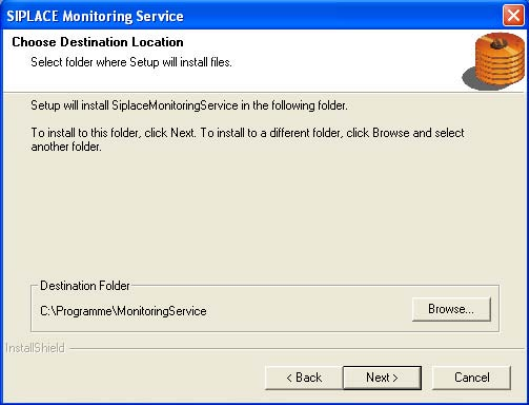
The following dialog is opened.
Figure 3-8: Selecting destination location
► Click Browse... if you want to choose a different installation directory.
► Continue by clicking the Next> button.
The following installation steps depend on the program that you have selected to install.
► Continue with the approriate section:
● Monitoring Service (section 3.2.2 on page 13)
● OIS Client (section 3.2.3 on page 18)
12
OIS 9.3 / Installation Manual Ausgabe 07/2011 Edition
3.2.2 Installing Monitoring Service
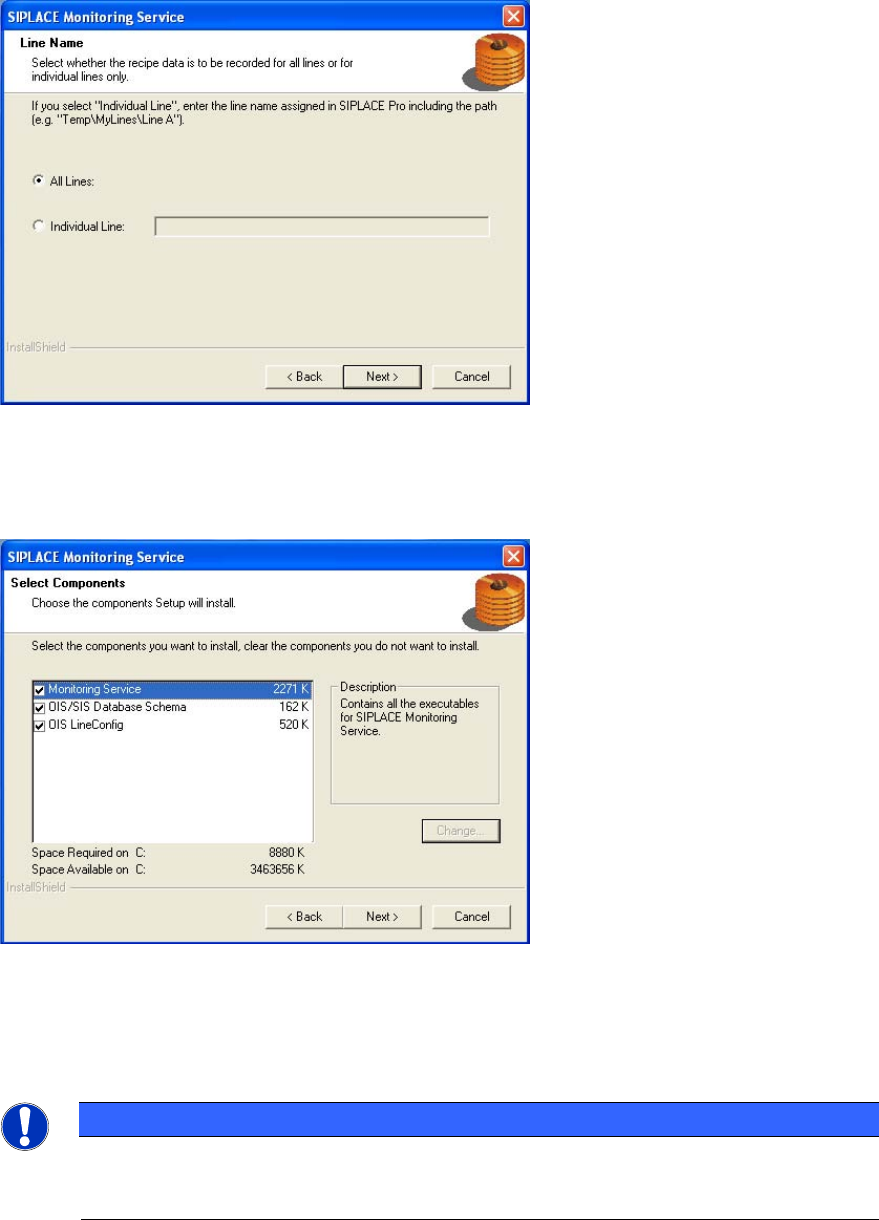
Figure 3-9: Selecting line(s)
► Select the line(s) for which the recipe data is to be recorded.
► Continue by clicking the Next> button.
Figure 3-10: Selecting components
► Select the components you want to install.
► Continue by clicking the Next> button.
NOTICE
It is possible to install the component OIS LineConfig on any other computer in the
network.
If installed elsewhere, that computer needs the SIPLACE Pro Interface.
13