00196864-01_IM_OIS_SIS 9.3_DE EN.pdf - 第9页
OIS 9.3 / Installation Manual Ausgabe 07/2011 Edition The following dialog is opened. He re you find additional menus that help you to complete the installation. Figure 3-2: Welcome screen ► Select e.g. Web to establish …
OIS 9.3 / Installation Manual Ausgabe 07/2011 Edition
3 Installation
► Prepare your computer with the Support Media DVD before starting the installation.
3.1 Starting the installation
► Start Windows.
► Log in with administrative permissions.
► Put the CD-ROM in the drive.
After a few seconds, the CD browser will be started automatically.
NOTICE
► If the CD browser does not start automatically, manually start the Start.exe program
from the root directory of the CD-ROM.
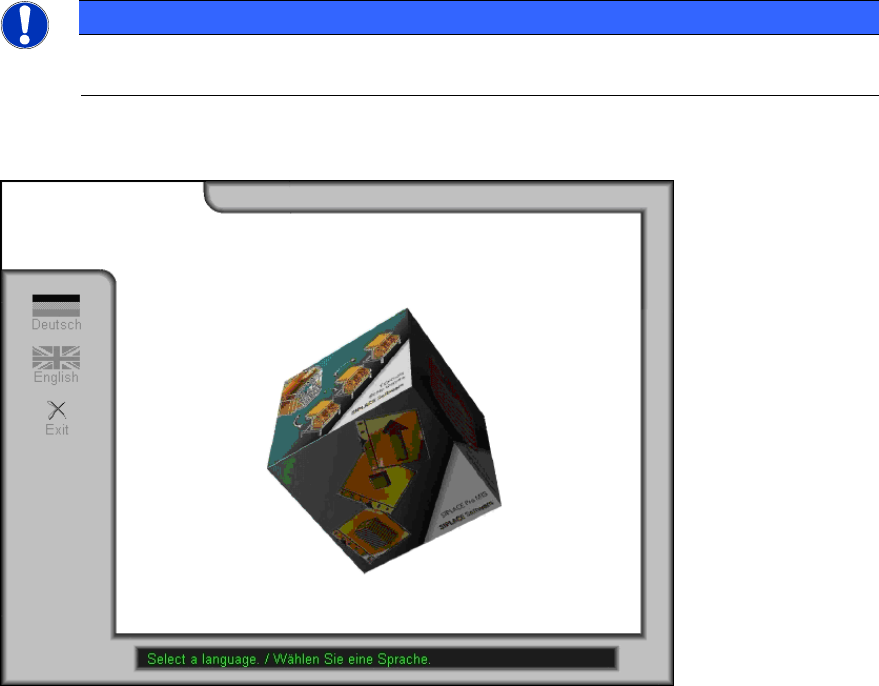
The CD browser provides support as you install the individual software packages.
Figure 3-1: Selecting a language
► Select a language to enter the main view of the CD browser.
8
OIS 9.3 / Installation Manual Ausgabe 07/2011 Edition
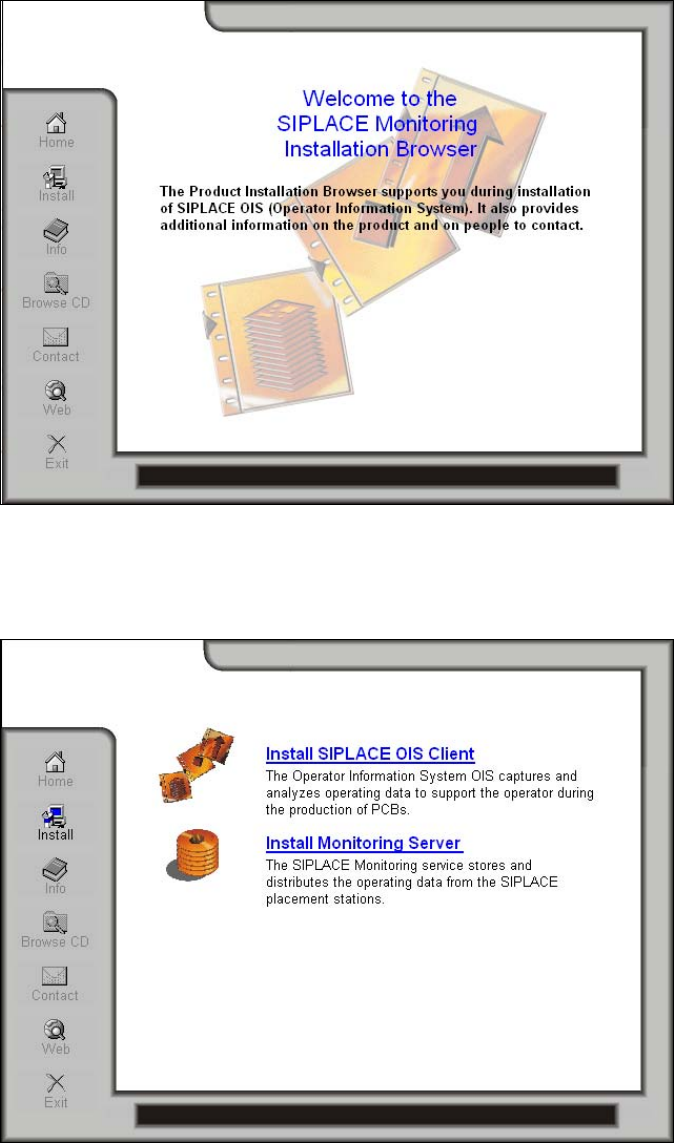
The following dialog is opened. Here you find additional menus that help you to complete the
installation.
Figure 3-2: Welcome screen
► Select e.g. Web to establish a connection to our Internet presence.
► Select Install to display the range of different setup programs.
Figure 3-3: Selecting program
► Select the program you want to install.
9
OIS 9.3 / Installation Manual Ausgabe 07/2011 Edition
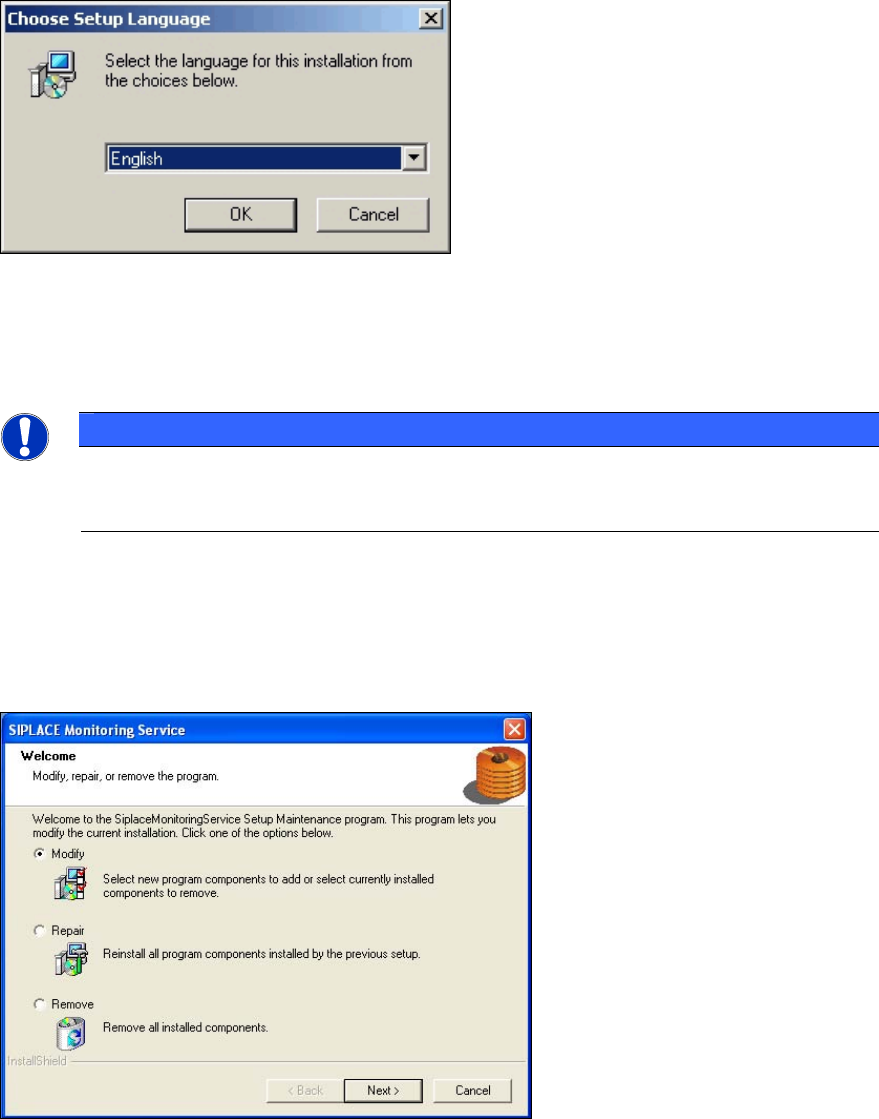
When the setup program is started, the following dialog appears on the screen.
Figure 3-4: Selecting setup language
► Select the language you wish to use for the installation and click OK.
This setting will only affect the language used in the setup dialogs.
NOTICE
You can use the buttons < Back and Next > to move backward and forward within the
setup program. You can exit the program at any time using the Cancel button. This exits
the program without making any changes to the system.
The installation program differentiates between New installation, see section 3.2 on page 11, or
Update installation. For an upgrade to a higher version, the old version has to be removed before
the higher version can be new installed. The setup program recognizes which type of installation is
required, new or update.
If the setup program detects that an Update installation is required, the following dialog will
appear first.
Figure 3-5: Update installation dialog
► Select one of the following options, to determine what you want to do with the existing
installation.
Further information about these options can be found in the appropriate sections of this
document.
● Modify (see section 3.3 on page 22)
● Repair (see section 3.4 on page 22)
● Remove (see section 3.5 on page 23)
10