00195424-01.pdf - 第121页
In stal latio ns- u nd K onf igura tio nsa nleit ung SIPL ACE Explo rer An hang Au sgab e 05 /200 7 D E Bu ndle d We b S erver Inst all ation 121 → K l i c ken Sie auf Next > (W e i ter), die Installation wi rd fortge…
Anhang Installations- und Konfigurationsanleitung SIPLACE Explorer
Bundled Web Server Installation Ausgabe 05/2007 DE
120
Bundled Web Server Installation - MS XML Core Services 6.0
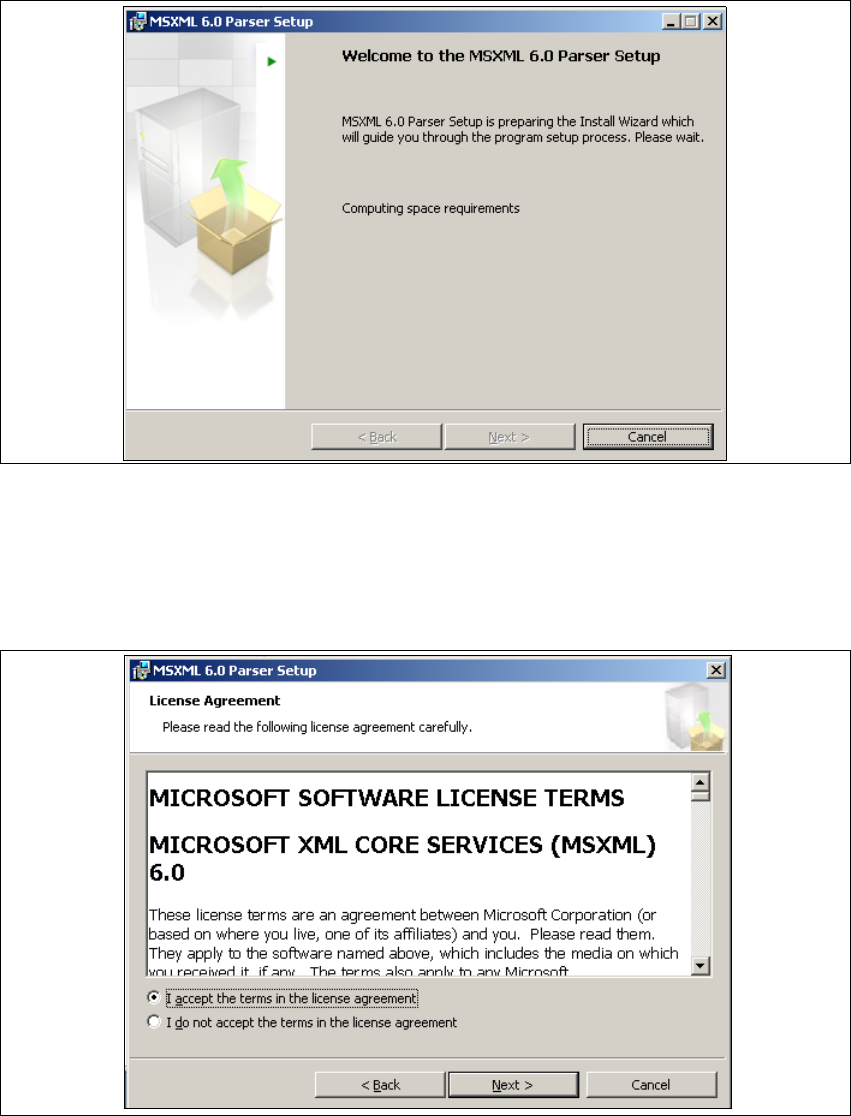
→ Die benutzergeführte Installation von MSXML wird gestartet.
5
Abb. 5 - 25 MSXML 6.0 Setup - Willkommen bei MSXML 6.0
→ Beenden Sie alle anderen Programme und klicken Sie auf Next > (Weiter). Das Dialogfenster
License Agreement wird geöffnet.
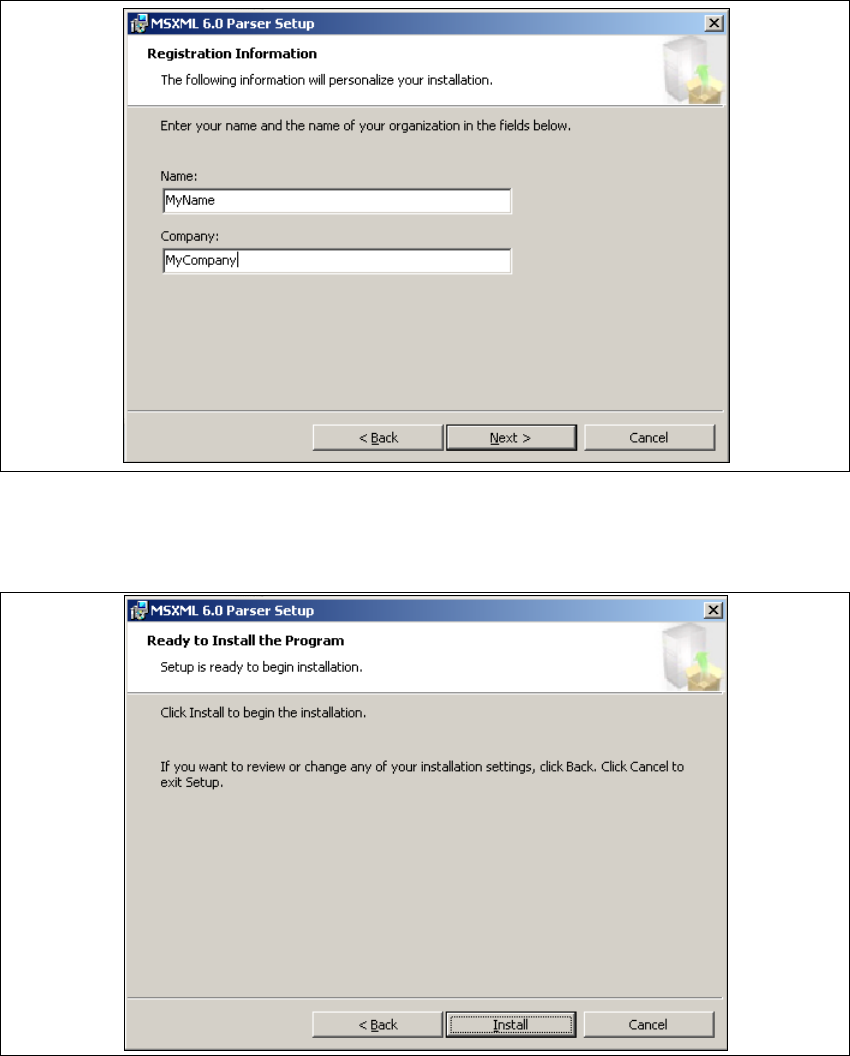
→ Lesen Sie die Lizenzbestimmungen. Wenn Sie zustimmen, I accept anklicken, ansonsten I
don’t accept. Wenn Sie I don’t accept anklicken, wird die Installation beendet.
5
Abb. 5 - 26 MSXML 6.0 Setup - Lizenzvereinbarungen
Installations- und Konfigurationsanleitung SIPLACE Explorer Anhang
Ausgabe 05/2007 DE Bundled Web Server Installation
121
→ Klicken Sie auf Next > (Weiter), die Installation wird fortgeführt.
→ Das Dialogfenster Registration Information wird geöffnet.
5
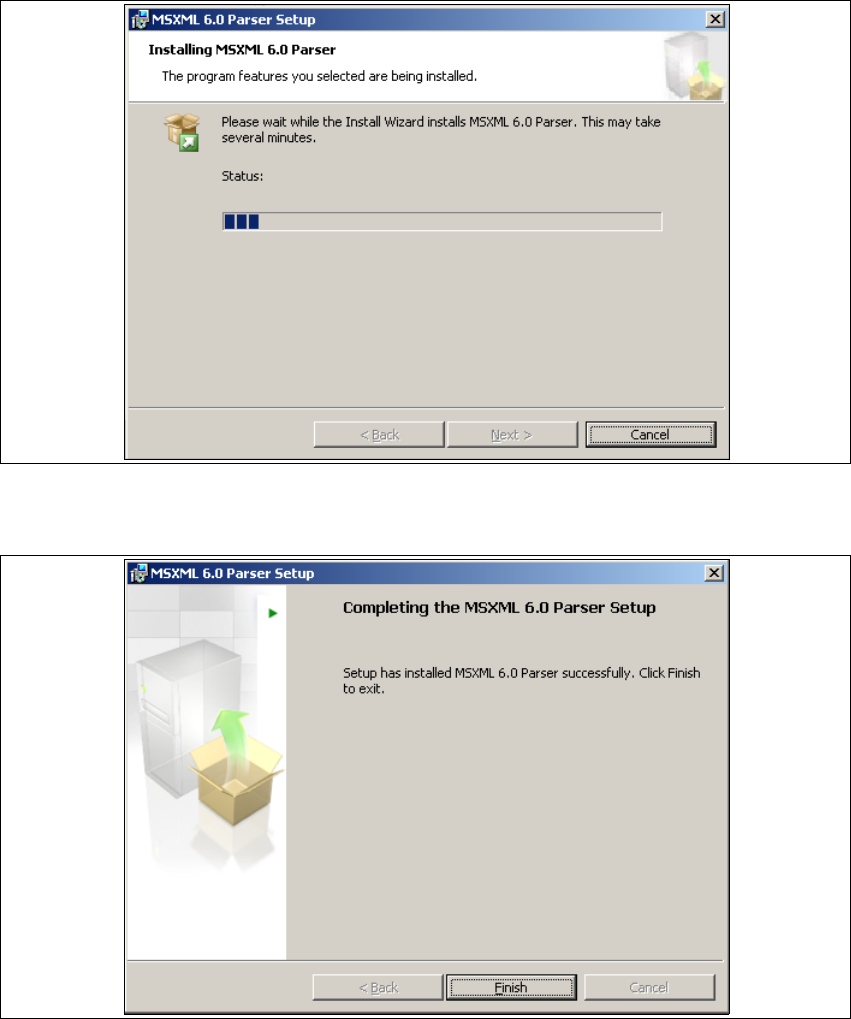
Abb. 5 - 27 MSXML 6.0 Setup - Kundeninformation angeben
→ Geben Sie in dem Feld Name Ihren Namen an und im Feld Company den Namen Ihrer Firma.
Klicken Sie dann auf Next > (Weiter). Das folgende Dialogfenster wird geöffnet.
5
Abb. 5 - 28 MSXML 6.0 Setup - Benutzerinformationen
→ Klicken Sie auf Install (Installieren). Der eigentliche Installationsvorgang von MS XML 6.0 wird
gestartet.
Anhang Installations- und Konfigurationsanleitung SIPLACE Explorer
Bundled Web Server Installation Ausgabe 05/2007 DE
122
5
Abb. 5 - 29 MSXML 6.0 Setup - Installationsvorgang
→ Wenn die Installation beendet ist, wird das folgende Dialogfenster geöffnet.
5
Abb. 5 - 30 MSXML 6.0 Setup - Installation beendet
→ Klicken Sie auf Finish (Fertig stellen).