00195424-01.pdf - 第51页
In stal latio ns- u nd K onf igura tio nsa nleit ung SIPL ACE Explo rer 3 I ns tall ation des SIP LACE Expl orer Au sgab e 05 /200 7 D E 3.4 K o nfi gur atio n von T omcat 51 → W ählen Sie die Datei tomcat5.exe aus und b…
3 Installation des SIPLACE Explorer Installations- und Konfigurationsanleitung SIPLACE Explorer
3.4 Konfiguration von Tomcat Ausgabe 05/2007 DE
50
3
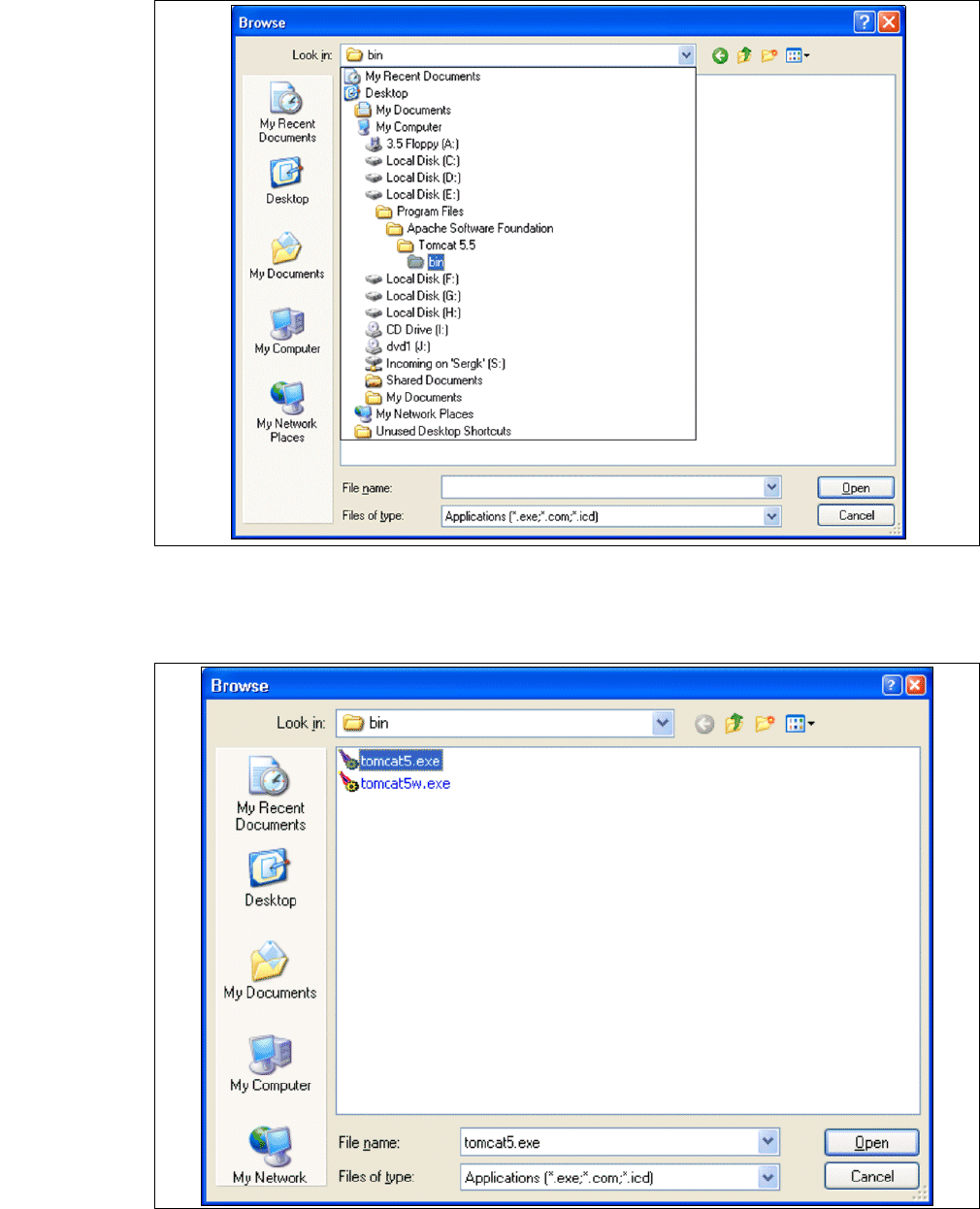
Abb. 3 - 26 Windows Firewall - Exeptions
→ Klicken Sie im Tomcat-Installationspfad den Pfad ..\Tomcat 5.5\bin an und betätigen Sie die
Schaltfläche Open.
3
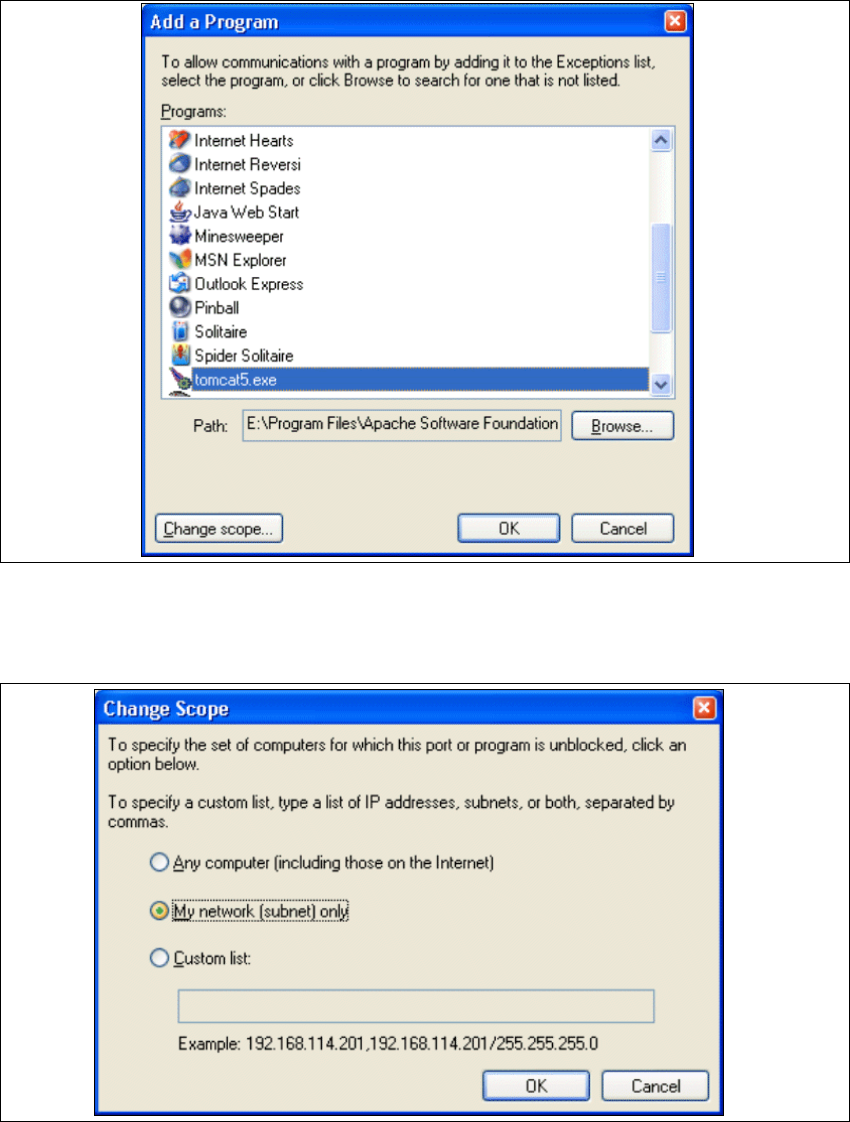
Abb. 3 - 27 Windows Firewall - Exeptions
Installations- und Konfigurationsanleitung SIPLACE Explorer 3 Installation des SIPLACE Explorer
Ausgabe 05/2007 DE 3.4 Konfiguration von Tomcat
51
→ Wählen Sie die Datei tomcat5.exe aus und betätigen Sie die Schaltfläche Open.
→ Das Dialogfenster Add a Program öffnet sich wieder:
3
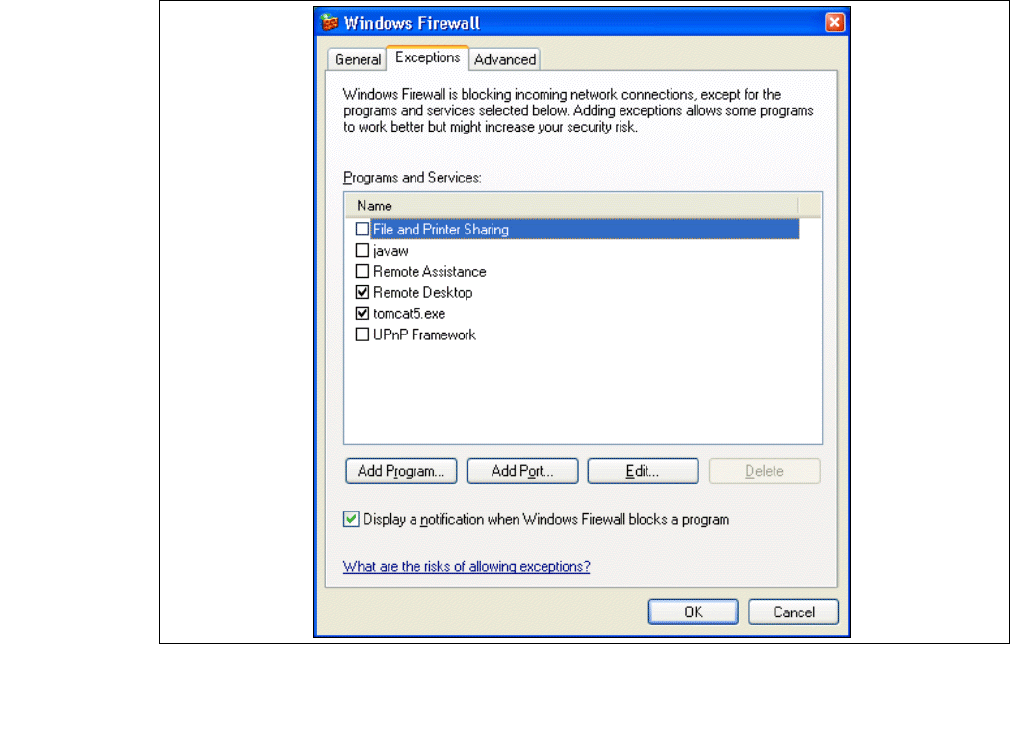
Abb. 3 - 28 Add a Programm
→ Selektieren Sie unter Programs den Eintrag tomcat5.exe und betätigen Sie die Schaltfläche
Change Scope.
3
Abb. 3 - 29 Change Scope
3 Installation des SIPLACE Explorer Installations- und Konfigurationsanleitung SIPLACE Explorer
3.4 Konfiguration von Tomcat Ausgabe 05/2007 DE
52
→ Aktivieren Sie die Option My network und bestätigen Sie mit OK. Sie haben jetzt den Port für
Tomcat freigegeben. Sie können das in dem Dialogfenster Windows Firewall - Exeptions
überprüfen.
3
Abb. 3 - 30 Windows Fairway - Exeptions
→ Geben Sie jetzt den Port für SIPLACE Explorer V2.2 frei. Gehen Sie dabei genauso vor, wie
für Tomcat 5.5 beschrieben.