00195424-01.pdf - 第43页
In stal latio ns- u nd K onf igura tio nsa nleit ung SIPL ACE Explo rer 3 I ns tall ation des SIP LACE Expl orer Au sgab e 05 /200 7 D E 3.3 S IPLA CE Exp lor er star te n 43 HINWEIS Nach der Installation von SIPLACE Exp…
3 Installation des SIPLACE Explorer Installations- und Konfigurationsanleitung SIPLACE Explorer
3.2 Update-Installation von SIPLACE Explorer 2.2 Ausgabe 05/2007 DE
42
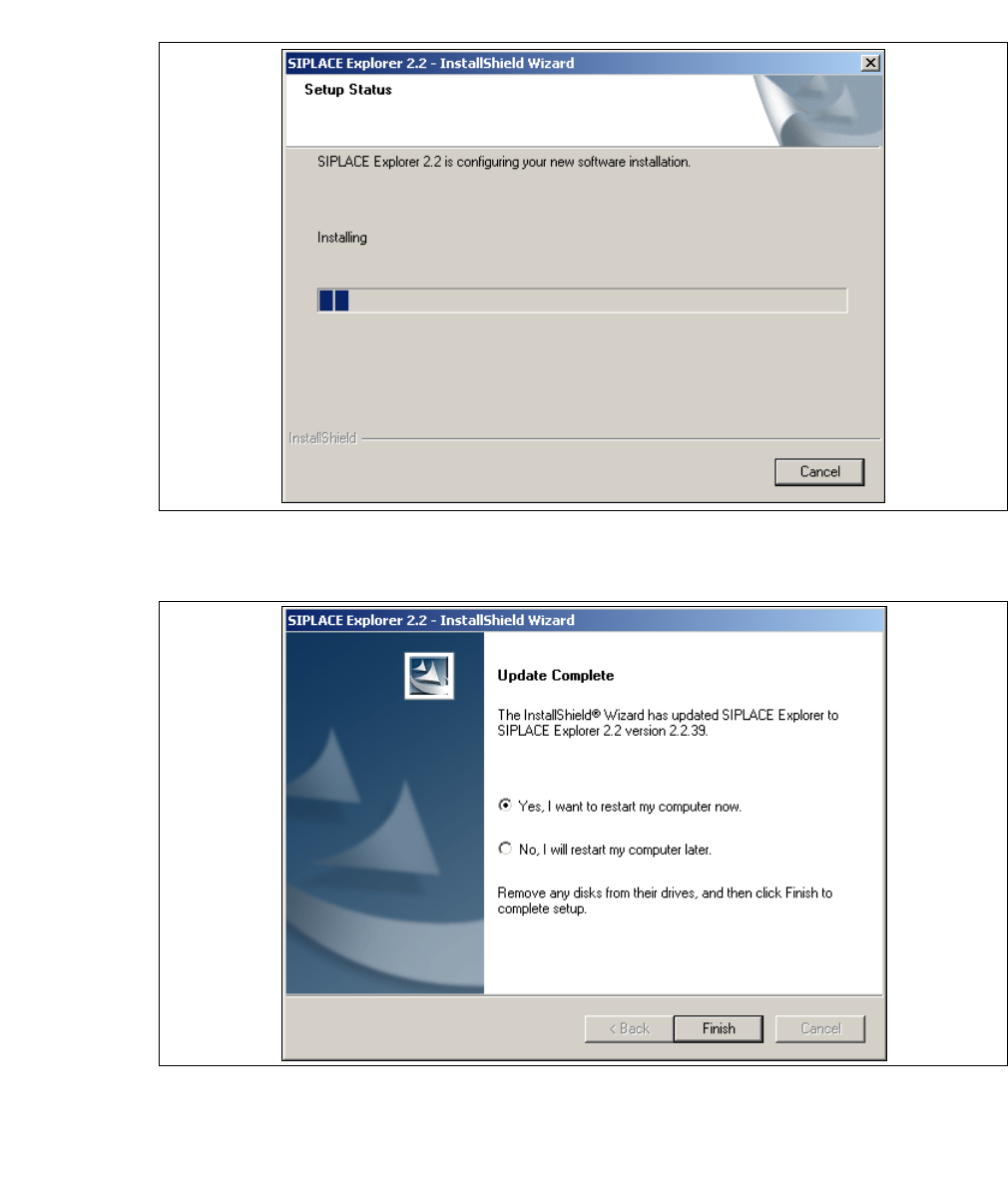
→ Die eigentliche Update-Installation von SIPLACE Explorer V2.2 beginnt.
3
Abb. 3 - 17 SIPLACE Explorer Setup - Dialogfenster 'Setup Status' (Status der Installation)
→ Wenn die Installation beendet ist, erscheint nachfolgendes Dialogfenster.
3
Abb. 3 - 18 SIPLACE Explorer Setup - Installation beendet
→ Klicken Sie auf Finish. Nach dem nächsten Start Ihres Computers steht Ihnen die Update-
Version SIPLACE Explorer V2.2 zur Verfügung. Zum Starten von SIPLACE Explorer gehen Sie
vor, wie unter “SIPLACE Explorer starten” auf Seite 43 beschrieben.
Installations- und Konfigurationsanleitung SIPLACE Explorer 3 Installation des SIPLACE Explorer
Ausgabe 05/2007 DE 3.3 SIPLACE Explorer starten
43
HINWEIS
Nach der Installation von SIPLACE Explorer muss das System neu gebootet werden. Dies ist
notwendig, um sicherzustellen, dass der Port 1099 für die Java Runtime Environment verfügbar
ist. In seltenen Fällen wird der Port 1099 von einer anderen Applikation verwendet. Wird SIPLACE
Explorer ohne Neustart des Systems nach der Installation gestartet, so wird in solchen Fällen der
Fehler "SIPLACE Explorer 2.2 runtime not found" angezeigt. 3
3.3 SIPLACE Explorer starten
→ In Abhängigkeit der ausgewählten Installationsoptionen können Sie SIPLACE Explorer aus
dem Menü Programme → SIPLACE Explorer 2.2 in Windows starten.
→ SIPLACE Explorer V.2.2 Runtime Environment:
Runtime Environment wird bei jedem Neustart des Computers als Windows Service
automatisch gestartet. Sie sehen das Symbol in der Konsole. Mit dem rechten Mausklick
können Sie weitere Applikationen und Tools starten. Sie haben folgende
Auswahlmöglichkeiten: 3
– SE Manager
– SE Security Manager
– Line Configuration
– Performance Analyzer
–Console
– Language
3 Installation des SIPLACE Explorer Installations- und Konfigurationsanleitung SIPLACE Explorer
3.3 SIPLACE Explorer starten Ausgabe 05/2007 DE
44
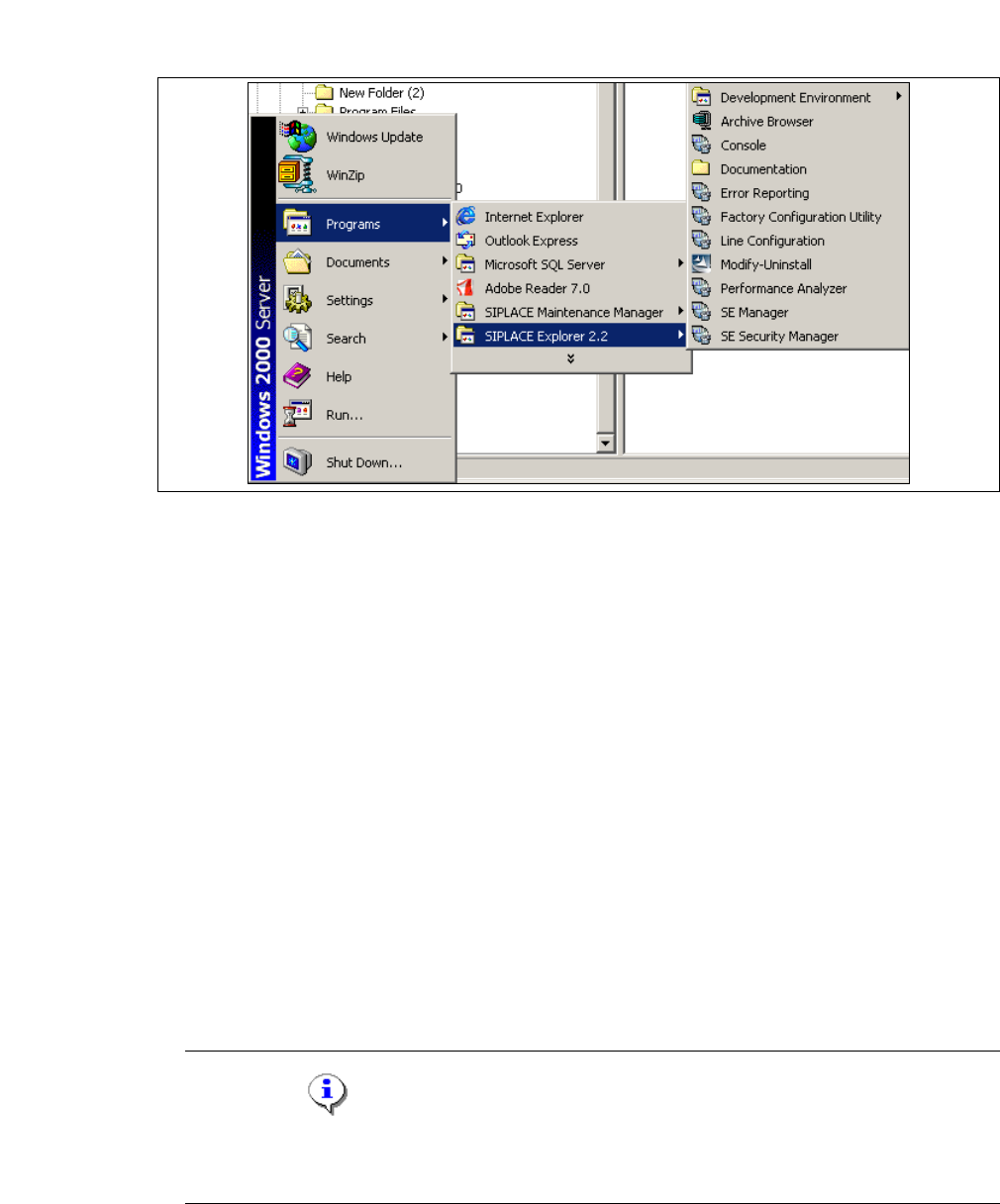
Sie können die weiteren Applikationen und Tools auch über das Windows-Menü Programme
→ SIPLACE Explorer 2.2 starten. 3
3
Abb. 3 - 19 RTE Windows Start Menü
Sie haben folgende Auswahlmöglichkeiten: 3
– Archive Browser
–Console
– Documentation
– Error Reporting
– Factory Configuration Utility
– Line Configuration
– Modify-Uninstall
– Performance Analyser
– SE Manager
– SE Security Manager
→ SIPLACE Explorer V.2.2 Development Environment
HINWEIS
Sie können Development Environment nur starten, wenn Runtime Environment gestoppt
ist. 3