00195424-01.pdf - 第36页
3 In stal lati on de s SIPL ACE E xplore r Inst all atio ns- u nd Ko nfigu rat ions anle itun g SI P L AC E E xplo rer 3. 1 E rst inst allat ion v on S IPL ACE Exp lorer 2.2 A usga be 05/2 007 DE 36 → Wenn die Ins t a ll…
Installations- und Konfigurationsanleitung SIPLACE Explorer 3 Installation des SIPLACE Explorer
Ausgabe 05/2007 DE 3.1 Erstinstallation von SIPLACE Explorer 2.2
35
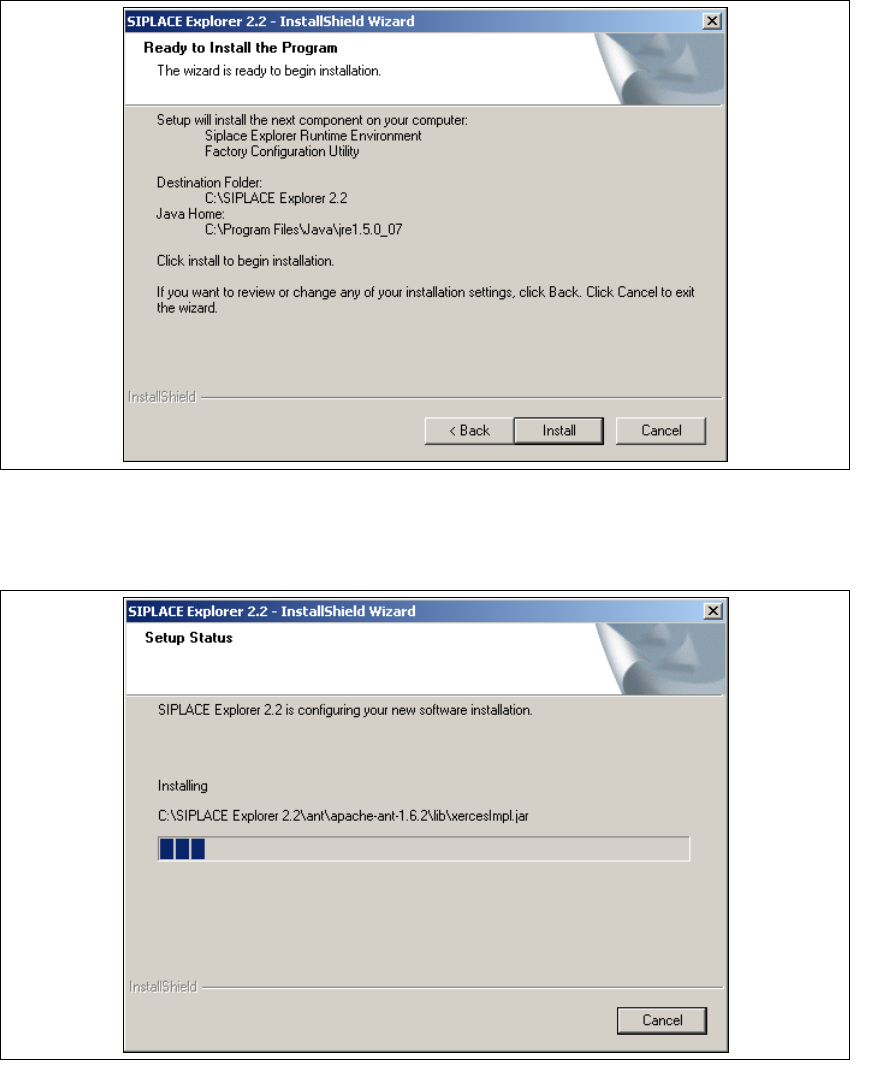
→ Das Dialogfenster Ready to Install the Program wird geöffnet.
3
Abb. 3 - 10 SIPLACE Explorer Setup - Dialogfenster 'Ready to Install' (Bereit für die Installation)
→ Betätigen Sie die Sie die Schaltfläche Install, die eigentliche Installation von SIPLACE
Explorer V2.2 beginnt.
3
Abb. 3 - 11 SIPLACE Explorer Setup - Dialogfenster 'Setup Status' (Status der Installation)
3 Installation des SIPLACE Explorer Installations- und Konfigurationsanleitung SIPLACE Explorer
3.1 Erstinstallation von SIPLACE Explorer 2.2 Ausgabe 05/2007 DE
36
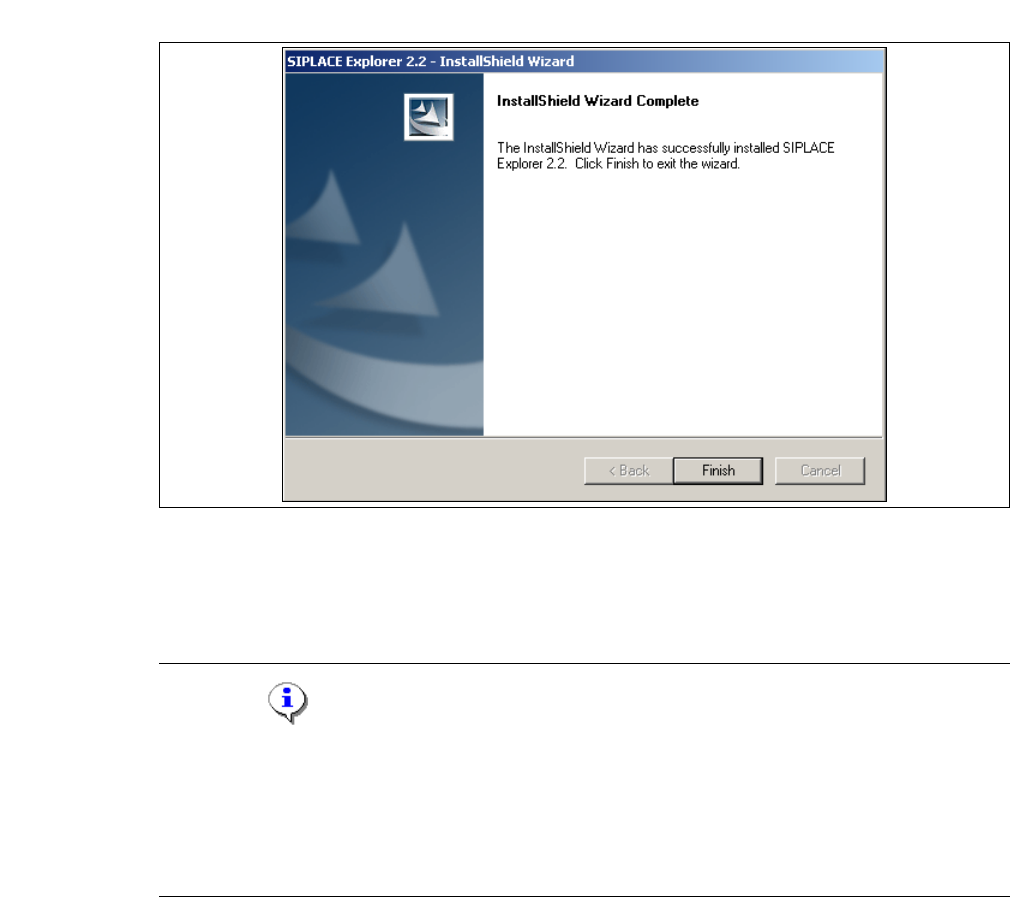
→ Wenn die Installation beendet ist, erscheint nachfolgendes Dialogfenster.
3
Abb. 3 - 12 SIPLACE Explorer Setup - Installation beendet
→ Klicken Sie auf Finish. Nach dem nächsten Start Ihres Computers können Sie SIPLACE
Explorer starten. Gehen Sie dazu vor, wie unter “SIPLACE Explorer starten” auf Seite 43
beschrieben.
HINWEIS
Nach der Installation von SIPLACE Explorer muss das System neu gebootet werden. Dies ist
notwendig, um sicherzustellen, dass der Port 1099 für die Java Runtime Environment verfügbar
ist. In seltenen Fällen wird der Port 1099 von einer anderen Applikation verwendet. Wird SIPLACE
Explorer ohne Neustart des Systems nach der Installation gestartet, so wird in solchen Fällen der
Fehler "SIPLACE Explorer 2.2 runtime not found" angezeigt. 3

Installations- und Konfigurationsanleitung SIPLACE Explorer 3 Installation des SIPLACE Explorer
Ausgabe 05/2007 DE 3.1 Erstinstallation von SIPLACE Explorer 2.2
37
3.1.2 Hinweise zum Installationsvorgang MSDE 2000
HINWEIS
Nach der MSDE 2000 Installation:
Wenn die MSDE 2000 Installation beendet ist, erscheint ein Pop-up, in welchem eine Portnummer
angezeigt wird. Notieren Sie sich diese Portnummer, Sie benötigen diese beim weiteren Arbeiten
mit SIPLACE Explorer. 3
3.1.2.1 Passwort für "sa" Zugang manuell ändern
Wollen Sie Ihr Passwort manuell ändern, können Sie das über die Eingabeaufforderung tun. 3
→ Öffnen Sie die Eingabeaufforderung an dem Computer, an welchem MSDE läuft und zu dem
Sie die Verbindung herstellen wollen.
→ Geben Sie das folgende Kommando ein, und betätigen Sie anschließend die Enter-Taste:
osql -U sa 3
Falls Sie den "sa" Zugang verwenden, werden Sie mit diesem Kommando als lokale,
standardmäßige Instanz von MSDE verbunden. 3
→ Geben Sie die folgenden Kommandos in zwei separaten Zeilen ein, und betätigen Sie
anschließend die Enter-Taste:
sp_myoldpassword null, 'mynewpassword', 'sa' 3
go 3
HINWEIS
Ersetzen Sie 'mynewpassword' mit dem neuen Passwort. 3
→ Sie erhalten eine Mitteilung über die erfolgreiche Änderung Ihres Passwortes.