00195424-01.pdf - 第47页
In stal latio ns- u nd K onf igura tio nsa nleit ung SIPL ACE Explo rer 3 I ns tall ation des SIP LACE Expl orer Au sgab e 05 /200 7 D E 3.4 K o nfi gur atio n von T omcat 47 → Da s Dialogf enst er Wi ndow s F ire wal l …
3 Installation des SIPLACE Explorer Installations- und Konfigurationsanleitung SIPLACE Explorer
3.4 Konfiguration von Tomcat Ausgabe 05/2007 DE
46
→ Oder klicken Sie auf Ihrem Desktop auf das Symbol Factory Configuration Utility .
3.4 Konfiguration von Tomcat
3.4.1 Verwendung von Windows XP Professional mit SP2
Haben Sie als Betriebssystem Windows XP Professional mit SP2 installiert, müssen Sie für die
Verwendung von SIPLACE Explorer V2.2 die XP-Firewalls nachkonfigurieren. Sie müssen die
Ports für Tomcat 5.5 und für SIPLACE Explorer V2.2 freigeben. 3
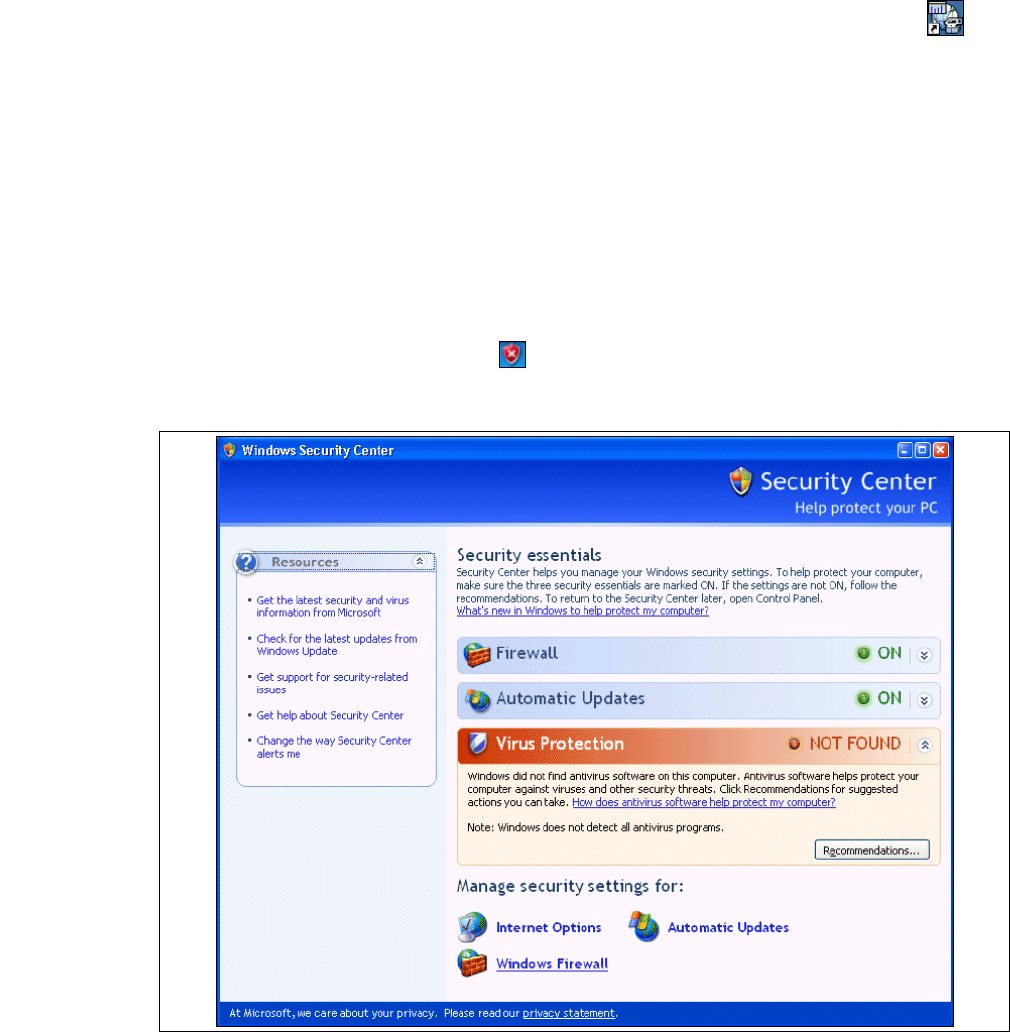
→ Starten Sie den Windows Security Center. Dazu klicken Sie mit einem Doppelklick auf das
Symbol Windows Security Alerts in der Konsole.
→ Das Dialogfenster öffnet Windows Security Center sich:
3
Abb. 3 - 22 Windows Security Center
→ Wählen Sie unter Manage security settings for die Option Windows Firewall aus.
Installations- und Konfigurationsanleitung SIPLACE Explorer 3 Installation des SIPLACE Explorer
Ausgabe 05/2007 DE 3.4 Konfiguration von Tomcat
47
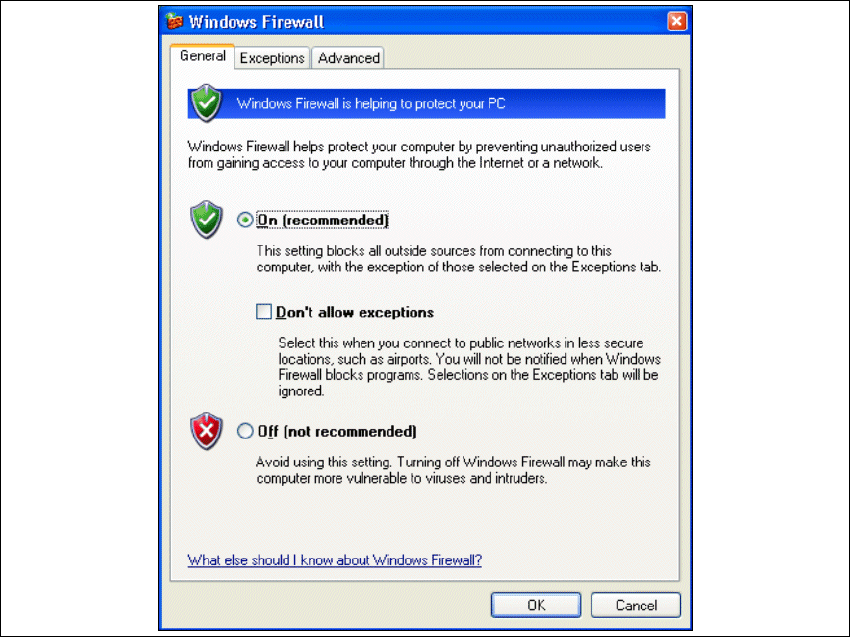
→ Das Dialogfenster Windows Firewall öffnet sich:
3
Abb. 3 - 23 Windows Firewall
→ Wählen Sie das Register Exeptions aus.
3 Installation des SIPLACE Explorer Installations- und Konfigurationsanleitung SIPLACE Explorer
3.4 Konfiguration von Tomcat Ausgabe 05/2007 DE
48
3
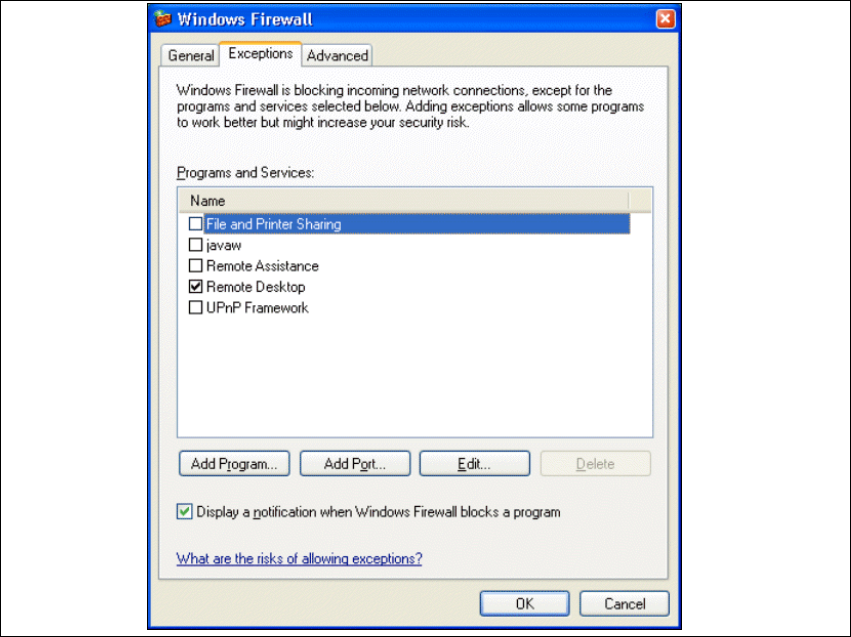
Abb. 3 - 24 Windows Firewall - Exeptions
→ Betätigen Sie die Schaltfläche Add Program.