00193688-04.pdf - 第130页
5 D ei nsta lla ti on In st al la tio n an d Co nf ig ura tio n Gui de SIP LAC E Ex pl ore r 5. 3 R ep air Ed iti on 12 /2 00 5 EN 130 → SIPLACE Expl orer 2.0 SP recover y has been complet ed. 5 F ig. 5 - 8 Re pair com p…
Installation and Configuration Guide SIPLACE Explorer 5 Deinstallation
Edition 12/2005 EN 5.3 Repair
129
5.3 Repair
5
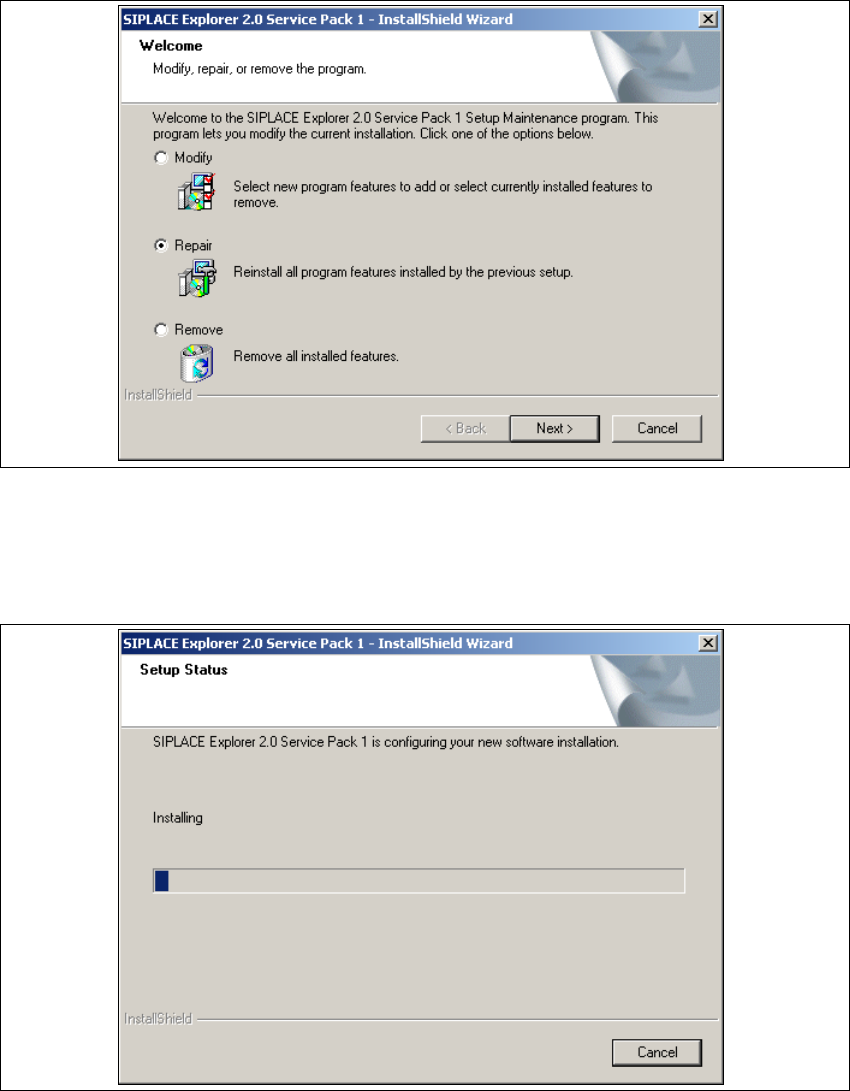
Fig. 5 - 6 SIPLACE Explorer 2.0 SP1 - install shield wizard
→ Click on Repair and then on Next to continue.
→ The recovery process will be performed. The Setup Status dialog box shows you which
features will be deinstalled or installed.
5
Fig. 5 - 7 SIPLACE Explorer 2.0 SP1 - install shield wizard
5 Deinstallation Installation and Configuration Guide SIPLACE Explorer
5.3 Repair Edition 12/2005 EN
130
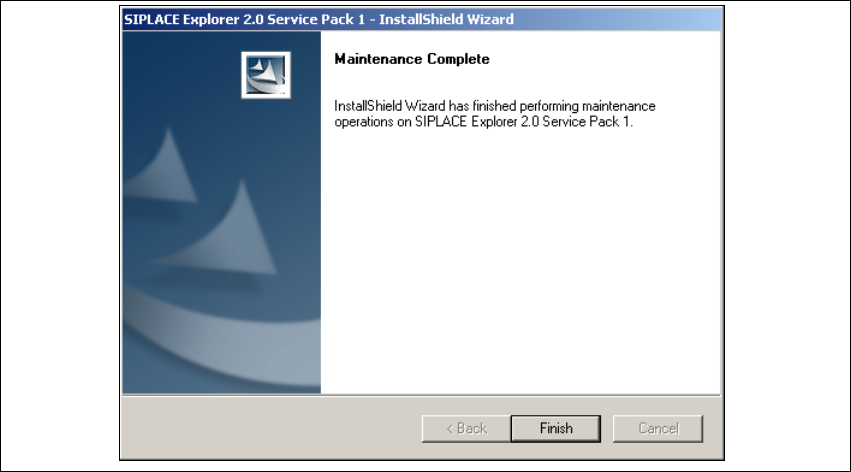
→ SIPLACE Explorer 2.0 SP recovery has been completed.
5
Fig. 5 - 8 Repair complete
→ Click on Finish to close the SIPLACE Explorer 2.0 SP1 - InstallShield Wizard.
Installation and Configuration Guide SIPLACE Explorer 5 Deinstallation
Edition 12/2005 EN 5.4 Remove
131
5.4 Remove
5
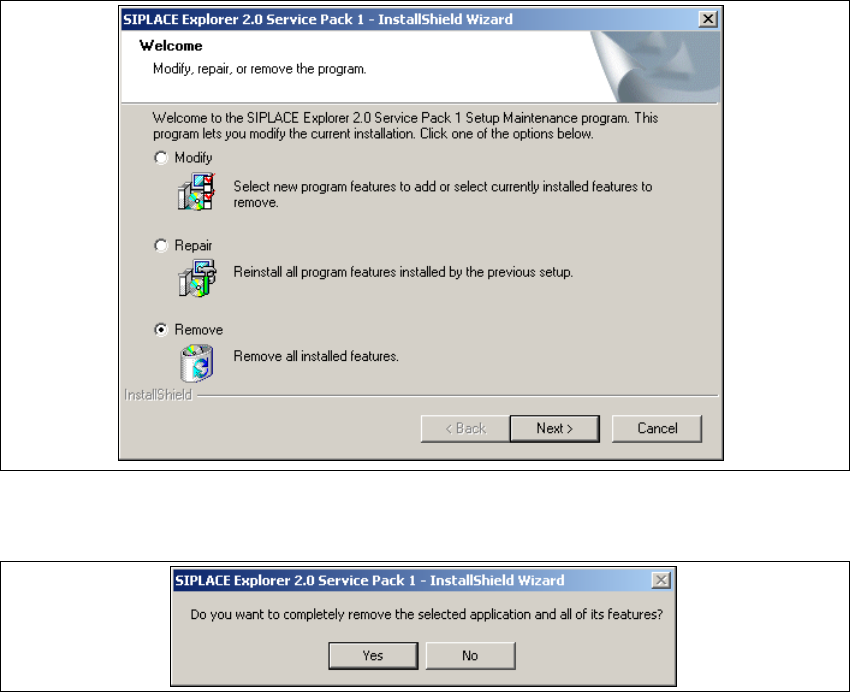
Fig. 5 - 9 SIPLACE Explorer 2.0 SP1 - install shield wizard
→ Click on Remove and then on Next to continue.
5
Fig. 5 - 10 Deinstallation query: confirm deletion of file
→ Confirm deletion with Yes.
The deinstallation process will be performed.
5