00193688-04.pdf - 第39页
In st alla tio n an d Co nf igur at ion G uide SI P LACE E xpl ore r 3 I ns tal li ng SIP LAC E Ex plor er Edi tio n 12 /200 5 EN 3.1 In iti al In stal la tio n of S IPL ACE E xpl ore r 2. 0 SP1 39 → Now specify the fo l…
3 Installing SIPLACE Explorer Installation and Configuration Guide SIPLACE Explorer
3.1 Initial Installation of SIPLACE Explorer 2.0 SP1 Edition 12/2005 EN
38
→ If you chose Cancel, please install the version of JAVA 2 JRE included on the installation CD
or available free from (see page 29) Sun Microsystems at http://java.sun.com/j2se and then re-
start installation of SIPLACE Explorer.
NOTE
If you have the J2 Runtime environment (not JAVA 2 JRE) - available from Sun Microsystems
at http://java.sun.com/j2se - installed on your system, the website generated by SIPLACE
Explorer Website Builder will not function properly as it is based on JSP, which requires JAVA
2 JRE. 3
→ The installation of SIPLACE Explorer 2.0 SP1 will be continued once JAVA 2 JRE v.1.5 has
been localized. The following dialog box will appear.
3
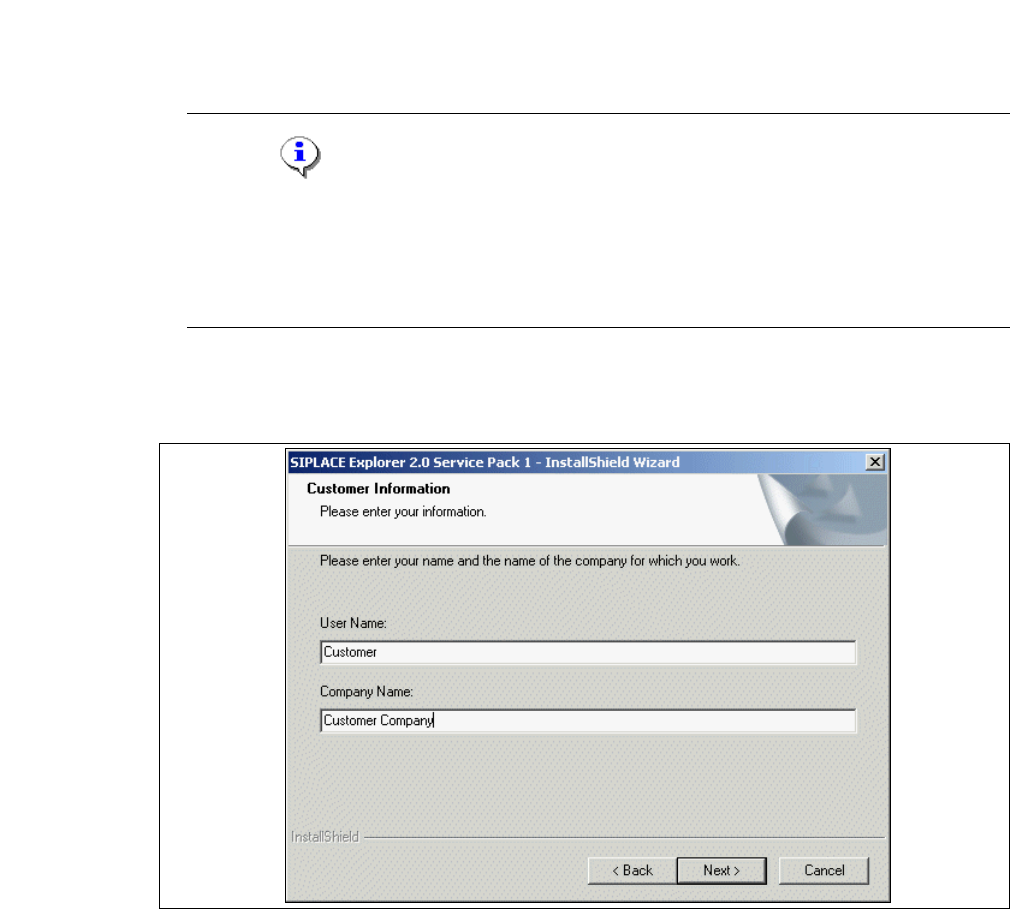
Fig. 3 - 19 SIPLACE Explorer setup - choose destination location
→ Enter your name in the User Name field and the name of your company in the Company
Name
field. Click on Next to continue.
Installation and Configuration Guide SIPLACE Explorer 3 Installing SIPLACE Explorer
Edition 12/2005 EN 3.1 Initial Installation of SIPLACE Explorer 2.0 SP1
39
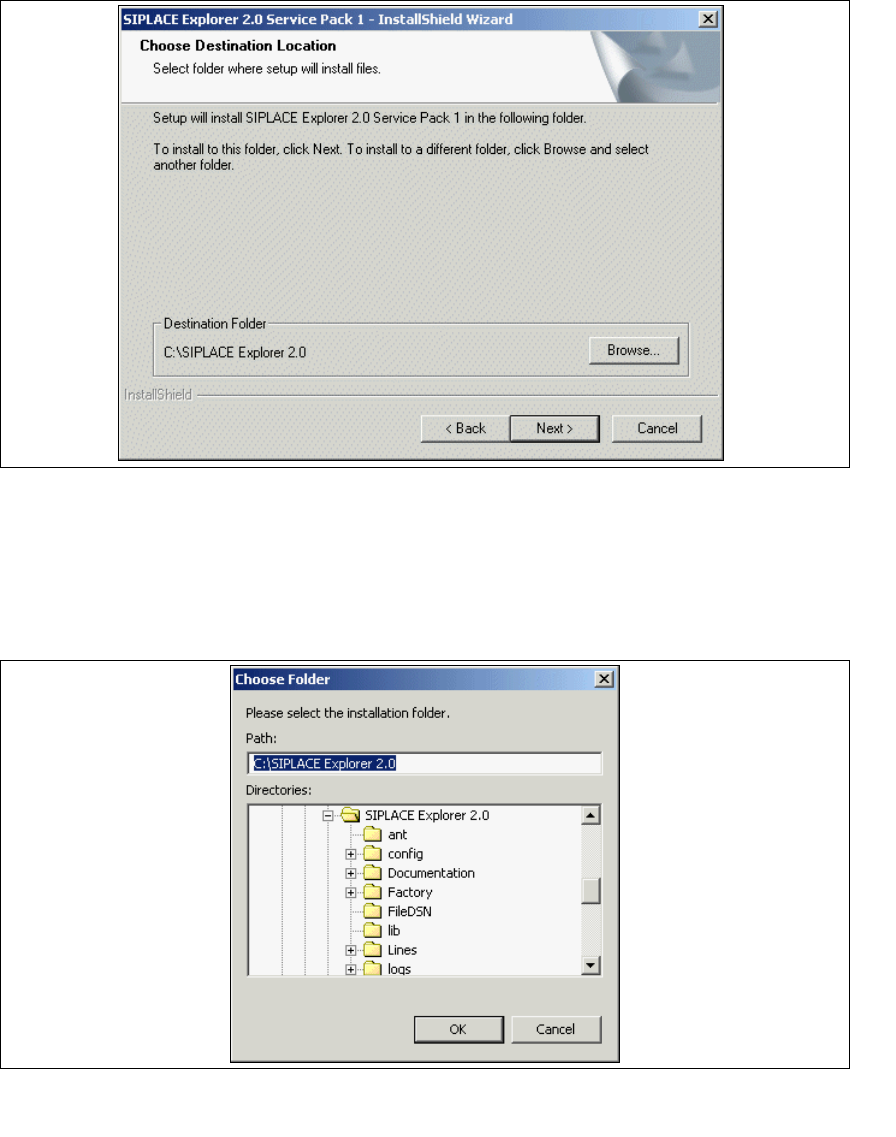
→ Now specify the folder in which you wish to install the application. The default folder is
C:\SIPLACE Explorer2.0.
3
Fig. 3 - 20 SIPLACE Explorer setup - choose destination location
→ You can alter the default installation folder by using the Browse button.
→ The Choose Folder dialog box will appear to locate the desired folder.
→ Specify path and click OK to select another folder. The selected folder will be shown in the
Choose Destination Location dialog box.
3
Fig. 3 - 21 SIPLACE Explorer setup - 'choose folder' dialog box
→ To accept the destination folder, click on Next in the Choose Destination Location dialog box.
3 Installing SIPLACE Explorer Installation and Configuration Guide SIPLACE Explorer
3.1 Initial Installation of SIPLACE Explorer 2.0 SP1 Edition 12/2005 EN
40
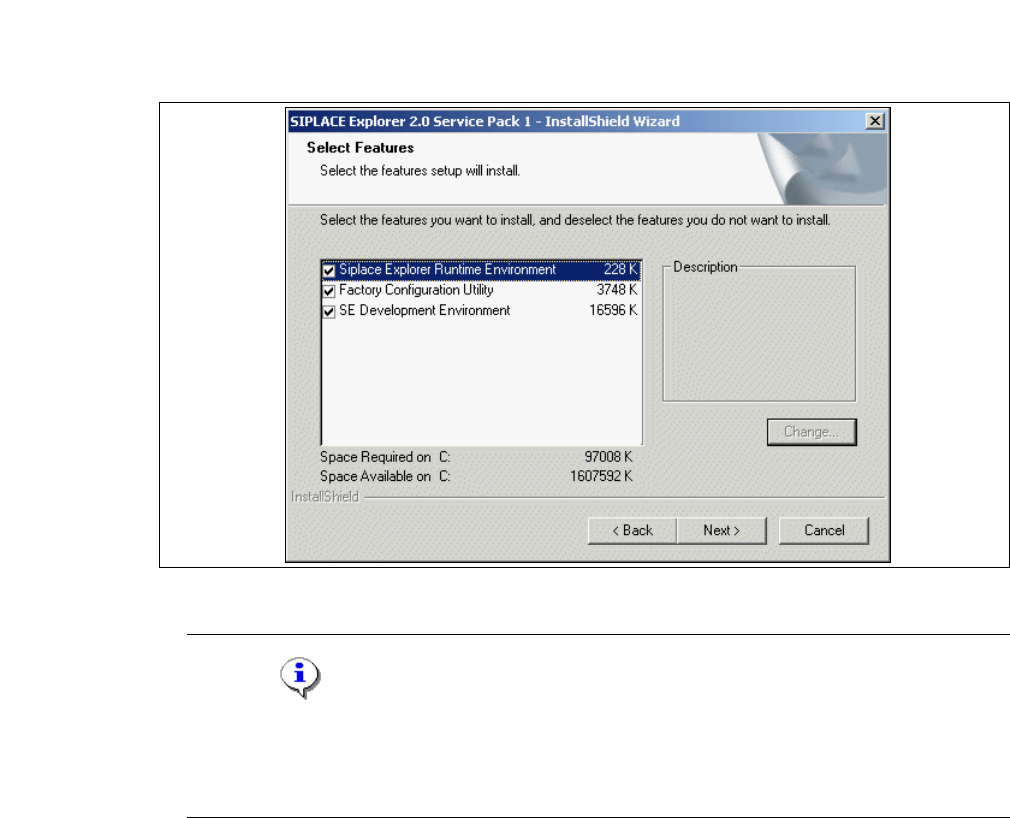
→ You will see the Select Features (installation options) dialog box. Here you can select any of
the following three components:
SIPLACE Explorer Runtime Environment, Factory
Configuration Utility
and SIPLACE Explorer Development Environment.
3
Fig. 3 - 22 SIPLACE Explorer setup - 'select features' (select installation options) dialog box
NOTE
In theory, the components can be compiled as required. However, we do not recommend
installing "SIPLACE Explorer V.2.0 Runtime Environment" and "SIPLACE Explorer V.2.0
Development Environment" on the same computer. 3
→ Once you have selected the required installation option, click on the Next button to continue.