00193688-04.pdf - 第34页
3 In st alli ng SI PLA CE Ex pl ore r Ins t a llat ion and Con figu rat i on Guid e SI PLA CE Exp lorer 3. 1 I ni tia l Inst all ati on o f SI PLA C E Ex plor er 2 .0 S P1 Ed iti on 12 /2 00 5 EN 34 3 Fig . 3 - 12 Jav a …
Installation and Configuration Guide SIPLACE Explorer 3 Installing SIPLACE Explorer
Edition 12/2005 EN 3.1 Initial Installation of SIPLACE Explorer 2.0 SP1
33
. 3
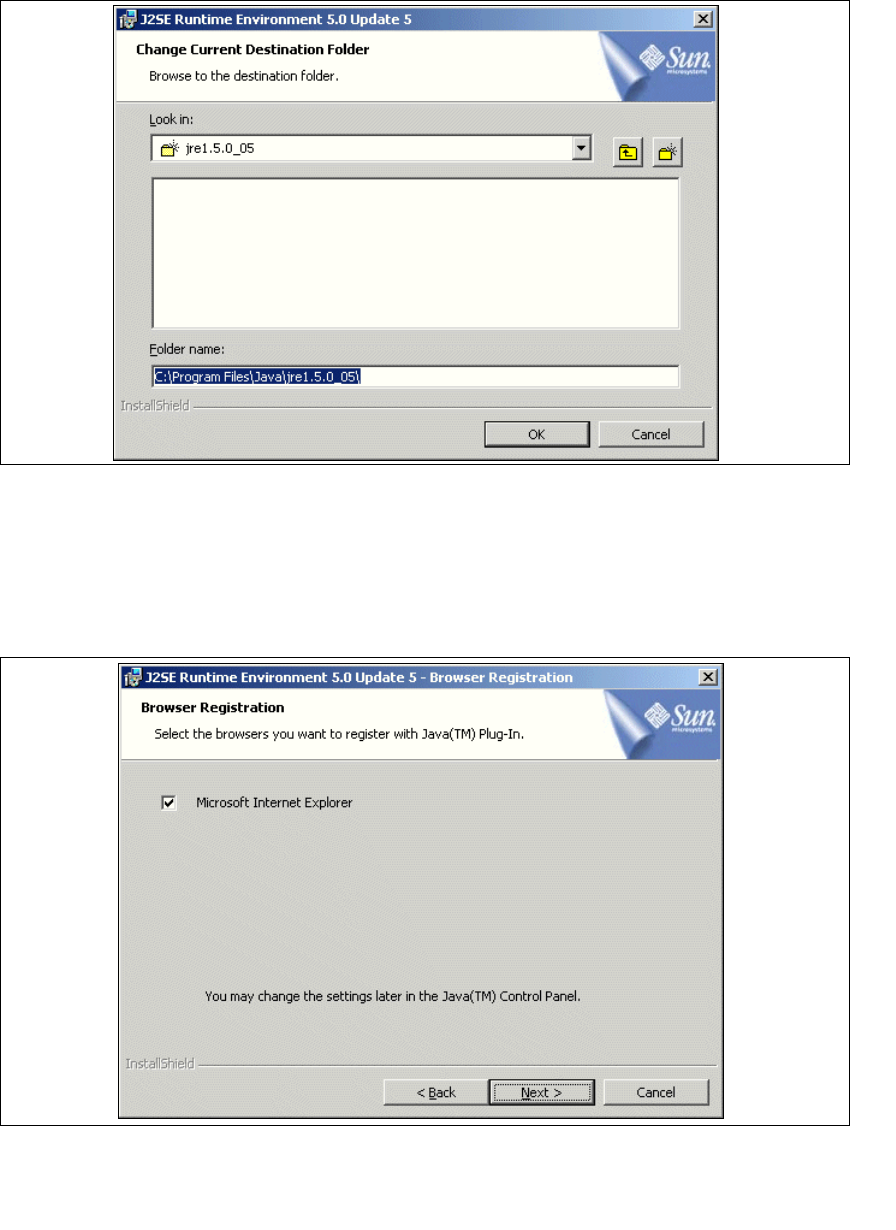
Fig. 3 - 10 Java 2SE setup - selecting destination folder
→ Specify path and click OK to select another folder.
→ To accept the destination folder, click on Next in the Custom Setup dialog box.
→ You will see the Browser Registration dialog box. Select the default browser for the
application, here.
3
Fig. 3 - 11 Java 2SE setup - 'browser registration' dialog box
→ Select the required browser by enabling the relevant checkbox.
→ Click on Next to begin the actual installation of Java 2 JRE.
3 Installing SIPLACE Explorer Installation and Configuration Guide SIPLACE Explorer
3.1 Initial Installation of SIPLACE Explorer 2.0 SP1 Edition 12/2005 EN
34
3
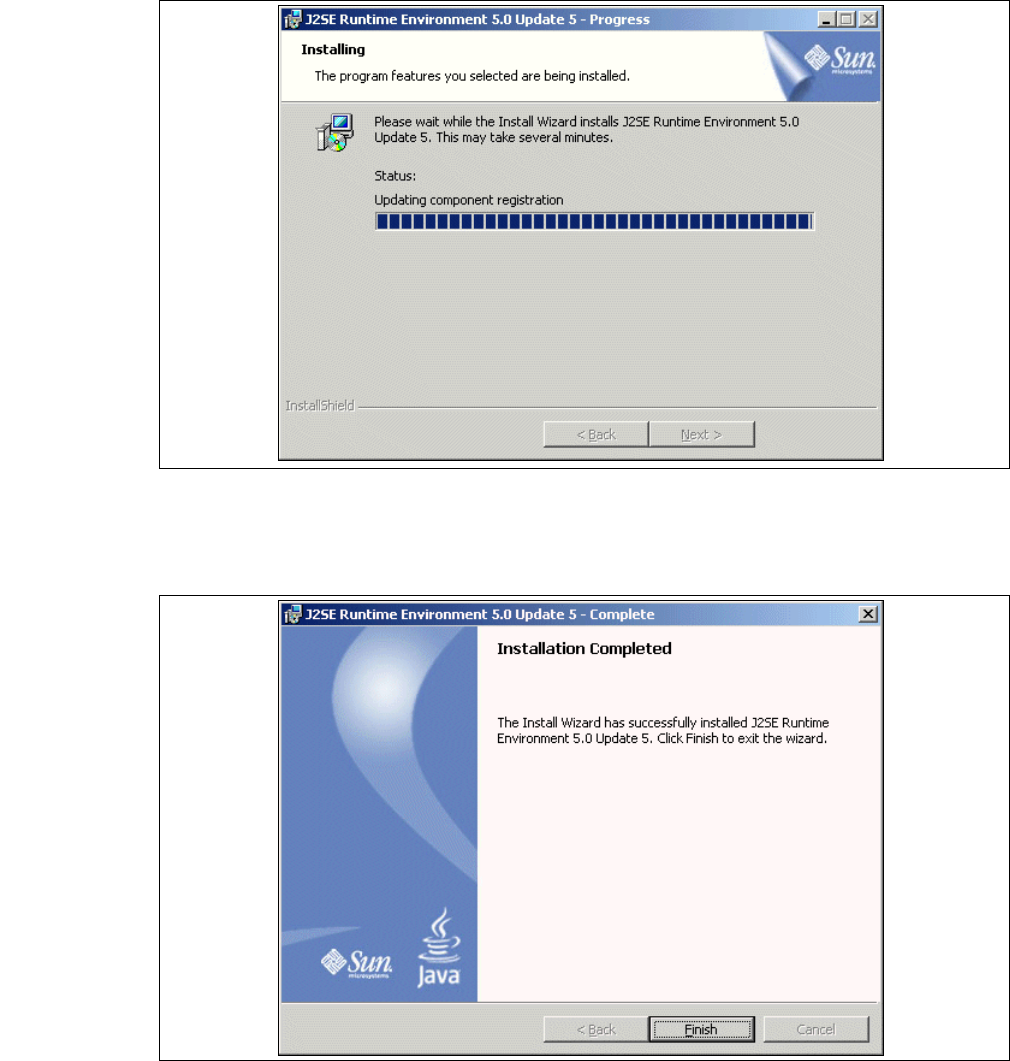
Fig. 3 - 12 Java 2SE setup - installation
→ The selected installation options will be installed in the correct order.
→ Once the installation procedure has finished, the following dialog box will appear.
3
Fig. 3 - 13 Java 2 SDK setup - installation complete
→ Click on Finish.
Installation and Configuration Guide SIPLACE Explorer 3 Installing SIPLACE Explorer
Edition 12/2005 EN 3.1 Initial Installation of SIPLACE Explorer 2.0 SP1
35
3.1.3 SIPLACE Explorer 2.0 SP1 - Initial Installation
NOTE
You must have Windows 2000 administrator privileges to perform installation. 3
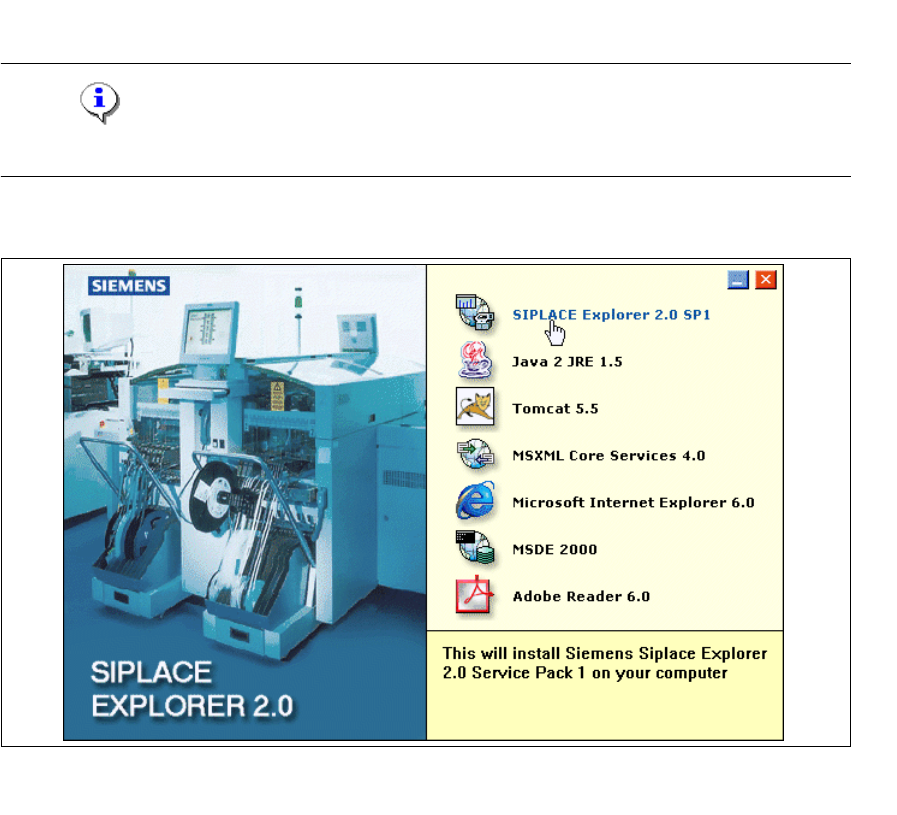
→ Place the SIPLACE Explorer CD in your CD-ROM drive. The Start screen will appear.
3
Fig. 3 - 14 SIPLACE Explorer setup - Start screen
→ Select SIPLACE Explorer 2.0 SP1.