00193688-04.pdf - 第47页
In st alla tio n an d Co nf igur at ion G uide SI P LACE E xpl ore r 3 I ns tal li ng SIP LAC E Ex plor er Edi tio n 12 /200 5 EN 3.1 In iti al In stal la tio n of S IPL ACE E xpl ore r 2. 0 SP1 47 → S pec ify the path f…
3 Installing SIPLACE Explorer Installation and Configuration Guide SIPLACE Explorer
3.1 Initial Installation of SIPLACE Explorer 2.0 SP1 Edition 12/2005 EN
46
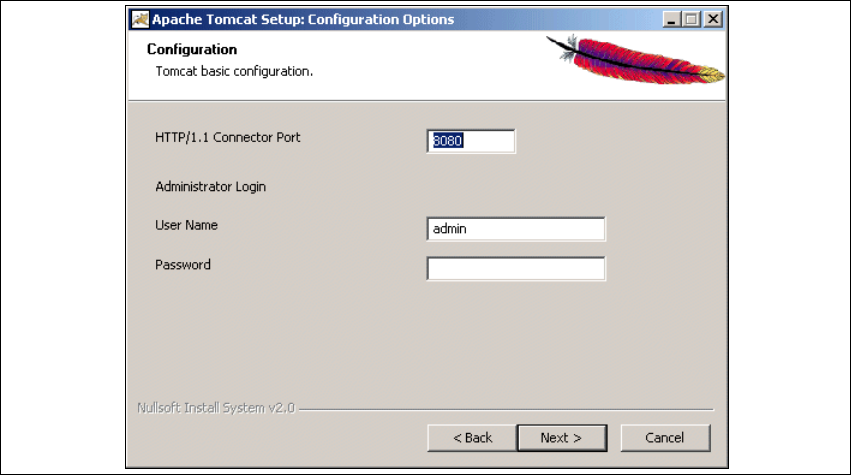
→ Now enter the port number and the administrator access data for Tomcat.
3
Fig. 3 - 31 Apache Tomcat setup - configuration
→ Enter the port number for Tomcat in the HTTP/1.1 Connector Port field. By default, Tomcat is
installed on port 8080. This means that your users will access your website as follows: http://
yourServerName:8080/yourWebsite/index.jsp.
→ Now enter the Tomcat administrator access data in the User Name and Password fields.
This login will automatically be used as default login for Line Configuration - Step 7 "Website
Generation". If you leave the
Password field empty for Tomcat configuration, this setting can
then be used as the default login for line configuration.
3
However, if you specify a password here, you must use the same password at Line
Configuration - Step 7 "Website Generation".
3
→ Click on Next to continue.
Installation and Configuration Guide SIPLACE Explorer 3 Installing SIPLACE Explorer
Edition 12/2005 EN 3.1 Initial Installation of SIPLACE Explorer 2.0 SP1
47
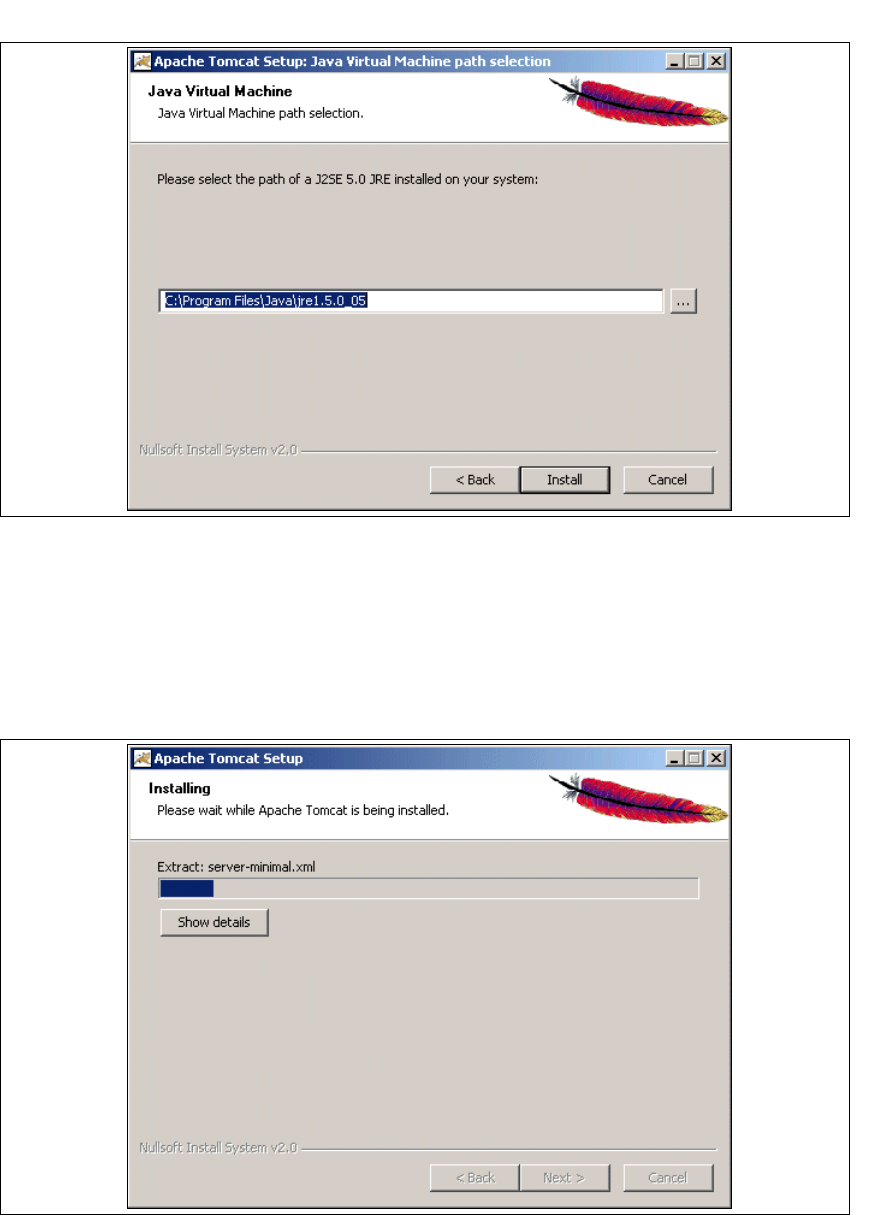
→ Specify the path for Java 2 JRE 1.5.
3
Fig. 3 - 32 Apache Tomcat setup - Java Virtual Machine
→ The default path during Tomcat installation is C:\Program Files\Java\jre1.5.0_05. You can
alter the default installation folder by using the
... button. If you leave the incorrect path,
SIPLACE Explorer websites will not be displayed.
→ Click on Install to continue.
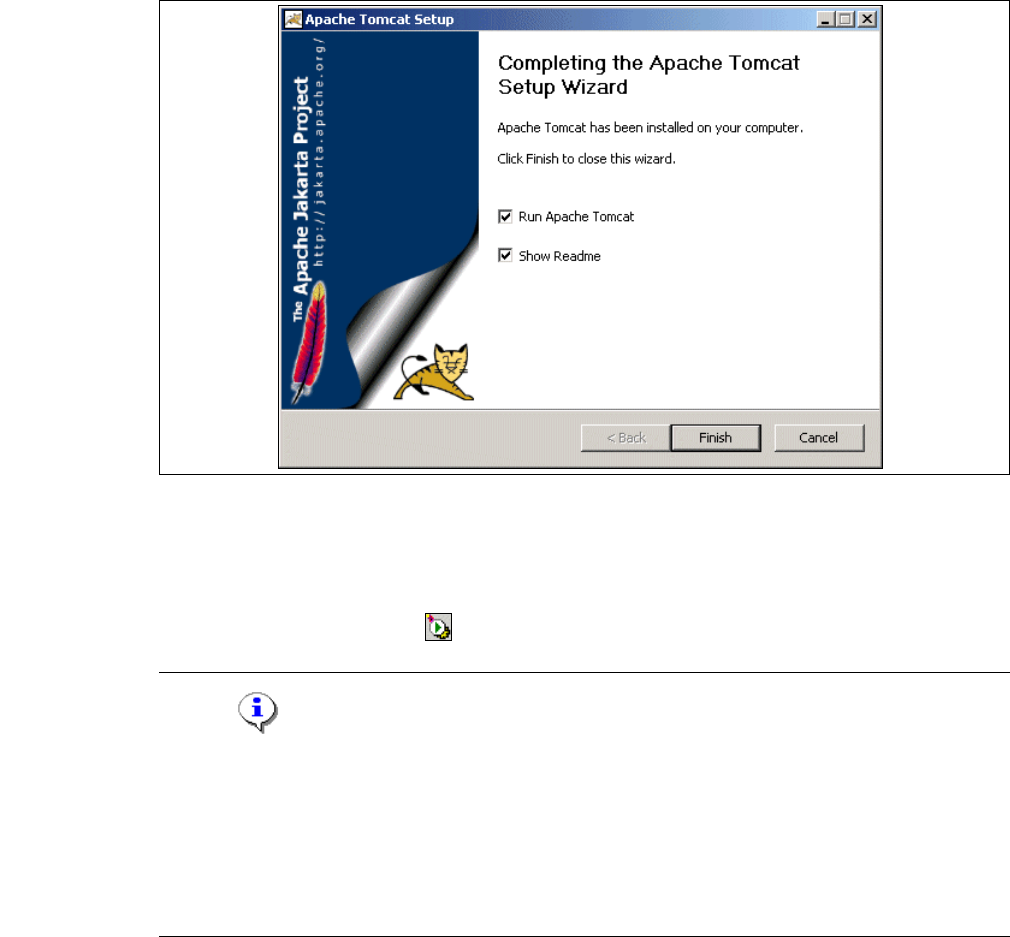
→ The actual installation of Tomcat will begin.
3
Fig. 3 - 33 Apache Tomcat setup - installing
3 Installing SIPLACE Explorer Installation and Configuration Guide SIPLACE Explorer
3.1 Initial Installation of SIPLACE Explorer 2.0 SP1 Edition 12/2005 EN
48
→ Installation has been completed.
3
Fig. 3 - 34 Apache Tomcat setup - installing
→ Click on Finish.
→ To start Tomcat, either reboot your computer or start Tomcat manually.
→ Tomcat 5.5 runs as a Windows service and is automatically started whenever you reboot your
computer. You will see the icon in your console.
NOTE
Tomcat 5.5 needs to be manually reconfigured for working with SIPLACE Explorer in the following
cases:
- When using Windows XP Professional with SP2
- For port configuration, when changing the Tomcat port number
- When extending the memory capacity for Tomcat.
For a detailed description of these points, please see Section “Tomcat Configuration” on page 60.3