00193688-04.pdf - 第42页
3 In st alli ng SI PLA CE Ex pl ore r Ins t a llat ion and Con figu rat i on Guid e SI PLA CE Exp lorer 3. 1 I ni tia l Inst all ati on o f SI PLA C E Ex plor er 2 .0 S P1 Ed iti on 12 /2 00 5 EN 42 3 F ig. 3 - 25 S IPL …
Installation and Configuration Guide SIPLACE Explorer 3 Installing SIPLACE Explorer
Edition 12/2005 EN 3.1 Initial Installation of SIPLACE Explorer 2.0 SP1
41
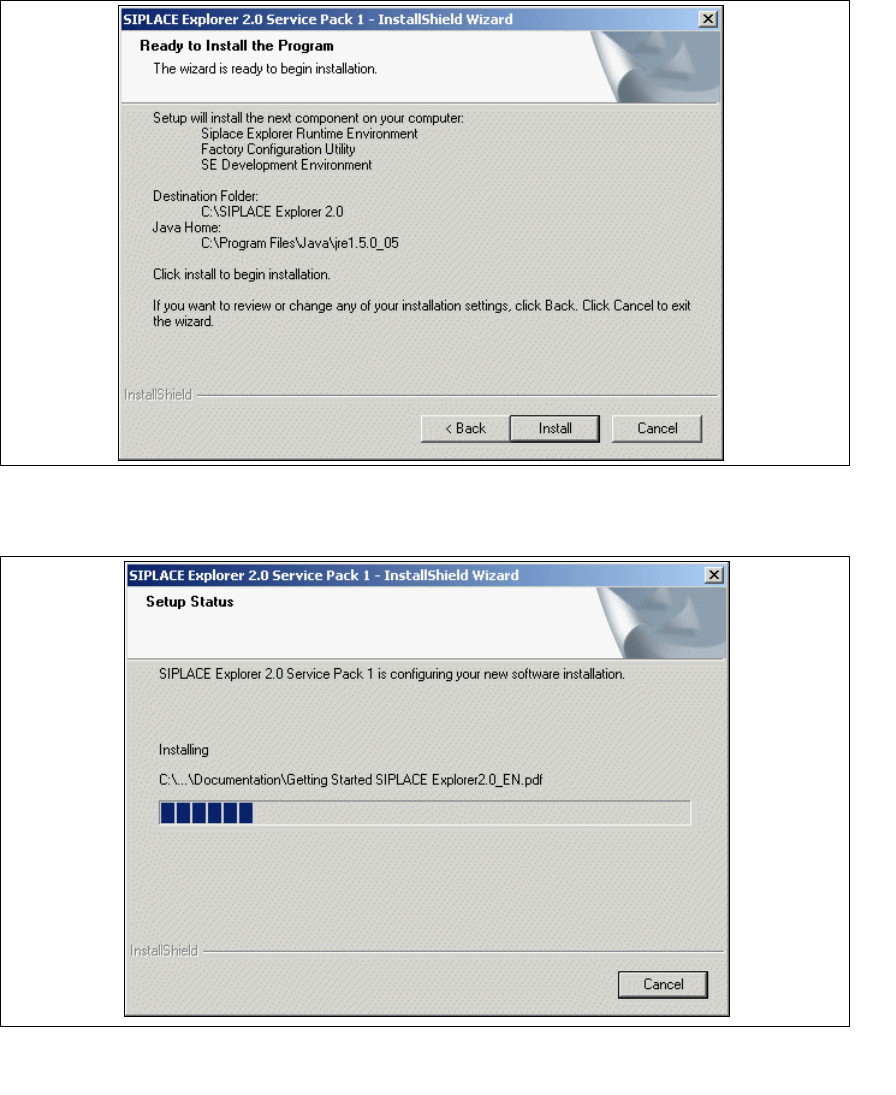
→ The following dialog box will appear.
3
Fig. 3 - 23 SIPLACE Explorer setup - 'ready to install' dialog box
→ Click on the Install button, to begin the actual installation of SIPLACE Explorer V2.0 SP1.
3
Fig. 3 - 24 SIPLACE Explorer setup - setup status
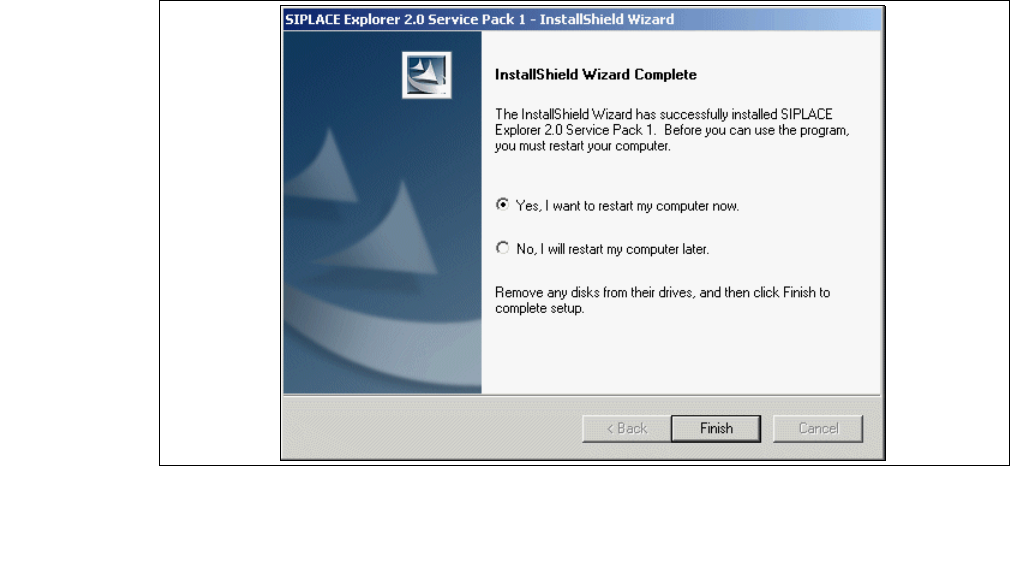
→ Once the installation procedure has finished, the following dialog box will appear.
3 Installing SIPLACE Explorer Installation and Configuration Guide SIPLACE Explorer
3.1 Initial Installation of SIPLACE Explorer 2.0 SP1 Edition 12/2005 EN
42
3
Fig. 3 - 25 SIPLACE Explorer setup - installation complete
→ Click on Finish. After you have rebooted your computer, SIPLACE Explorer will be available
for use. Follow the instructions at “Starting SIPLACE Explorer” on page 57.
Installation and Configuration Guide SIPLACE Explorer 3 Installing SIPLACE Explorer
Edition 12/2005 EN 3.1 Initial Installation of SIPLACE Explorer 2.0 SP1
43
3.1.4 Tomcat 5.5 Installation Procedure
NOTE
You must have Windows 2000 administrator privileges to perform installation. 3
NOTE
Before installing Tomcat 5.5, make sure that all versions of Tomcat < 5.5 have been deinstalled.3
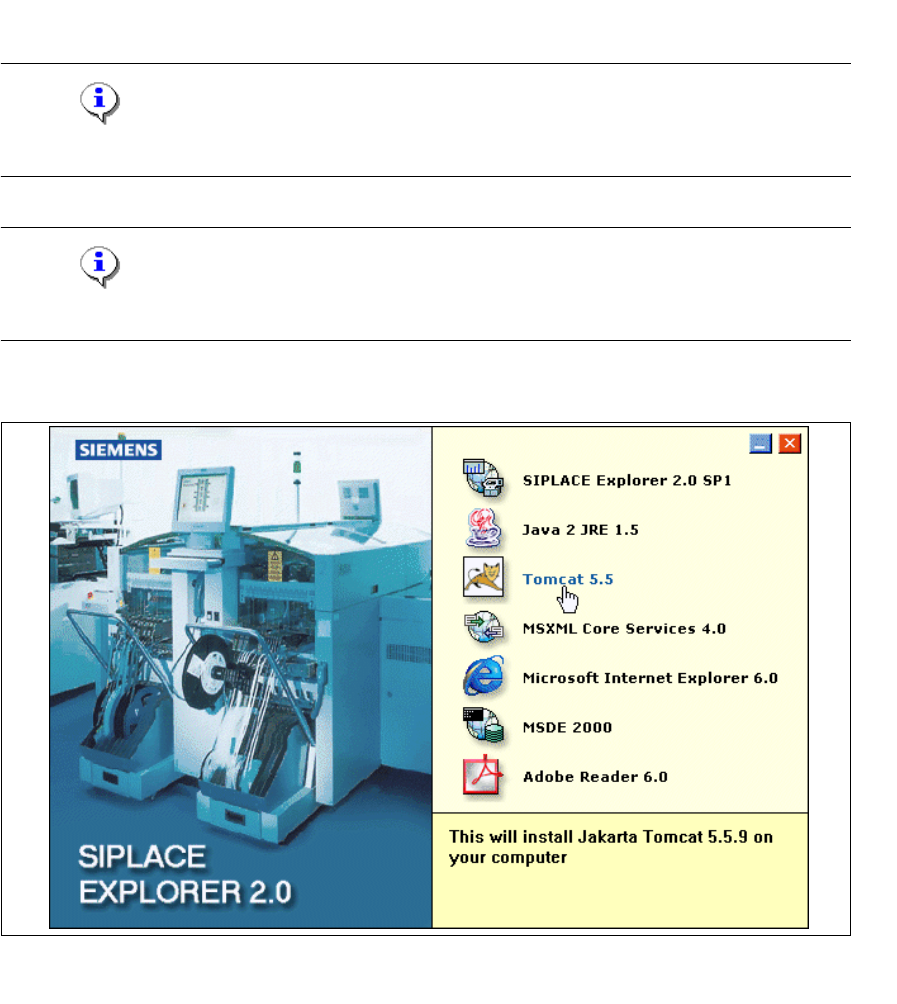
→ Place the SIPLACE Explorer CD in your CD-ROM drive. The Start screen will appear.
3
Fig. 3 - 26 SIPLACE Explorer setup - Start screen
→ Select Tomcat 5.5.