00193688-04.pdf - 第41页
In st alla tio n an d Co nf igur at ion G uide SI P LACE E xpl ore r 3 I ns tal li ng SIP LAC E Ex plor er Edi tio n 12 /200 5 EN 3.1 In iti al In stal la tio n of S IPL ACE E xpl ore r 2. 0 SP1 41 → The followin g dialo…
3 Installing SIPLACE Explorer Installation and Configuration Guide SIPLACE Explorer
3.1 Initial Installation of SIPLACE Explorer 2.0 SP1 Edition 12/2005 EN
40
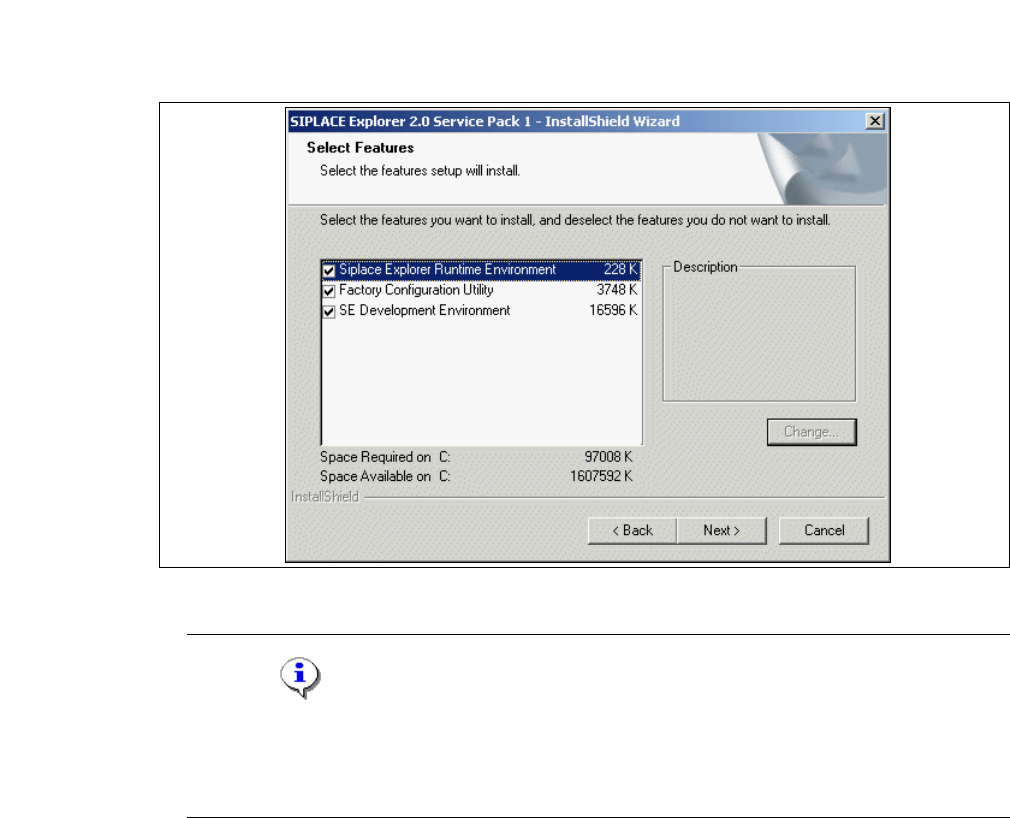
→ You will see the Select Features (installation options) dialog box. Here you can select any of
the following three components:
SIPLACE Explorer Runtime Environment, Factory
Configuration Utility
and SIPLACE Explorer Development Environment.
3
Fig. 3 - 22 SIPLACE Explorer setup - 'select features' (select installation options) dialog box
NOTE
In theory, the components can be compiled as required. However, we do not recommend
installing "SIPLACE Explorer V.2.0 Runtime Environment" and "SIPLACE Explorer V.2.0
Development Environment" on the same computer. 3
→ Once you have selected the required installation option, click on the Next button to continue.
Installation and Configuration Guide SIPLACE Explorer 3 Installing SIPLACE Explorer
Edition 12/2005 EN 3.1 Initial Installation of SIPLACE Explorer 2.0 SP1
41
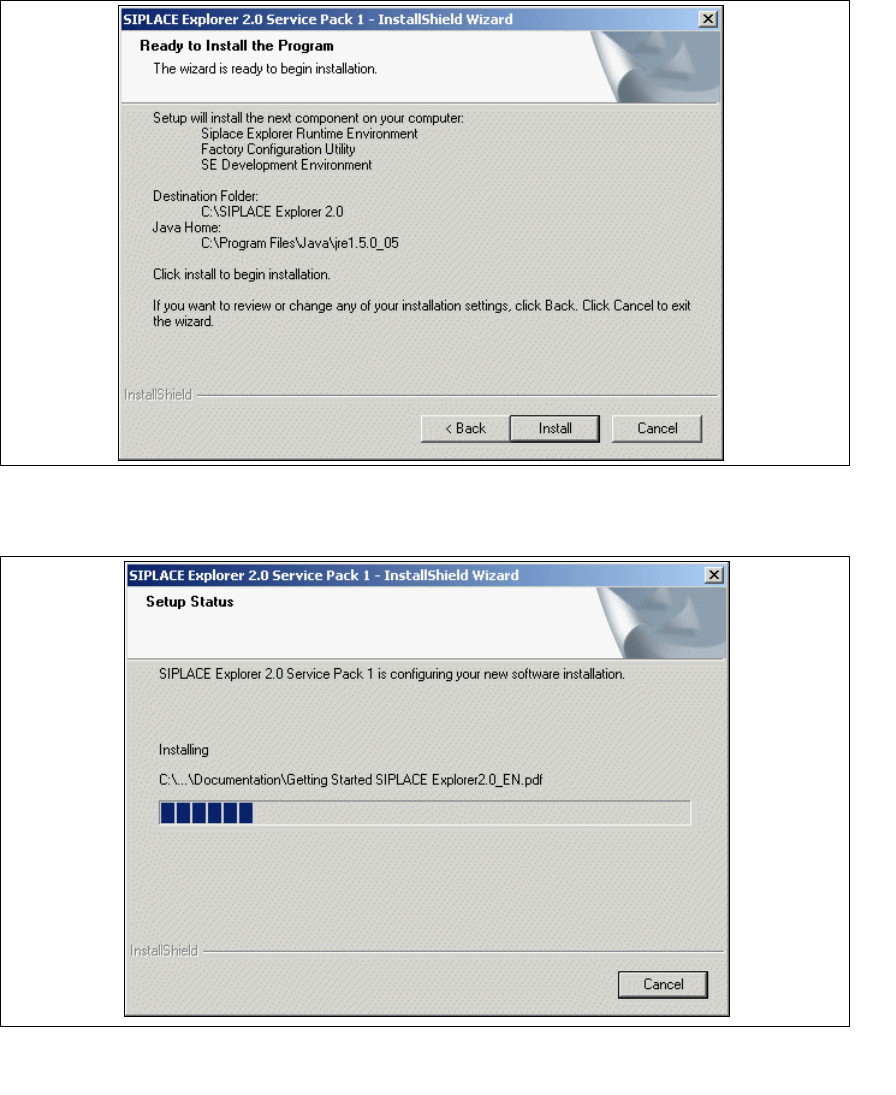
→ The following dialog box will appear.
3
Fig. 3 - 23 SIPLACE Explorer setup - 'ready to install' dialog box
→ Click on the Install button, to begin the actual installation of SIPLACE Explorer V2.0 SP1.
3
Fig. 3 - 24 SIPLACE Explorer setup - setup status
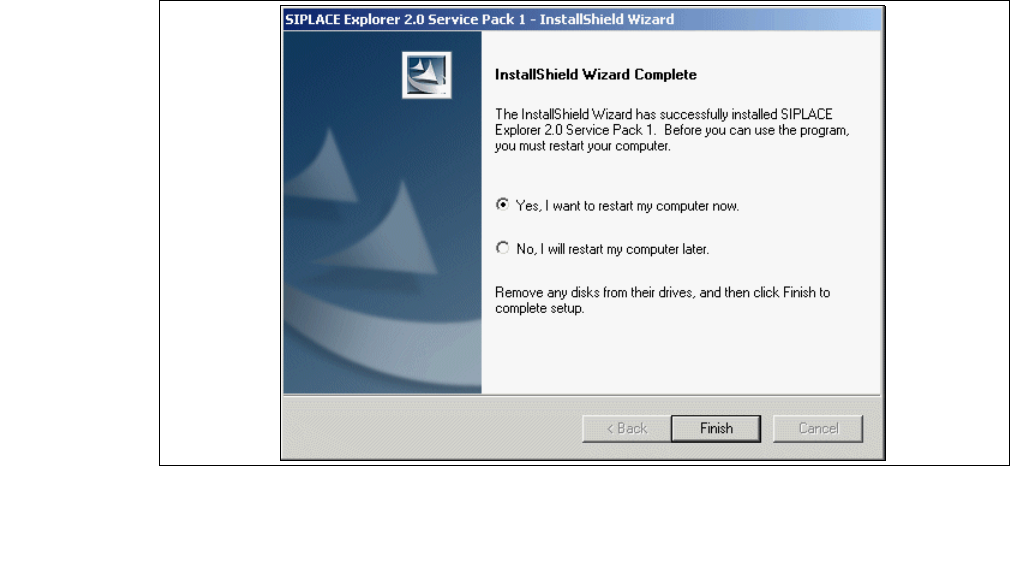
→ Once the installation procedure has finished, the following dialog box will appear.
3 Installing SIPLACE Explorer Installation and Configuration Guide SIPLACE Explorer
3.1 Initial Installation of SIPLACE Explorer 2.0 SP1 Edition 12/2005 EN
42
3
Fig. 3 - 25 SIPLACE Explorer setup - installation complete
→ Click on Finish. After you have rebooted your computer, SIPLACE Explorer will be available
for use. Follow the instructions at “Starting SIPLACE Explorer” on page 57.