00193688-04.pdf - 第54页
3 In st alli ng SI PLA CE Ex pl ore r Ins t a llat ion and Con figu rat i on Guid e SI PLA CE Exp lorer 3. 2 U pd ate- In stal la tio n of SIP LA CE E xplo rer 2.0 S P1 Ed iti on 12/ 200 5 EN 54 → Y ou wil l b e guided t…
Installation and Configuration Guide SIPLACE Explorer 3 Installing SIPLACE Explorer
Edition 12/2005 EN 3.2 Update-Installation of SIPLACE Explorer 2.0 SP1
53
3.2.1 SIPLACE Explorer 2.0 SP1 - Update Installation
NOTE
You must have Windows 2000 administrator privileges to perform installation. 3
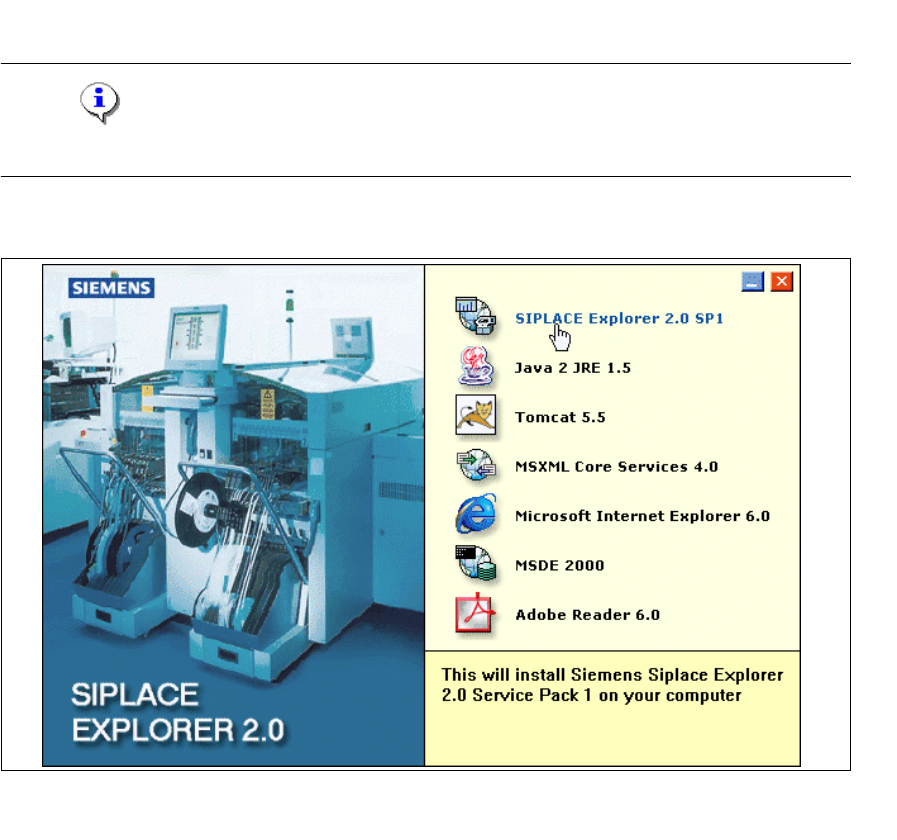
→ Place the SIPLACE Explorer CD in your CD-ROM drive. The Start screen will appear.
3
Fig. 3 - 38 SIPLACE Explorer setup - Start Screen
→ Select SIPLACE Explorer 2.0 SP1.
3 Installing SIPLACE Explorer Installation and Configuration Guide SIPLACE Explorer
3.2 Update-Installation of SIPLACE Explorer 2.0 SP1 Edition 12/2005 EN
54
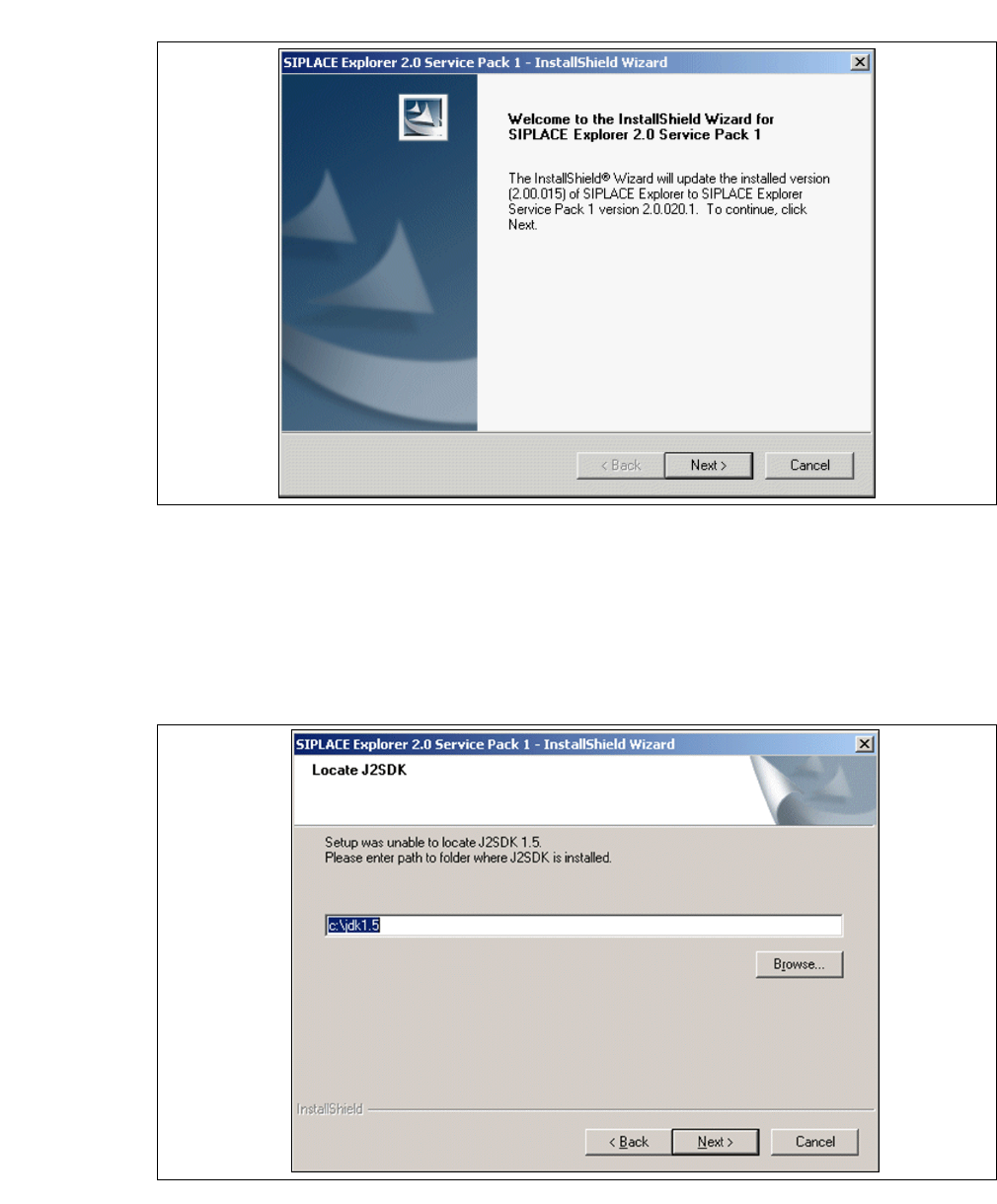
→ You will be guided through the SIPLACE Explorer installation procedure.
3
Fig. 3 - 39 SIPLACE Explorer welcome
→ Exit all other programs and then click on Next.
→ To run SIPLACE Explorer you need to have JAVA 2 JRE v.1.5 installed on your PC. If it is
already installed on your PC, installation will begin automatically.
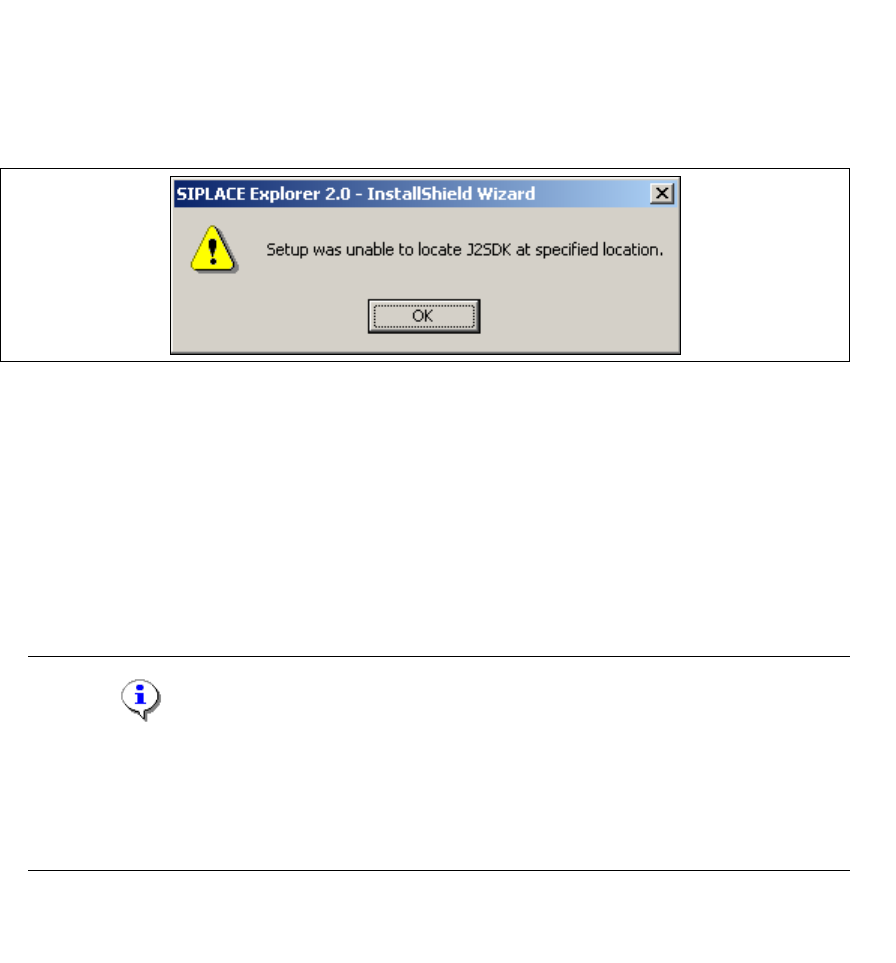
→ However, if the installation procedure is unable to find J2 JRE v.1.5.X, the Locate J2SDK
dialog box will appear on your screen.
3
Fig. 3 - 40 SIPLACE Explorer setup - locate JAVA 2 SDK
Installation and Configuration Guide SIPLACE Explorer 3 Installing SIPLACE Explorer
Edition 12/2005 EN 3.2 Update-Installation of SIPLACE Explorer 2.0 SP1
55
→ In this case, you can either enter the path to the J2SDK 2 JRE v.1.5. folder directly into the text
field or click on the
Browse button and use the Open File dialog box to find the JAVA 2 JRE
folder.
→ If you failed to correctly specify the path to the folder in which JAVA 2 SDK is installed, you will
see the following dialog box.
3
Fig. 3 - 41 SIPLACE Explorer setup - unable to locate J2SE
→ Click OK to return to the previous screen. SIPLACE Explorer requires JAVA 2 JRE to be
installed prior to installation.
→ At this point, you can either try to specify the JAVA 2 JRE folder again, or click Cancel to exit
the installation of SIPLACE Explorer.
→ If you chose Cancel, please install the version of JAVA 2 JRE included on the installation CD
or available free from (see page 29) Sun Microsystems at http://java.sun.com/j2se and then re-
start installation of SIPLACE Explorer.
NOTE
If you have the J2 Runtime environment (not JAVA 2 JRE) - available from Sun Microsystems
at http://java.sun.com/j2se - installed on your system, the website generated by SIPLACE
Explorer Website Builder will not function properly as it is based on JSP, which requires JAVA
2 JRE. 3
→ The installation of SIPLACE Explorer 2.0 SP1 will be continued once JAVA 2 JRE v.1.5 has
been localized. The following dialog box will appear.