AX501最新3.6x版英文操作手册.pdf.pdf - 第24页
4022 593 51894 Operatin g Man ual 09.01 AX-301/501, AX-3/5 24 2 2.7.3 Input on the touch screen T o be able to input te xt or number s, a virtual k eyboar d is availabl e. It will pop-up as soon as a input field is a cti…
4022 593 51894 Operating Manual
09.01 AX-301/501, AX-3/5 23
2
2.7 Graphical user interface
The machine is operated via the touch screen. By touching the screen the
desired function can be activated. No keyboard is necessary. The
keyboard, located in the base under the touch screen, is for service
purposes only.
2.7.1 Conventions
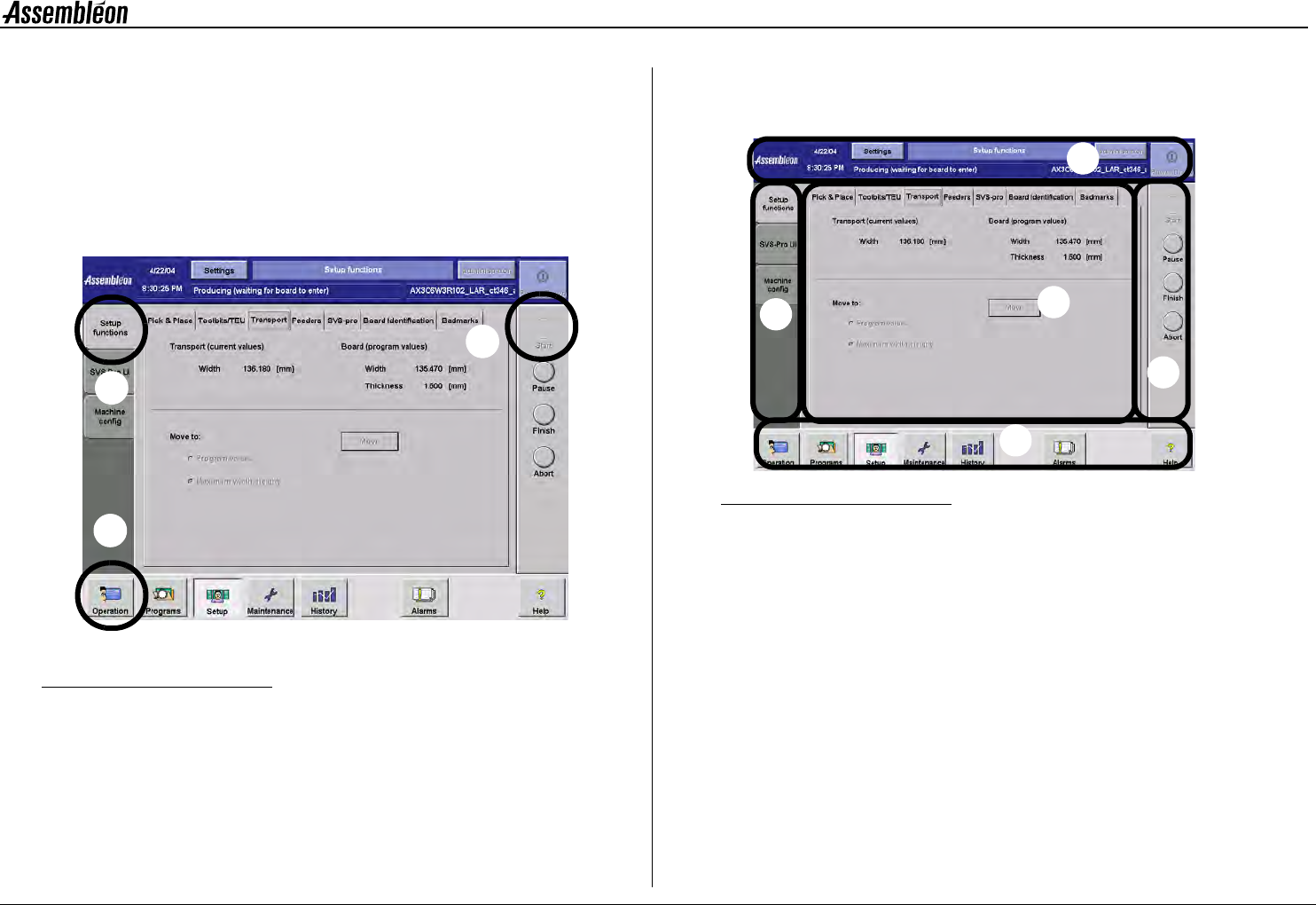
Figure 23 Touch screen
Activating a button on the touch screen is indicated by a circle in this
manual. If more than one button has to be activated, the sequence is
shown by numbers.
2.7.2 Touch screen lay-out
The screen is divided into the following panels:
Figure 24 Touch screen, lay-out
ATitle panel:
Shows general information of the system.
B Command panel:
Contains main buttons to start or stop the production.
C Navigation panel:
Is used to switch between the different functional environments of
the graphical user interface.
D Sub navigation panel:
Is used to switch between the available information panels within
one functional environment.
EInformation panel:
Shows all information that belongs to a selected function.
2
3
1
B
D
E
C
A
4022 593 51894 Operating Manual
09.01 AX-301/501, AX-3/5 24
2
2.7.3 Input on the touch screen
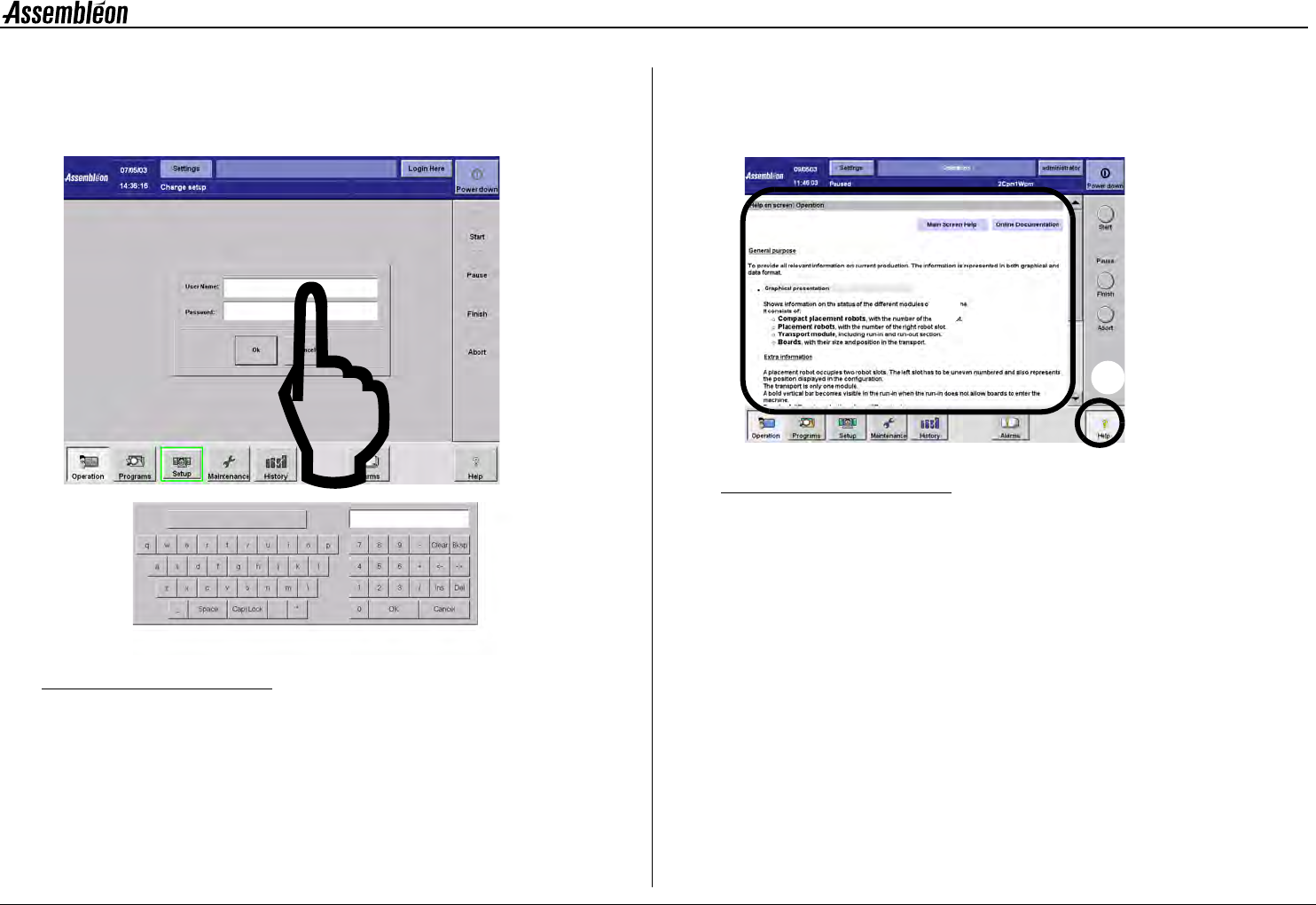
To be able to input text or numbers, a virtual keyboard is available. It will
pop-up as soon as a input field is activated by touching it.
Figure 25 Logging in screen
2.7.4 On-line help
Explanation on functionality of each screen is available via the ’Help’
button (1).
Figure 26 On-line help
On-line help information is available for the active screens shown in the
information panel (2).
On-line help information on other parts of the screen as well as on-line
documentation is available via the two buttons (3) on the help screen.
1
2
3
4022 593 51894 Operating Manual
09.01 AX-301/501, AX-3/5 25
3
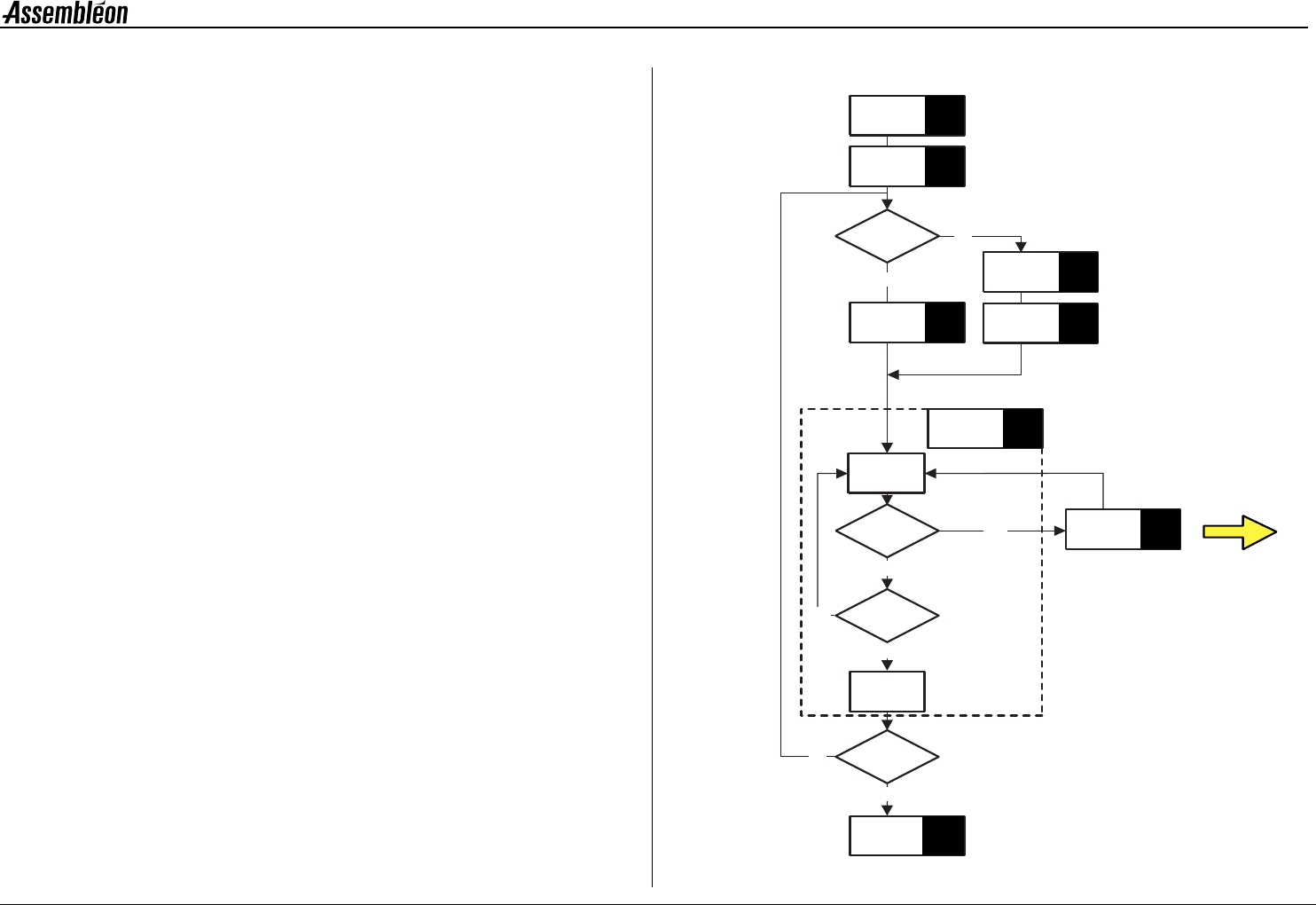
CHAPTER 3 Work-flow overview
Switch-on
procedure
Start
Error
Handling
Chapter
Referencing
Feeders and
Preparation
New
Program
Selection
Pre-start
Inspections
Same
Production?
Error?
Power Down
Yes
NO
YES
NO
Pause?
Finish/
Abort
Power down?
NO
NO
8
5
4
7
Run current
Program
6
10
11
YES
9
Production
YES