EUS0153210_YFact_Standard_E.pdf - 第227页
Chapter 5 Rank T able Editor Contents 1. Overview 5- 1 1.1 Contents of a BIN T able 5- 2 1.2 Specifying the Part Characteristics (BIN) 5- 3 2. Usage 5- 7 2.1 Create New 5- 7 2.2 Add T able 5- 7 2.3 Production T ype/Board…
4-51
4
Feeder Viewer
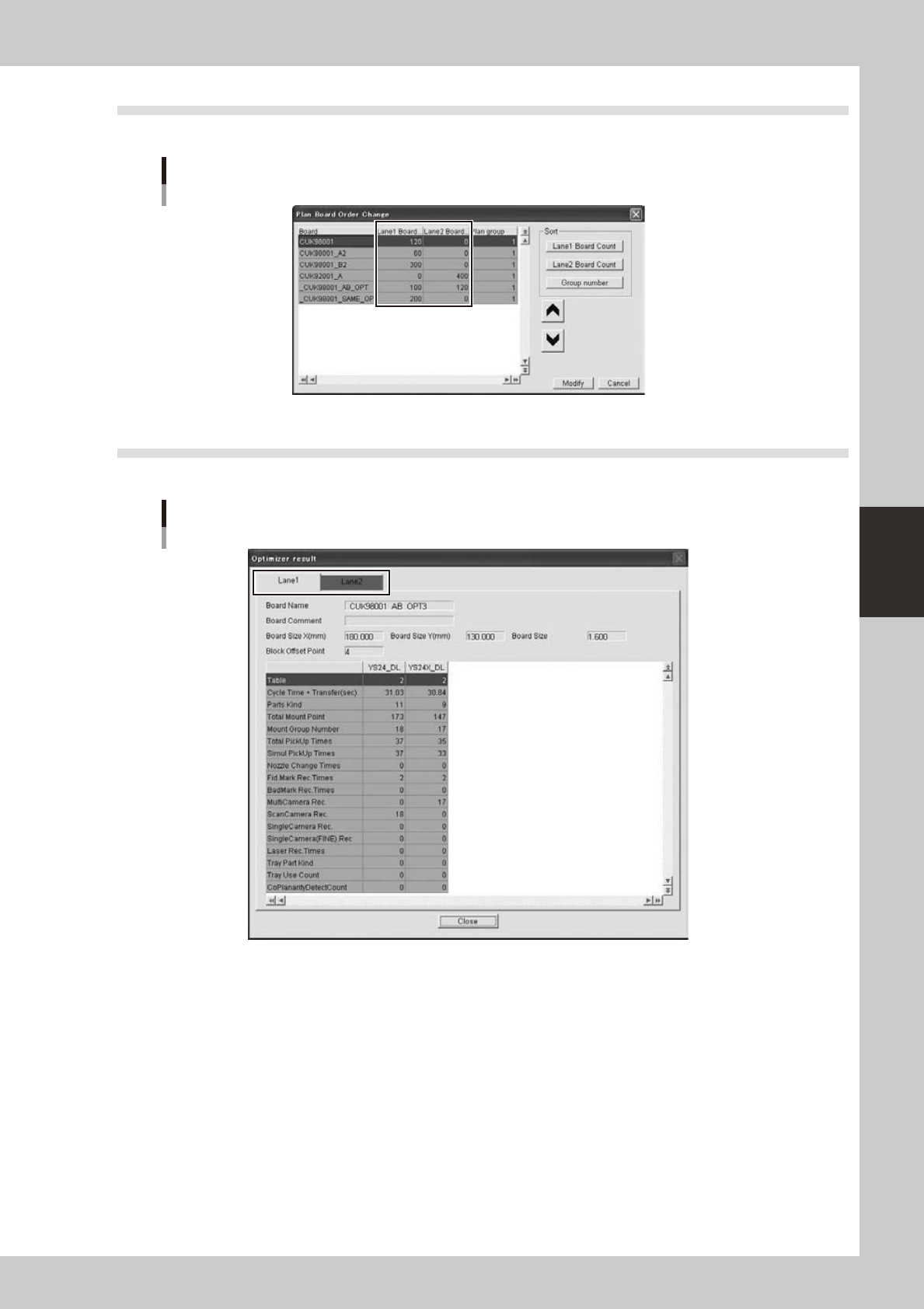
5.3
“Production Plan”-“Plan Board Order Change” dialog is extended
It is extended for board count of each lane and sorting by board count.
[Plan Board Order Change] dialog
64483-S0-00
5.4 “Optimizer”-“Optimizer Result” is extended
It is extended for each lane. It is same with Optimizer application.
[Optimizer Result] dialog
64484-S0-00

5-1
5
Rank Table Editor
1. Overview
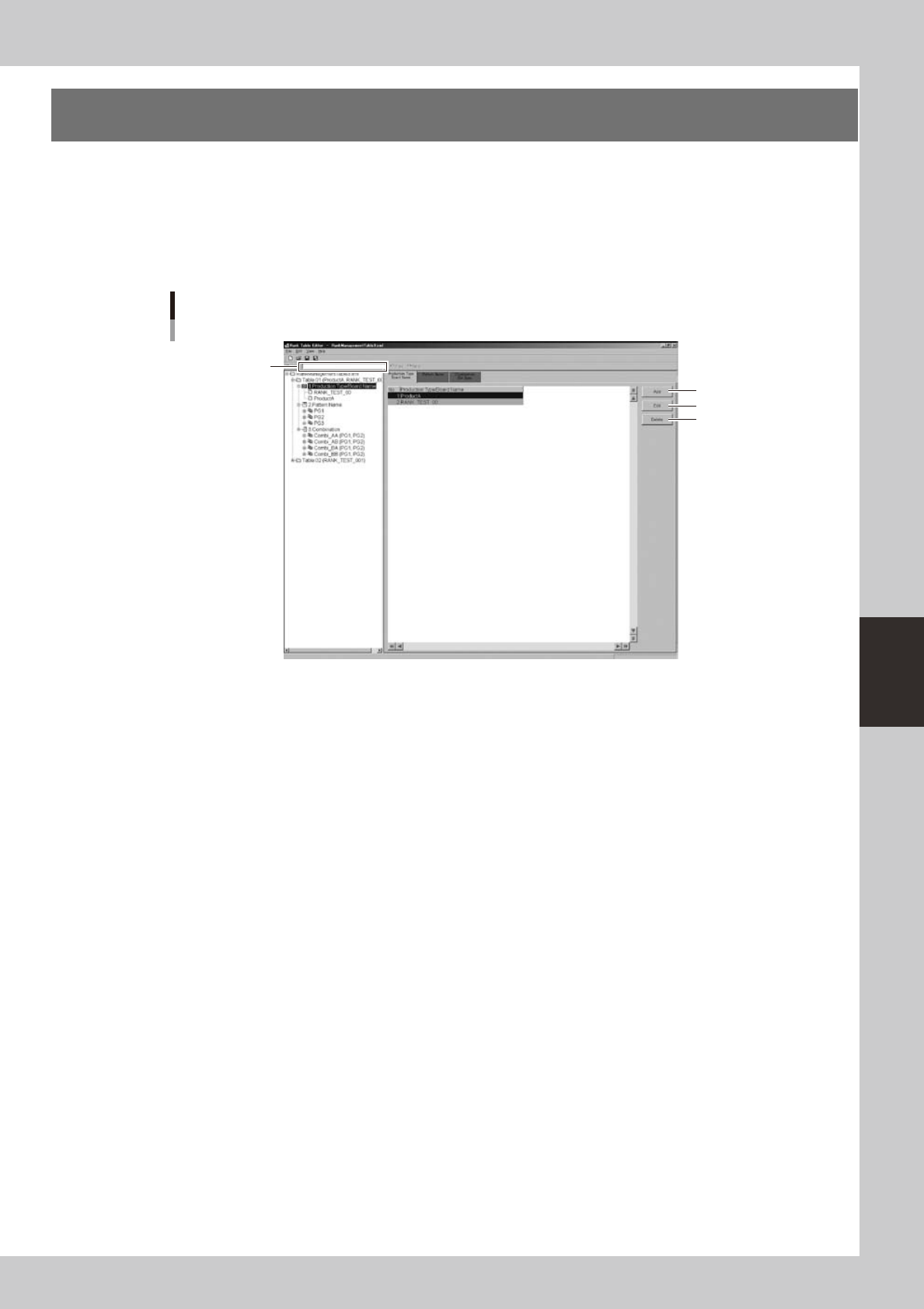
Use the BIN Table Editor to create BIN tables. The BIN Table Editor consists of a view area and an edit area.
The view area shows information such as "Production Type/Board Name" in a tree structure. You can also
select the item that you want to edit from the view area.
The edit area lets you edit information required by the BIN table, such as the "Production model / Board
name, "Pattern name group," and "Combination."
BIN Table Editor
1
2
3
4
64501-S0-00
1. Find
Allows you to search for parameter names and pattern names in the BIN table file. Enter the search string and click the
[Forward]or[Backward]button.
2. [Add] button
Adds a record named New and opens the edit dialog box.
3. [Edit] button
Edits the selected record.
4. [Delete] button
Deletes the record.