EUS0153210_YFact_Standard_E.pdf - 第44页
2-10 2 Board Explorer 4. [Detail View] button Shows a list of data with detailed information in the main view. The detailed information includes data size, data type, update date and comment. Detail display in the main v…
2-9
2
Board Explorer
Display manipulation buttons
Toolbar
Display manipulation buttons
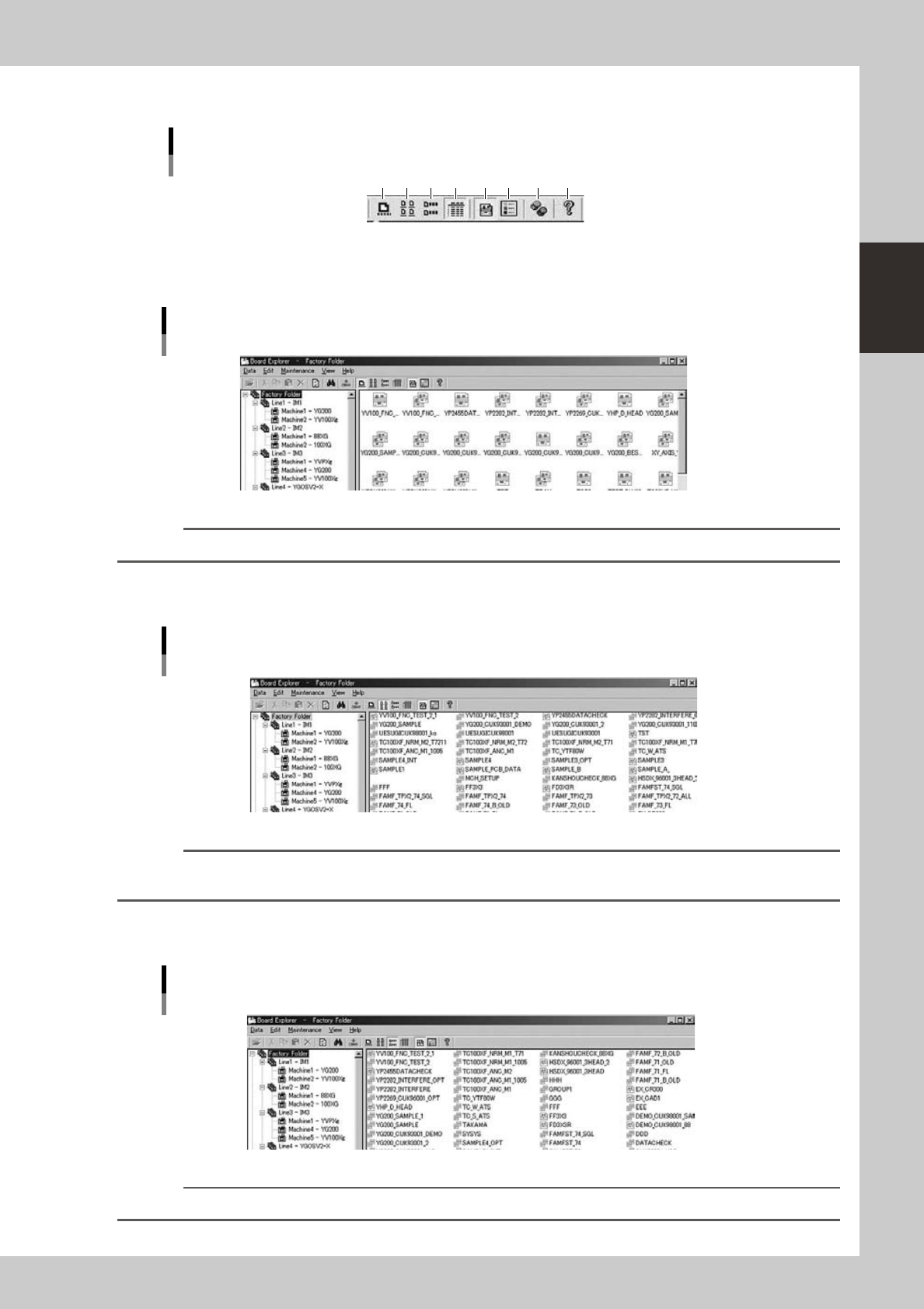
1 2 3 4 5 6 7 8
64214-S0-10
1. [Large Icon View] button
Shows data as large icons in the main view.
Large icon display in the main view
64215-S0-00
Reference
The [Large Icon View] button has the same function as the "Display Mode" - "Large Icons" command in the View menu.
2. [Small Icon View] button
Shows data as small icons in the main view.
Small icon display in the main view
64216-S0-00
Reference
The [Small Icon View] button performs the same function as the "Display Mode" - "Small Icons" command in the View
menu.
3. [List View] button
Shows a list of data as small icons in the main view.
List display in the main view
64217-S0-00
Reference
The [List View] button has the same function as the "Display Mode" - "List" command in the View menu.
2-10
2
Board Explorer
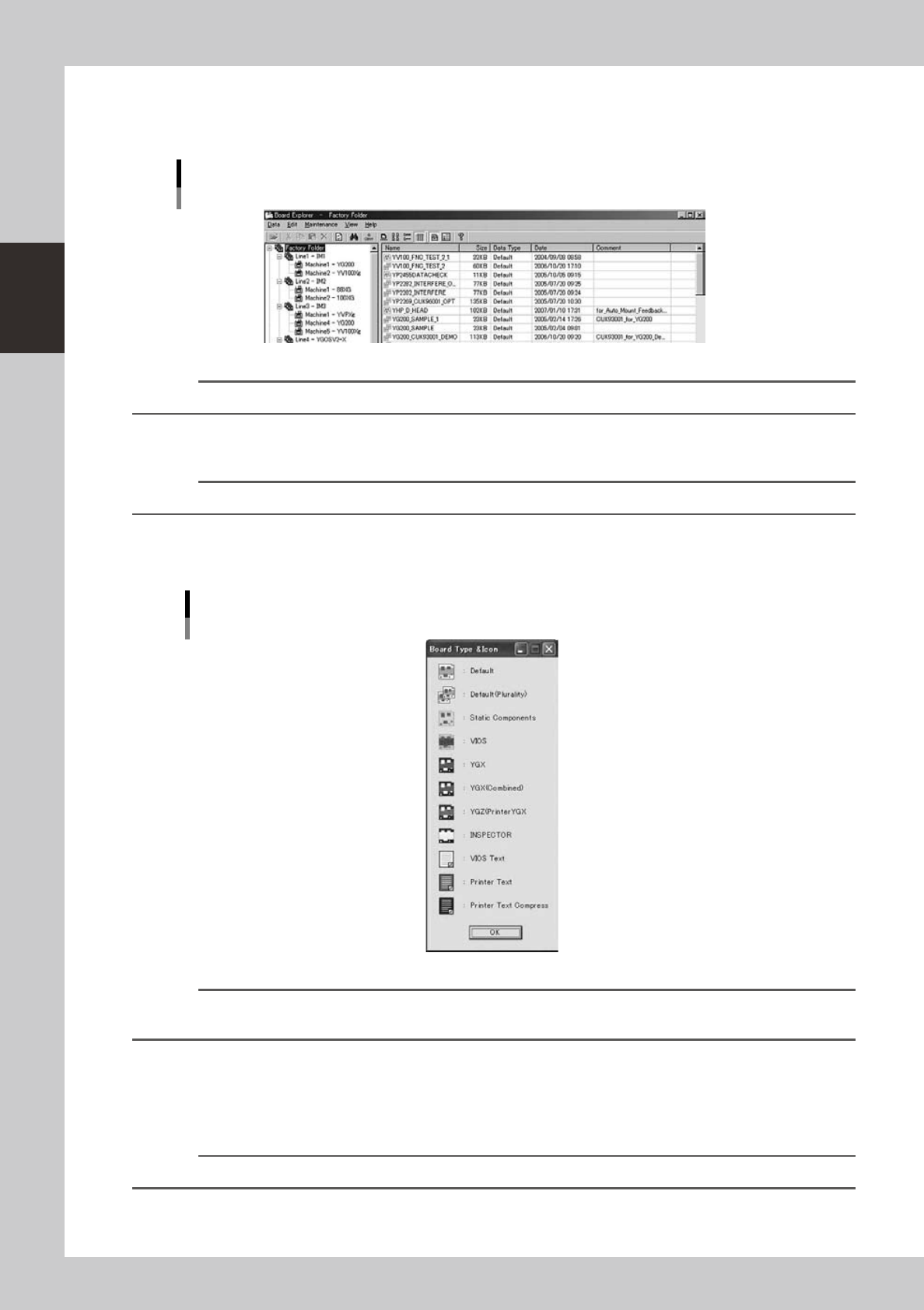
4. [Detail View] button
Shows a list of data with detailed information in the main view.
The detailed information includes data size, data type, update date and comment.
Detail display in the main view
64218-S0-00
Reference
The [Detail View] button has the same function as the "Display Mode" - "Detail" command in the View menu.
5. [DEFAULT] button
Shows or hides default type board data.
Reference
This button has the same function as the "Data Type" - "DEFAULT" command in the View menu.
6. [Board Type Icon] button
Shows a list of board data type icons displayed in the main view. Each data type uses a different icon.
List of Board data type icons
64219-S0-20
Reference
The [Board Type Icon] button has the same function as the "Data Type" - "Board Type Icon" command in the View
menu.
7. [Database Utility] button
Start the database utility.
8. [Version] button
Shows the version of the Board Explorer.
Reference
The [Version] button has the same function as the "Version" command in the Help menu.
2-11
2
Board Explorer
●
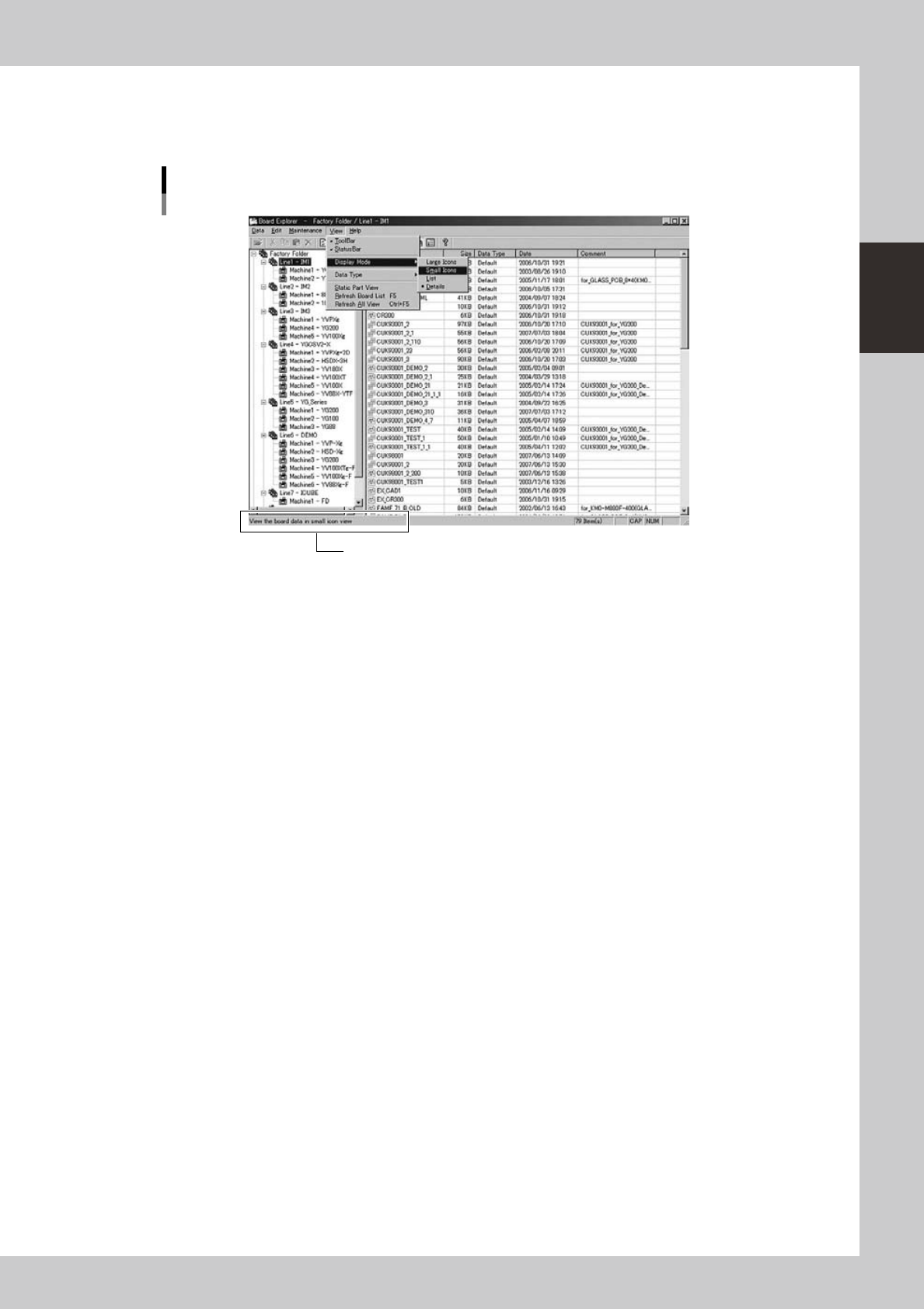
Status bar
Displays the Board Explorer operation status, as well as the status and description of an item selected by the mouse
cursor. Selecting the “Status Bar” command from the View menu shows or hides the status bar.
Status bar
Status bar
64220-S0-00