EUS0153210_YFact_Standard_E.pdf - 第236页
5-9 5 Rank T able Editor 2.5 Combination Edit Edit the combination. In the "Combination BIN Select" tab, click the [Add] button or [Edit] button to open the "Combination Name Edit" dialog box. Here yo…
5-8
5
Rank Table Editor
2.4 Pattern Name Group Edit
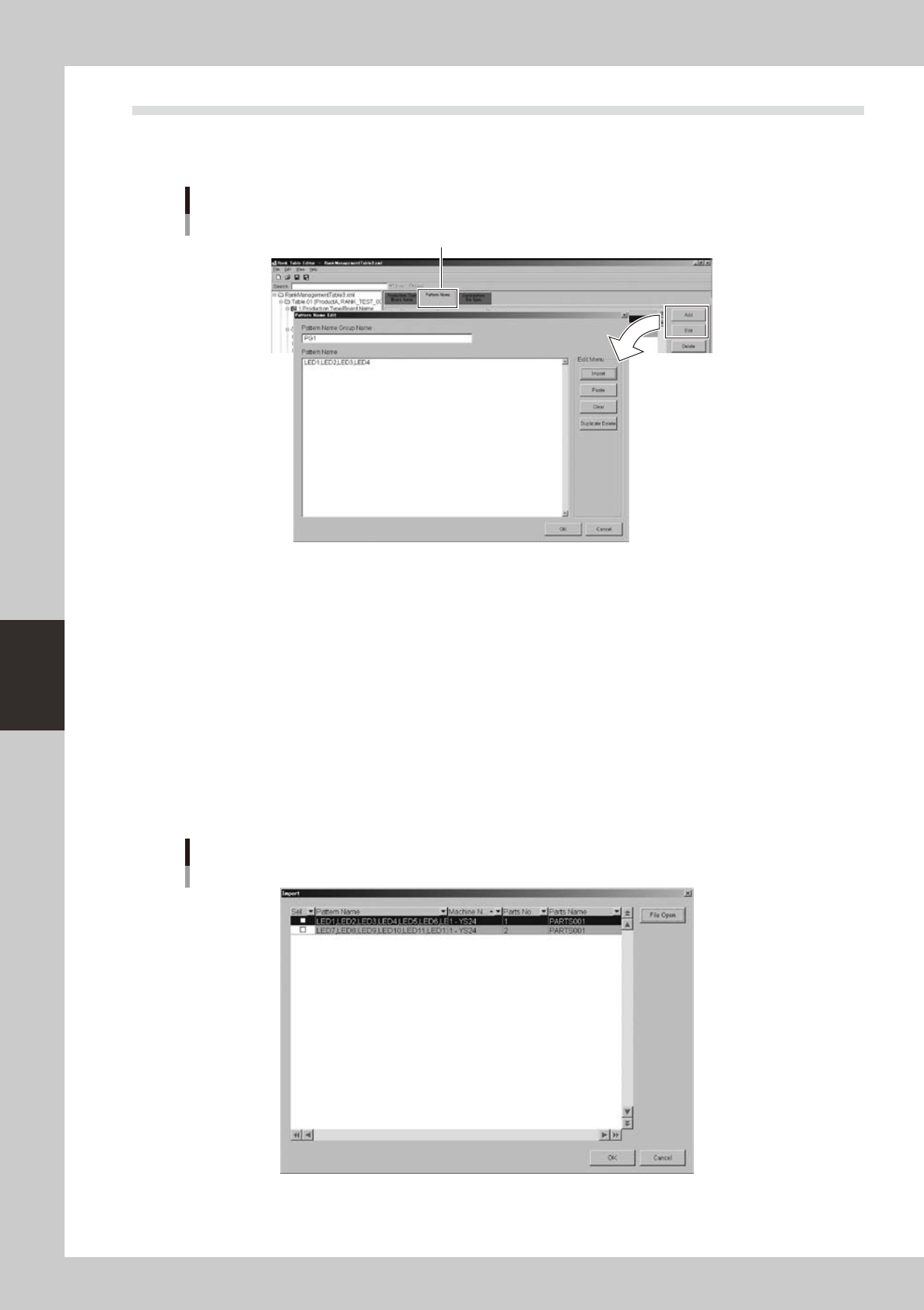
Selectthe"PatternName"tab,andclickthe[Add]buttonor[Edit]button.
The "Pattern Name Edit" dialog box appears.
Pattern Name Edit
"Pattern Name" tab
64503-S0-00
Pattern names to be associated are grouped according to the board data defined in the preceding section "2.3
Edit or Add Production Type/Pattern Name." Enter the pattern name group name (optional) and the pattern
name.
The pattern name can be input directly, or it can be imported from mount information that is exported by the
Board Editor, or it can be copied and pasted from the Board Editor.
n
Directly inputting the pattern name
Enter the pattern name that is in the mount information of the board data.
n
Importing from a mount information export file exported by the Board Editor
FromthemachineortheP-ToolBoardEditor,choose[File]-[ExportMountInformation],toexportthemountinformation
oftheboarddataasafile(csv).Whenyoureadthefileintothiseditor,thepatternnamesofthemountinformationare
displayed for each part number.
Import pattern name
64504-S0-00
5-9
5
Rank Table Editor
2.5 Combination Edit
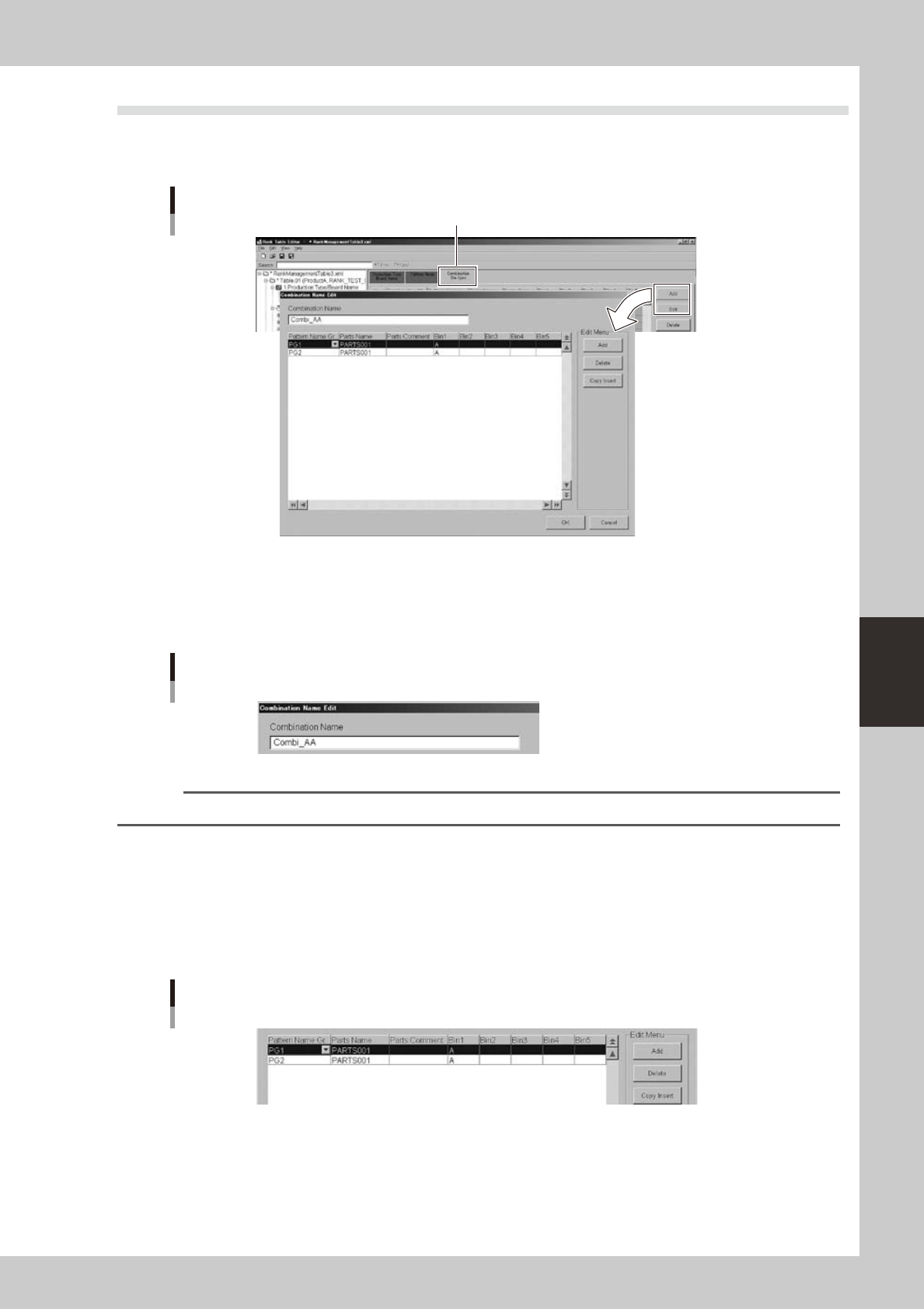
Edit the combination. In the "Combination BIN Select" tab, click the [Add] button or [Edit] button to open the
"Combination Name Edit" dialog box. Here you can enter, add, or delete combination.
Edit the combination
"Combination BIN Select" tab
64505-S0-00
1
Enter the combination in the "Combination Name" field.
The combination is a selection of the program list when using a program. For this reason, we recommend
that you enter a combination that is associated with the location or content of the parts characteristics.
Combination entry
64506-S0-00
Reference
You can increase the readability of the BIN table by adding a prefix to the combination.
2
Assign parts to the pattern name group.
Associate part name specifications to the pattern name group that you created in the preceding
section "2.4 Pattern Name Group Edit." The part names that you enter here will replace the part names
in the board data, so you must enter part names for which setup verification is possible. This means that
aliases, abbreviations, or common names cannot be used as part names.
Here you can also specify associations between parts and parts, and "OR" BINs.
Assign parts
64507-S0-00

S-1
INDEX
Index
A
About this manual i
B
Backup folders 2-69
Creating the backup folders 2-69
Board data
Copying Board data 2-42
Deleting Board data 2-46
Duplicating Board data 2-45
Editing Board data 2-42
Managing the Board data 2-42
Renaming Board data 2-44
Board data disk 2-12
Board data format v
Board data type icons 2-10
Board data window, Board Editor 3-11
Board Editor 3-1
Arranging the Board Editor windows 3-22
Arranging the windows 3-21
Basic operation 3-4
Canceling the filter 3-30
Copying and pasting 3-27
Data sorting 3-38
Displaying the detail view 3-18
Filtering the data 3-29
Graphic View 3-41
Hiding the detail view 3-19
Moving the cursor 3-25
Quitting the Board Editor 3-3
Search and replace 3-31
Starting the Board Editor 3-1
Switching the window 3-20
Working with multiple Board data 3-22
Board Editor main window 3-4
Board Explorer 2-1
Basic operation 2-3
Changing the language 2-19
Comparison between folders 2-49
Converting the data type 2-47
Copying Board data 2-42
Deleting Board data 2-46
Duplicating Board data 2-45
Editing Board data 2-42
Managing the Board data 2-42
Option setting 2-19
Quitting the Board Explorer 2-2
Renaming Board data 2-44
Starting the Board Explorer 2-1
Board Explorer window 2-5
C
Communication
Restrictions on communication function iii
Comparison between folders 2-49
Converting the data type 2-47
Copy and paste, Board Editor 3-27
Copying Board data 2-42
Creation of Board data disk 2-17
D
Database option setting 2-20
Data sorting, Board Editor 3-38
Data type
Converting the data type 2-47
Default data type 2-17
Deleting Board data 2-46
Detail view, Board Editor 3-13,3-14
Duplicating Board data 2-45
E
Editing Board data 2-42
F
Factoly Tools
Applicable models iv
Factoly Tools application configuration i
Factory folder, Board Explorer 2-3
Factory Tools option settings 2-19
Feeder interference check 4-13
Feeder Viewer 4-1
Adding Board data 4-23
Basic operation 4-4
Changing the feeder position 4-30
Changing the order of Board data 4-25
Changing the tray position 4-30
Combining the parts 4-36
Creating new plan information 4-18
Deleting Board data 4-24
Dividing the parts 4-34
Editing the Board data 4-27
Moving a feeder between machines 4-32
Moving a feeder within the same machine
4-30
Opening a plan file 4-21
Plan information screen 4-22
Production board list 4-17
Quitting the Feeder Viewer 4-3
Saving the Board data 4-28
Starting the Feeder Viewer 4-1
Switching the production lines 4-22
Filtering, Board Editor 3-29
G
Graphic View, Board Editor
Changing the mount positions 3-45
Closing the graphic view 3-41
Crating new mount information 3-45
Displaying the graphic view 3-41
Editing the graphic view 3-45
Graphic toolbar 3-42
Graphic View 3-41
Manipulating the graphic view 3-42
Graphic view icon, Board Editor 3-10
H
Hardware key option setting 2-21
J
Jump, Board Editor 3-25
L
Language
Changing the language 2-19
Line Data view tree icon, Board Editor
3-10
Line folder, Board Explorer 2-3
Lines
Deleting lines 2-18
Registering lines 2-12
M
Machine icon, Board Editor 3-10
Machine icon, Board Explorer 2-4
Machines
Deleting machines 2-18
Registering machines 2-12
Main view, Board Editor 3-13,3-14
Main view, Board Explorer 2-4
Managing the Board data 2-42
Menu bar, Board Explorer 2-5
N
Necessary hardware ii
Network configuration iii
O
Option setting 2-19
P
Plan file, board Explorer 2-65
Plan information screen, Feeder Viewer
4-4
Editing the data 4-22
Production board list 4-23
Production plan, Board Explorer 2-65
Creating a new production plan 2-67
Production Plan window, Board Explorer
2-65
R
Registration of all machines 2-17
Renaming Board data 2-44
Replace, Board Editor 3-33
S
Search, Board Editor 3-31
Status bar, Board Editor 3-10
Status bar, Board Explorer 2-11
System configuration ii
T
Toolbar, Board Editor 3-6
Toolbar, Board Explorer 2-7
Toolbar, Feeder Viewer 4-5
Tree view, Board Editor 3-13
Tree view, Board Explorer 2-3