EUS0153210_YFact_Standard_E.pdf - 第27页
1-13 1 Installation of Factory T ools 5. "InstallShield Wizard Completed" dialog box will appear when the installation is completed. Click the [Finish] button to quit the "InstallSh ield Wizard". “Ins…
1-12
1
Installation of Factory Tools
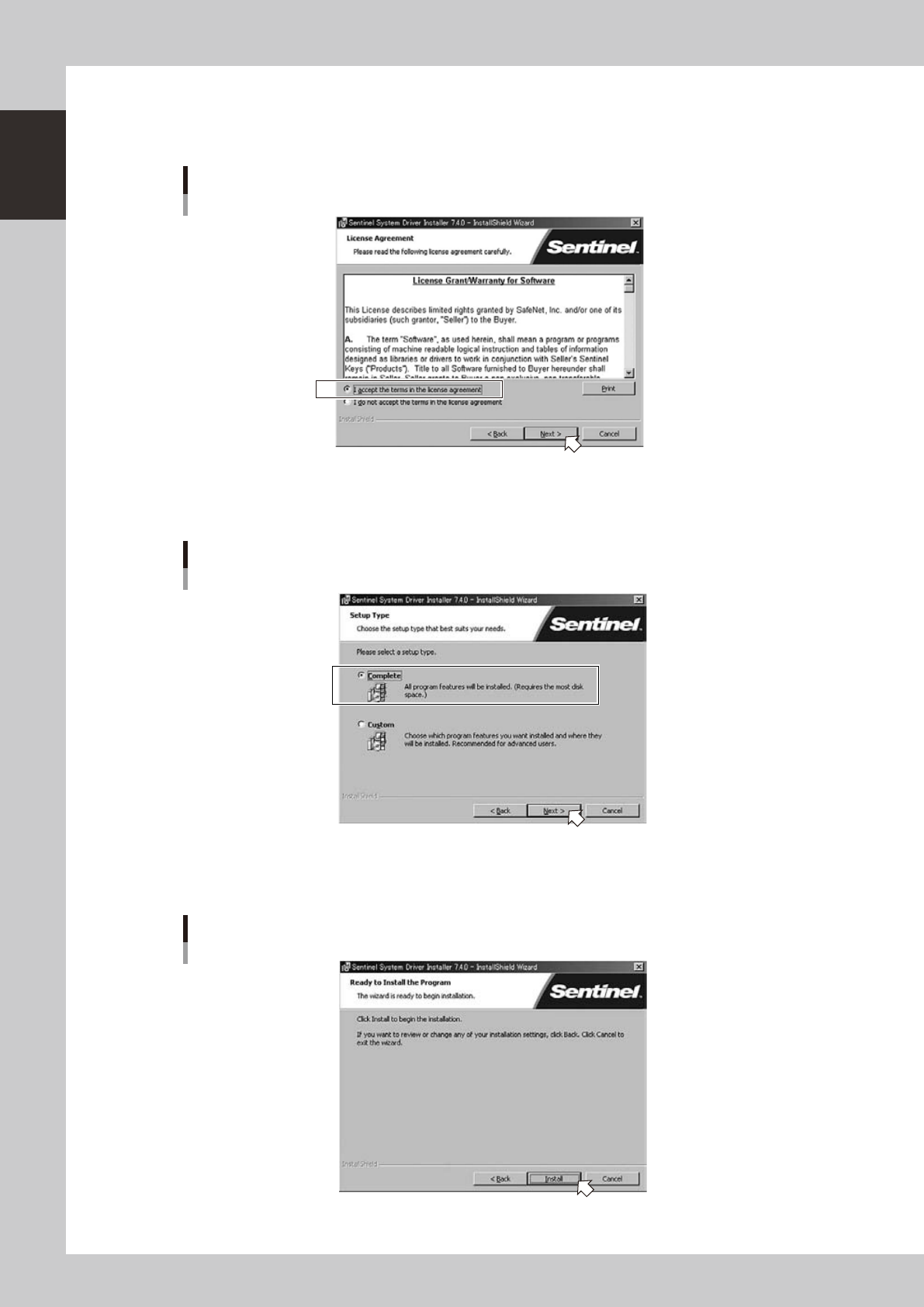
2. When the "License Agreement" dialog box appears, carefully read the license agreement.
Tick the radio button for the "I accept the terms in the license agreement" and click the [Next]
button.
“License Agreement” dialog box
64113-S0-00
3. When the "Setup Type" selection dialog box appears, tick the [Complete] radio button and click the
[Next] button.
“Setup Type” selection dialog box
64114-S0-00
4. When the "Ready to Install the Program" dialog box appears, click the [Install] button. Installation will
start.
“Ready to Install the Program” dialog box
64115-S0-00
1-13
1
Installation of Factory Tools
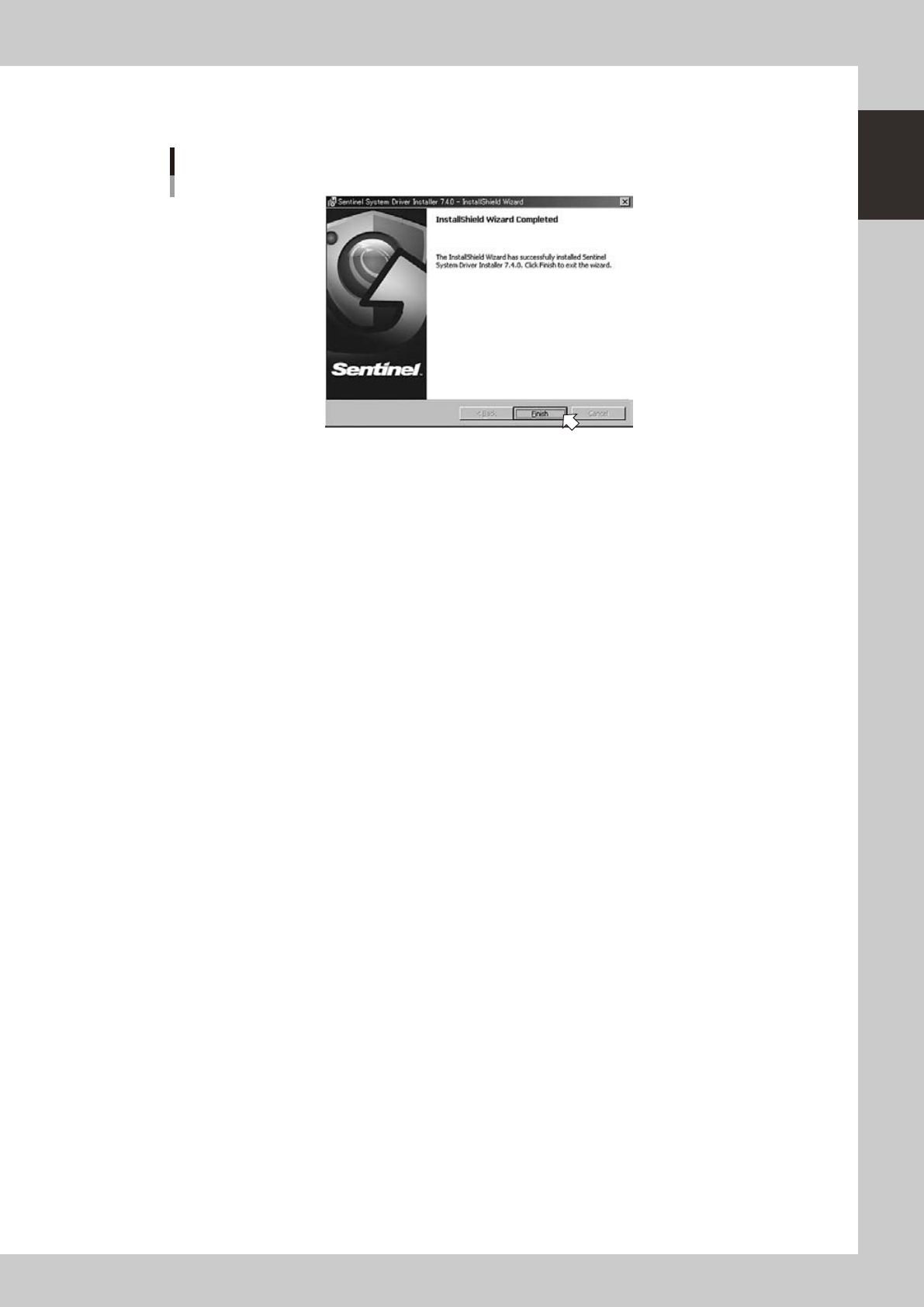
5. "InstallShield Wizard Completed" dialog box will appear when the installation is completed.
Click the [Finish] button to quit the "InstallShield Wizard".
“InstallShield Wizard Completed” dialog box
64116-S0-00
New installation of the hardware key driver is now completed.
1-14
1
Installation of Factory Tools
2.2 Upgrade of hardware key
The following explains the method for upgrading the hardware key driver.
c
CAUTION
Be sure to remove the hardware key before upgrading the hardware key driver.
1
Start the installer.
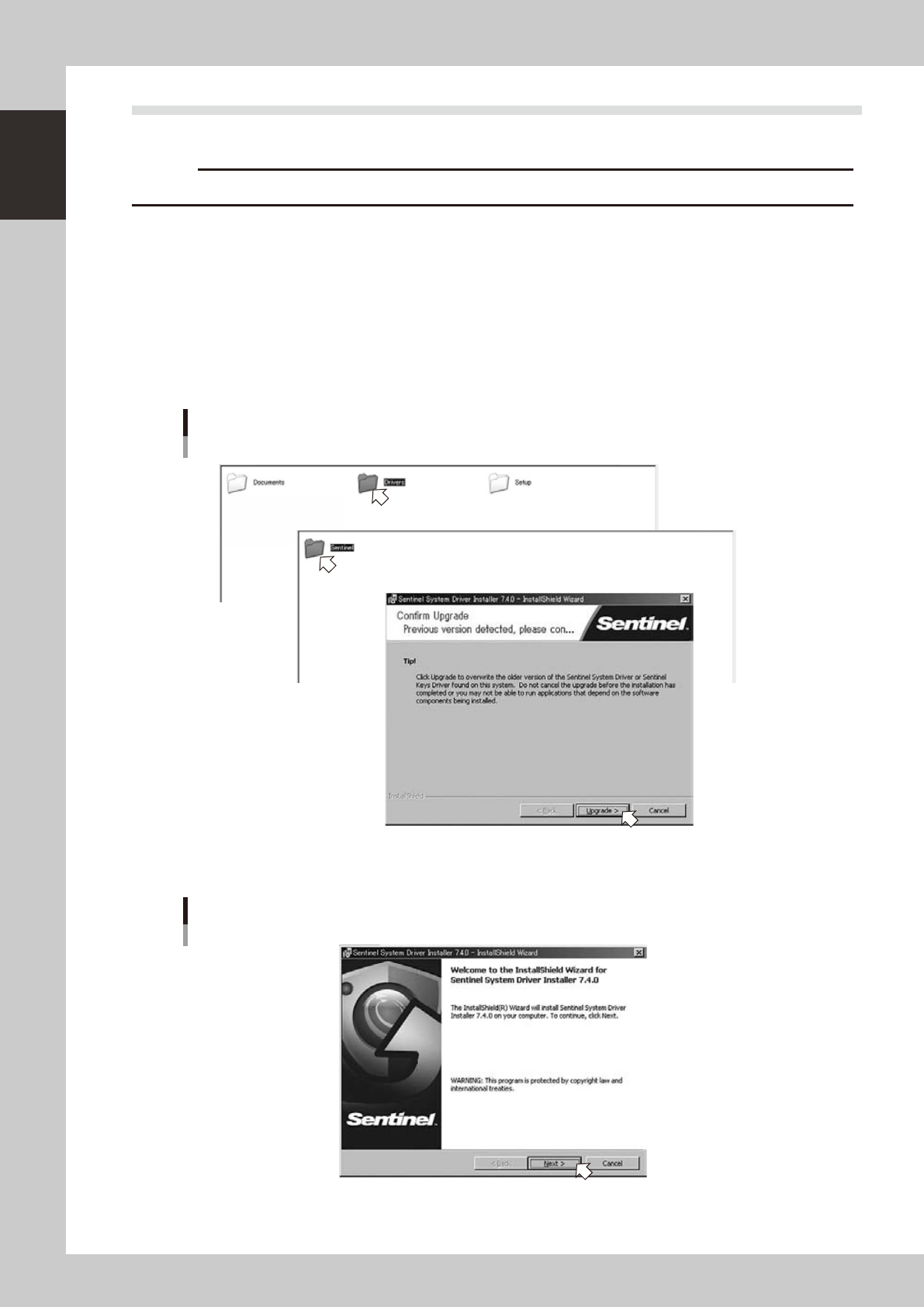
1. Set the CD-ROM to the PC.
2. Double-click the "My Computer" icon of the PC and select the CD-ROM drive.
3. Open the "Driver" folder and double-click the "Sentinel Systm Driver Installer XXX.exe".
The "Confirm Upgrade" will run.
2
Upgrade the hardware key driver.
1. Click the [Upgrade] button of the "Confirm Upgrade".
Setup application
Step1
Step1
64117-S0-00
2. Click the [Next] button of the "InstallShield Wizard".
“InstallShield Wizard” dialog box
64118-S0-00