EUS0153210_YFact_Standard_E.pdf - 第83页
2-49 2 Board Explorer 5.3 Comparison between folders The Board Explorer allows you to easily compare board data between two different folders. The compared board data can be moved or copied as needed, or the two folders …
2-48
2
Board Explorer
4
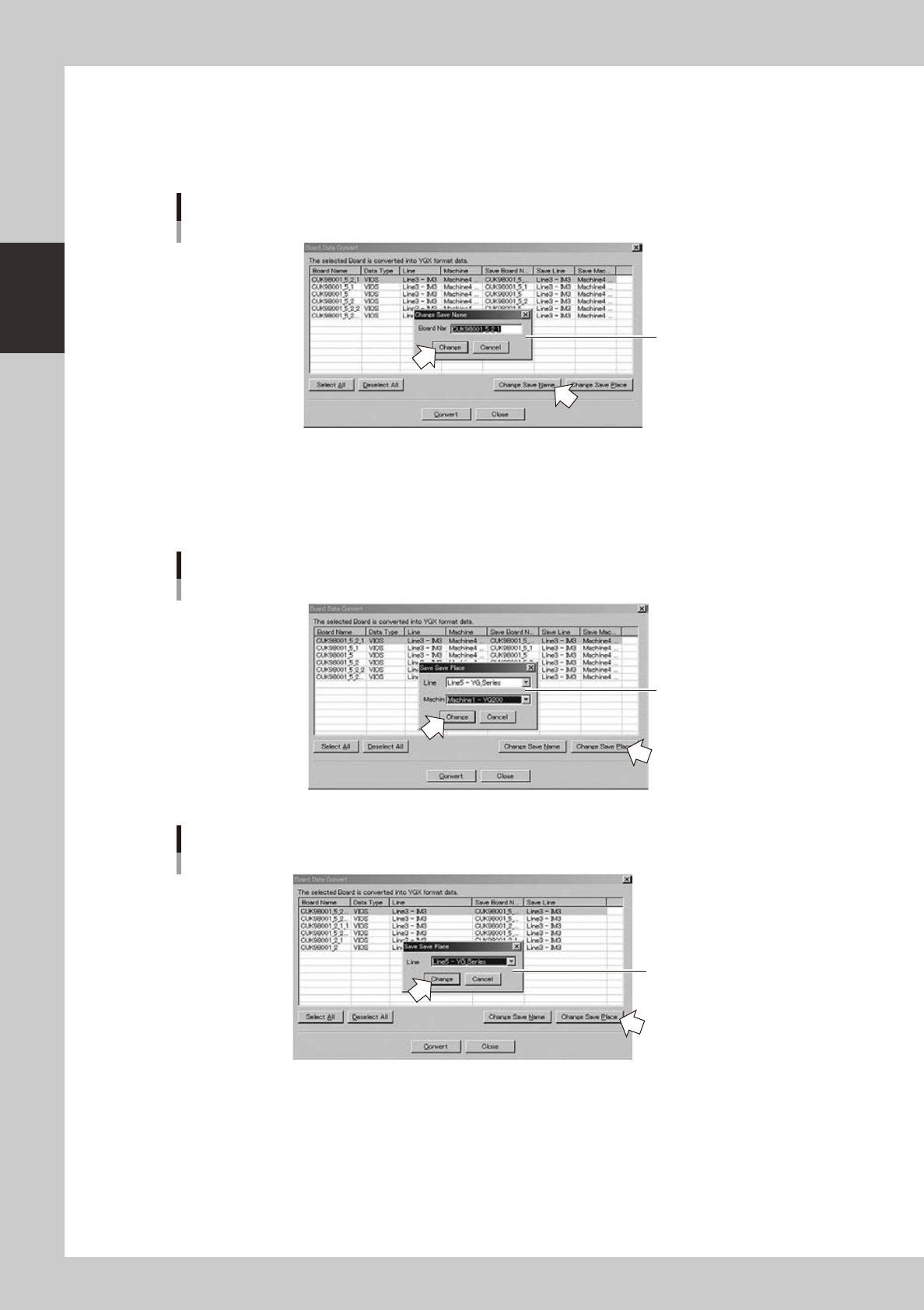
Check the Board name in the “Save Board Name” column.
When you want to rename the board data after data type conversion, click the [Change Save Name]
button.
The "Change Name" dialog box appears. Enter the new name in the "Board Name" text box and click
the [Change] button.
Dialog box for renaming the board data
Enter the board data name
64245-S0-00
5
Check the location to save the board data.
The "Save Line" column shows the location where the board data will be saved after data type
conversion. When you want to change the location, click the [Change Save Place] button, specify the
desired location in the dialog box that appears, and click the [Change] button.
Dialog box for changing the save location
When converting board data registered in machine
Select the line and machine
to save the board data.
64246-S0-00
Dialog box for changing the save location
When converting board data registered in line
Select the line to save
the Board data.
64247-S0-00
6
Convert the data type.
After making the necessary setting, click the [Convert] button.
The data type of the selected board data is converted and the converted board data is saved in the
specified location.
2-49
2
Board Explorer
5.3 Comparison between folders
The Board Explorer allows you to easily compare board data between two different folders. The compared
board data can be moved or copied as needed, or the two folders can be synchronized with each other. Only
folders accessible by the Board Explorer can be compared.
Reference
Board data can be compared between two folders located in:
• Machine and Factory Tools
• Factory Tools you are working with and backup folder for Factory Tools
• External medium (FD, MO, etc.) and Factory Tools you are working with
• Factory Tools for line control (option) and Factory Tools for data creation
etc.
n
NOTE
Only Board names are compared.
Differences in update date/time and file size cannot be checked and synchronized.
To compare board data between folders, follow these steps.
1
Start the “BetweenCompare” command.
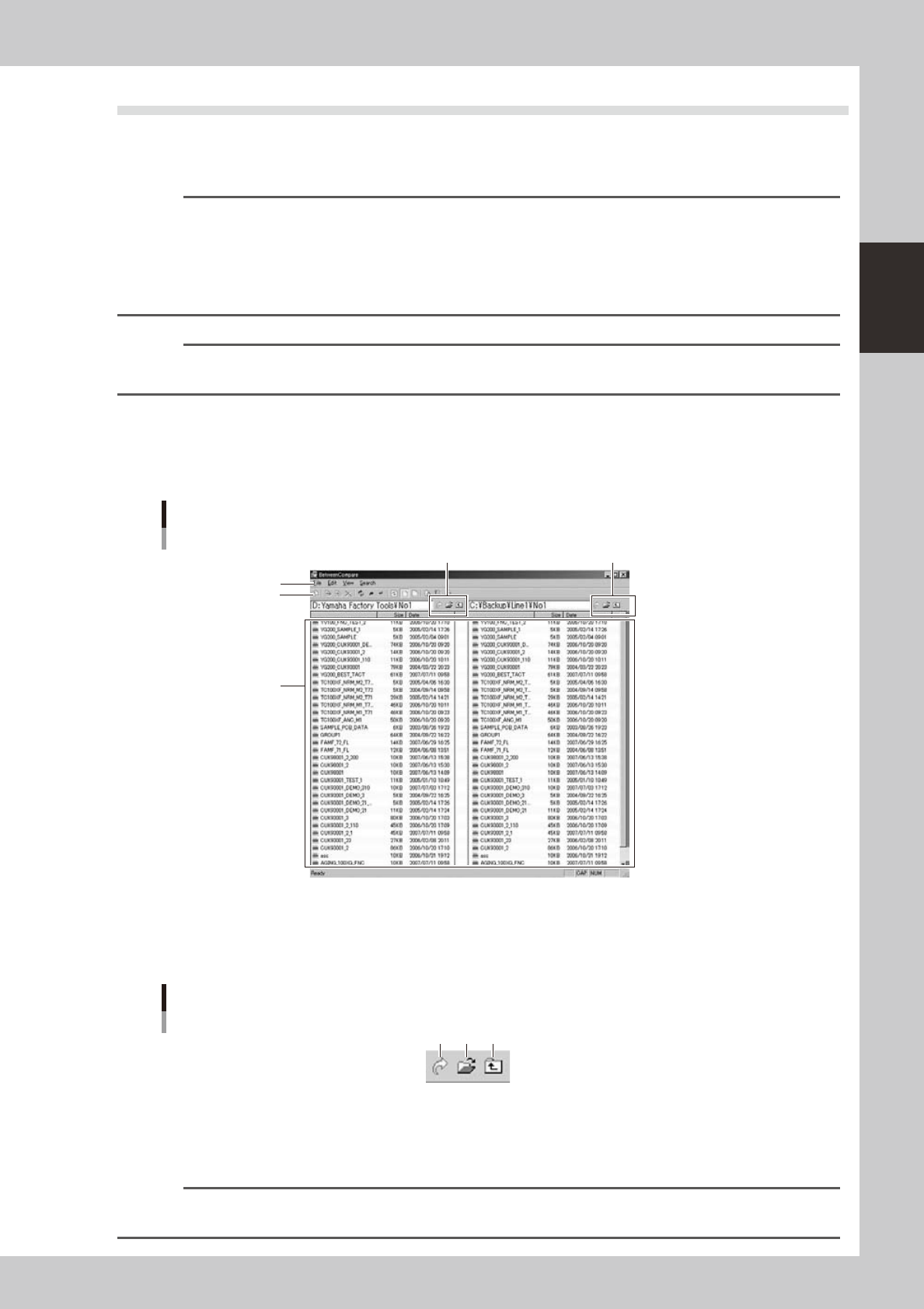
Click any icon in the tree view and then select "BetweenCompare" from the Data menu. The following
window appears.
"BetweenCompare" window
Toolbar
Menu bar
Board data list
Folder manipulation buttons Folder manipulation buttons
64248-S0-00
2
Select the folders to be compared.
Use the folder manipulation buttons on the right and left to select the folders you want to compare with.
A list of board data stored in the selected folders is displayed on the right and left.
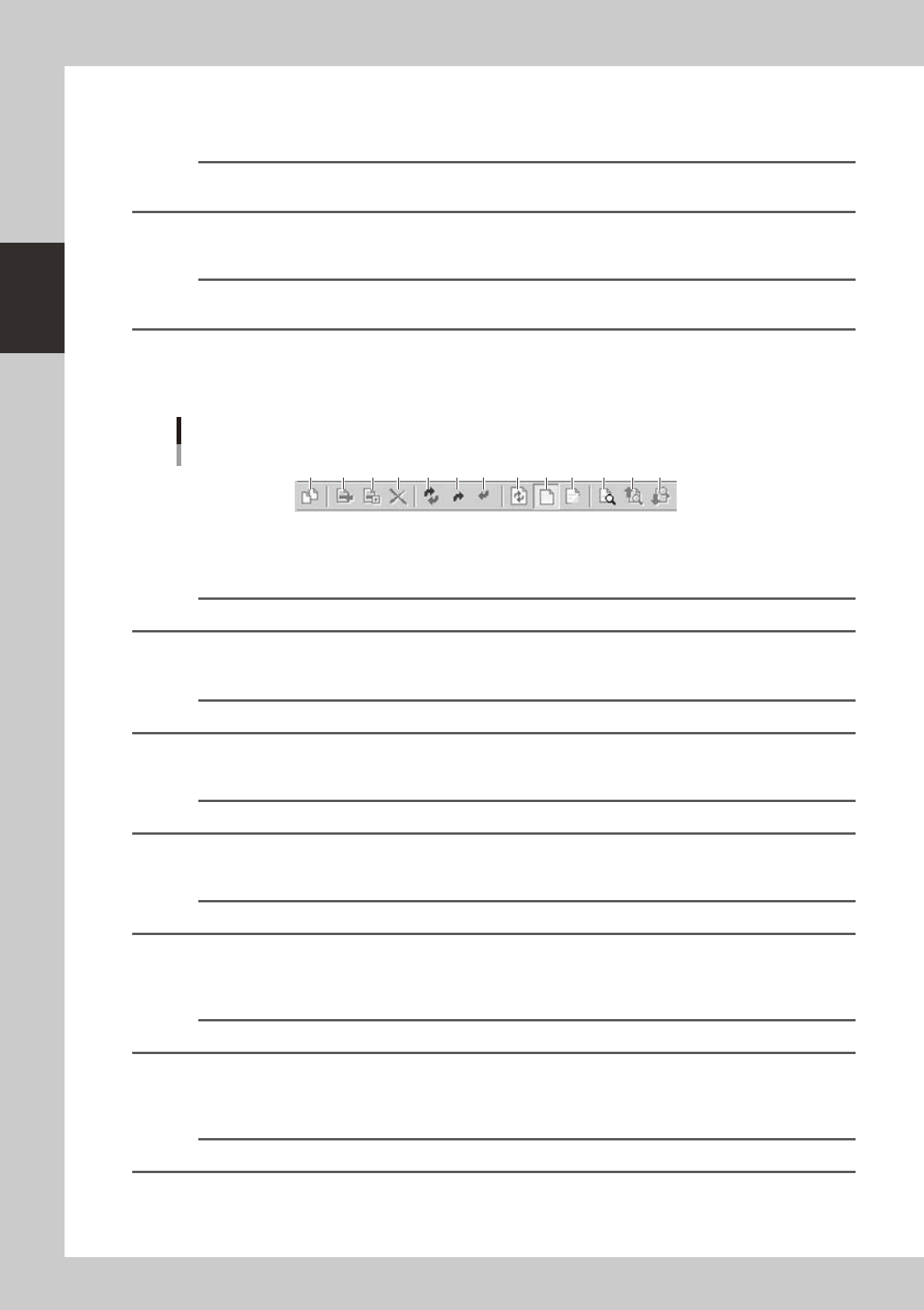
Folder manipulation buttons
1 2 3
64249-S0-00
1. [Go Folder] button
If you know the path to the target folder, enter it in the edit box under the toolbar and click this button to directly move
to the target folder.
Reference
The [Go Folder] button has the same function as the "Left Side" (or "Right Side") - "Go Folder" command in the File
menu.
2-50
2
Board Explorer
2. [Select Folder] button
Displays the “Select Folder” dialog box.
Selectthefolderandclickthe[OK]buttontomovetotheselectedfolder.
Reference
The [Select Folder] button has the same function as the "Left Side" (or "Right Side") - "Select Folder" command in the
File menu.
3. [Up Folder] button
Moves to the folder one level up from the current folder and open it.
Reference
The [Up Folder] button has the same function as the "Left Side" (or "Right Side") - "Up Folder" command in the File
menu.
3
Compare board data between the folders.
Using the toolbar buttons or menu commands, you can compare board data, and then copy or move
them as needed, or synchronize the contents in the two folders.
Toolbar
1 2 3 4 5 6 7 8 9 10 11 12 13
64250-S0-00
1. [New] button
Opens a new window for folder comparison.
Reference
The [New] button has the same function as the "New" command in the File menu.
2. [Move] button
Moves the selected board data from left to right or right to left.
Reference
The [Move] button has the same function as the "Move" command in the Edit menu.
3. [Copy] button
Copies the selected board data from left to right or right to left.
Reference
The [Copy] button has the same function as the "Copy" command in the Edit menu.
4. [Delete] button
Deleted the selected board data.
Reference
The [Delete] button has the same function as the "Delete" command in the Edit menu.
5. [Synch] button
Makes synchronization between the two selected folders. (All board data that are different will be copied into each folder
so that the contents of the two folders are identical.)
Reference
The [Synch] button has the same function as the "Synch" command in the Edit menu.
6. [Synch Left Side] button
Synchronizes the selected folders based on the left folder. (Board data that exist only in the left folder will be copied into
the right folder.)
Reference
The [Synch Left Side] button has the same function as the "Synch Left Side" command in the Edit menu.