EUS0153210_YFact_Standard_E.pdf - 第235页
5-8 5 Rank T able Editor 2.4 Pattern Name Group Edit Selectthe"PatternName"tab,andclickthe[Add]buttonor[Edit]button. The "Pattern Name Edit" dialog box appears. Pattern Name Edit "Pat…
5-7
5
Rank Table Editor
2. Usage
Start"BINTableEditor"from"YAMAHAIT-System"intheStartmenu.
Reference
If you're using Y.FacT P-Tool, start "BIN Table Editor" from "YAMAHA Factory Tools P-Tool" in the Start menu.
2.1 Create New
Click[New(N)]onthemenubar.
2.2 Add Table
Onthemenubar,click[Edit(E)]andthenclick[AddTable(A)].
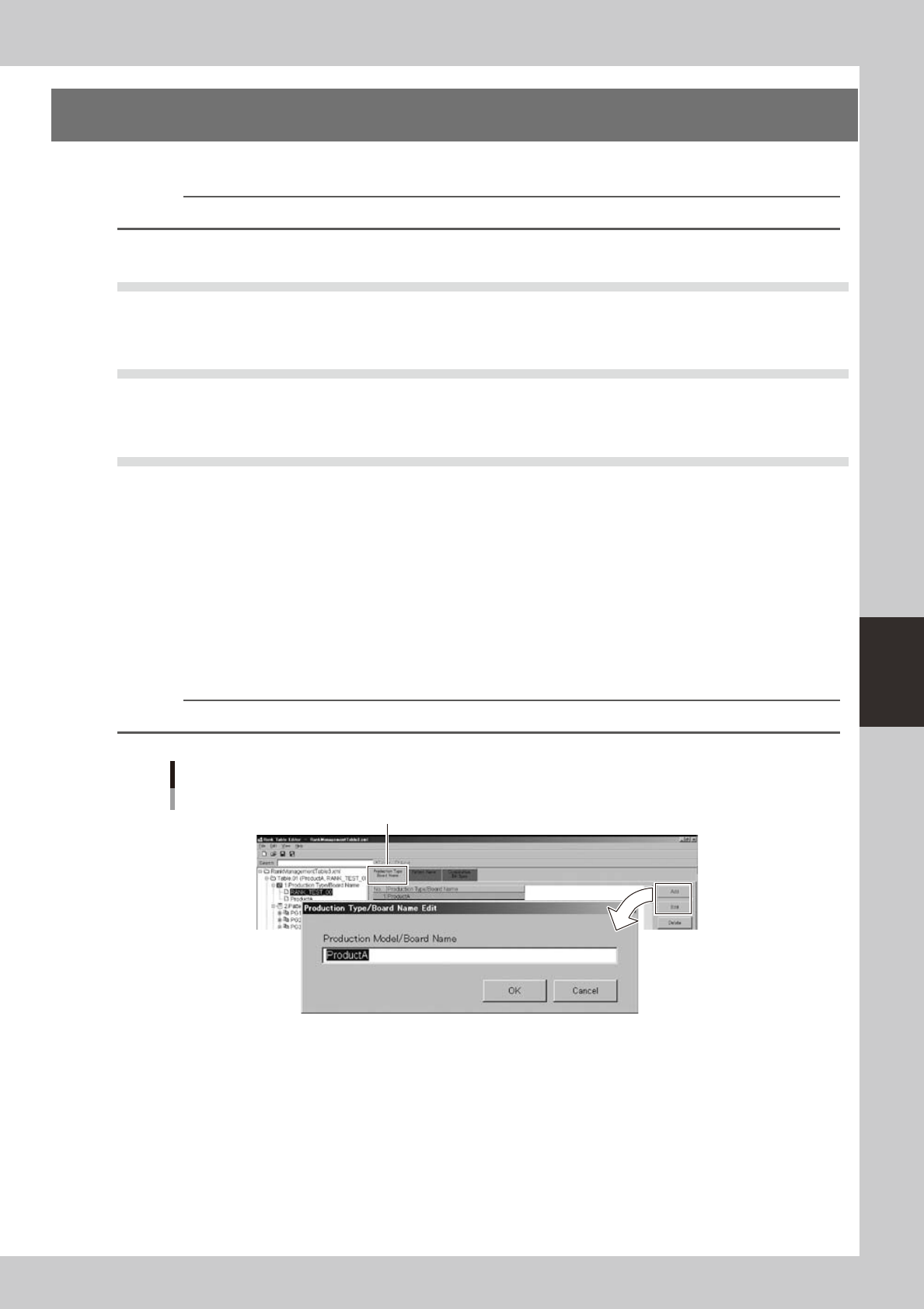
2.3 Production Type/Board Name Edit
Selectthe"ProductionType/BoardName"tab,andclickthe[Add]buttonor[Edit]button.
The "Production Type/Board Name Edit" dialog box appears.
n
When using Plan mode
Enter the production type name. Enter the same name as the production type name (ASSY model number) of the program
list. This applies to the board data of the same name as the board data name that is associated with the production type
(ASSY) in the program list.
n
When using Machine mode
Enter the board name. At the time of production, the mounter refers to the BIN table file, and selects the BIN table with
the board name that matches the board data name selected on the mounter.
Reference
When selecting by board name, you can use an asterisk (*) as a wild card.
Production Type/Board Name
"Production Type Board Name" tab
64502-S0-00
5-8
5
Rank Table Editor
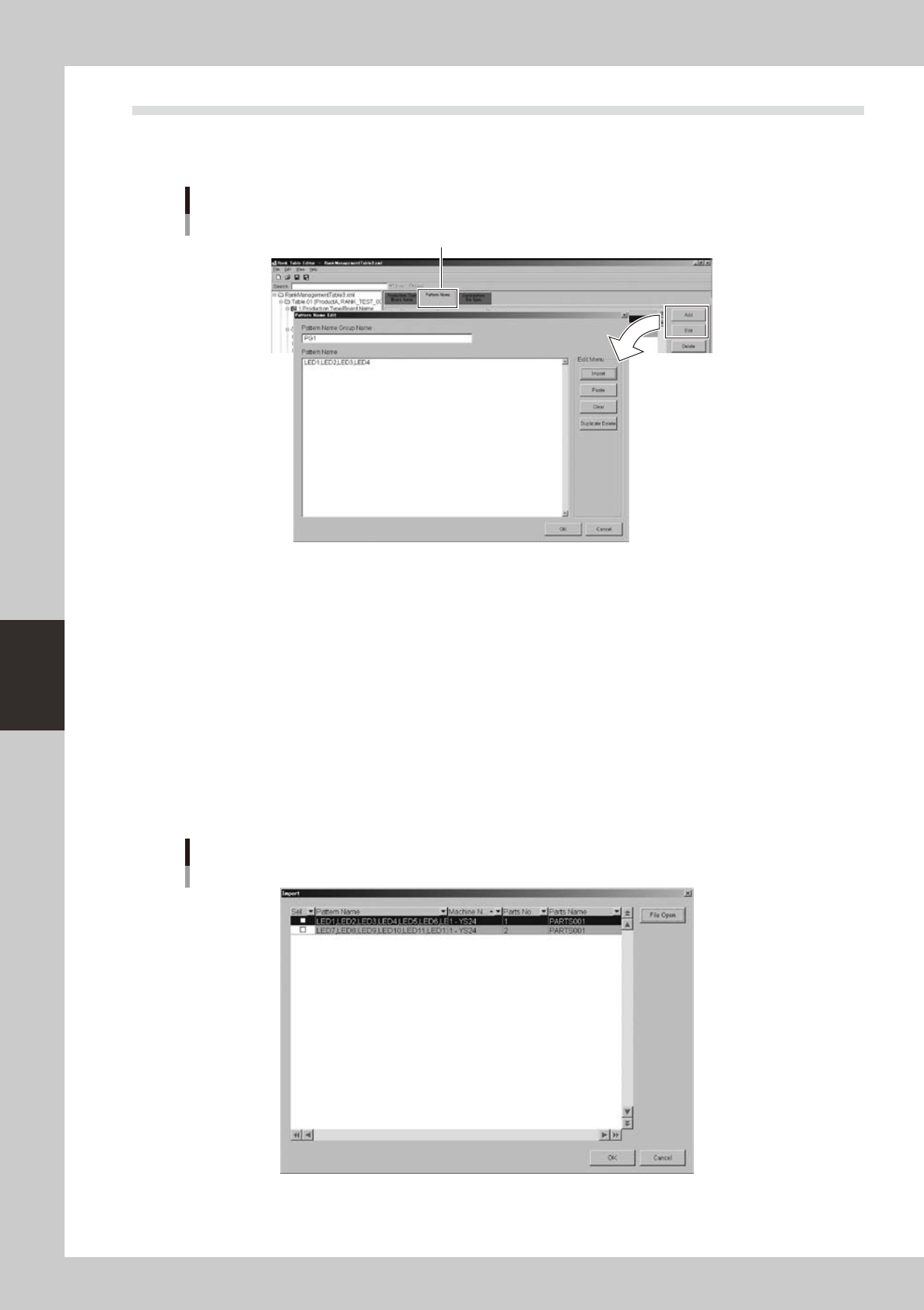
2.4 Pattern Name Group Edit
Selectthe"PatternName"tab,andclickthe[Add]buttonor[Edit]button.
The "Pattern Name Edit" dialog box appears.
Pattern Name Edit
"Pattern Name" tab
64503-S0-00
Pattern names to be associated are grouped according to the board data defined in the preceding section "2.3
Edit or Add Production Type/Pattern Name." Enter the pattern name group name (optional) and the pattern
name.
The pattern name can be input directly, or it can be imported from mount information that is exported by the
Board Editor, or it can be copied and pasted from the Board Editor.
n
Directly inputting the pattern name
Enter the pattern name that is in the mount information of the board data.
n
Importing from a mount information export file exported by the Board Editor
FromthemachineortheP-ToolBoardEditor,choose[File]-[ExportMountInformation],toexportthemountinformation
oftheboarddataasafile(csv).Whenyoureadthefileintothiseditor,thepatternnamesofthemountinformationare
displayed for each part number.
Import pattern name
64504-S0-00
5-9
5
Rank Table Editor
2.5 Combination Edit
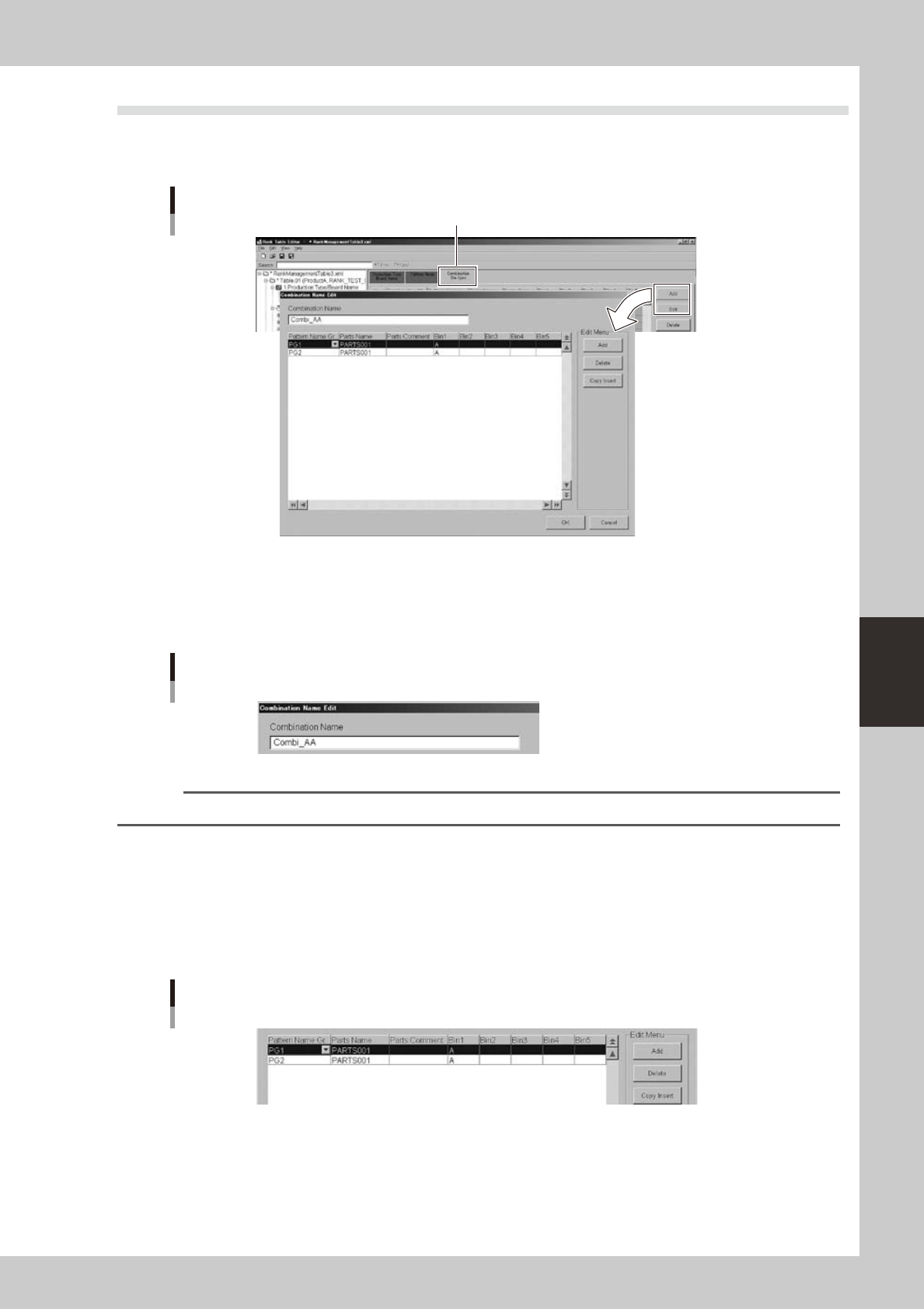
Edit the combination. In the "Combination BIN Select" tab, click the [Add] button or [Edit] button to open the
"Combination Name Edit" dialog box. Here you can enter, add, or delete combination.
Edit the combination
"Combination BIN Select" tab
64505-S0-00
1
Enter the combination in the "Combination Name" field.
The combination is a selection of the program list when using a program. For this reason, we recommend
that you enter a combination that is associated with the location or content of the parts characteristics.
Combination entry
64506-S0-00
Reference
You can increase the readability of the BIN table by adding a prefix to the combination.
2
Assign parts to the pattern name group.
Associate part name specifications to the pattern name group that you created in the preceding
section "2.4 Pattern Name Group Edit." The part names that you enter here will replace the part names
in the board data, so you must enter part names for which setup verification is possible. This means that
aliases, abbreviations, or common names cannot be used as part names.
Here you can also specify associations between parts and parts, and "OR" BINs.
Assign parts
64507-S0-00