Autosite_Users_Manual.pdf - 第49页
Setup an d Installa tion AutoSite User Manual 2-27 Power Up Aut oSite Safety Information This informa tion is provided as a supplement to the Sa fety Summary at the beginning of this manua l. The circuitry housed inside …

Setup and Installation
2-26 AutoSite User Manual
Note: See the section in this chapter titled “More About Cables” if you are using
a serial port with nonstandard pinouts or if you want to build your own
serial cable.
3. Depending on the type of handler you are using, you may be able to
attach the control unit to the handler. Refer to the documentation
provided with your handler for information on connecting the
AutoSite control unit to the handler.
Note: Because of space limitations and other restrictions, you may not be able to
attach AutoSite to some handlers. In this case, simply place the control
unit in a convenient position near the handler. See the handler
documentation for more information.
Connect the Pin
Driver Head
Connect the AutoSite pin driver head as follows:
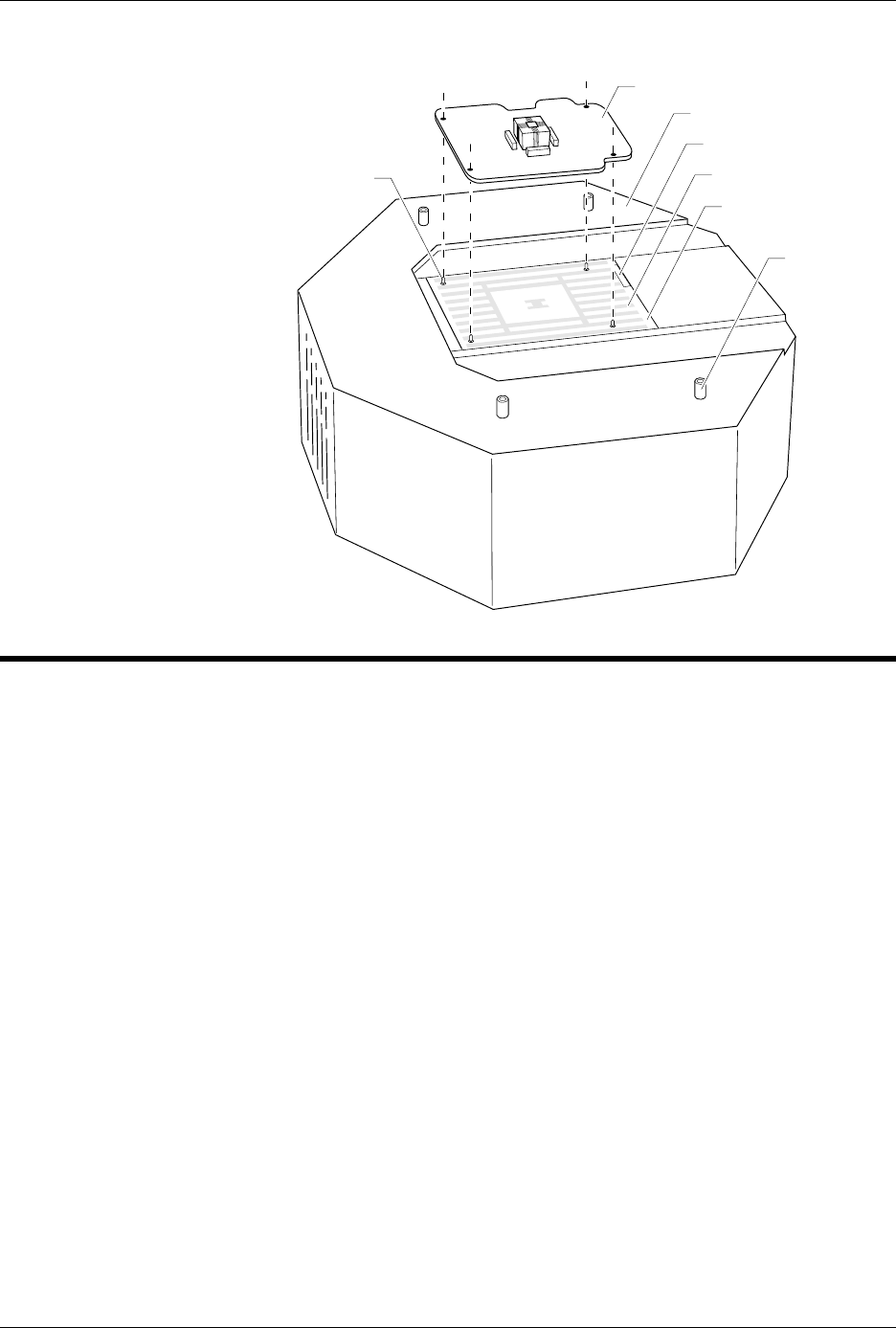
Note: The four standoffs located around the SPA block on the pin driver head (as
shown in Figure 2-22) may cause interference if the AutoSite is installed
on a non-ProMaster handler. If interference occurs, remove the standoffs
using a 1/4-inch nut driver, or a 1/4-inch open-end box wrench or the
equivalent.
4.
(For pin driver heads without connector brackets at ports J1 and J2.)
Connect the other end of the 50-pin and 68-pin cables to the pin
driver head. The 50-pin and 68-pin cables click when properly
connected to the pin driver head.
(For pin driver heads with connector brackets at ports J1 and J2.)
Remove the two screws that hold the connector shell together at the
unconnected end of the 50-pin cable. Plug the 50-pin cable into the
appropriate port on the pin driver head and fasten it to the connector
bracket by aligning the holes in the bracket with the holes on the
connector shell and reinserting the screws through the holes. Tighten
the screws.
Repeat the procedure for the 68-pin cable.
5. Refer to the documentation shipped with your handler for
information on installing a programming module. We suggest you
keep the following in mind while installing a programming module:
• Make sure the handler is idle
• Wear a properly grounded antistatic wrist strap while working
with the programming module and the pin driver head
• Do not touch the gold pins that are exposed when you remove a
programming module from the pin driver head
• Do not block the fan on the side of the pin driver head
• Make sure the guide pins on the pin driver head line up with the
guide holes in the programming module. See Figure 2-22 for an
example.
• Do not use the device socket or connectors on the programming
module as a leverage point.
Note: The programming module you install may not look like the programming
module shown in Figure 2-22.
Setup and Installation
AutoSite User Manual 2-27
Power Up AutoSite
Safety Information
This information is provided as a supplement to the Safety Summary at
the beginning of this manual.
The circuitry housed inside the pin driver head and the control unit, and
the devices AutoSite programs are static sensitive and can be damaged by
electrostatic discharge (ESD). To help minimize the effects of ESD, we
suggest you wear an antistatic wrist strap while you follow the
procedures described in this section.
For best performance, the antistatic wrist strap should be connected to a
properly grounded antistatic workstation and the wrist strap should
contain a 1M
Ω
(minimum) to 10M
Ω
(maximum) isolating resistor. We
suggest you connect your antistatic wrist strap to the grounding terminal
on the front of the AutoSite control unit. The grounding terminal is
shown in Figure 1-2.
About the
Programmer Disks
The disk labeled
Boot Files
contains the AutoSite operating system. The
disk must be in the disk drive when you boot AutoSite.
Any disk labeled
System Files
contains the system files necessary for
many operations after the programmer has booted. If prompted to insert
the System Files disk, you can insert any one of the disks labeled “System
Files.”
Figure 2-22
Aligning a Programming Module
to the Pin Driver Head
2627-1
PROGRAMMING MODULE
GUIDE PIN
(1 of 4)
PIN DRIVER HEAD
SPA BLOCK
SQUIRT PINS
PART NUMBER LABEL
STANDOFF
(1 of 4)

Setup and Installation
2-28 AutoSite User Manual
The
Algorithm
disks contain all the programming algorithms for the
devices currently supported by AutoSite.
If you have a hard drive (also known as a Mass Storage Module, or MSM)
installed in your AutoSite, you can boot directly from the hard drive after
you install the system and algorithm files on the hard drive. Ensure that
no disks are in the floppy drive when you boot up.
Note: Do not attempt to use the Boot Files disk or the Algorithm disks with more
than one AutoSite. Each disk is intended to work with only one particular
AutoSite.
Once you get AutoSite working, make a backup copy of each disk. The
“Finish Up” section of this chapter describes how to make a backup copies
of the AutoSite disks.
Power Up AutoSite
To power up AutoSite, follow the steps below.
1. Connect one end of the ac line cord to the ac receptacle on the rear
panel of AutoSite and the other end to a properly grounded ac outlet.
AutoSite contains a switching power supply that configures itself to
operate on the proper voltage. The power supply accepts voltages
ranging from 90 to 264 Vac and frequencies ranging from 48 to 63 Hz.
WARNING: To ensure proper grounding, and to avoid the hazard of
electrical shock, connect AutoSite to ONLY a properly
grounded ac outlet.
2. Make sure a programming module (or Base) is installed in AutoSite.
Also, make sure the device socket in the programming module (or
Base) is empty.
CAUTION: Leaving a device in the socket during powerup could damage
the device.
3. Power up the handler.
4. Power up the PC you will use to control AutoSite. Start the
programmer control software, such as TaskLink, you will use to
control AutoSite or start the handler control software you will use to
control AutoSite.
5. If you do not have an MSM, insert the Boot Files disk into the
AutoSite disk drive.
6. Power up AutoSite. The power switch is located on the back panel of
the control unit, next to the ac receptacle, and is pictured in
Figure 1-3.
When you turn the power switch on, the Power LED should light. If it
doesn’t, turn AutoSite off, check the power connections, and turn
AutoSite on again.
Note: Do not remove the Boot Files disk while either the Self Test or disk drive
LED is lit. If you remove the Boot Files disk during powerup, you will
need to reboot AutoSite.