Autosite_Users_Manual.pdf - 第75页
Operation AutoSite User Manual 3-17 Inserting PLCC Devices and Using MatchBooks Read this sectio n if you will be usin g the Stand Alone Kit (a PLCC Base and a set of MatchBooks) to pro gram PLCC devices. Data I/O has de…
Operation
3-16 AutoSite User Manual
Inserting a DIP
Device
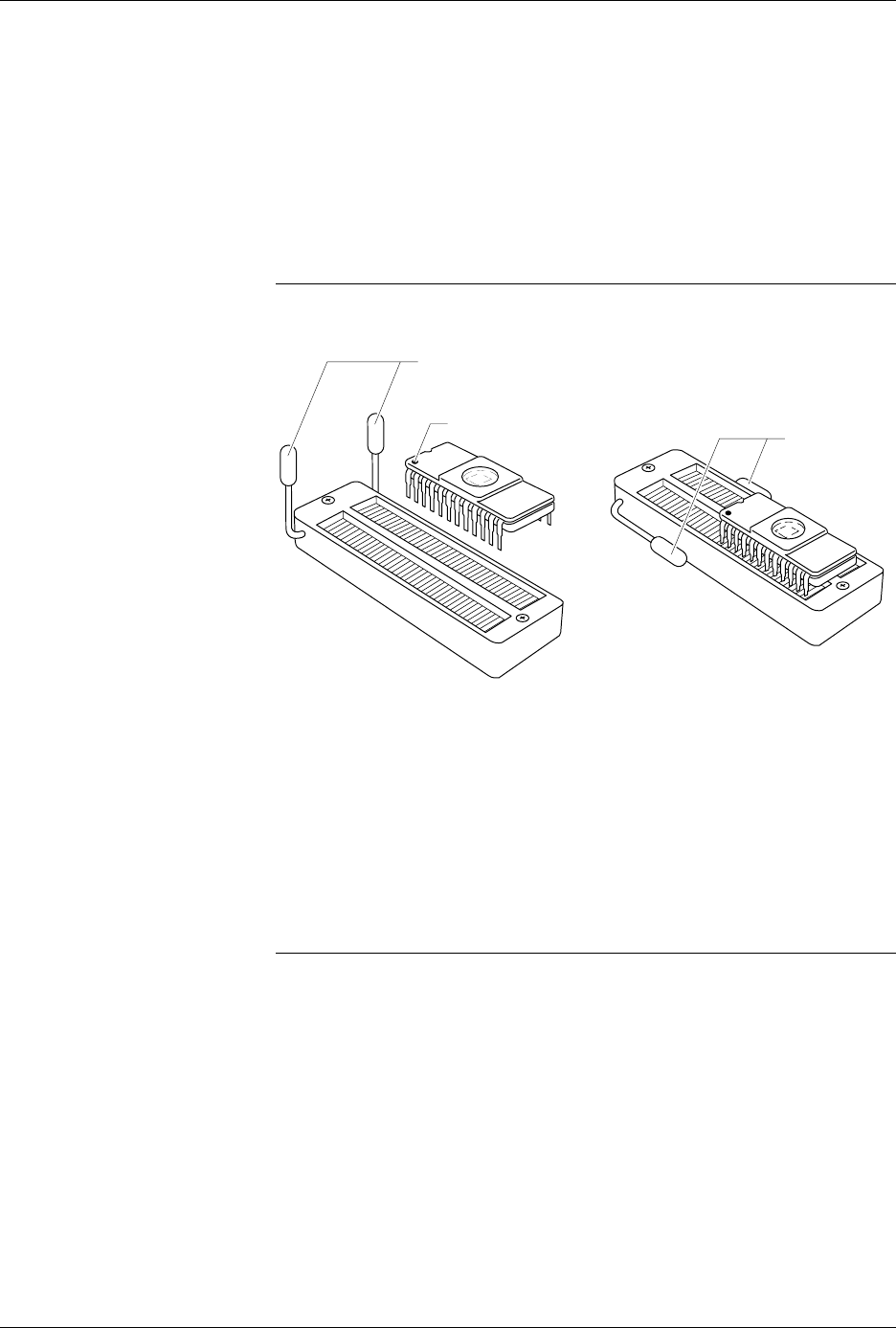
To insert a DIP device into the DIP Base, follow the steps below:
1. Unlock the socket on the DIP Base by pulling up on the socket lever.
2. Insert the DIP device into the socket. Make sure the device is bottom
justified. If the device is not bottom justified, AutoSite will not be able
to read or program the device.
3. Lock the device into place by pressing the socket lever down.
Note: Insert DIP devices into AutoSite AFTER you have installed the DIP Base
in AutoSite.
Removing a DIP
Device
To remove a DIP device from the DIP Base, follow the steps below:
1. Make sure AutoSite has finished programming and testing the device
in the DIP Base.
2. Unlock the socket on the DIP Base by pulling up on the socket lever.
3. Remove the device by lifting it out of the socket. Set the device on an
antistatic surface or in antistatic foam.
Note: Remove DIP devices from the DIP Base before you remove the DIP Base
from AutoSite.
Figure 3-11
Inserting a DIP Device into the
DIP Base
0548-1
SOCKET LEVERS
UNLOCKED
PIN 1
SOCKET
LEVERS
LOCKED
Operation
AutoSite User Manual 3-17
Inserting PLCC
Devices and Using
MatchBooks
Read this section if you will be using the Stand Alone Kit (a PLCC Base
and a set of MatchBooks) to program PLCC devices.
Data I/O has developed a new method to accommodate the special
nature of PLCC packages. The method uses the MatchBook, which holds
the PLCC device in place on the PLCC Base. When the device is locked
into place, the conductive pad on the bottom of the PLCC Base forms a
conductive path between the pin drivers in the pin driver head and the
device in the MatchBook.
MatchBooks do away with clumsy and expensive sockets and adapters,
and make inserting and removing surface mount devices much easier
and faster. MatchBooks eliminate the guesswork involved when you
insert a PLCC device into a socket. All you have to do is align pin 1 and
set the device in the MatchBook.
Inserting a Device Into a
MatchBook
The instructions below explain how to use a MatchBook and how to
insert and remove a device from a MatchBook.
1. Insert the PLCC Base into AutoSite. Lock the Base into place. See the
section titled “Inserting the DIP or PLCC Base” for information on
inserting the PLCC Base.
2. Select the MatchBook for the device you are going to use.
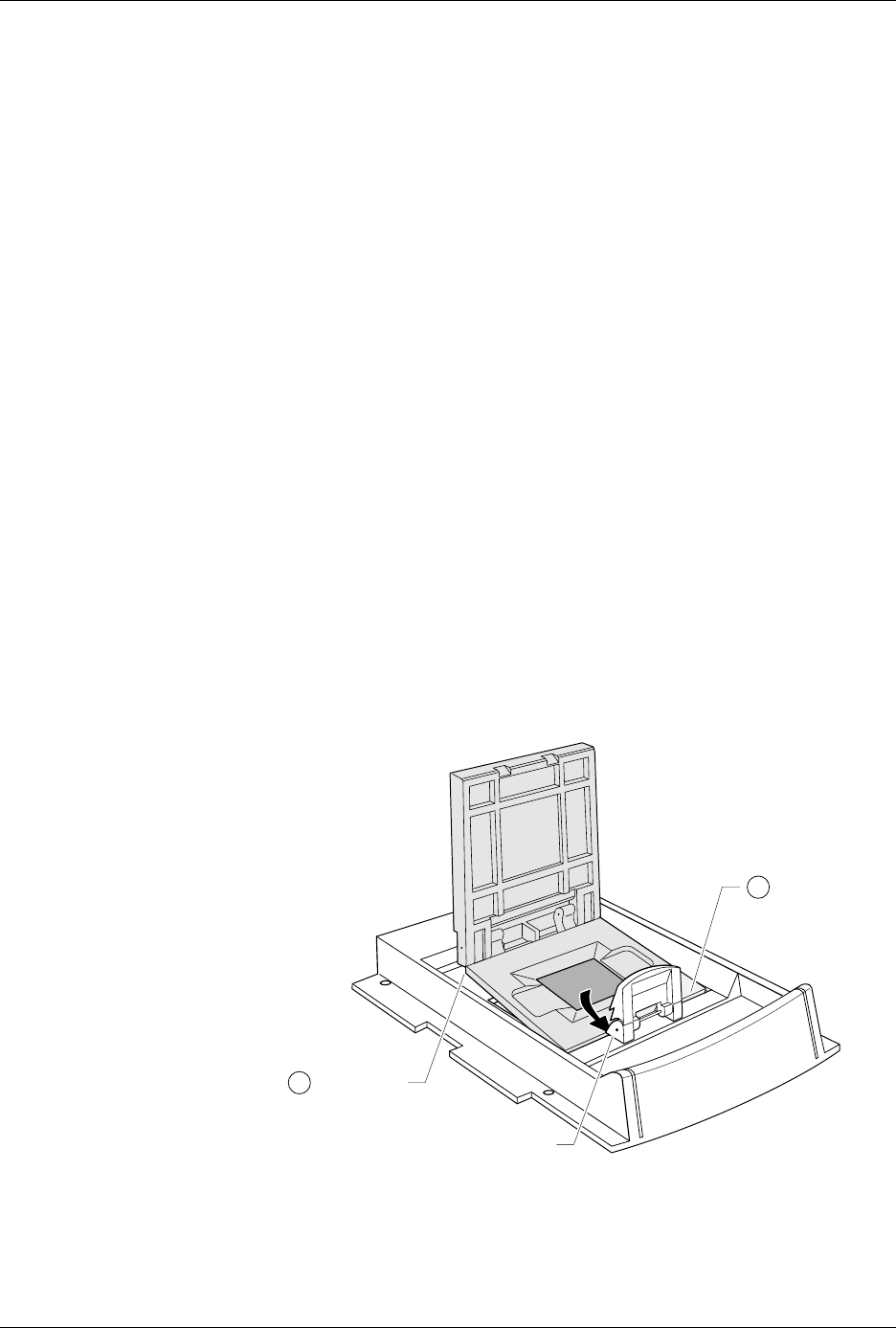
3. Insert the MatchBook into the PLCC Base as shown in Figure 3-12.
First, set the front edge of the MatchBook onto the PLCC Base. Then
lower the back edge of the MatchBook into place on the Base.
Figure 3-12
Inserting a MatchBook into the
PLCC Base
0537-3
2
1
FRONT EDGE
(under locking
tabs)
BACK EDGE
LOCKING TAB
Operation
3-18 AutoSite User Manual
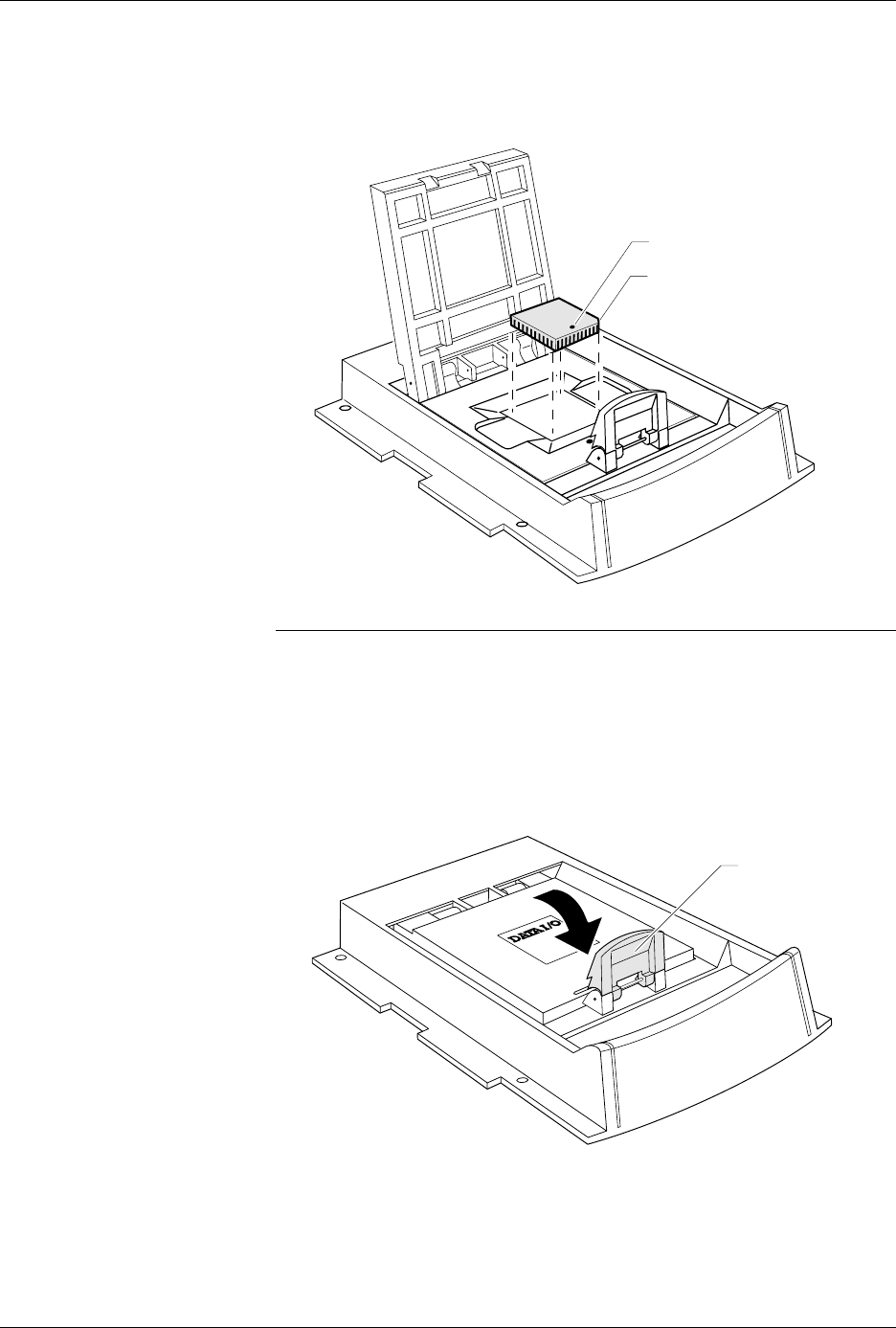
4. Insert the device into the MatchBook, as shown in Figure 3-13. Make
sure you insert the device according to the alignment diagram on the
MatchBook. Close the MatchBook.
Note: Position the device so pin 1 is near to the retaining clip. There is a small
dot molded into each MatchBook to help you align your device. Each
MatchBook also has a beveled corner to help you align devices with a
chamfered corner to indicate pin 1.
5. Finally, close the MatchBook and press the retaining latch forward
with your thumb until the latch snaps into place, as shown in
Figure 3-14.
Removing a Device
From a MatchBook
To remove a device from the MatchBook, unsnap the retaining latch,
open the MatchBook, and lift out the device.
Figure 3-13
Inserting a Device into the PLCC
Base
Figure 3-14
Closing the MatchBook
0538-3
CHAMFERED
CORNER
PIN 1
0539-4
44 PIN PLCC
RETAINING LATCH