00197197-02-IM SetupCenter 5.1.pdf - 第30页
Installation Hardware Installation Motorola MC70/MC75 1D/2D barcode scanner 30 Installation Manual SIPLACE Setup Center 5.1 ► Select the path for copying the installation file s an d select " Next". ► Select &q…
Installation
Motorola MC70/MC75 1D/2D barcode scanner Hardware Installation
Installation Manual SIPLACE Setup Center 5.1 29
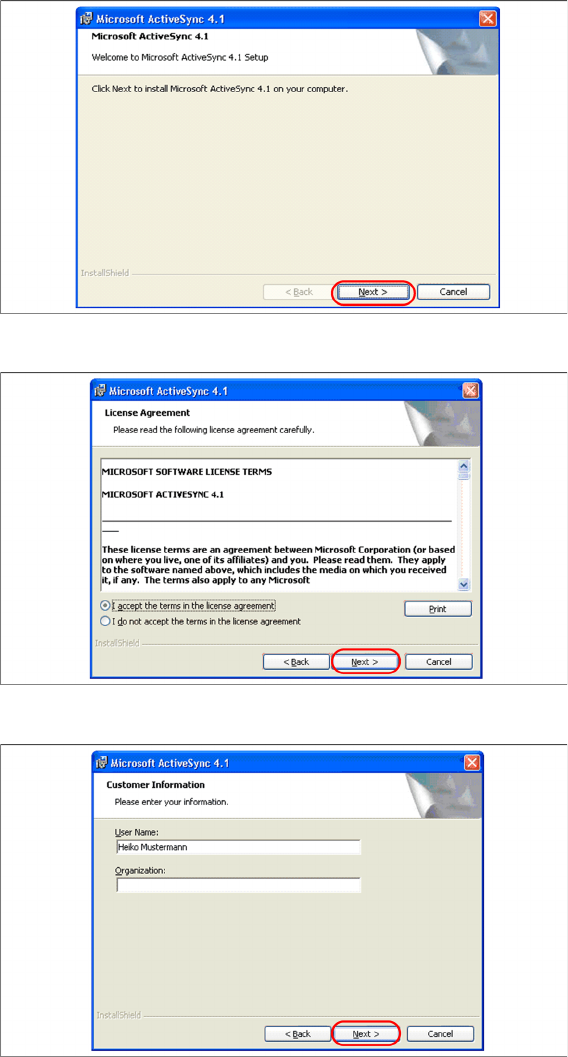
Install ActiveSync
► Click on "Next" to proceed.
► Accept the licensing agreements and select "Next".
► Enter your user information and select "Next".
Installation
Hardware Installation Motorola MC70/MC75 1D/2D barcode scanner
30 Installation Manual SIPLACE Setup Center 5.1
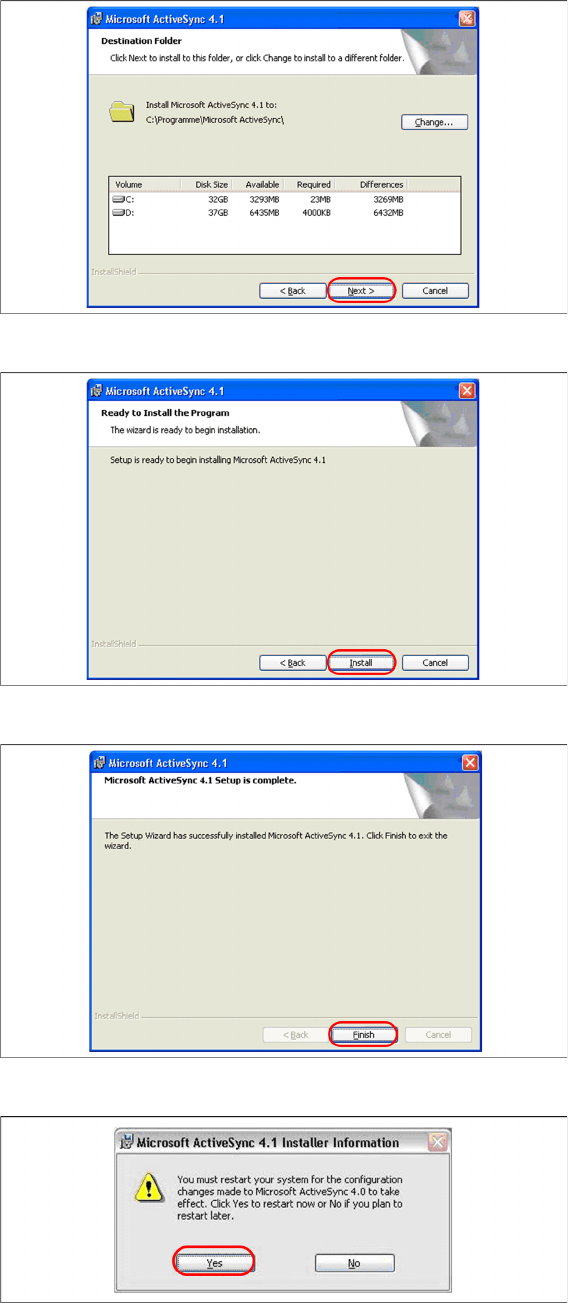
► Select the path for copying the installation files and select "Next".
► Select "Install" to start with the installation of Microsoft ActiveSync.
► Click on "Finish" to terminate the Microsoft ActiveSync Installation.
► In case that a restart is necessary please select "Yes".
Installation
Motorola MC70/MC75 1D/2D barcode scanner Hardware Installation
Installation Manual SIPLACE Setup Center 5.1 31
► Please start MC70 Prerequisite installation from CD after the restart.
See also
4.2.4.3.2 Step 2: AppCenter [ ➙ 32]
Windows Vista: Mobile Device Center
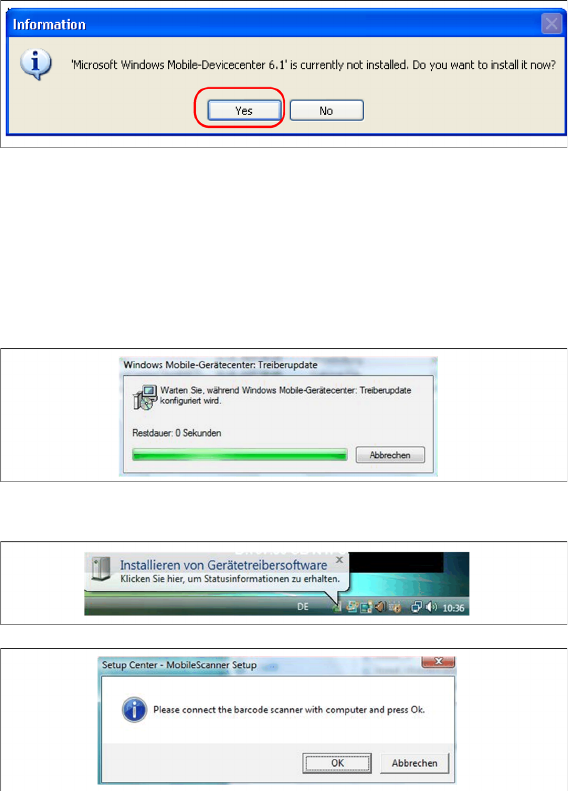
If Windows Mobile Device Center is not installed on the system, the following message box appears.
► Select “Yes” to start the installation of Mobile Device Center. Make sure that the scanner is not yet
connected to the basic station.
If Windows Mobile Device Center is not installed on the system, the installation of Mobile Device Center
will be executed. Make sure that the scanner is not yet connected to the basic station.
Install Mobile Device Center
► The installation of Mobile Device Center is beginning.
► Confirm with "OK".
See also
4.2.4.3.2 Step 2: AppCenter [ ➙ 32]