00197197-02-IM SetupCenter 5.1.pdf - 第85页
Installation Datalogic Scanner Co nnection Steps to Perform After Installation Installation Manual SIPLACE Setup Center 5.1 85 4.4.4.2 Bluetooth Scanner During the initial configurati on of a bluetooth scanner the Reset …
Installation
Steps to Perform After Installation Datalogic Scanner Connection
84 Installation Manual SIPLACE Setup Center 5.1
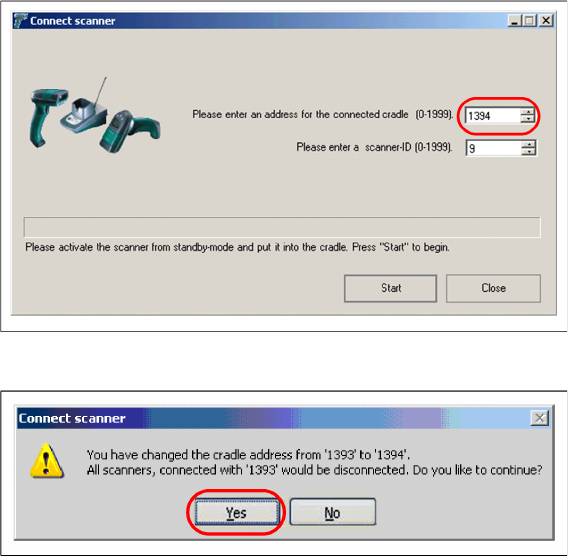
Changing the Cradle Address
If you want to change the cradle address in the future, you should notify that all previously connected
scanners will be disconnected. You have to reconfigure them again.
► Click “Start” to continue.
► Click “Yes” to confirm the change.
Installation
Datalogic Scanner Connection Steps to Perform After Installation
Installation Manual SIPLACE Setup Center 5.1 85
4.4.4.2 Bluetooth Scanner
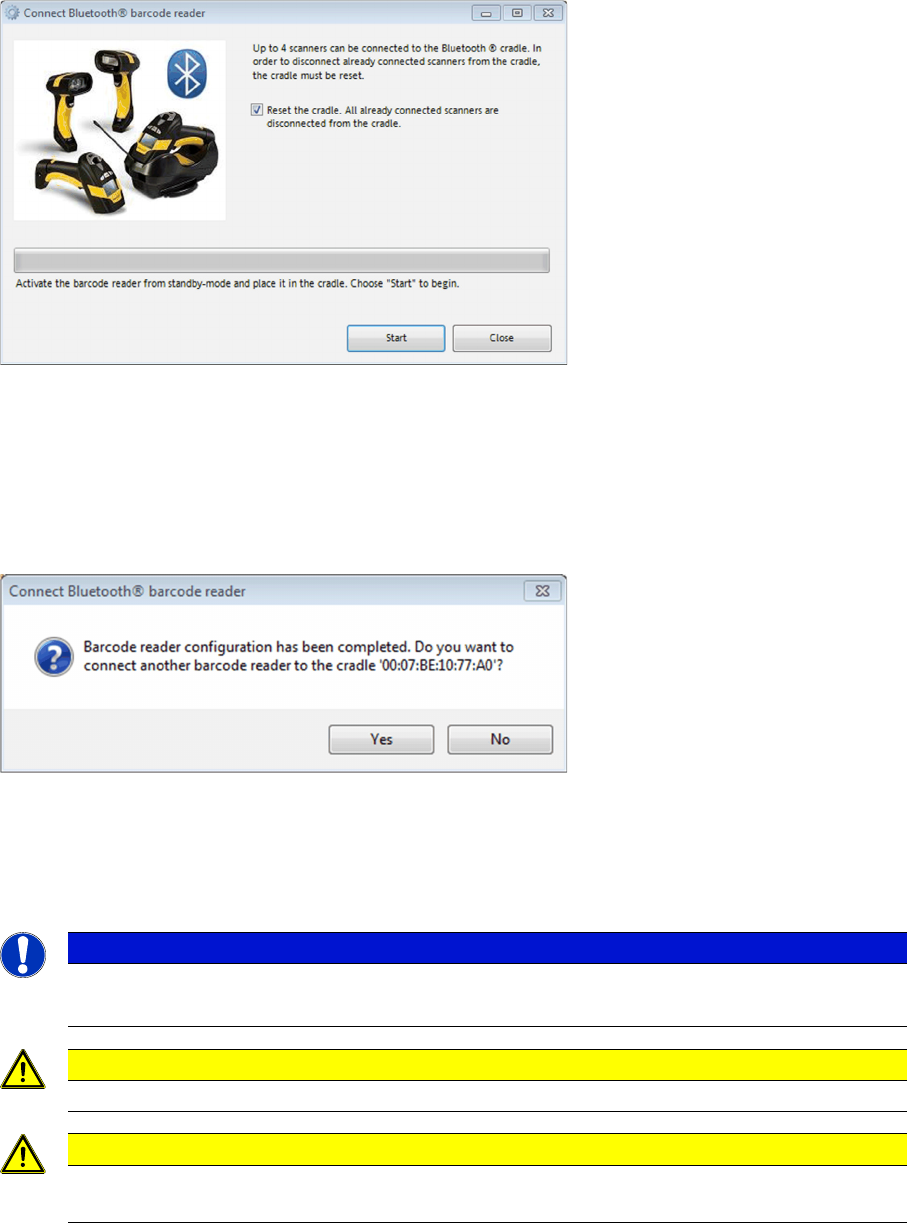
During the initial configuration of a bluetooth scanner the Reset the cradle……. checkbox is automati
-
cally enabled. This means that the cradle is reset and all bluetooth scanners that are possibly registered
at the cradle are deleted from the configuration.
► Click the barcode trigger-key on scanner one time to activate it from standby-mode.
► Put the scanner into the cradle and click Start to set up the scanner.
⇨ The scanner is being configured.
► Remove the scanner from cradle and press the “Enter”-key on scanner to check the connection to
Setup Center.
► Click Yes to connect another scanner with Setup Center.
► Activate the next Scanner from standby, put it into cradle and click Start.
NOTICE
4 scanners as maximum
A maximum of 4 scanners can be operated at the bluetooth cradle.
CAUTION
Do not scan or press keys at an already connected scanner, while configuring a new one.
CAUTION
It’s not recommended to move a cradle from one Setup Center Computer to another. In this
case, please configure each scanner again.
Installation
Steps to Perform After Installation Motorola / Symbol MC70/MC75 Scanner Configuration
86 Installation Manual SIPLACE Setup Center 5.1
4.4.5 Motorola / Symbol MC70/MC75 Scanner Configuration
4.4.5.1 Configurate Setup Center
The communication between Setup Center and scanner is achieved by network connection (socket).
Setup Center takes the role of the server and the scanner that one of the client.
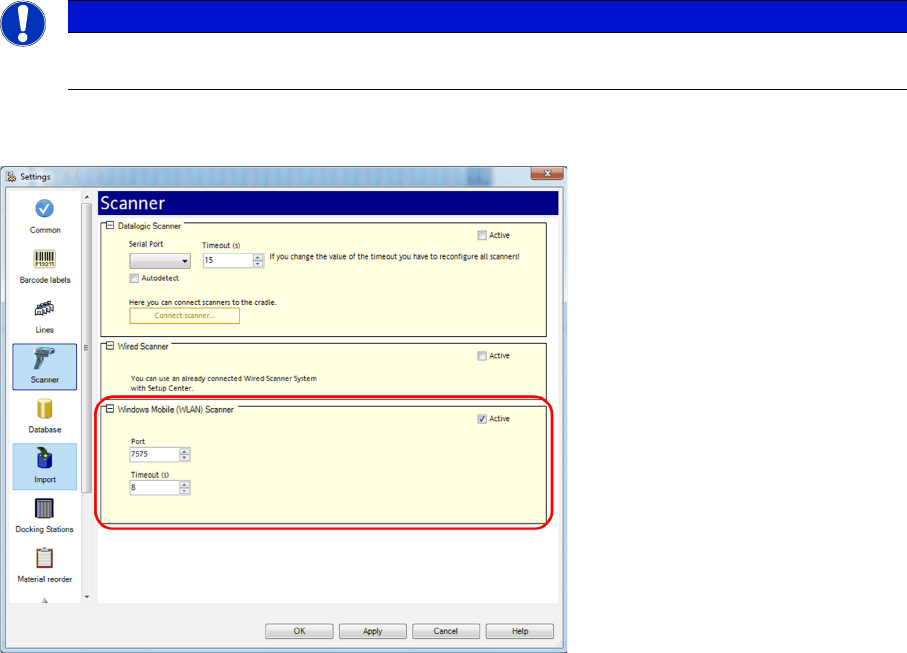
Start Setup Center and open the setting via Tools -> Settings. Within the group Scanner the following
entry is now visible:
Activate the interface by selecting "Active". Check the fire wall settings whether the port chosen by Setup
Center is enabled and correct it if necessary. To accept the settings close the configuration dialog with
"OK".
NOTICE
Please configurate the barcode scanner for the operation within WLAN network - as described
in document Installation Manual WLAN Infrastructure for SIPLACE (item no. 00197199-xx).