IT Feeder Manual-45Series(English V2.0)Ver5.pdf - 第49页
Part S tation 2-17 Figur e 2-13. Part S tation Pr ogram Exit scr een 2.4. Option menu When the Option menu is selected on the Main menu bar , the following 2 submenus appear . Configuration Sets basic configuration f…
Samsung Intelligent Feeder System
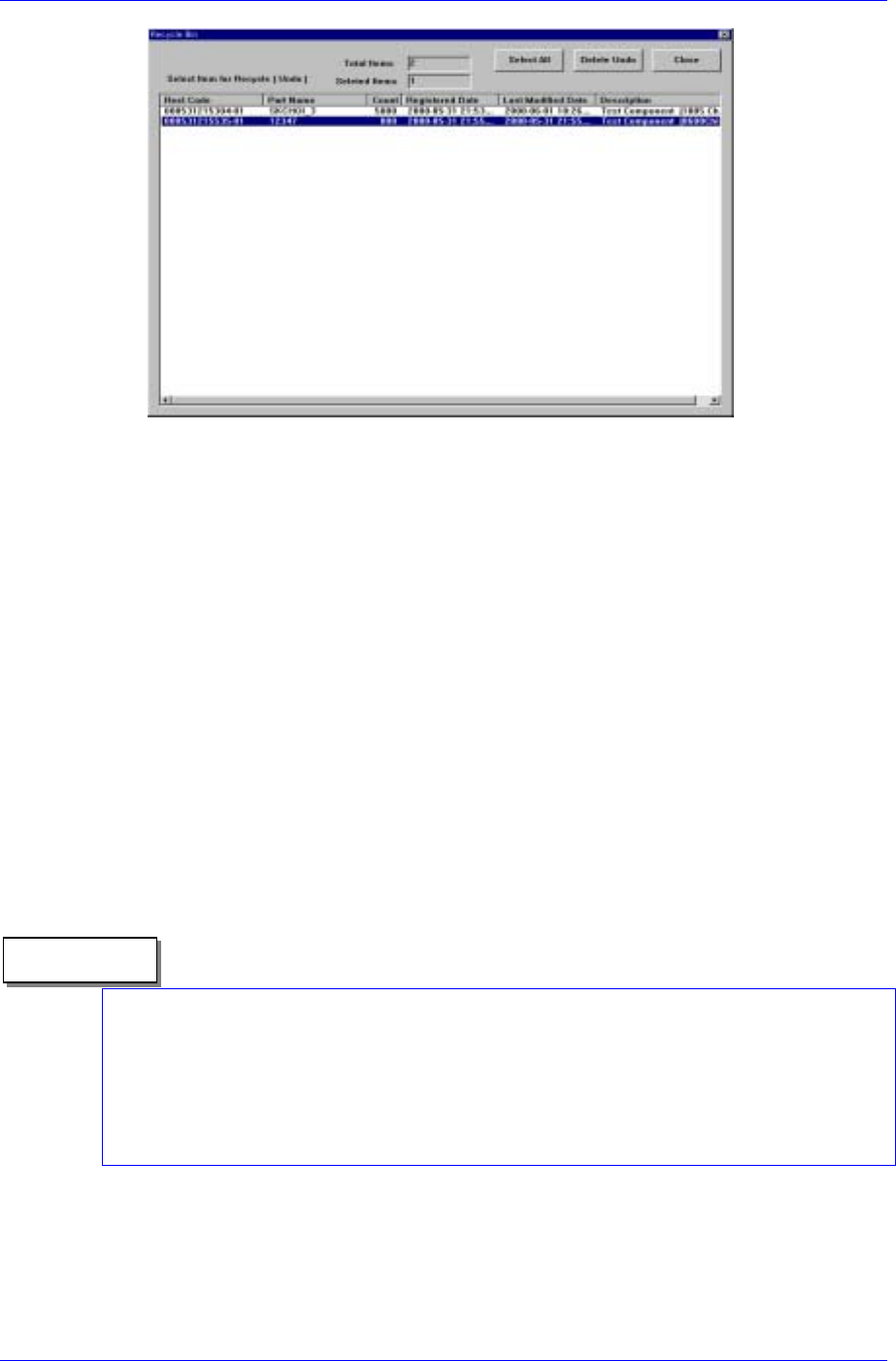
Figure 2-12.Recycle Bin screen
<Total Items> edit box
Displays the total number of deleted PartReels in the recycle bin
<Selected Items> edit box
Displays the number of Part Reels selected in the list box.
<Selected All> button
Selects all PartReels in the list box
<Delete Undo>button
Restores the PartReels selected in the list box (Restores them in the Database
again)
<Close>button
Closes the recycle bin dialog box. Closes the following screen and goes back to
the previous screen.
<Select Item Recycle for Undo> list box
Displays the deleted PartReels.
Reference
The recycle bin control function is provided so that reel data deleted inadvertently can be
restored. It is similar to the recycle bin function provided by Windows. The reel data
deleted from the recycle bin can not be restored. The purpose of restoring from the
recycle bin is to use the barcode (ReelCode) attached on the PartReel again. If a
ReelCode is discarded or detached, it can be produced again. After restoring, select the
ReelCode from the Part Reel Registration window and press <RePrint> to produce the
previous ReelCode.
2.3.5. Exit[Alt + F4]
Ends the Part Station program.
2-16
Part Station
2-17
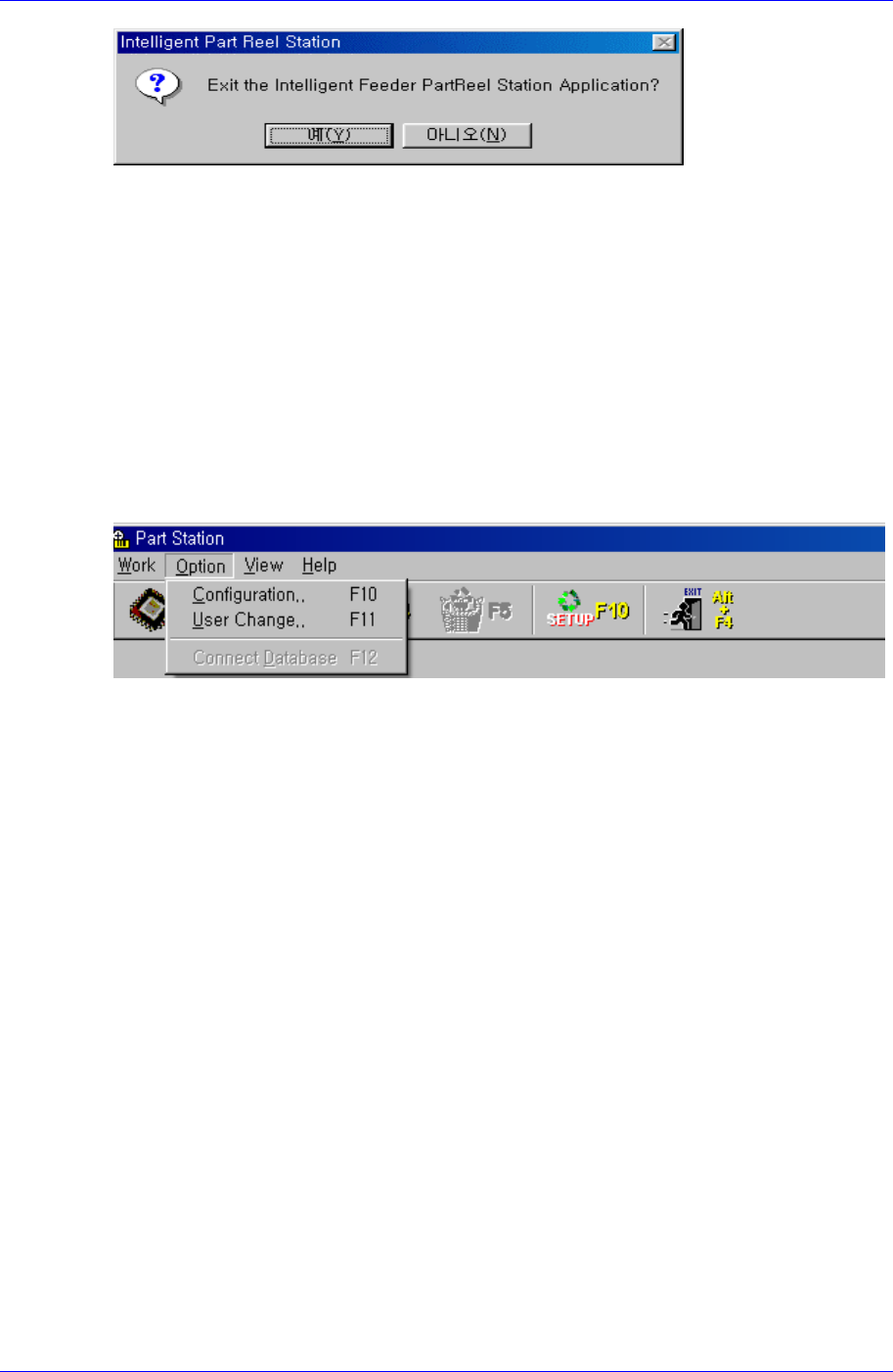
Figure 2-13. Part Station Program Exit screen
2.4. Option menu
When the Option menu is selected on the Main menu bar, the following 2 submenus
appear.
Configuration
Sets basic configuration for PartStation.
User Change
Changes the user mode of PartStation. The user mode consists of regular mode and
management mode.
Figure 2-14. Option screen
2.4.1. Configuration [F10]
When Configuration is selected from the Option menu, the following screen appears.
Samsung Intelligent Feeder System
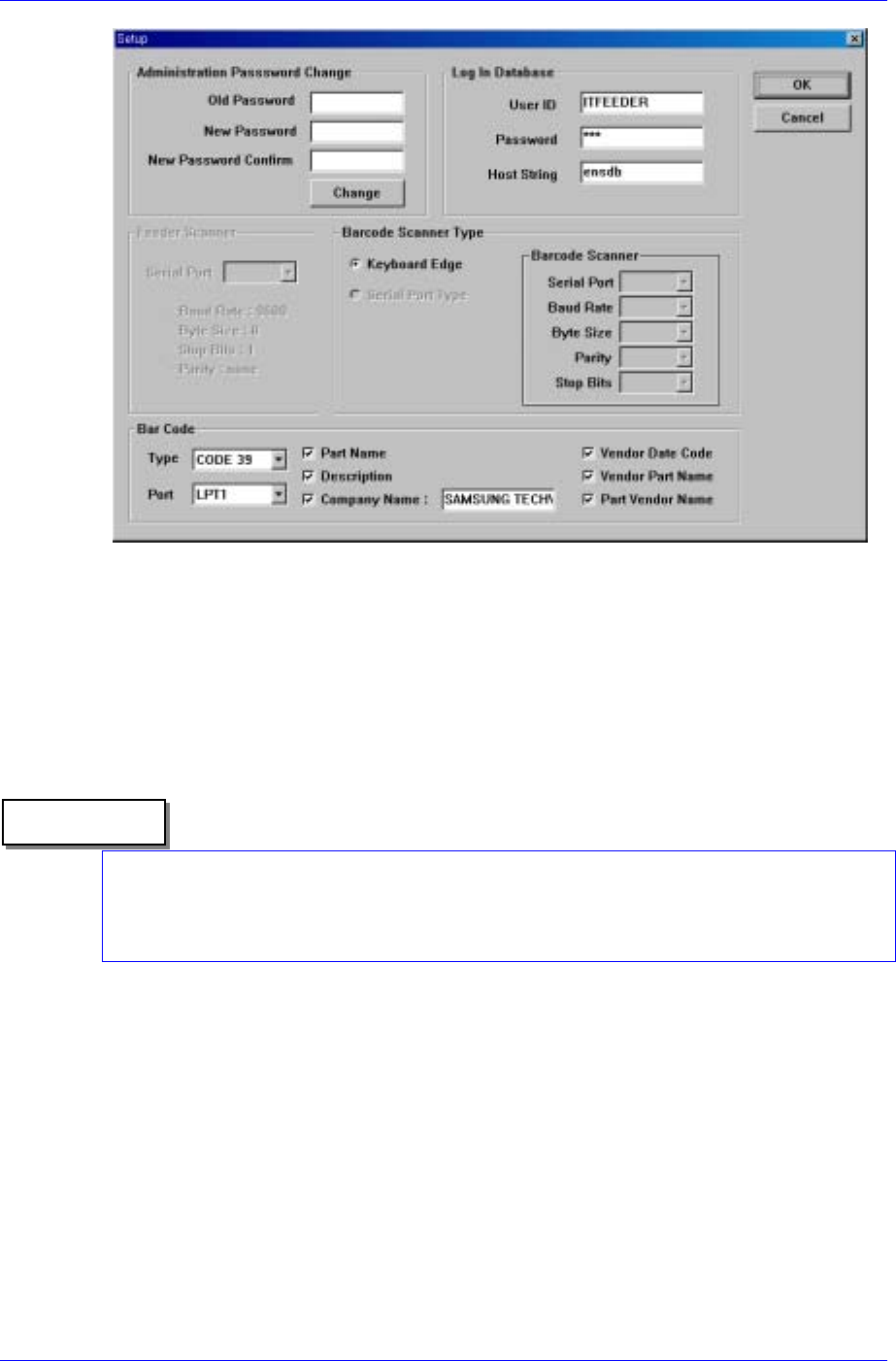
Figure 2-15.Configuration screen
The configuration screen consists of 7 areas.
Administration Password change: Changes the password for the management mode.
The 3 edit boxes underneath are codified so that the letters entered are not visible.
<Old Password> edit box: Enter the previous password.
<New Password > edit box: Enter the new password.
<New Password Confirm> edit box: Enter the new password to confirm.
Reference
<Change> button is used for changing to a new password.
A password can be composed of a maximum 7 characters including Alphabets, Korean
characters and number keys. Special keys cannot be used. If setup is performed without
pressing any key, the password cannot be changed afterward.
Log In Database
<User ID> edit box: Enter the user ID to access the Oracle Database.
<Password> edit box: Enter the password to access the Oracle Database.
<Host String> edit box: Enter the host string to access the Oracle Database.
Feeder Scanner
The set up screen for the Feeder RF-ID scanner, it is not used in PartStation. It is used
in FeederStation.
Barcode Scanner Type
There are two types of barcode scanners; keyboard type and serial type. KeyBoard
Edge type is supported by PartStation.
2-18