IT Feeder Manual-45Series(English V2.0)Ver5.pdf - 第53页
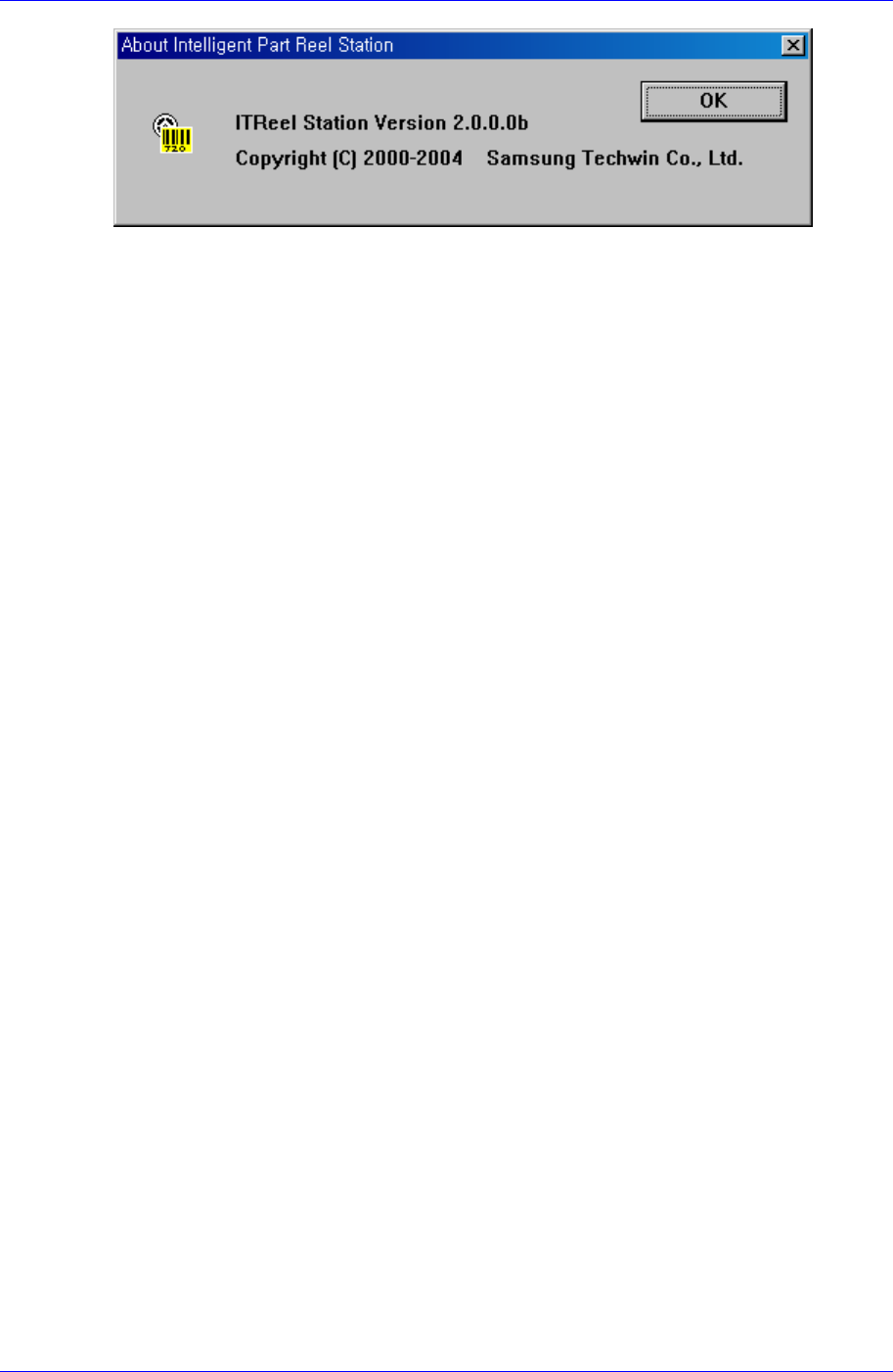
Part S tation 2-21 Figur e 2-21. About IT Feeder window
Samsung Intelligent Feeder System
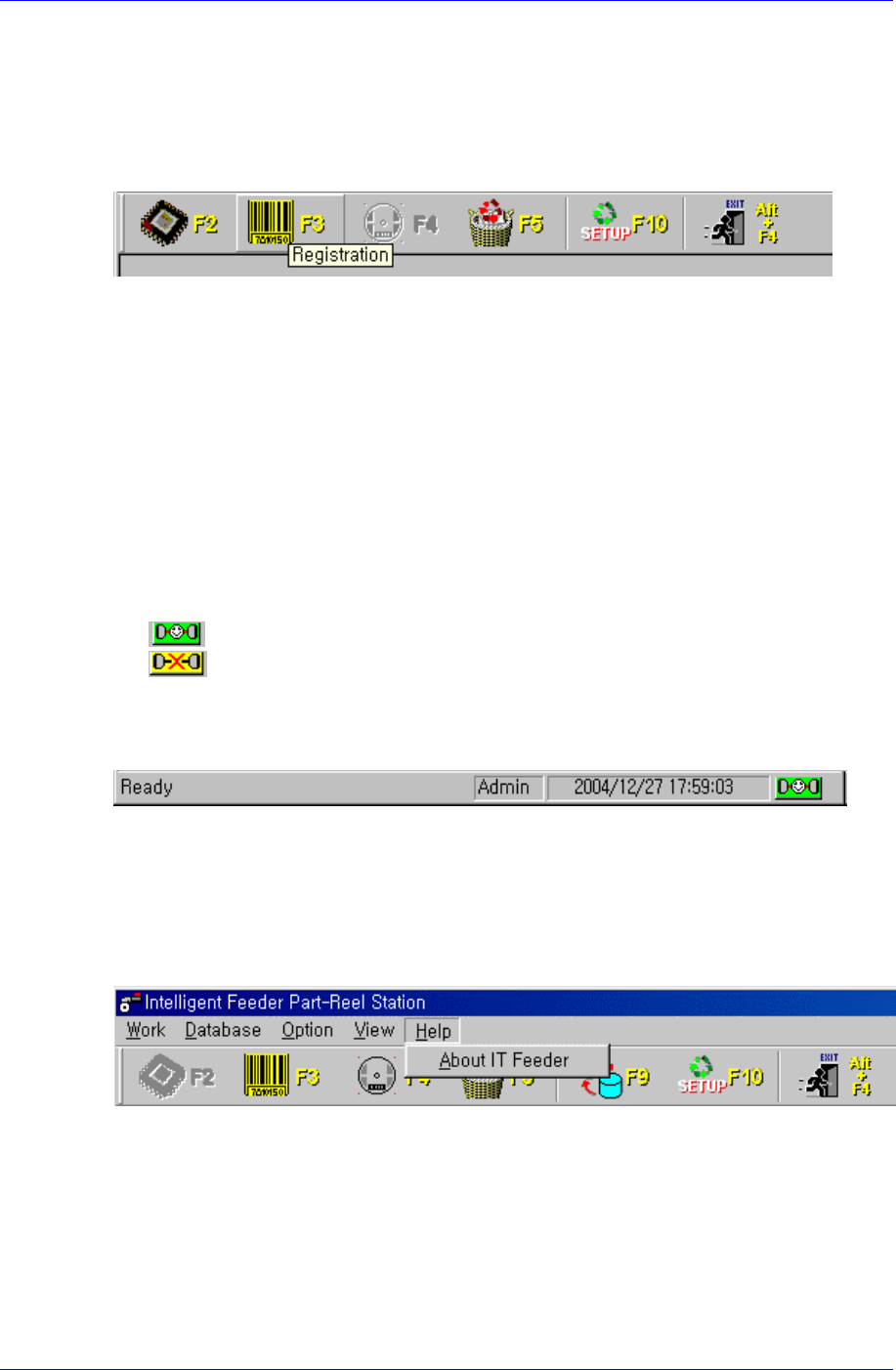
icons in the tool bar. Pressing an icon executes the respective menu just as selecting it in
the mouse pointer is located appears in the status bar at the
the Main menu.
Also, it provides a brief description of the menu. When the mouse pointer is located on
the icon button, tool tip appears in a small box as shown in the figure below. And a
description of the menu where
bottom. (Refer to Status bar).
igure 2-18. ToolBar window
2.5.2.
View of the Main menu, the user can have a screen
w that gives a description of the menu
or r
result
urrent user mode.
s of connection with the database
F
Status Bar submenu
By turning On/Off the Status bar in
with the status visible or invisible.
The status bar consists of the status display windo
esult, user mode window, and time window.
Status display window: Displays a description of the menu or the
User mode window: Displays or changes the c
Time display window: Displays current time.
ase display window: Indicate the statuDatab
: When connecting to the database
: When disconnecting to the database
To change the user mode, click the user mode with a mouse, then a window the same with
the user change window of the Main Menu appears. When the user is changed here, it is
processed just the same.
igure 2-19.
Status Bar window
2.6. Help menu
F
When the Help menu is selected on the Main menu bar, the following submenu appears.
igure 2-20.Help submenu
2.6.1.
rtStation Version information and tells that Samsung Techwin has the
copyright.
F
About IT Feeder
When the About…button is selected, the following window appears. The window
displays Pa
2-20
Part Station
2-21
Figure 2-21. About IT Feeder window