IT Feeder Manual-45Series(English V2.0)Ver5.pdf - 第66页
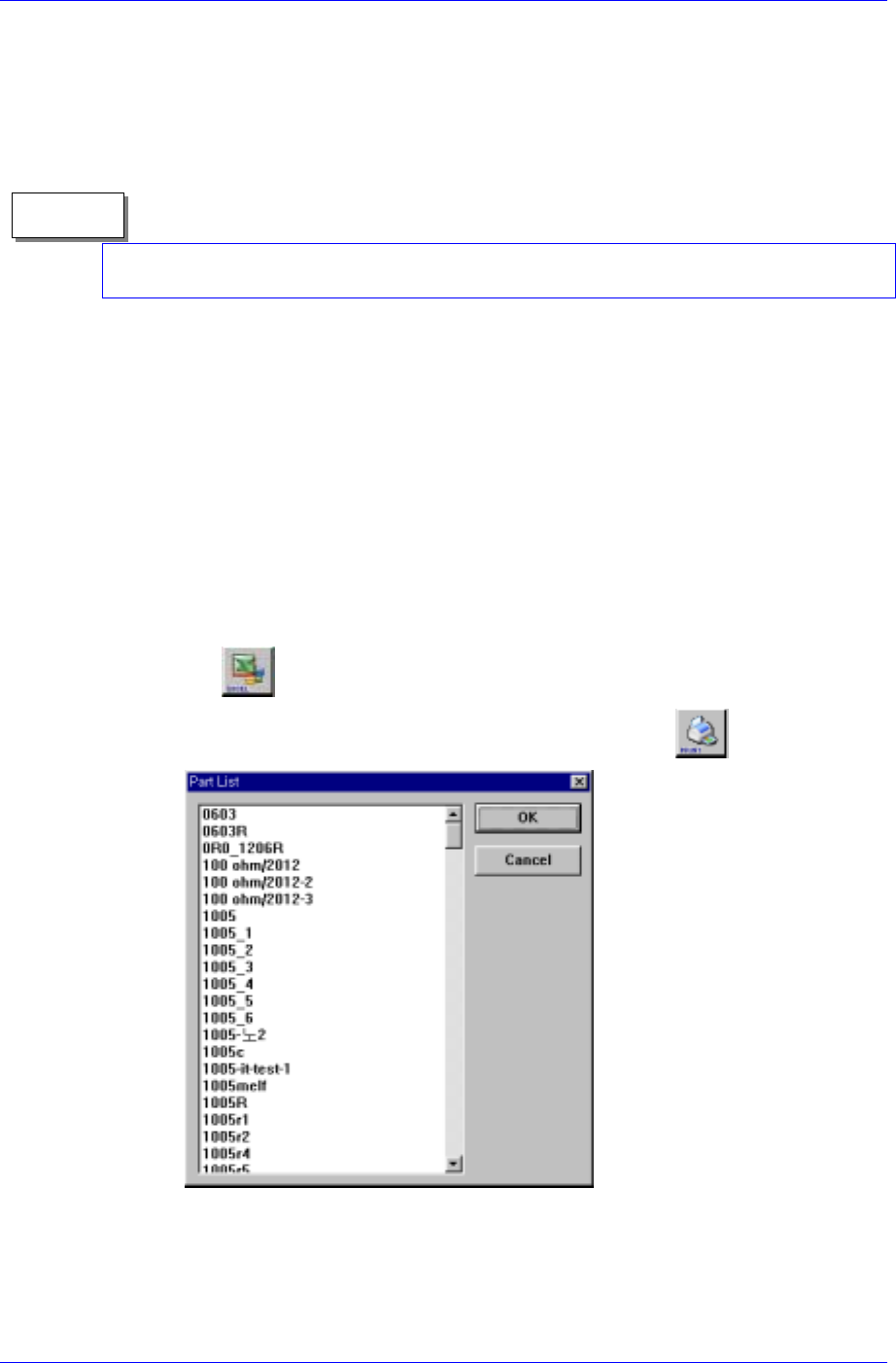
Samsung Intelligent Feeder System component name and registration date. T o execute it, select Part List from the Main menu, select on the tool bar , or press the [F5] key . Figur e 3-15. Part List sear ch scr een …
Feeder Station
is displayed. When a component is selected from the list, only the
information on the Feeders in which the respective component is mounted is
searched.
Feeder ID: When a Feeder ID is read, the respective information is displayed.
Selected Date: Searches Feeder information with a date condition.
If several conditions are selected, using AND will search data that satisfy all conditions
simultaneously.
Memo
Search result
When the Find button or the Enter key is pressed after all search conditions have
been set, the data that satisfy the search conditions are displayed by Feeder ID,
Feeder Type, Reel Code, component name, component count, facility code,
registration date, modification date and description.
Match whole word only: Perform search by comparing the full name when
checking.
Case-Sensitive: Perform search by dividing the big and small letter when
checking.
Excel Button
Used when saving the inquired list as an Excel(csv) file by pressing the
button.
Used when printing the inquired list by pressing the
button.
Figure 3-14. Component code selection screen
3.3.4. Part List[F5]
Part List allows the user to search the components registered in the equipment by
3-11
Samsung Intelligent Feeder System
component name and registration date.
To execute it, select Part List from the Main menu, select
on the tool bar, or
press the [F5] key.
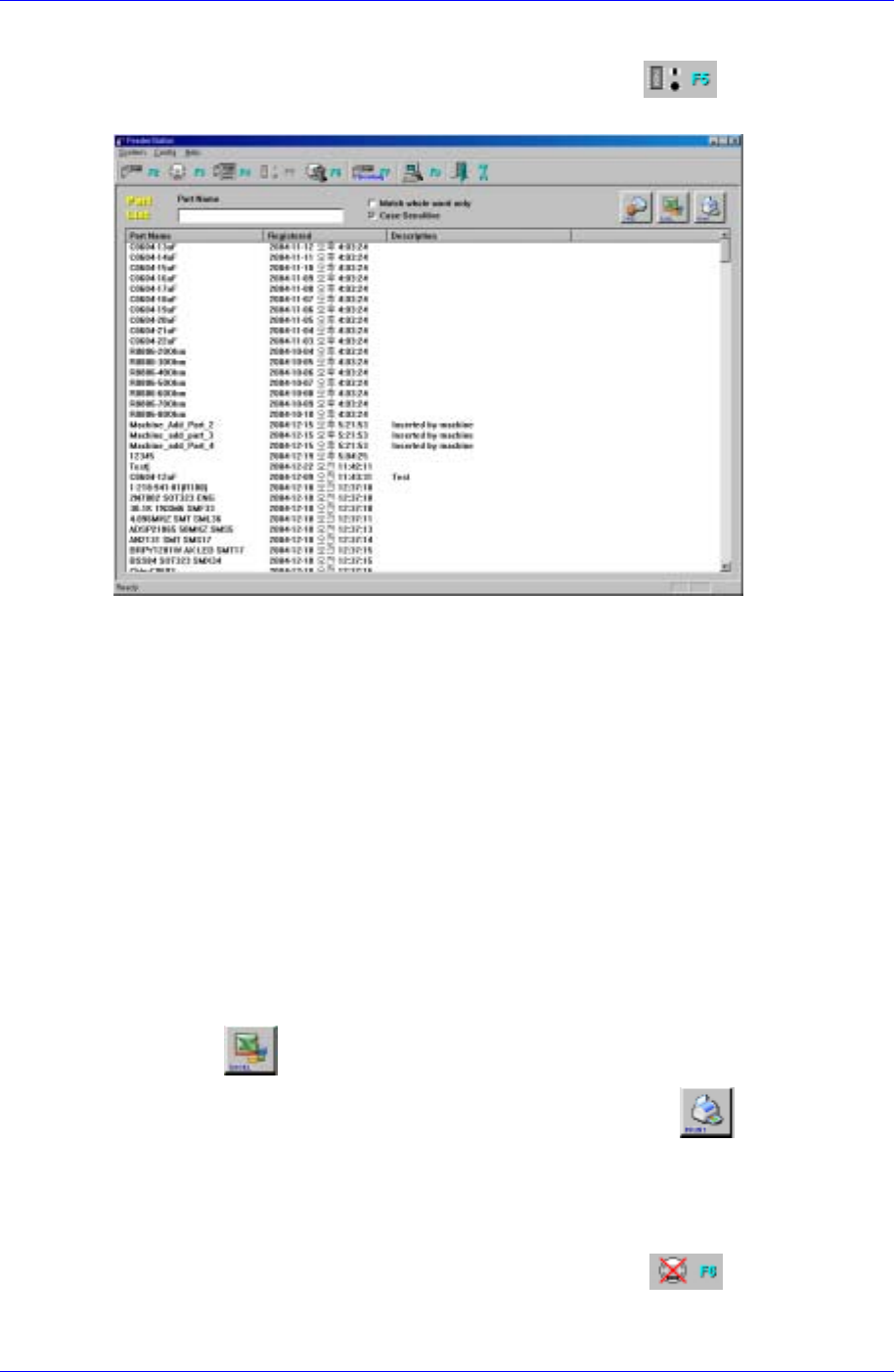
Figure 3-15. Part List search screen
Description of the screen
Query condition
Enter either the Part Name or a character string of the Part name to search.
To search all, leave Part Name blank.
Search result
Pressing the Find button or the Enter key after entering the Part Name searches
part data by Part name and registration date.
Match whole word only : Perform search by comparing the full name when
checking.
Case-Sensitive : Perform search by dividing the big and small letter when
checking.
Excel Button
Used when saving the inquired list as an Excel(csv) file by pressing the
button.
Used when printing the inquired list by pressing the
button.
3.3.5. Waste Reel[F6]
Waste Reel deletes registered Reel information or restores the deleted Reel.
To execute it, select Waste Reel from the Main menu, press
on the tool bar, or
press the [F6] key.
3-12
Feeder Station
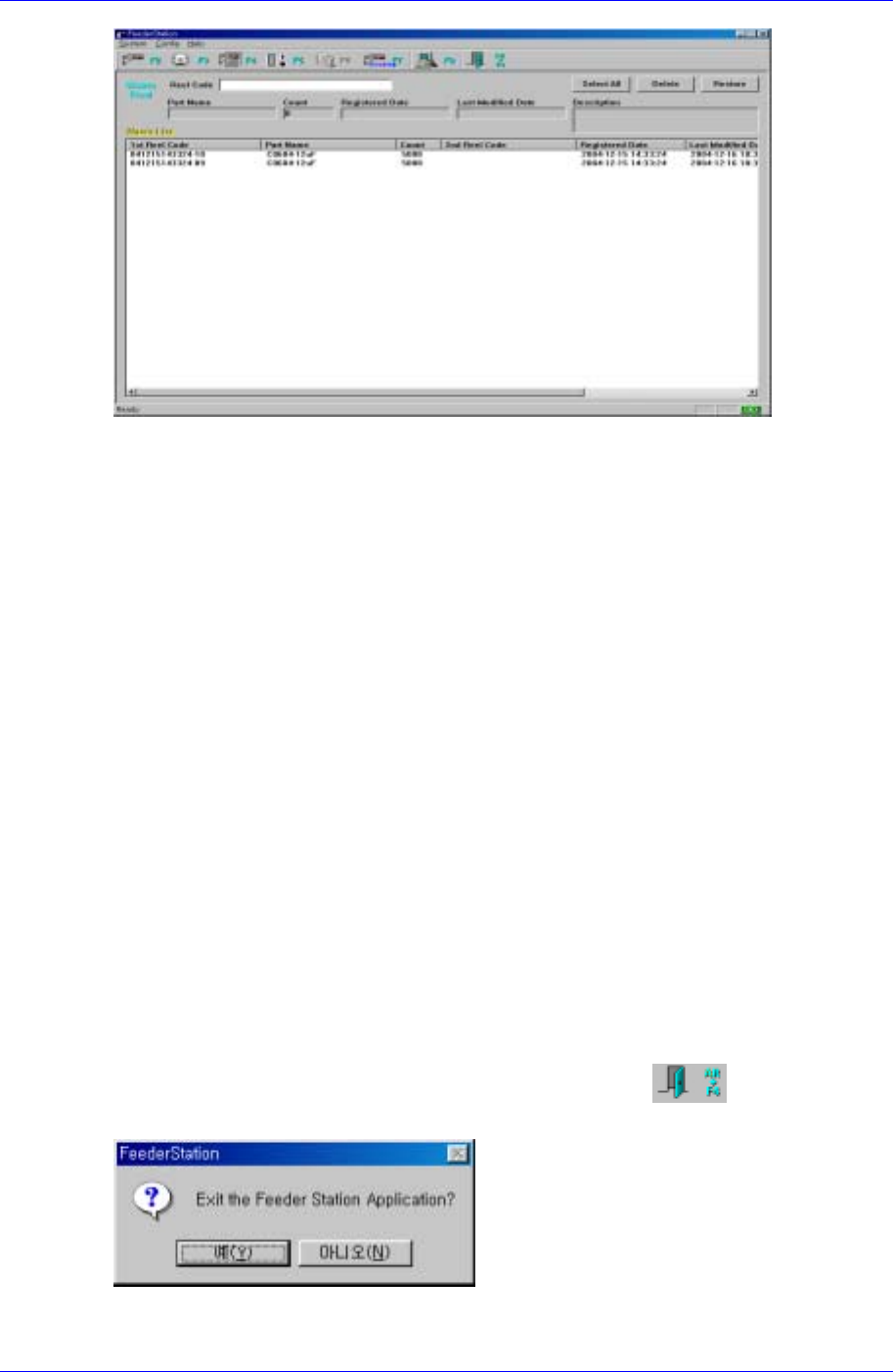
Figure 3-16. Waste Reel screen
Description of the screen
When a Reel Code is entered, the Reel to delete is displayed in the list. Use the
Delete or Restore button to delete or restore.
Reel Code input window
Reading the Part Reel to delete with a bar code scanner inputs it in the input
window automatically. Otherwise, enter it directly. The information on the Part
Reel entered is displayed in the Part Name, Count, Registered Date, Last
Modified Date, and Description below. And the information is listed in the Waste
List below.
Select All button
Selects all items in the list.
Use it to delete or restore all items in the list.
Delete button
Deletes the items selected in the list from the DB. The data deleted here can not
be restored.
Restore button
Restores the items selected in the list.
3.3.6. Exit[Alt+F4]
Ends the Feeder Station program.
Select the System Exit button from the Main menu, press the
button on the tool
bar, or press the [Alt + F4] key on the keyboard.
Figure 3-17. Program end screen
3-13