IT Feeder Manual-45Series(English V2.0)Ver5.pdf - 第62页
Samsung Intelligent Feeder System Figur e 3-9. Operation inf ormation scre en Figure 3-9 displays the registered Feeder information, worker , product name, line, equipment and front/back information. Pressing after modif…
Feeder Station
when the Feeder Id and Reel Code are entered and saved in the DB normally.
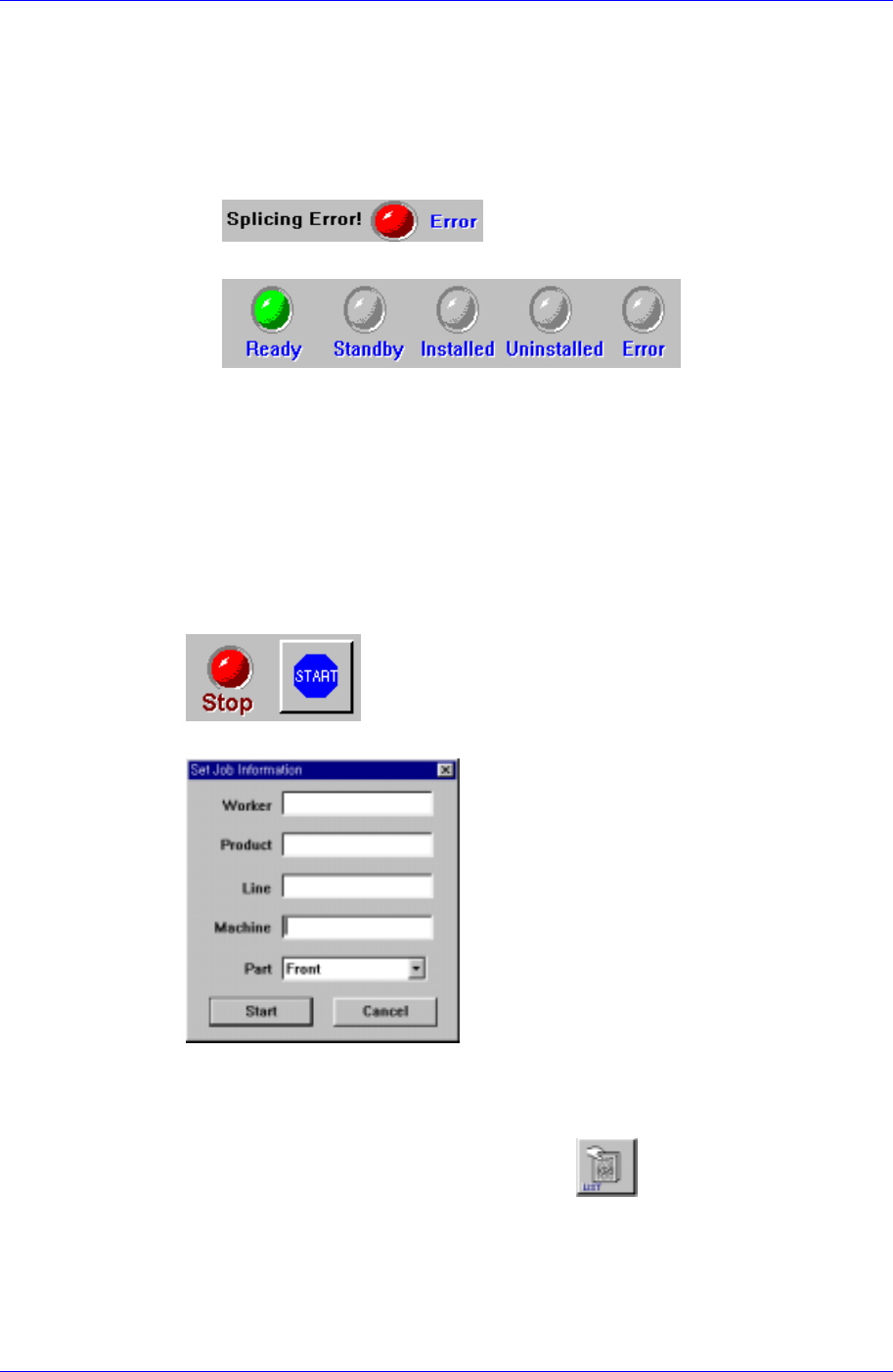
Uninstalled: The Uninstalled status works only in the Uninstall Mode. It is
displayed when the Reel is removed from the Feeder and the data is saved in
the DB normally.
Error: The Error status is displayed when saving data to the DB in the Install
or Uninstall Mode is unsuccessful. (Figure 3-5)
Figure 3-5. Error status display
Figure 3-6. Operation status display
Additional work
Starting an operation
To install a Part Reel in the Feeder, the destination Feeder should be specified.
When the Start button in Figure 3-7 is pressed, Figure 3-8 is displayed. When the
Start button is pressed after setting the worker number, product name, line to
install, equipment to install, and front/back, it is ready for Feeder installation.
The information entered above is printed on a Work Sheet and sent to the line
along with the registered Feeder.
Figure 3-7. Start Operation button
Figure 3-8. Operation information input screen
Searching an operation
Searches information on the Feeder in operation or completed Feeders. The result
can be made into a Work Sheet. When the
button is pressed, Figure 3-
78is displayed.
3-7
Samsung Intelligent Feeder System
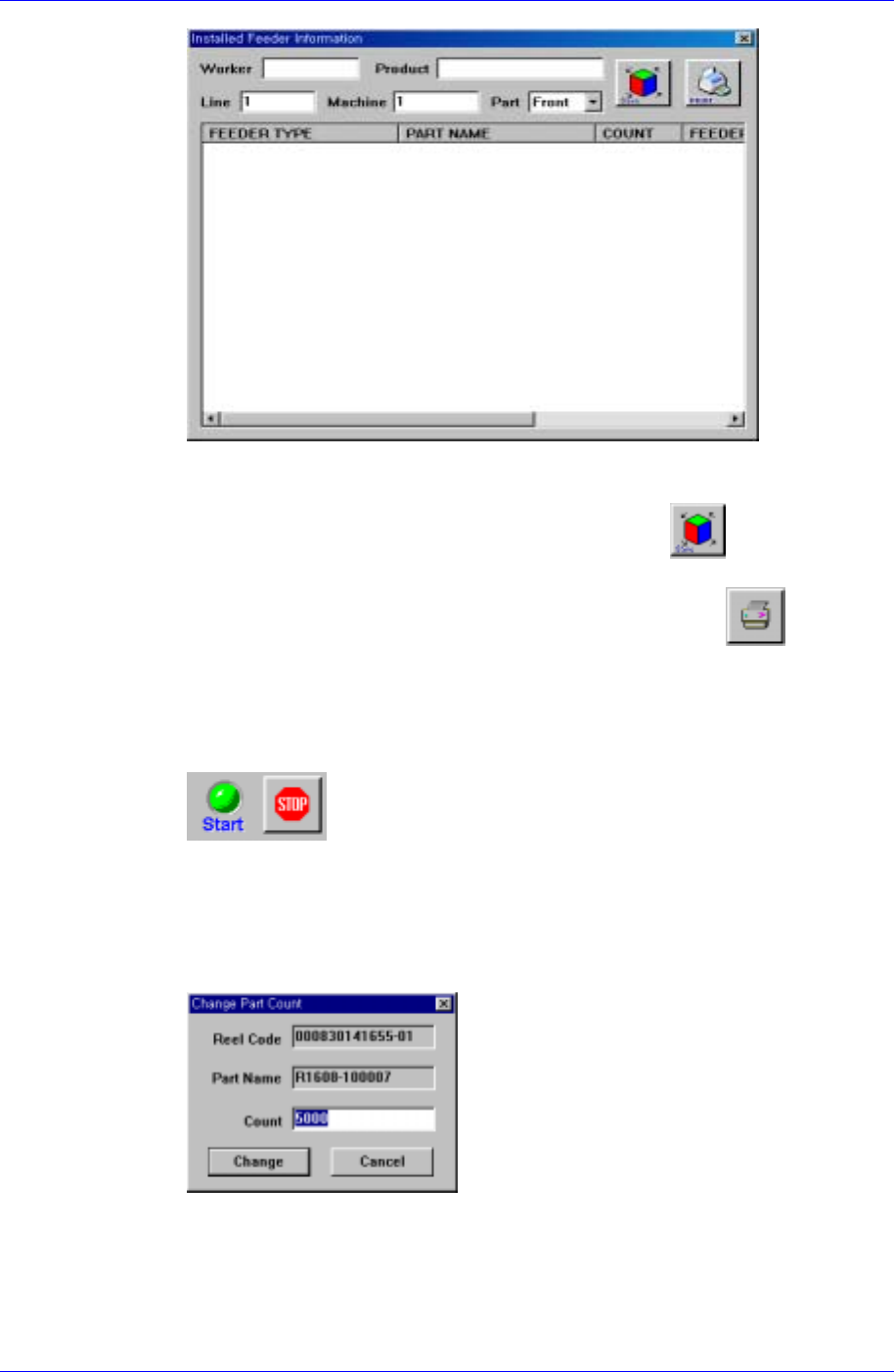
Figure 3-9. Operation information screen
Figure 3-9 displays the registered Feeder information, worker, product name, line,
equipment and front/back information. Pressing
after modifying
information on worker, product name, line, equipment, or front/back changes the
information to the modified one. To print a Work Sheet, press
.
Ending an operation
Pressing the Stop button in Figure 3-10 after finishing Feeder installation ends
the operation. The Install Mode is disabled and only the Find and Uninstalled
modes are abled.
Figure 3-10. Operation stop button
Changing the component count
Possible to change the component count for the selected Part Reel. Pressing the
Change button displays Figure 3-11. Changing the component count and pressing
the Change button saves the changed number in the DB.
Figure 3-11. Component count change screen
Feeder registration
In case a new RF-ID Feeder is delivered, the feeder ID must be registered in the
database prior to use. In the Feeder Info[F2] screen if a non-registered feeder ID
is recognized, the Feeder Registration Dialog box is displayed. Enter the feeder
3-8
Feeder Station
type and description and press the <OK> button, then the feeder ID is saved in
the database for future use.
The Feeder Registration is displayed only when a feeder is recognized in the
feeder station for the first time. The feeder function can be changed using the
Modify Feeder [Ctrl+M] function.
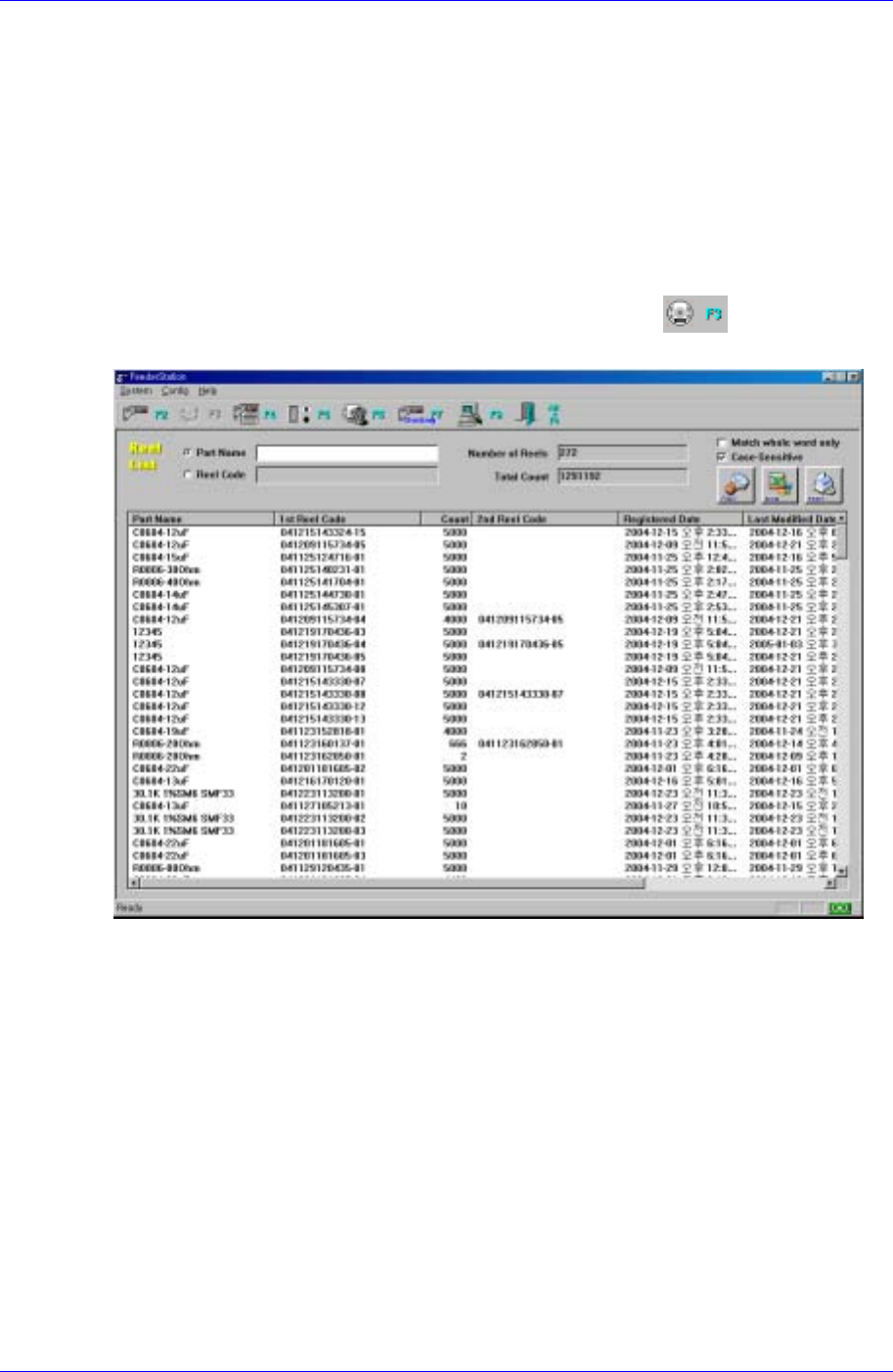
3.3.2. Part Reel List[F3]
Possible to search data such as component name and registration date of the Part Reel
entered in the PartPart Station.
To execute it, select Part Reel List from the Main menu, select
on the tool bar, or
press the [F3] key.
Figure 3-12. Part Reel List search screen
Description of the screen
Entering the component name or a character string of the component to be searched
in Part Name and pressing the Find button or the Enter key finds only the components
that satisfy the condition. To search all components, leave Part Name blank and press
the Find button or the Enter key.
Match whole word only : Perform search by comparing the full name when
checking.
Case-Sensitive : Perform search by dividing the big and small letter when
checking.
Data can be searched by component name, Reel Code, component count,
Registeration date, Modification date and description.
3-9