00197622-02_IM_OIS_SIS_12.1_DE_EN.pdf - 第16页
SIPLACE OIS V12.1 / Insta llation Manual Ausgabe 05/2015 Edition 16 Figure 3-16: Defining a password for OisEngineer ► Enter a password for the Oi sEngineer . ► Enter the password a gain to confir m. ► Click Next > . …
SIPLACE OIS V12.1 / Installation Manual Ausgabe 05/2015 Edition
15
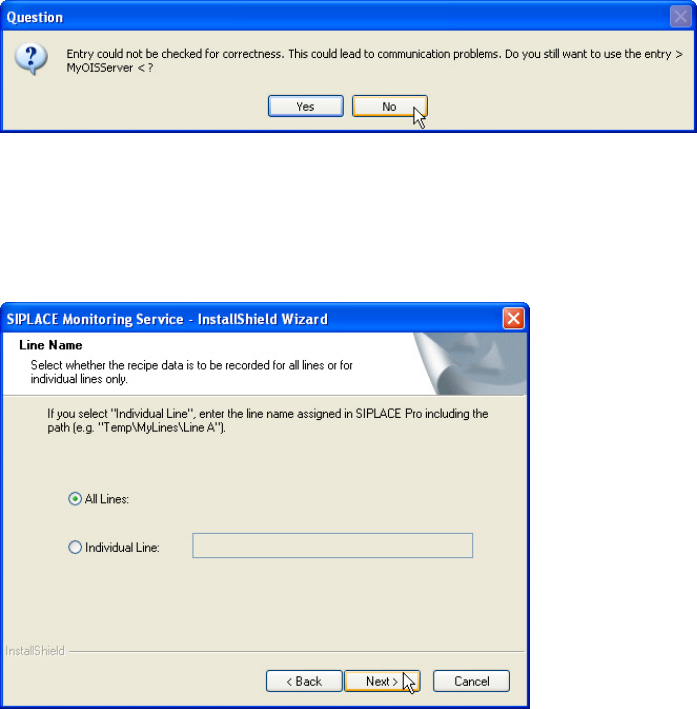
If the connection cannot be checked, the following question is displayed.
Figure 3-14: Connection cannot be checked
► Click No and check your entry again.
► Click Next > as soon as the entry has been successfully checked for correctness.
The following dialog is opened by Monitoring Server.
Figure 3-15: Selecting line(s)
► Select the line(s) for which the recipe data is to be recorded.
► Click Next >.
The operating levels of the OIS system are mapped to operating system user accounts. The
following two user groups are created in the User Manager on the OIS Server computer for this
purpose.
● OisEngineers for the Line engineer operating level
● OisAdministrators for the Administrator operating level
Only those users who are members of the relevant user group are permitted to switch to a given
operating level.
The following users are created and assigned to the user groups by default during installation:
● OisEngineer for the Line engineer operating level, is a member of the OisEngineers user
group
● OisAdministrator for the Administrator operating level, is a member of the
OisAdministrators user group
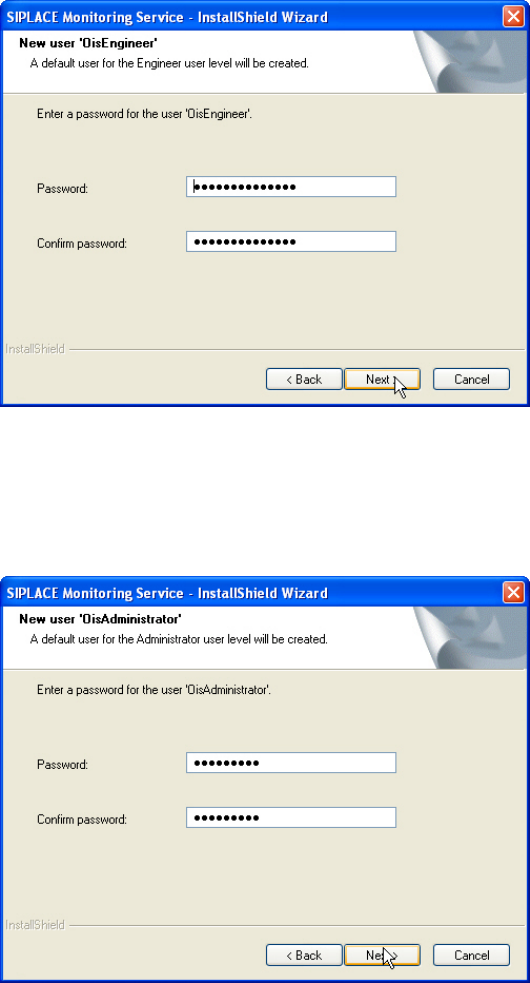
The next two dialog boxes allow you to assign a password to each user.
SIPLACE OIS V12.1 / Installation Manual Ausgabe 05/2015 Edition
16
Figure 3-16: Defining a password for OisEngineer
► Enter a password for the OisEngineer.
► Enter the password again to confirm.
► Click Next >.
Figure 3-17: Defining a password for OISAdministrator
► Enter a password for the OisAdministrator.
► Enter the password again to confirm.
► Click Next >.
SIPLACE OIS V12.1 / Installation Manual Ausgabe 05/2015 Edition
17
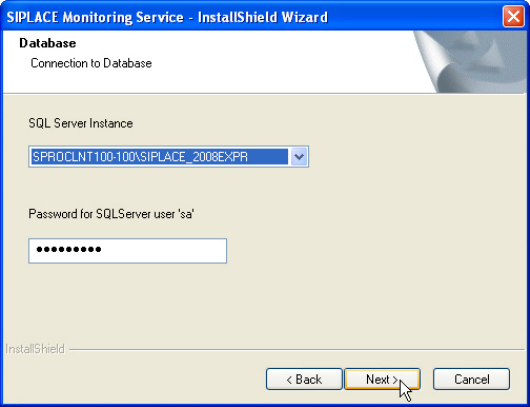
The following dialog box is opened.
Figure 3-18: Connection to database
► Select a database instance.
The installation routine must log in to the SQL Server as system administrator (sa) in order to set
up or update the database schema.
► Enter the system administrator password.
► Click Next >.