00197622-02_IM_OIS_SIS_12.1_DE_EN.pdf - 第22页
SIPLACE OIS V12.1 / Insta llation Manual Ausgabe 05/2015 Edition 22 3.3 Modify i ng the installation The Modify op tion allows you to change the installatio n entries made t o date. This allows you, for instance, to add …
SIPLACE OIS V12.1 / Installation Manual Ausgabe 05/2015 Edition
21
3.2.2 Finishing the installation of the SIPLACE OIS software
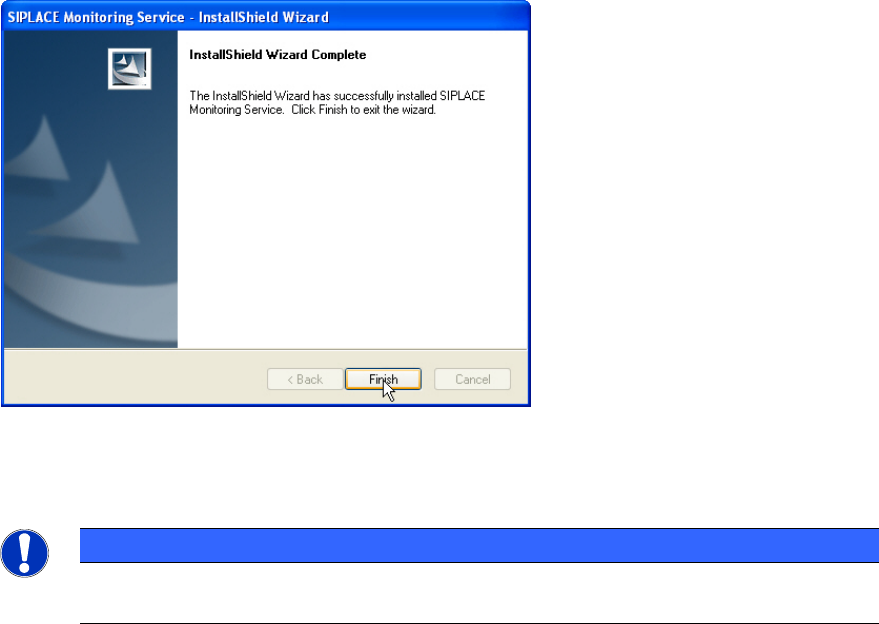
Once the installation process has been completed, the following dialog box appears.
Figure 3-25: Finishing installation
► Click Finish to close the setup.
NOTICE
If this dialog box suggests rebooting the computer, you should do so, as the installation
is only completed after a reboot.
SIPLACE OIS V12.1 / Installation Manual Ausgabe 05/2015 Edition
22
3.3 Modifying the installation
The Modify option allows you to change the installation entries made to date. This allows you, for
instance, to add or remove a language.
► Click the Windows Start button and select Settings and then Control Panel.
► Start the Add/Remove Programs dialog, by double-clicking on Add/Remove Programs.
► Select the program from the list (SIPLACE OIS / SIPLACE Monitoring Service) and click on
Change/Remove.
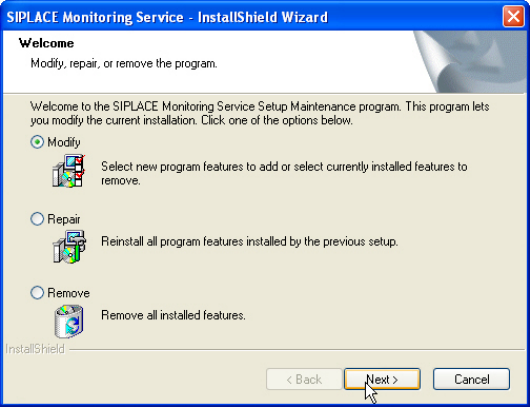
The setup program will start and display the following dialog box.
Figure 3-26: Modifying program
► Select Modify.
► Click Next >.